Mini DisplayPort is becoming rare on current computers, but calling it obsolete misses an important distinction: the compact connector is fading away, while the DisplayPort technology it carries remains highly relevant to PC gaming. For anyone connecting a gaming PC, laptop, monitor, dock or older display, the useful question is no longer “Is DisplayPort dead?” It is “Which physical port carries the signal my setup needs?”
That difference matters because Mini DisplayPort, full-size DisplayPort, USB-C and Thunderbolt can overlap in confusing ways. Some use the same underlying video protocol. Some share a connector but offer very different capabilities. And some old devices work cleanly with a basic cable, while others—particularly certain VR headsets and legacy displays—can become unreliable once adapters enter the chain.
The short version is straightforward. Mini DisplayPort is a legacy connector worth understanding if it is already on your hardware. Full-size DisplayPort remains a major connection for graphics cards and high-end monitors. USB-C has displaced Mini DisplayPort on many modern laptops because it can combine data, video, audio and, in compatible implementations, Thunderbolt support in one compact reversible port.
Mini DisplayPort’s connector is the part that is disappearing
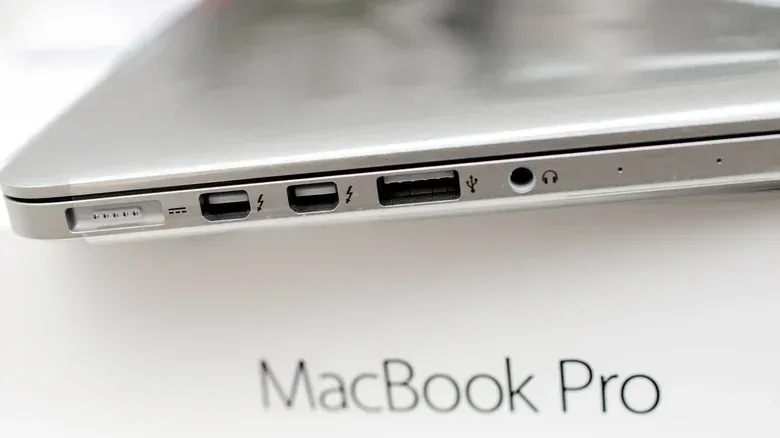
Apple introduced Mini DisplayPort in 2008 as a slimmer replacement for older display connections such as VGA and DVI. It made practical sense for compact computers, including MacBooks and the Mac mini, where every millimeter on the chassis matters. For years, it appeared broadly across Mac hardware before being removed from the company’s newer Macs.
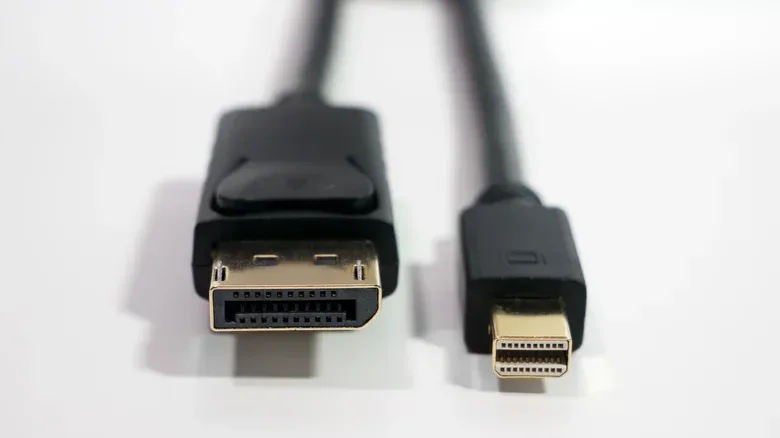
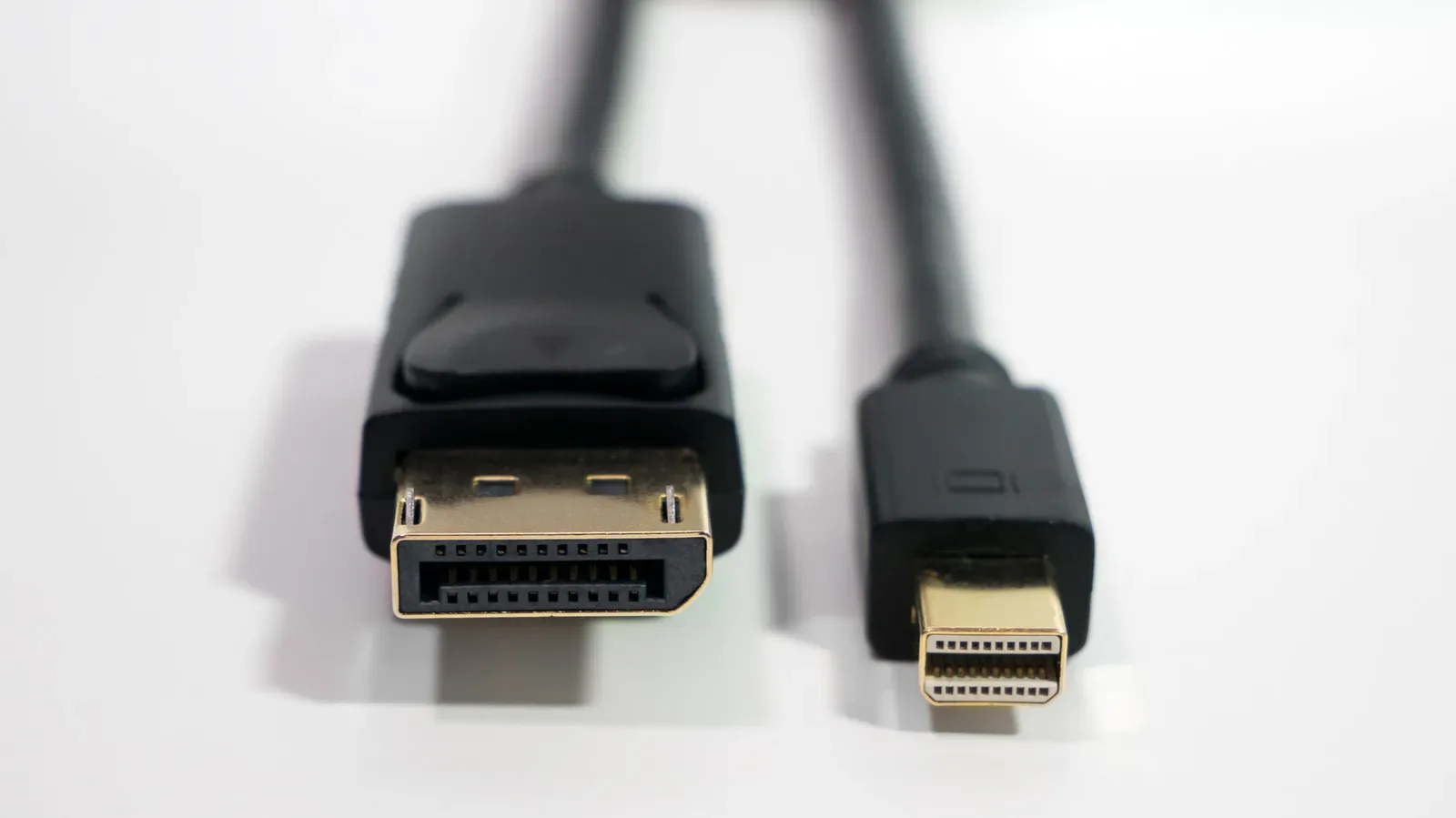
Its smaller plug should not be mistaken for a lesser version of the video standard. Mini DisplayPort and the larger, conventional DisplayPort connector support the same core specifications. The meaningful difference is physical shape, not a built-in downgrade to the signal.
Both can carry video and audio through one cable. That was a major improvement over old connections such as VGA and DVI, which are far more limited for modern display demands. Depending on the DisplayPort generation, the standard can support resolutions up to 8K and beyond, with high refresh rates of 144Hz or more depending on resolution. Those capabilities are why DisplayPort remains a familiar sight on gaming monitors and graphics cards even as Mini DisplayPort itself becomes unusual.
For players, a refresh rate is the number of times a display can update per second, measured in hertz (Hz). Higher refresh rates can make motion appear smoother, assuming the rest of the PC and game can provide frames at a matching pace. Resolution and refresh rate both require bandwidth, so the link between the computer and monitor can matter as much as the monitor’s headline specification.
Thunderbolt made Mini DisplayPort useful—then USB-C replaced its plug
The story of Mini DisplayPort is closely tied to early Thunderbolt. Thunderbolt’s first two versions used the Mini DisplayPort connector. A standard Mini DisplayPort connection carried video and audio, but Thunderbolt added high-speed data transfer capability. In effect, Thunderbolt used that compact connector to make one cable useful for displays, data and accessories, including Apple’s Cinema Display.
That arrangement did not last. Thunderbolt 3 arrived in late 2015 and 2016 with USB-C as its connector, and computer makers rapidly gravitated toward USB-C and HDMI instead of retaining Mini DisplayPort. This is a case where the cable-shaped port won through versatility, not because DisplayPort’s video capabilities ceased to matter.
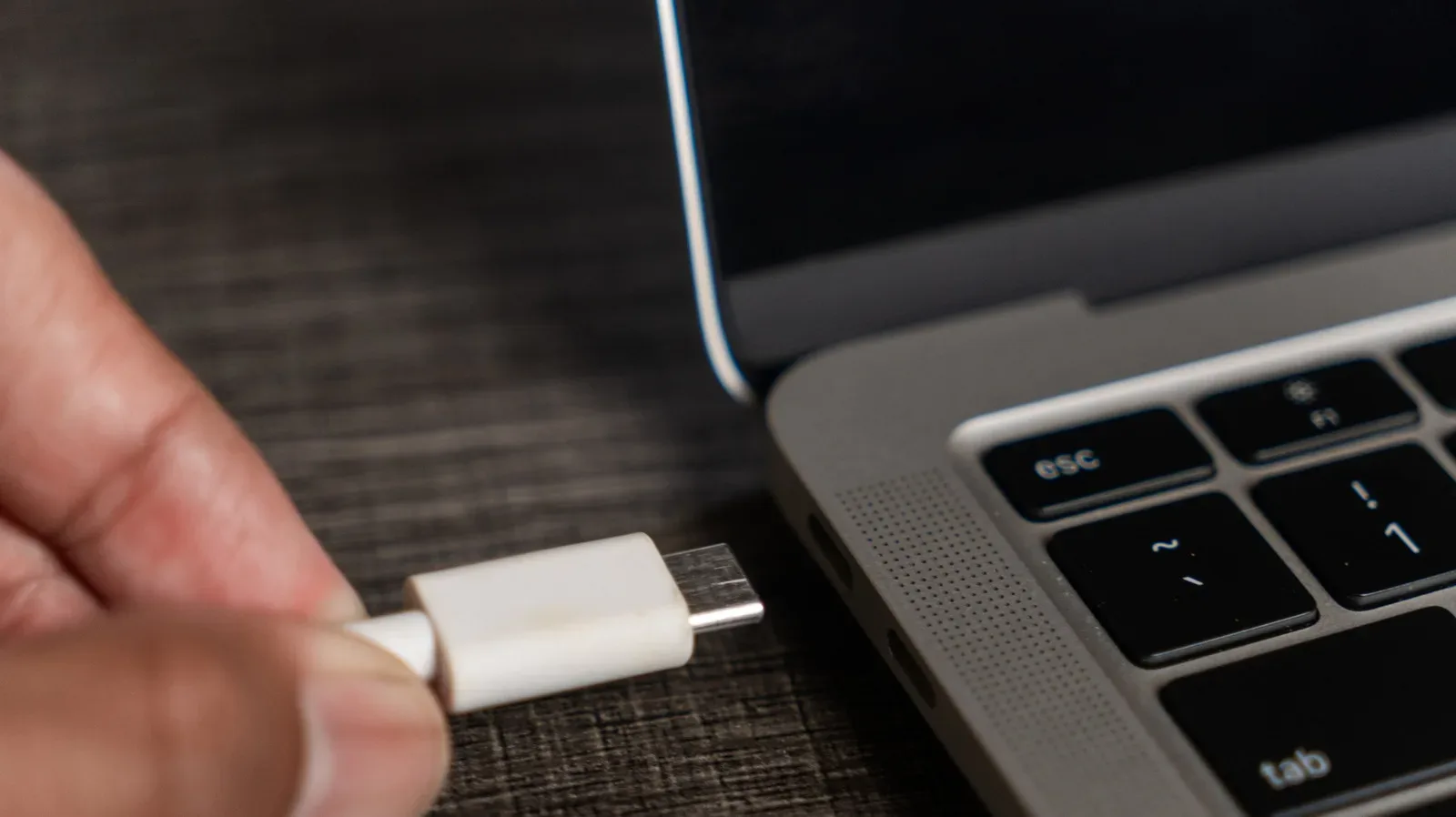
USB-C is now commonly used for charging, high-speed data, audio, video and Thunderbolt, depending on the device. Its plug is also reversible, eliminating the orientation problem of older connectors. For a laptop maker trying to reduce the number of holes along the side of a machine, that flexibility makes a dedicated Mini DisplayPort socket much harder to justify.
There is an important caveat: USB-C describes the connector, not a guaranteed feature set. The presence of a USB-C port does not by itself promise display output, Thunderbolt support or identical transfer capability. A user checking whether a USB-C laptop can drive a monitor needs confirmation that the particular port and cable support the required video function.
One key technology here is DisplayPort Alternate Mode, often shortened to DP Alt Mode. It allows compatible USB-C ports and cables to carry a DisplayPort signal. In practical terms, that can let a user connect a modern USB-C-equipped computer to a DisplayPort monitor with a USB-C-to-DisplayPort cable, rather than needing a dedicated Mini DisplayPort-to-DisplayPort solution.
The jargon can make this sound like conversion, but the useful point is that DisplayPort continues to be part of the equation. USB-C often acts as the modern physical route for that video signal. It did not erase the role of DisplayPort in demanding monitor setups; it reduced the need for Mini DisplayPort as a separate physical connector.
Why full-size DisplayPort still matters to gaming PCs
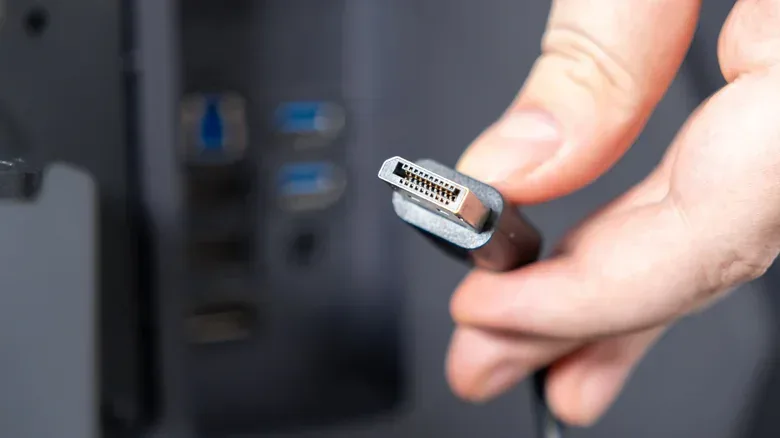
On a desktop PC, full-size DisplayPort remains common on graphics cards and high-end monitors. That is especially relevant where resolutions and refresh rates climb together. HDMI has advanced substantially and can carry video at very high resolutions, but DisplayPort retains a substantial bandwidth advantage in the versions discussed here.
- HDMI 2.1 offers up to 48 Gbps of bandwidth.
- DisplayPort 2.1 can reach 80 Gbps.
- HDMI 2.2 offers 96 Gbps, potentially narrowing that gap when compatible hardware becomes widely available.
Bandwidth is the capacity of a connection to move data in a given amount of time. More available bandwidth is useful when a display target is particularly demanding: a high resolution needs a great deal of image data, and a fast refresh rate means sending that data repeatedly and quickly. That is why 4K at 240Hz is a meaningful example of the kind of ambitious target for which DisplayPort remains a prominent option.
This does not mean HDMI is universally the wrong choice or that one number determines every real-world monitor experience. The right port remains the one shared by the computer and display that supports the mode a user actually intends to run. But someone shopping for a high-spec PC monitor should not dismiss a full-size DisplayPort input as old-fashioned simply because their laptop uses USB-C. It may be the direct connection a desktop graphics card is designed to use.
The same broader buying habit applies to screens beyond a gaming desk: a spec sheet is only one part of long-term usefulness. For a related look at why support considerations can outlive a headline display specification, see why Smart TV software support can matter more than the picture spec sheet.
What to do with an older Mini DisplayPort device
For owners of older laptops or graphics cards, Mini DisplayPort is not automatically a problem. Because Mini DisplayPort and full-size DisplayPort use the same underlying protocol, a Mini DisplayPort-to-DisplayPort cable can connect compatible older hardware to a current monitor with a standard DisplayPort input. The devices can communicate normally because the signal standard is shared.
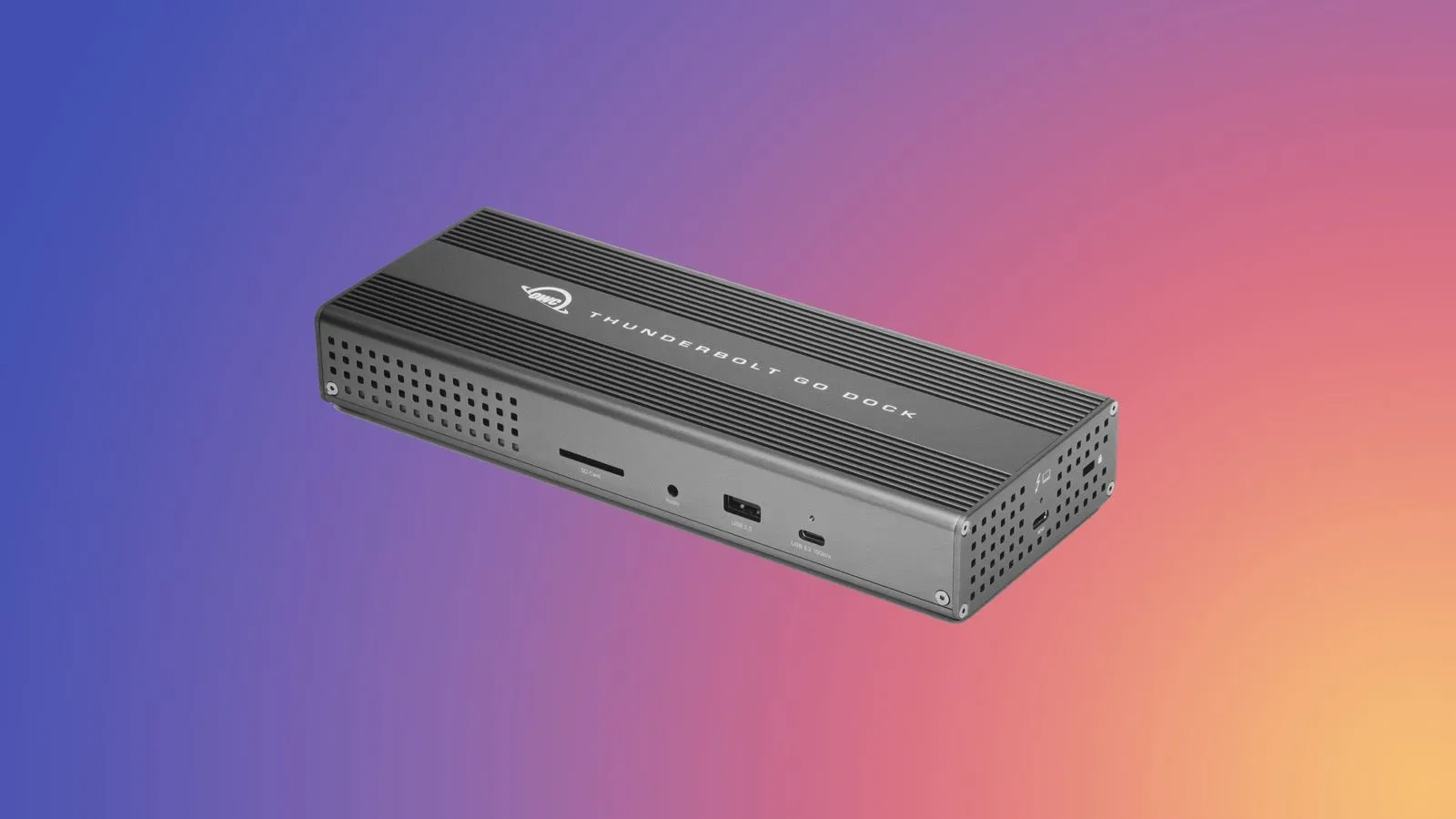
That makes a cable a sensible first choice when the source has Mini DisplayPort and the monitor has full-size DisplayPort. It is a simpler scenario than trying to make every older connection work through multiple docks or adapters. Before buying anything, identify the ports at both ends and distinguish the connector from the signal capability. A small Mini DisplayPort-shaped port and a USB-C-shaped port may both ultimately carry display output, but they are not interchangeable without the appropriate hardware.
A practical port-checking order
- Identify the source device’s output. Determine whether it has Mini DisplayPort, full-size DisplayPort, USB-C, Thunderbolt or HDMI.
- Identify the monitor’s input. A modern monitor may have full-size DisplayPort, HDMI, USB-C or a combination.
- Match the direct path where possible. An older Mini DisplayPort device and a DisplayPort monitor are candidates for a Mini DisplayPort-to-DisplayPort cable.
- Verify USB-C video support. Do not assume every USB-C port can send a DisplayPort signal.
- Be careful with specialized hardware. VR headsets and older display accessories can be less tolerant of adapters than a conventional monitor.
That last point is particularly important. An adapter is not a guarantee that every device will behave identically to a native connection. VR hardware can be demanding about its video input, and Mini DisplayPort used through an adapter may not always cooperate. The old Apple Cinema Display is another specific limitation: it is not supported through a Thunderbolt adapter. In cases like these, having compatible plugs is only the beginning; the device’s expected signal path matters too.
Mini DisplayPort is legacy hardware, not useless hardware
Mini DisplayPort’s decline is a lesson in connector consolidation. It once offered a compact route to a capable display standard and served as the physical basis for early Thunderbolt. USB-C eventually presented computer makers with a smaller, reversible connector capable of handling a broader mix of duties, including DisplayPort video through Alternate Mode and Thunderbolt in supported ports.
For PC gaming, that transition should not be read as a reason to ignore DisplayPort. The standard remains important precisely where monitor demands are most intense: high resolutions, fast refresh rates and the desktop graphics cards built to feed them. The Mini DisplayPort plug has become a compatibility concern for older gear; full-size DisplayPort remains a current performance connection; USB-C is increasingly the multipurpose route that can carry DisplayPort forward on compact modern systems.
So the sensible approach is neither to replace functioning Mini DisplayPort hardware prematurely nor to assume every USB-C port will solve every display problem. Treat Mini DisplayPort as an older connector with a viable cable path to many current DisplayPort monitors, verify USB-C capabilities device by device, and favor the simplest supported connection for the display mode you want to use.
Shop the products
Check current price, model and availability at the retailer.