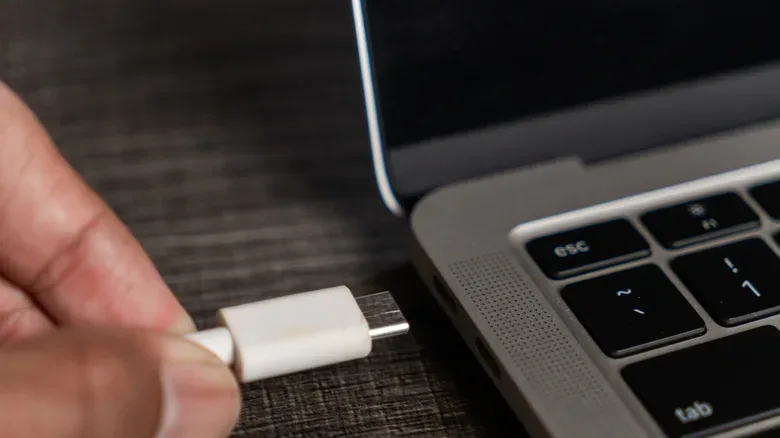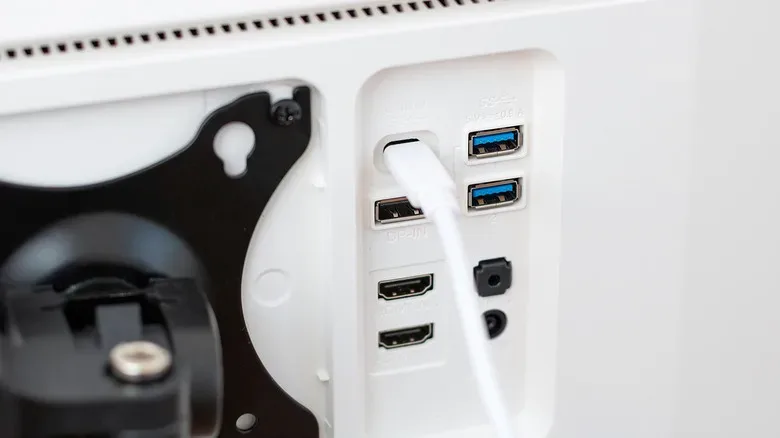
USB-C was supposed to be the tidy little hero of the cable drawer: one reversible connector for phones, handhelds, controllers, tablets, laptops, storage, charging and displays. Since the connector arrived in 2014, it has certainly reduced the number of strange proprietary plugs many people need to keep around. But it also created one particularly annoying modern-tech riddle: a USB-C port may look exactly like another USB-C port while having a completely different set of abilities.
That matters the moment a player, streamer or work-from-home desk commander tries to connect a laptop, tablet or handheld to a monitor. A USB-C-to-HDMI cable can be physically perfect, firmly inserted and still produce precisely zero image. The cable is not necessarily broken. The monitor is not necessarily wrong. The port may simply lack the feature required to output video.
The short version is that the USB-C connector describes the plug’s shape, not every signal the connection can carry. To determine whether a USB-C setup can drive a display, look for DisplayPort Alternate Mode, commonly written as DP Alt Mode, or for a compatible Thunderbolt implementation. Then remember the least glamorous but most important rule in the whole setup: the host device, the cable or adapter, and the display path all need to support the required capabilities.
USB-C is a connector, not a universal promise
It is easy to assume that a port which charges a laptop, connects a fast SSD and fits a USB-C controller can surely also send an image to a monitor. Sometimes it can. Sometimes it is just a charging-and-data port wearing the same tiny oval costume.
USB-C systems can be built with support for several jobs, including power delivery, ordinary data transfer, high-speed data standards and audiovisual output. Manufacturers decide which functions are present on a given product, particularly with older or more affordable hardware. That means two laptops can have ports that appear indistinguishable yet behave differently when connected to the same dock.
For anyone building a gaming desk, this distinction is more than a spec-sheet footnote. A video-capable USB-C port can simplify a setup by carrying a display signal and data through one connection. Depending on the device and dock, it may also be involved in power delivery. A non-video port cannot be converted into a native display output just by attaching a passive USB-C hub with an HDMI socket.
Before shopping for a monitor cable, docking station or capture-adjacent desk accessory, identify the actual output standard on the device first. This avoids the classic cycle of purchasing an adapter, plugging it in, rebooting everything, staring at a blank panel and wondering whether the monitor has entered a personal dispute with technology.
DisplayPort Alternate Mode is the key phrase to find
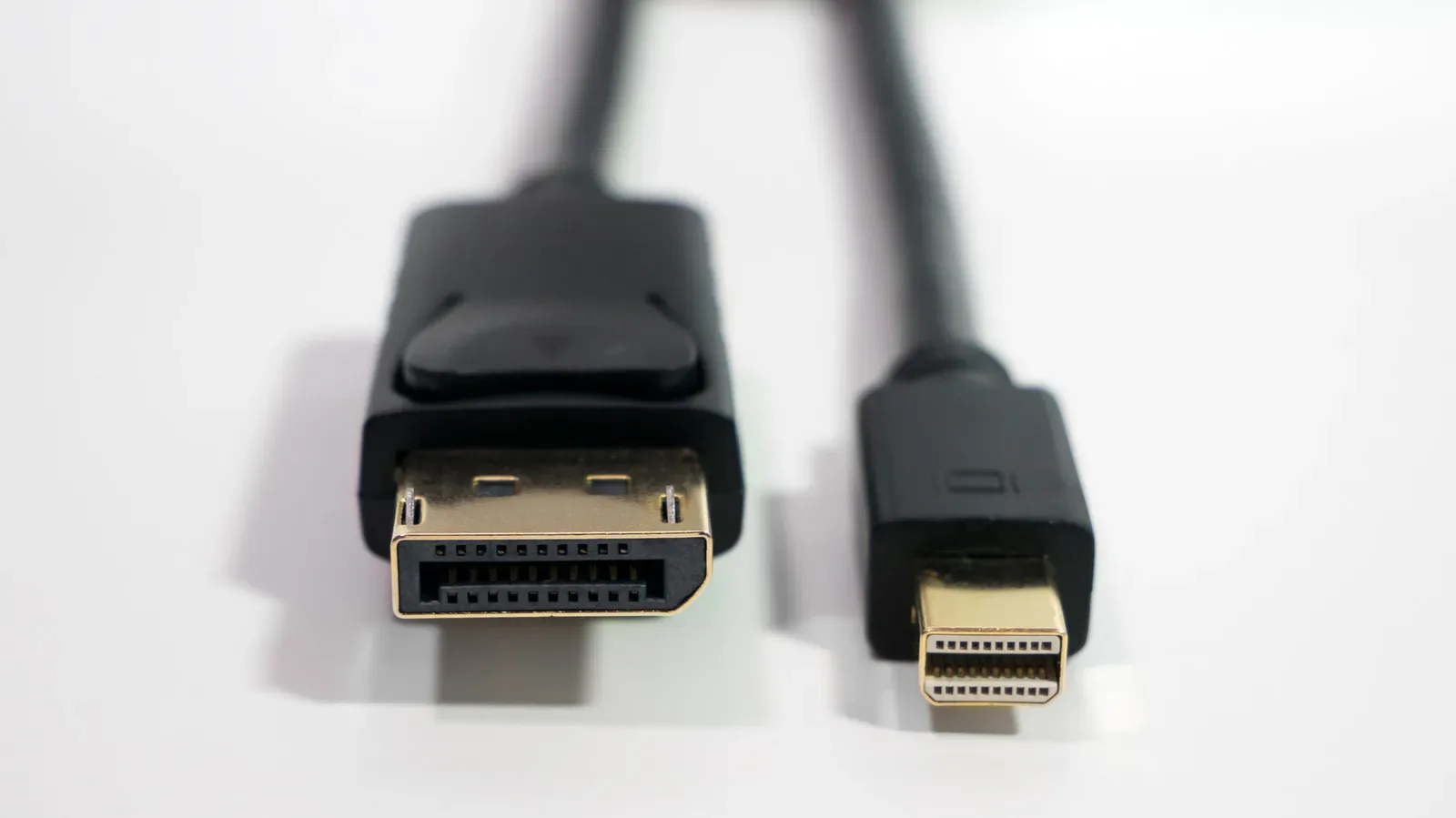
The clearest sign that a USB-C connection can send video is support for DisplayPort Alternate Mode. This feature lets a USB-C connection carry DisplayPort video signals. DisplayPort is a digital display interface familiar to many PC users through full-size DisplayPort ports on graphics cards and monitors, and it is designed for high resolutions and fast refresh rates.
With DP Alt Mode, the USB-C connection can transmit video without needing a separate full-size DisplayPort jack. It can also be used in arrangements where data and display information share a single cable. That is the technical foundation behind many USB-C monitor connections, USB-C-to-DisplayPort cables and docks with video outputs.
However, DP Alt Mode is not an ability granted by the connector’s appearance. The complete chain matters:
- The source device must support video output through its USB-C port.
- The cable, dock or adapter must be appropriate for the desired connection and resolution.
- The display must accept the chosen input, whether that is USB-C, DisplayPort or HDMI through a compatible adapter or dock.
If one component is incompatible, the setup may charge a device or pass USB data while never producing a display signal. A cable that works with one laptop is therefore not proof that it will work with another laptop’s USB-C port.
Where to check for DP Alt Mode support
Start with the most boring answer because it is also the most reliable: consult the manufacturer’s specifications and the manual for the exact device model. Look for phrases such as DisplayPort Alternate Mode, DisplayPort over USB-C, video output via USB-C, or a specific display-output description.
Physical markings can help, but they are not guaranteed to appear. A DisplayPort logo beside the USB-C port is a useful indicator of DP Alt Mode capability. A lightning-bolt marking usually identifies a Thunderbolt port. If the device has no icon, do not treat the lack of artwork as definitive proof either way; many devices put the useful details only in documentation.
Product pages and manuals are also the place to check limits that can affect a monitor purchase: supported resolution, refresh rate, number of external displays and whether a particular port behaves differently from another one on the same machine. “Supports video” is a starting point, not a complete performance forecast.
How USB versions and Thunderbolt affect the answer
USB version labels can be helpful, but they do not always settle the question by themselves. USB 3.1 and USB 3.2 hardware may offer DP Alt Mode, yet support depends on how the manufacturer implemented the port. Seeing one of those labels does not automatically confirm that a display will work.
USB4 is more reassuring for modern single-cable setups because it includes support for power transfer and video. Still, buyers should read the exact device specifications, especially when planning around multiple displays or demanding high refresh rates.
Thunderbolt ports using the USB-C connector are another strong sign. Thunderbolt 3, Thunderbolt 4 and Thunderbolt 5 all support high-speed data and video transfer, including DP Alt Mode functionality. They are generally identified by the lightning symbol. Thunderbolt 3 has capabilities similar to USB4, while Thunderbolt 4 and Thunderbolt 5 add performance improvements that can matter for more ambitious display arrangements.
That is particularly relevant for players who want multiple monitors, higher resolutions or higher refresh rates rather than a basic desktop display. The interface alone still does not guarantee every theoretical configuration; the computer, graphics hardware, dock and monitor all shape the final result. But a newer Thunderbolt implementation provides a far stronger foundation than an unknown USB-C port with no documented display support.
The same caution applies to gaming on PC generally: display troubleshooting can be one part of a wider performance puzzle. For example, software-side fixes can be just as important as connection standards for players following PC fixes and balance plans for Marvel Tokon: Fighting Souls.
Cables and docks can be the weak link
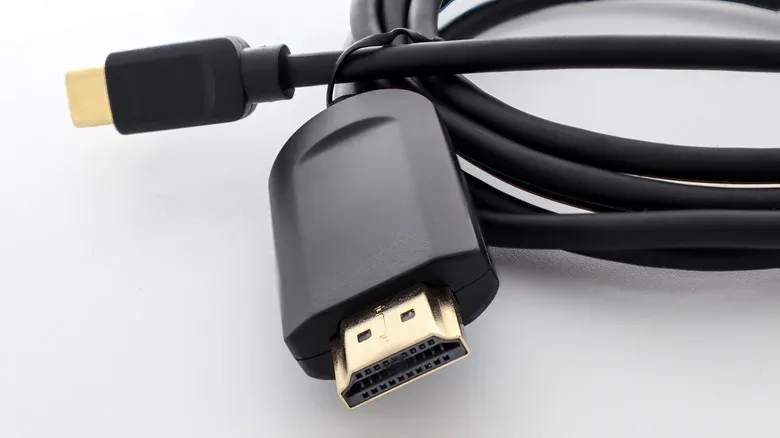
Once the laptop or other source device is confirmed to support DP Alt Mode, inspect the cable and the destination. Not every USB-C cable is designed for the same data rates, charging levels or display duties. The safest approach is to buy a cable whose specifications explicitly describe display support and match the intended connection: USB-C to USB-C for a monitor with USB-C input, USB-C to DisplayPort for a DisplayPort display, or an appropriately specified USB-C-to-HDMI solution.
Docks and hubs add another layer. They can be extremely useful for turning one laptop port into a desk setup with video, USB peripherals, Ethernet and power, but their listed display capabilities must be compatible with the host device. A hub having an HDMI port is not magic. If the host USB-C port does not provide DP Alt Mode, an ordinary USB-C hub or USB-C-to-HDMI cable cannot create native video output out of thin air.
When comparing products, verify the dock’s stated monitor support rather than relying solely on the connector list. Resolution and refresh-rate claims may differ between single-monitor and multi-monitor arrangements, and can also depend on the host system.
What to use when the USB-C port cannot output video
A USB-C port without display support does not mean the entire setup is doomed. First, look for another video output on the device. If it has HDMI, a direct HDMI cable to the display is often the cleanest answer.
Modern HDMI connections can support up to 8K visuals and high dynamic range, but HDMI capability also varies by version and implementation. For high resolutions and refresh rates, HDMI 2.0 is a practical minimum to seek out, while HDMI 2.1 or later is the preferable choice for a modern performance-focused setup. As with USB-C, both the cable and the ports on the source and display need to support the target mode.
If HDMI is unavailable, an active adapter may provide another route. A product such as the StarTech USB-A 3.0 to Dual HDMI Adapter can generate HDMI output from a USB port that would not normally carry native video. These adapters use internal software and available USB bandwidth, which introduces overhead. They are better viewed as a functional workspace solution than the ideal route for competitive gaming, ultra-high resolutions or very fast refresh rates.
Wireless display options are also available as a fallback. AirPlay and Miracast can cast to compatible TVs or monitors without a physical display cable. Convenience is the main appeal here; the trade-offs can make wireless casting less suitable when responsiveness and image quality are priorities.
A quick pre-purchase checklist
- Find the exact model number of the laptop, tablet or handheld.
- Read its official technical specifications for DP Alt Mode, DisplayPort over USB-C, USB4 or Thunderbolt support.
- Check port symbols, including a DisplayPort icon or Thunderbolt lightning symbol, as supporting evidence.
- Confirm what input the monitor accepts: USB-C, DisplayPort, HDMI or another standard.
- Choose a cable, dock or adapter whose specifications explicitly support the intended display connection.
- Check stated resolution, refresh-rate and multi-monitor limits before assuming a single-cable dream setup will meet gaming needs.
- If the USB-C port has no video output, use direct HDMI where possible, then consider an active adapter or wireless casting for less demanding uses.
The important lesson is wonderfully unglamorous: never judge a USB-C port by its oval. A few minutes spent reading the model-specific specifications can reveal whether the port is ready to carry a monitor signal, merely charge a device, or quietly prepare to waste an evening with a perfectly innocent-looking cable.
Shop the products
Check current price, model and availability at the retailer.