An iPhone camera can gradually turn into a tiny control room. A format gets changed for a particular project, a frame rate gets bumped up, a composition grid is enabled, and one experimental setting survives long after anyone remembers why it was touched. That is useful when those choices are intentional. It is less useful when a second-hand iPhone arrives with a mystery configuration, or when comparing results becomes impossible because every camera option has been adjusted at some point.
The important catch is that iOS does not offer a single, camera-only “restore defaults” command. Returning the Camera app to its baseline is instead a matter of visiting Settings > Camera, checking the options that retain changes between sessions, and putting individual photo and video controls back where they started. It is a little less dramatic than hitting a big red reset switch, but it is also much safer than erasing settings across the entire handset.
For people who use a phone to document retro hardware, trading cards, convention finds, or a carefully arranged shelf of gaming collectibles, a clean baseline can be practical. It gives each new adjustment a clear purpose. Want a grid for card centering? Turn it on deliberately. Need a particular video rate for gameplay footage? Change it knowing exactly what changed. The camera menu stops being a pile of inherited decisions and becomes a manageable loadout.
Start with Preserve Settings
The first stop is Settings > Camera > Preserve Settings. This section controls whether particular choices made inside the Camera app carry over into the next session. When a Preserve Settings switch is off, its related camera choice returns to the normal starting behavior after the Camera app is closed and opened again.
The usual default arrangement is that these preservation switches are off, with Live Photo being the notable exception. In other words, the Camera app generally begins fresh for many controls unless a user has told the phone to remember a previous choice. If the goal is a default-like setup, review every switch here and disable any option that was enabled to retain a setting.
This step matters because it tackles a common source of camera confusion: a setting may look as though it has become permanent when it is actually being intentionally preserved. A creator who once selected a certain photographic style, exposure adjustment, or capture mode may keep encountering it until the associated preservation setting is turned off.
There can be differences in the exact menu layout and available items from one iPhone generation to another. Apple has changed the camera feature set repeatedly, and the choices on a newer model will not perfectly match an older device. Treat Preserve Settings as the control panel for memory: if a behavior keeps following you from one shoot to the next, this is the place to investigate.
Restore common photo and video defaults manually
Once the persistence controls are sorted, return to the main Settings > Camera screen. The following are among the baseline values worth checking. They are not a promise that every iPhone model will expose every menu item, but they provide a useful checklist for supported devices.
Related coverage includes How to Reset iPhone Camera Settings and Restore the Defaults.
- Record Video: 1080p at 30 frames per second.
- Record Slo-mo: 1080p at 240 frames per second.
- Cinematic: 1080p at 30 frames per second on iPhones that support Cinematic video.
- Record Sound: Stereo on applicable earlier models; iPhone 16 models and later use Spatial Audio as the indicated default.
- Formats: High Efficiency.
- Grid: Off.
- Level: Off.
- Smart HDR: On.
- Prioritize Faster Shooting: On.
These settings affect very different parts of the capture process, which is why a manual reset is more useful than it first appears. Format influences how efficiently photos and videos are stored. Frame rate and resolution affect a video’s look, file size, and editing needs. Grid and Level alter the on-screen shooting aids rather than the photo itself. Smart HDR and faster shooting priorities are processing and responsiveness choices.
There is no universal “best” setup once a person moves beyond defaults. A collector photographing glossy cards might benefit from composition aids. Someone recording a room full of CRT displays may make a different choice for video. The point of restoring the baseline is not that defaults are magically superior; it is that they are a known starting point. From there, any deviation is easier to evaluate and reverse.
Extra checks for iOS 26-capable iPhones
iPhones able to run iOS 26 add further camera options that should be included in a reset pass. The indicated defaults for these controls are:
- Lens Correction: On.
- Macro Control: On.
- Scene Detection: On.
- Default resolution in Formats: 24 MP.
- ProRAW & Resolution Control: Off.
Those last two are particularly worth checking on a phone that has changed hands. A higher-resolution or RAW-oriented workflow can be exactly right for someone who plans to edit images heavily, but it is not the ordinary default configuration. It can also lead to unexpected storage use and different file handling. Switching ProRAW & Resolution Control off and returning the default resolution to 24 MP puts that part of the setup back on its usual track for iOS 26-capable hardware.
Lens Correction, Macro Control, and Scene Detection are separate tools, even though they can all feel like the phone is making decisions behind the scenes. Lens Correction addresses optical characteristics, Macro Control governs access to close-focus behavior, and Scene Detection helps the camera recognize what it is looking at. If the purpose is to reproduce the standard iOS 26 configuration, all three should be enabled.
Why a full settings reset is the nuclear option
There is a broader reset route at Settings > Transfer or Reset iPhone > Reset. It can restore the iPhone’s settings generally, which naturally includes camera-related settings. But this is not a camera reset, and it should not be treated like one.
A device-wide settings reset also removes Apple Pay cards, keys, and passes. That means the cleanup can extend well beyond the camera: payment and access items may need to be added again, alongside any other preferences the user did not mean to change. It is a reasonable last-resort tool only for someone who understands that the entire phone’s configuration is being returned to defaults and is prepared to rebuild what matters.
Use the all-settings reset only when resetting every system preference—not merely the camera—is genuinely the goal.
For nearly everyone trying to fix an odd camera behavior, the narrower manual approach is the better first move. It avoids collateral disruption, teaches which controls are actually involved, and leaves unrelated phone settings alone.
A simple reset order that keeps the process sane
- Open Settings, then select Camera.
- Open Preserve Settings and switch off options that were set to remember changes, while noting that Live Photo is normally preserved by default.
- Check video, slow-motion, and Cinematic recording values where those menus are available.
- Return Formats to High Efficiency, and use the 24 MP default on compatible iOS 26 devices.
- Set Grid and Level off; ensure Smart HDR and Prioritize Faster Shooting are on.
- On iOS 26-capable iPhones, confirm Lens Correction, Macro Control, and Scene Detection are on, while ProRAW & Resolution Control is off.
- Open the Camera app and take a few ordinary shots after making the changes, simply to make sure the interface now begins in the expected state.
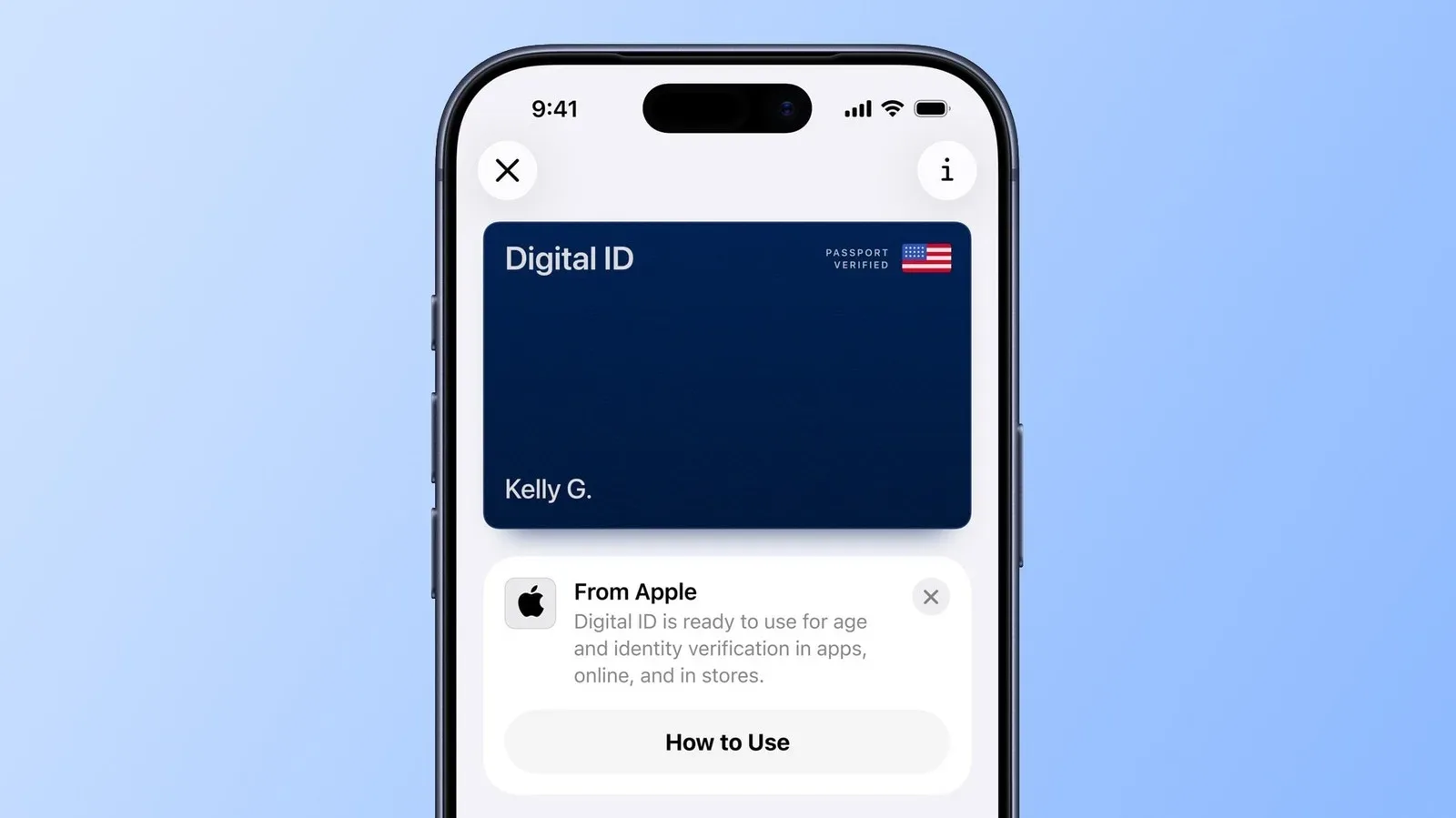
This is also a useful moment to separate a camera reset from a broader phone-management problem. If Wallet items, passes, connectivity preferences, or other system behaviors are the real concern, they belong to a different decision. Joking Joystick has also looked at how Apple Wallet’s iOS 27 tools could expand what a gamer’s phone handles, making it even more important not to wipe device settings casually just to correct a camera toggle.
There may never be a dedicated reset button for the Camera app, but the absence of one does not mean users are stuck with a cluttered configuration. A controlled, menu-by-menu reset restores the reference point without turning a quick camera cleanup into an afternoon of rebuilding an iPhone.