A smart TV that freezes during a stream, throws up video glitches, or refuses to cooperate with an app can make a relaxed game night feel like an unwanted side quest. Samsung TVs offer several levels of reset, and the important bit is choosing the least disruptive one that fits the fault.
A quick reboot may be enough for a one-time hiccup. A network reset is aimed at connectivity trouble. Resetting Smart Hub clears the TV’s app-and-account environment without necessarily returning every television setting to square one. A factory reset is the broadest option: it restores the television to its out-of-box state and requires a proper setup afterward.
That distinction matters. The factory option can be useful when a problem is persistent or difficult to identify, but it also means putting picture and sound preferences back, downloading apps again, signing in again, and reconnecting the TV to Wi-Fi. Treat it as a last major troubleshooting move, not the opening move because one streaming app had a bad afternoon.
First, identify the kind of Samsung TV problem
Before opening Settings, it helps to separate symptoms into three broad groups. This does not guarantee a diagnosis, but it can keep the response proportional to the problem.
- Temporary TV-wide oddness: the interface feels stuck, an app stalls once, or the set has generally become unresponsive. A basic reboot is the sensible first attempt.
- App and account trouble: apps associated with Samsung’s Smart Hub environment are behaving badly, particularly after simpler measures have not helped. Resetting Smart Hub is more targeted than a whole-TV reset, but it still removes its associated apps and account information.
- Connection trouble: the TV cannot get online or its connection is the central issue. Check the router or internet provider first, then use the TV’s network reset if a fresh connection setup is warranted.
Smart Hub is Samsung’s TV environment for apps and related account functions. Tizen is the operating system that runs on Samsung TVs. A factory reset, meanwhile, is the comprehensive reset that returns settings, installed apps, and processes to their original state. Those labels are worth understanding because a menu option with “reset” in its name can have very different consequences.
Start with a soft reset: reboot the TV
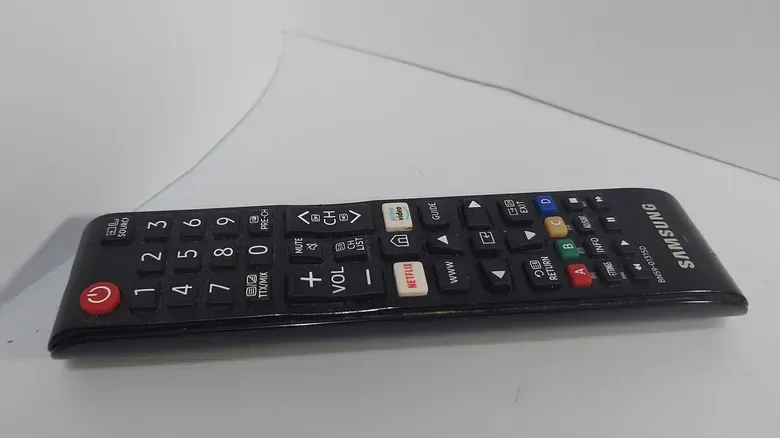
The least invasive reset is a reboot. Either unplug the television for 30 seconds, or hold the power button on the remote for five seconds. The TV should briefly power down and then restart with the Samsung logo.
This is often called a soft reset or reboot because it does not erase the user’s setup. Instead, it clears the TV’s RAM and system cache and restarts background processes. RAM is the short-term working memory used while the device is running; cache refers to temporary stored data used to speed up routine work. Clearing those temporary states can help when a process has become stuck or an isolated glitch has appeared.
For players, this is the low-drama remedy worth trying before a session. It avoids rebuilding app libraries and Wi-Fi settings, while offering a clean restart to the TV software. It is not a cure-all, and it will not fix every app, service, router, or display issue, but it is the appropriate first rung on the reset ladder.
Related coverage includes How to Reset a Samsung TV: Factory, Smart Hub and Network Options.
When to reset Smart Hub instead
If the issue appears tied specifically to Samsung’s app hub rather than every part of the television, a Smart Hub reset may be the middle ground. Be aware of the trade-off: it restores Smart Hub options to defaults and removes associated apps and account details. Plan to download those apps again and sign in afterward.
On the TV, follow this path:
- Open Settings, then All Settings.
- Select Support.
- Choose Device Care, then Self Diagnosis.
- Select Reset Smart Hub.
- Enter the TV PIN. If no custom PIN was created, the default is 0000.
This option is more disruptive than restarting the television, but considerably narrower than resetting the entire set. It is useful to know exactly what it does not preserve: apps and account information connected to the hub. Have streaming credentials ready before choosing it.
The living-room hardware picture can get complicated when a television, console, streaming apps, and other devices all share a screen and network. For a separate look at another streaming-box category, see the latest Apple TV 4K expectations. That is not a solution to a Samsung TV reset problem, but it is a reminder that the TV’s built-in software is only one part of a modern entertainment setup.
Resetting the network settings
A network reset is the specialized option for a connection issue. It clears the TV’s existing network setup so that it can be connected again from scratch. Because internet trouble may originate outside the TV, check the router and service provider situation before assuming the panel is at fault.
Keep the router’s credentials available. The SSID is the name your Wi-Fi network broadcasts, while the password is the key needed to join it. The TV will need both when you reconnect.
- Go to Settings, then All Settings.
- Select Connections, then Network.
- Choose Reset Network, then confirm by selecting Reset.
- Return to Network Settings and enter the Wi-Fi SSID and password.
This is a targeted fresh start for the television’s network connection. It does not carry the full burden of a factory reset, but it does mean the TV will no longer remember the old Wi-Fi setup until those details are entered again.
How to factory reset a Samsung TV
If rebooting, app-focused troubleshooting, and network troubleshooting have not helped—or if the fault is broad enough that isolating it would be more work than restoring the TV—use the factory reset. This action cannot be undone once started.
Before proceeding, write down the TV PIN, Wi-Fi SSID and password, and sign-in details for streaming services. That preparation is not busywork. After the reset, accessing online apps and reinstalling updates will depend on reconnecting to the network, and streaming services will require their account logins again.
To begin the full reset:
- From the Home screen, select Settings.
- Choose All Settings.
- Open General & Privacy.
- Scroll to the bottom and select Reset.
- Enter the TV PIN. If a custom PIN has not been set, enter 0000.
- Select OK to start the reset process.
The menu language can shift as Samsung updates Tizen, so an older or newer model may not display every label in precisely the same way. The practical approach is to look for the closest equivalent to Settings, General or Privacy, and Reset rather than assuming every screen must match word for word.
What a factory reset changes—and what to prepare for
A factory reset returns the television’s settings, apps, and processes to their original state. The immediate practical consequences include reconfiguring picture and sound options, reinstalling apps, logging back into services, and downloading operating-system updates again. A console or PC physically connected to the display may still be usable, as may over-the-air television or Blu-ray playback, but restoring online features depends on getting the TV back onto the network.
The reset is therefore best viewed as a clean software configuration restart, not a guaranteed repair. It may resolve crashes, recurring app freezes, or operating-system-level video problems. It does not promise to resolve every underlying issue, especially when the source of a connection problem is a router or service provider rather than the TV itself.
A sensible reset order for game and streaming setups
For most people, the most sensible sequence is straightforward:
- Reboot the TV first using the remote power button or a 30-second unplug.
- If the problem is plainly tied to the app environment, consider resetting Smart Hub and be ready to restore apps and accounts.
- If internet access is the issue, investigate the router or provider, then reset the TV network settings if needed.
- Use the full factory reset for persistent, broad, or hard-to-diagnose software trouble after saving the credentials needed for setup.
This order limits unnecessary disruption. A reset should restore a useful baseline, not turn a single freezing app into an evening spent recovering passwords, preferences, and downloads. Still, when a Samsung TV’s software problems have become persistent, the factory option remains a legitimate troubleshooting tool—as long as the reset button is pressed with a clear idea of what will be erased and what must be rebuilt.