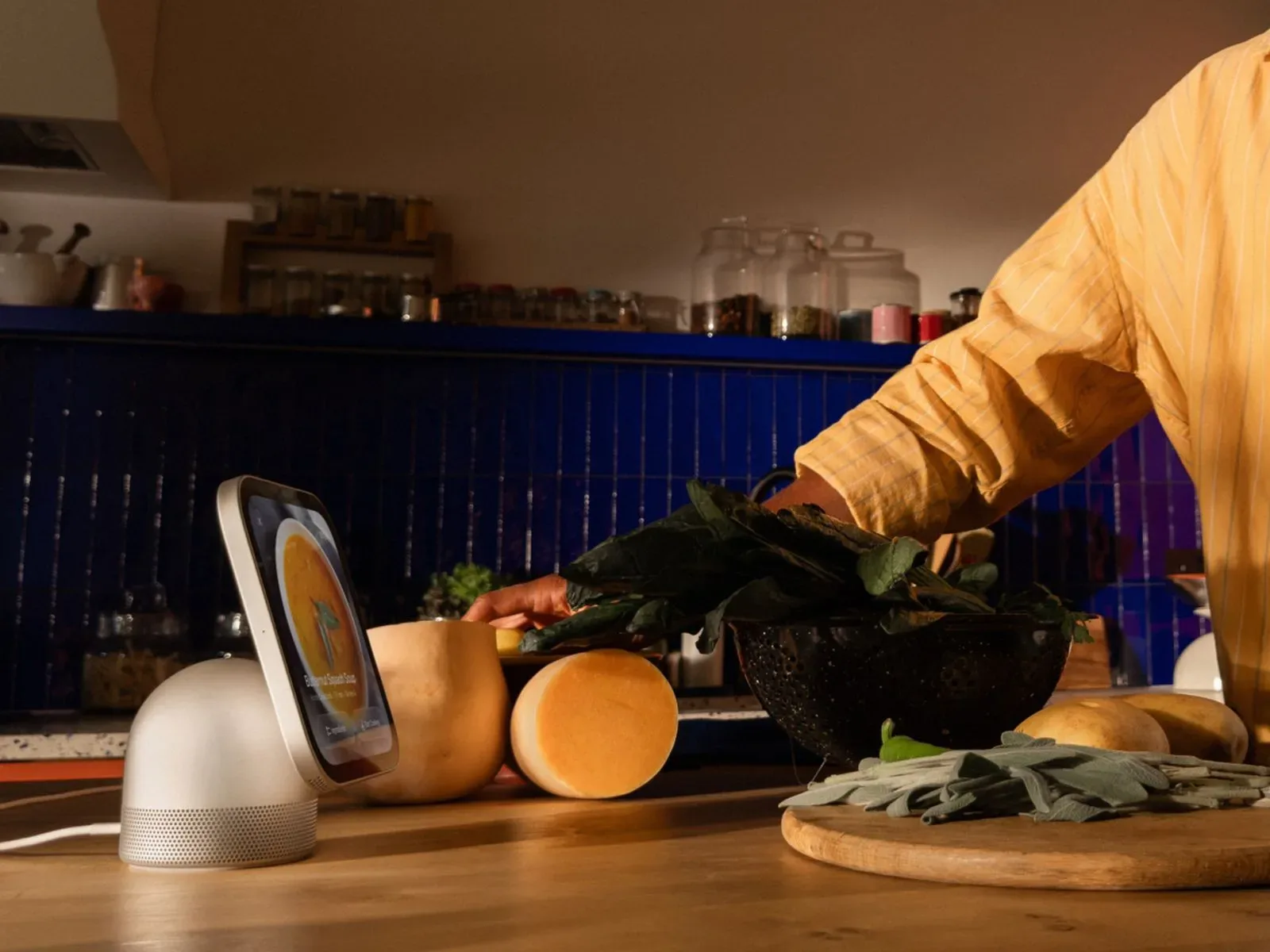
Recipes on a phone are useful right up until both hands are covered in flour, oil, or something that absolutely should not be transferred to a touchscreen. Apple’s forthcoming HomeView is aimed squarely at that moment. Its cooking tools are designed to turn a web recipe viewed in Safari into a more focused, step-by-step format, with ingredient tracking and timers that can be managed hands-free.
The feature set is not trying to reinvent cooking; it is trying to remove the small but persistent interruptions that come with using a general-purpose screen as a kitchen reference. A recipe can be difficult to keep visible while a timer is running, a phone can be left in another room, and touching a display midway through prep is often inconvenient. HomeView’s recipe mode, support for multiple timers, and continuity with iPhone are intended to make that workflow more deliberate.
HomeView launches November 13 in the United States. Both its tabletop and wall-mounted models are priced at $299.
What “Start Cooking” changes in Safari
When a user is viewing a recipe in Safari, HomeView will offer a Start Cooking control. Selecting it switches the recipe to a streamlined cooking layout with guided instructions. Apple also says the experience can help users keep track of ingredients alongside those directions.
That distinction matters. A conventional recipe webpage is generally made for browsing: it may contain a long page of context, ads, photos, ingredient lists, optional notes, and the actual method at different points on the page. A guided layout is meant for the active part of cooking, where the useful information is the immediate instruction and the next thing to prepare. HomeView’s approach should therefore be most helpful for recipes that users first find on the web and then want to follow without constantly navigating around a browser page.
Ingredient tracking is similarly practical rather than flashy. In a kitchen, the question is often not simply “what does the recipe require?” but “what have I already added?” Keeping ingredients close to the method can reduce the need to reread the full list or mentally reconstruct a partially completed step. Apple has not detailed exactly how that tracking will work, so it is best understood as an assistance feature rather than a promise of automatic pantry management or shopping-list functionality.
Hands-free timers are the core kitchen feature
HomeView can manage timers without requiring users to touch the display. That is a particularly natural fit for cooking, where a timer may need to start during a messy task or be adjusted while attention is on the pan, oven, or cutting board.
The system supports multiple timers. This is important because real meals frequently involve overlapping tasks: something may be roasting while another component simmers and a third needs a brief rest. A single countdown can cover a simple task, but several named or concurrent time limits are far more useful once a recipe has more than one active element.
Those timers also remain visible through Live Activities while other apps are being used. In Apple’s terminology, a Live Activity is persistent, timely information that stays available while another task is open. For HomeView, the practical implication is straightforward: changing from the recipe to music, a podcast, or another supported activity should not mean losing sight of active cooking countdowns.
This does not make a kitchen display a substitute for judgment. Timers track elapsed cooking windows, but they cannot establish whether a meal is properly cooked, whether heat is too high, or whether an ingredient has been omitted. The value here is less glamorous and more useful: HomeView can keep the schedule in view and make it easier to control without adding another hand-washing trip to the routine.
Handoff brings the recipe from iPhone to the kitchen
HomeView will support Handoff for recipes. A person can begin browsing on an iPhone, then continue on HomeView after arriving in the kitchen. In Apple’s ecosystem, Handoff refers to moving an activity from one compatible device to another rather than starting over manually.
For recipes, that can solve a simple but common divide between discovery and preparation. An iPhone is likely to be the device in hand when a person saves, searches for, or opens a recipe. Once cooking begins, a dedicated larger display positioned in the kitchen may be the more convenient place to follow it. The advertised Handoff path means the recipe does not have to be found a second time on HomeView.
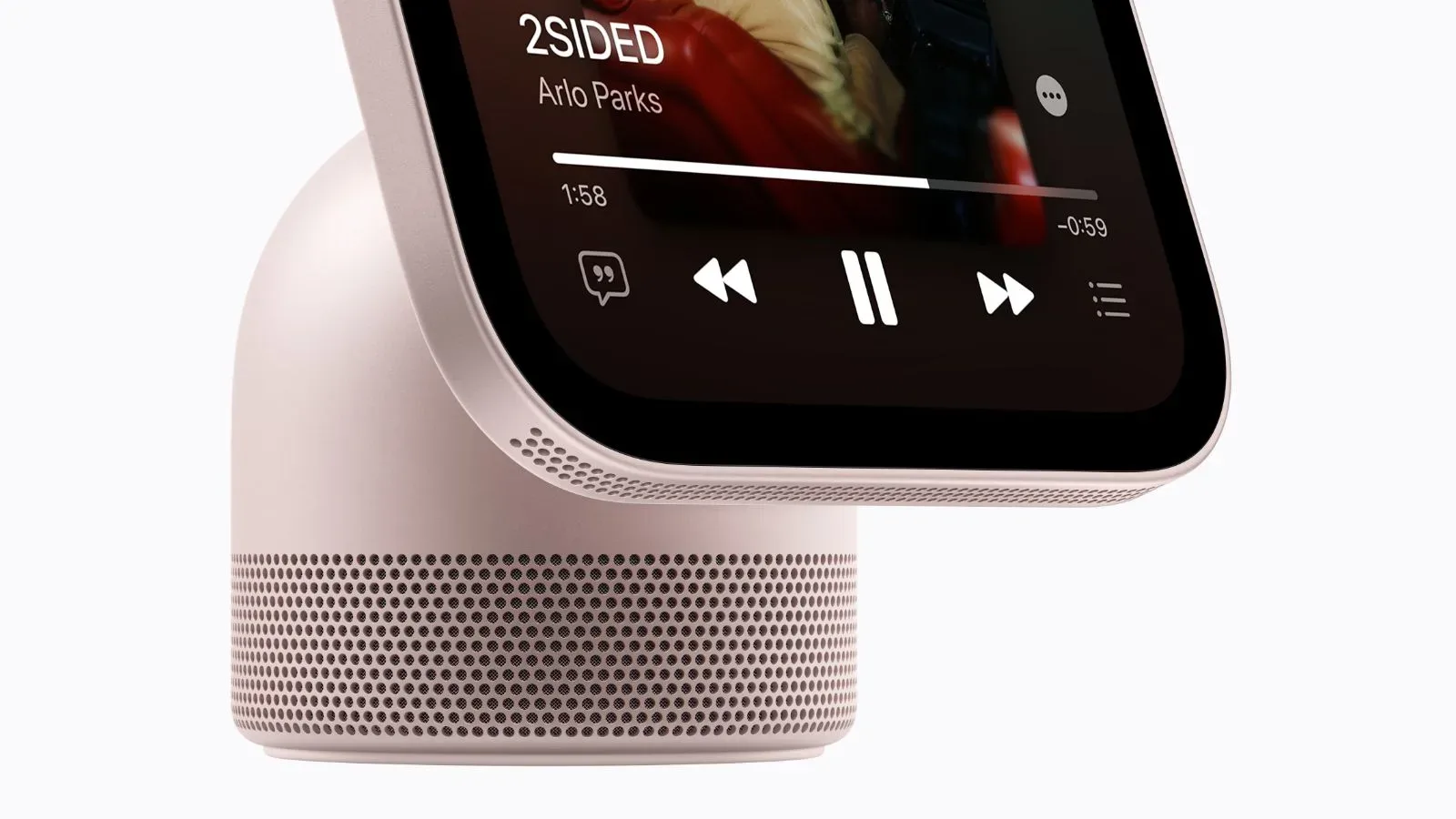
The same continuity feature also handles songs, podcasts, calls, and videos between iPhone and HomeView. That broadens the device beyond a recipe screen. Someone can move audio to the kitchen while cooking, bring a call with them, or transfer a video session. But the recipe use case is the clearest example of why continuity matters: it connects the device where planning often happens with the one intended to be used when the work starts.
HomeView’s wider positioning also includes home entertainment and communication. The tabletop version’s audio hardware is discussed separately in our look at why the tabletop model gets the larger speaker array. For cooking, the key point is that Apple is presenting the display as a shared household device, not solely as a recipe reader.
Music, podcasts and a dinner bell through Intercom
Cooking often includes some form of background audio, and HomeView supports music and podcasts during kitchen use. Combined with Live Activities for timers, that means the device is designed to keep a meal’s time-sensitive information present even when the screen is not focused exclusively on the recipe.
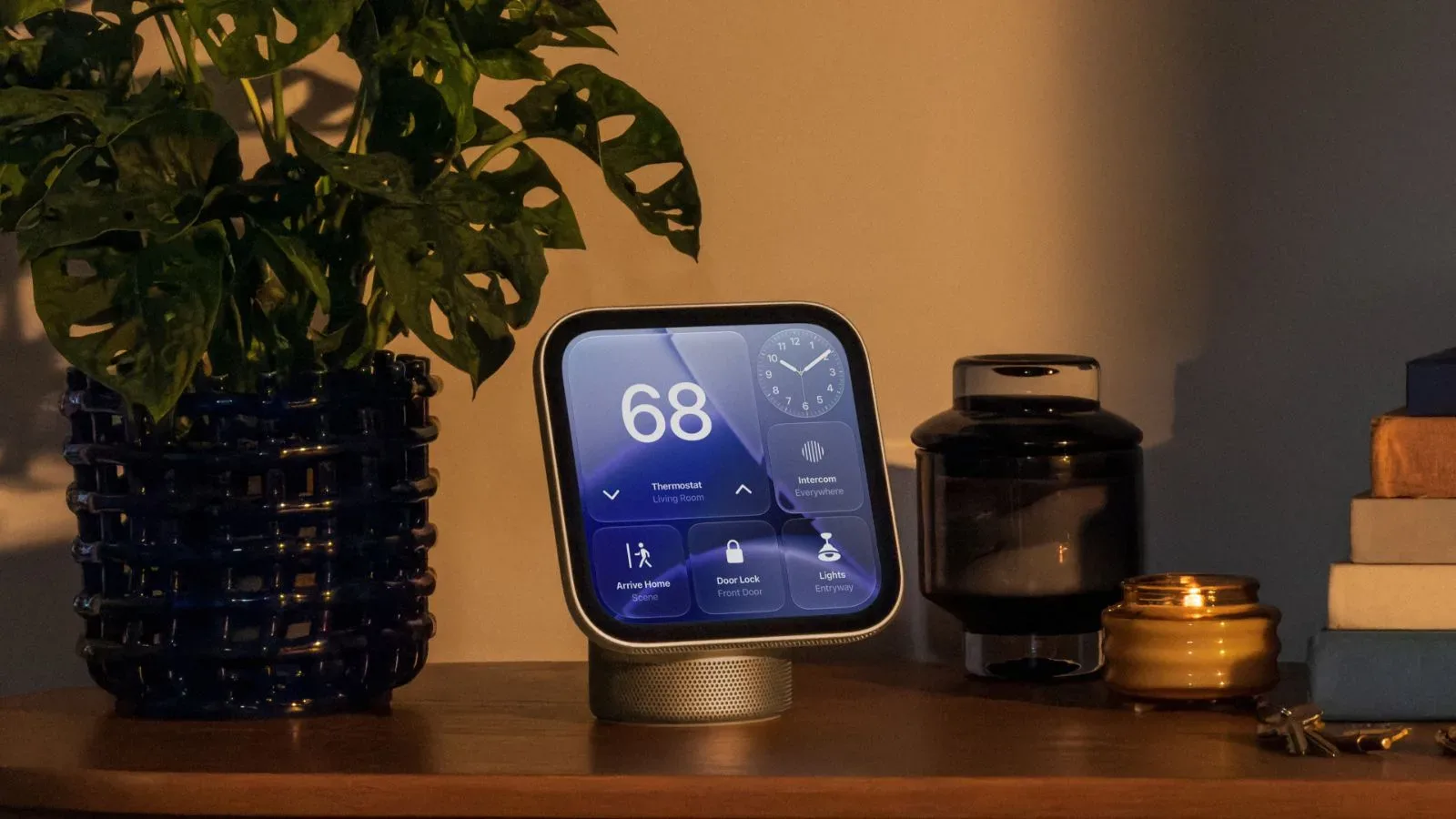
It also works with Intercom to call family members for dinner through other HomeView and HomePod speakers. Intercom is Apple’s household communication feature for sending a spoken message across compatible devices. In this context, it turns the final stage of cooking into a connected-home task: rather than leaving the kitchen or relying on a phone call, a user can send a message to other rooms through the available HomeView and HomePod speakers.
That use is modest, but it fits the device’s apparent role. A kitchen is often where people coordinate a household, whether that means keeping track of dinner, continuing a call, or playing audio while working. HomeView combines those functions with recipe guidance instead of treating them as separate, competing screen activities.
Who the $299 HomeView makes sense for
At $299, HomeView is not merely an inexpensive timer with a screen. The relevant question for buyers is whether its collection of connected conveniences has enough value in their routine: Safari recipes converted to cooking steps, ingredient tracking, voice-controlled timers, multiple visible countdowns, iPhone handoff, media transfer, and Intercom support.
It may be most compelling for households already using compatible Apple devices and speakers, since several of its conveniences depend on moving activity between iPhone, HomeView, and HomePod. The choice between tabletop and wall-mounted hardware will also be practical. A tabletop model can be placed where it is useful, while a wall-mounted model can keep the display off a crowded counter. The supplied details establish that both versions share the same $299 U.S. price, but do not describe differences in their cooking software.
For everyone else, the central appeal is easy to state: HomeView proposes a recipe experience built around the point at which browsing turns into doing. Its success will depend on how reliably that transformation works across the recipes people actually use, but the purpose is clear. The screen is meant to take over the repetitive navigation and timer duties so the cook can focus on the part of dinner that still cannot be automated: making it.