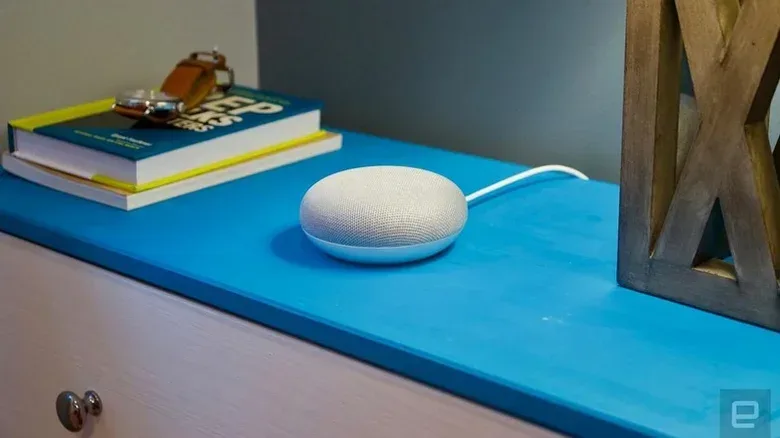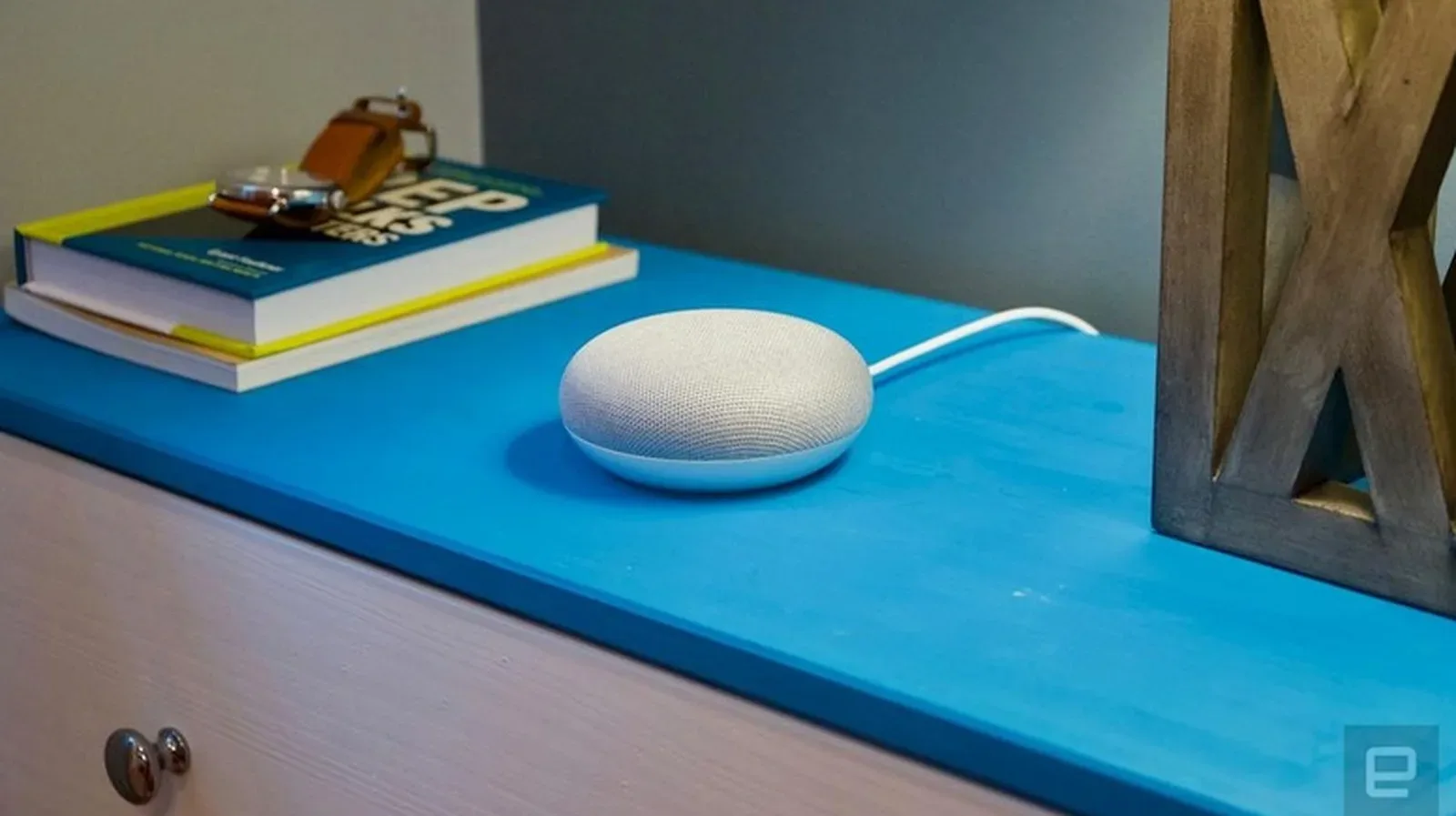
A Google Home Mini can be a remarkably durable little piece of desk clutter: it sits there, answers the occasional question, plays a playlist, and quietly becomes part of a home’s Wi-Fi furniture. That makes it easy to forget the device has a hard reset procedure until something goes sideways. A speaker may stop responding, lose its network connection, need to move to another Google account, or be headed to a new owner. In those cases, a factory reset is the clean break.
It is also a bigger step than simply turning the speaker off and back on. A factory reset returns the device to its out-of-box state. It permanently removes saved Wi-Fi details, linked Google accounts, personal data held on the device, and its connections to members of the household. Once started and completed, it cannot be reversed.
The useful wrinkle is that these resets do not require a toolkit, a secret voice command, or a trip through several app menus. On the Google Home Mini, Nest Mini, and Nest Hub models covered here, the reset is initiated with the hardware controls on the device itself. Voice controls and the Google Home app cannot trigger it. That limitation is sensible from a privacy and ownership perspective: an accidental spoken request should not be able to wipe a household device.
First, decide whether you need a reboot or a factory reset
If the problem is a small, one-off glitch, start with a reboot. Unplug the speaker or display for one minute, then reconnect it. This does not erase accounts, household membership, or Wi-Fi configuration. It is the low-stakes move for a device that has become briefly unresponsive or is behaving oddly after a connection hiccup.
For more context, explore GTA VI’s Social-Media Satire Is Already Visible in the Trailers — But the App Is Still a Mystery.
A factory reset is more appropriate when the existing setup itself needs to go. The supplied situations include persistent Wi-Fi trouble, an attempted Google-account change, a speaker that no longer responds as expected, or a transfer to someone else. It is particularly important before giving the hardware away, since a reset removes the previous owner’s account and network information from the device.
There is no indication here that a reset is a universal cure for every fault. It clears setup data and restores the software configuration to its initial state; it does not promise to repair physical damage or every connectivity issue. Think of it as restarting the setup journey, rather than casting a magic spell on hardware.
Factory reset instructions for the original Google Home Mini
The original, first-generation Google Home Mini has a dedicated reset button on its underside. Turn the device over and look near the power cable. The control is a small circular area etched into the base.
- Locate the small reset circle on the bottom of the first-generation Google Home Mini, below the power cord.
- Press and hold it for about five seconds. This begins the reset process.
- Keep holding for another 10 seconds.
- Release after the speaker plays its confirmation chime.
The chime matters because it is the device’s confirmation that the reset has completed. Do not treat the initial five-second point as the finish line: that begins the process, while the additional hold completes it.
This physical-button approach is worth remembering if the Home Mini is currently ignoring voice requests or is no longer properly represented in the Google Home app. The reset route does not depend on the device being fully functional as a smart speaker first.
How the second-generation Nest Mini reset differs
The second-generation model, called the Google Nest Mini, resembles the original Home Mini closely enough that it is easy to assume the steps are identical. They are not. Rather than flipping the unit over for the same reset circle, begin with the microphone switch on the side.
- Find the microphone on/off switch on the side of the Nest Mini and turn the microphone off.
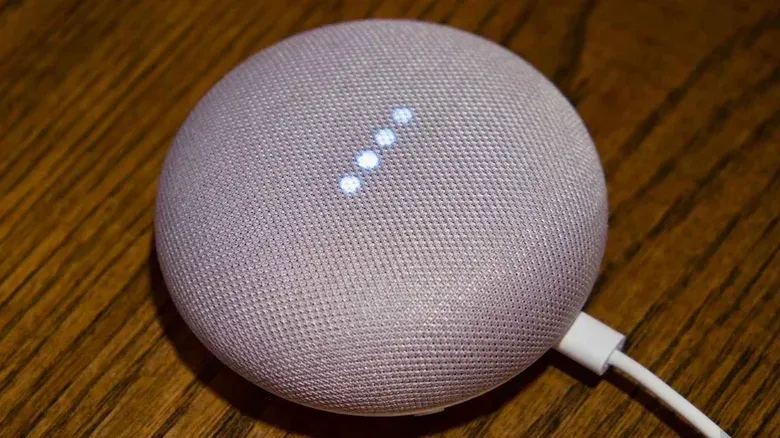
- Check that the LEDs begin pulsing orange.
- Press and hold the center of the top surface, where the lights appear, for roughly five seconds to initiate the reset.
- Continue holding for another 10 seconds, until the confirmation chime sounds.
The orange pulsing lights are a useful visual signal in this sequence. They indicate the microphone has been switched off and the device is ready for the center press. As with the first-generation model, the timing has two phases: the first hold begins the reset, and the longer hold carries it through to confirmation.
In practical terms, identifying the model before pressing anything saves time. Both products are compact fabric-covered smart speakers, but their reset controls live in different places. If your first instinct is to search the Nest Mini’s underside for the original Home Mini’s reset circle, that is a good cue to stop and check which generation is on the table.
Resetting a Nest Hub display
Nest Hub displays use another method. On these screen-equipped models, press and hold both volume buttons on the back at the same time for about 10 seconds.
The display itself will show that the reset is under way. Once it has begun, allow the device a few moments to finish restarting before trying to configure it again. The screen provides a helpful confirmation unavailable on the smaller speakers, but the same core rule applies: wait for the process to finish rather than assuming the first response means the device is ready for setup.
What a reset removes—and why that matters
It can be tempting to treat a smart speaker like any ordinary Bluetooth speaker, but its setup can be more personal than that. The device is tied into a home Wi-Fi network, a Google account, and household membership. Resetting removes those links. That is why the operation is useful when changing owners and why it deserves a pause before you begin.
- Google account link: the association with the account used to configure the device is removed.
- Wi-Fi credentials: saved network details are deleted, so the device will not reconnect on its own afterward.
- Household connections: the device is disconnected from every member of the household.
- Personal setup data: the unit is returned to an as-new setup condition.
For someone selling, gifting, or otherwise transferring a Home Mini, Nest Mini, or Nest Hub, this removal of account and network ties is the key practical reason to reset. For someone simply troubleshooting a brief problem, it is the reason a one-minute unplugged reboot should come first.
Setting the device up again after the wipe
After a factory reset, the device must be configured again before it can resume its smart-speaker or smart-display role. Open the Google Home app, tap the “+” icon, and choose Set up device. Follow the in-app steps to connect it to Wi-Fi and link it with the desired Google account.
That setup requirement is the reset’s real trade-off. Wiping the device can solve a stale or unwanted configuration, but it also deliberately discards the convenient setup you already had. Have the intended Wi-Fi network ready before you begin, and make sure you are using the Google account you actually want associated with the device after setup.
For a concise alternate reference covering the same family of hardware, see this Google Home Mini, Nest Mini, and Nest Hub reset guide. The important point remains model-specific: the original Home Mini uses an underside button, the Nest Mini starts with the microphone switch and a top press, and Nest Hub displays use both rear volume buttons.
Why these older speakers are still worth knowing
The original Google Home Mini has been around for nearly nine years. Google is no longer making new Nest Home Mini and Nest Audio units following the introduction of a newer smart-home speaker, but the supplied information says the older products continue to receive regular software updates, security patches, and customer support. Discontinued hardware is therefore not automatically abandoned hardware.
That ongoing support makes a proper reset procedure more than archival trivia. A Home Mini that is changing rooms, changing accounts, or changing owners can still be returned to service without specialized knowledge. The process is short, but the consequences are intentionally thorough: use the physical controls, wait for the audio or on-screen confirmation, and only then begin the fresh setup in Google Home.