Most emulator save disasters do not begin with obvious neglect. They usually happen because one important file lived in a different folder than expected, a sync service mirrored a bad overwrite, or a save state was treated like a permanent replacement for a normal in-game save. By the time the mistake becomes visible, the only good copy may already be gone.
A better plan is simple, repeatable, and boring in the best way. Identify every file that matters, write down the paths and options that control where those files are created, make versioned backups after meaningful progress, and prove the plan with a restore test on a duplicate setup instead of your live data. That process protects long RPGs, multi-game virtual memory cards, and emulator migrations far better than guesswork.
Why emulator backups fail even when it feels like you already have one
Physical game storage and emulator save protection solve different problems. Keeping discs, cartridges, and boxes in good conditions helps preserve a collection, but emulator progress depends on files that may be spread across several directories and shaped by each program's settings. One game might use a simple battery save. Another might save to a virtual memory card shared by many games. A third might have both ordinary saves and save states in separate folders.
That is why a single synced folder is not automatically a real backup. Sync is useful for convenience and device-to-device continuity, but it usually mirrors the current state of your files. If a save becomes corrupted, overwritten, deleted, or written to the wrong location, sync can quickly copy that bad state everywhere. A true backup gives you older versions you can roll back to, not just an extra copy of the newest mistake.
The safest mindset is to assume your save setup has at least four moving parts: normal in-game saves, save states, emulator configuration, and the path or card-assignment settings that explain how those pieces fit together. Preserve only one part and a later restore can still fail because the emulator no longer looks in the same place, expects a different storage mode, or cannot use the state file you thought was enough.
- Treat synchronization as convenience, not as your only protection.
- Assume saves, states, and configuration may be stored separately.
- Plan for rollback to an earlier version, not just duplication of the latest file set.
Know what belongs in the backup set before you copy anything
The first job is to define the backup set. For emulator use, that usually means normal in-game saves, virtual memory cards where applicable, save states, and configuration files or notes that control directories and card assignments. People often back up only the one file they recognize from a favorite game, then later learn that the emulator had a second important location for states, VMUs, or frontend-managed save files.
PlayStation 2 and Dreamcast setups show why this matters. PCSX2 supports two memory-card types. File memory cards are single .ps2 files and 8 MB is the most compatible size. Folder memory cards store save data in a host file-system folder, which makes selective copying easier, but PCSX2 also notes that some games are not compatible with folder cards. On the Dreamcast side, Flycast in RetroArch can use shared VMU files in the frontend's system directory or per-game VMUs in the save directory, depending on a core option. If you do not record which mode you use, you can back up the wrong folder and miss the actual progress data.
Save states belong in the backup set too, but they should be treated as a separate class of file. RetroArch presents save-state management as a runtime function, and PCSX2 explicitly warns that save states are not game saves and are not a suitable replacement for memory-card saving. They are useful snapshots, but they are not the durable foundation of a long-term preservation plan.
- Include ordinary save files or virtual memory cards.
- Include save states, but do not rely on them as the only preserved progress.
- Include the configuration files or written notes that explain save locations and card assignments.
- For systems with virtual memory cards or VMUs, record the storage mode in use.
Step 1: Make a written inventory for each emulator and each game you care about
Before copying files, make a small inventory document. A plain text note or spreadsheet is enough. The goal is not bureaucracy. The goal is to stop future guessing. List the emulator or frontend name, the platform, whether the install is standard or portable, where normal saves live, where save states live, and whether the game uses a shared virtual card, a per-game card, or standalone save files.
A useful inventory also records the settings that can change file locations. RetroArch is a common example because its save-file and save-state paths vary by platform and distribution. Its documentation also warns that some setups may place save files and states next to your ROMs unless you choose separate directories. That means a backup plan based on somebody else's default folder can miss your actual data even if it worked perfectly on another machine.
Add one field that many people skip: last verified restore date. That line is what turns a backup idea into a backup system. If you have never restored a copy on purpose, you do not yet know whether you collected the right files, preserved the right settings, or can still recover after an emulator update.
- Create fields for emulator, platform, install type, save path, state path, and config path.
- Record whether the game uses shared, per-game, or standalone save storage.
- Note any option that changes directory structure or file naming.
- Add a last verified restore date for each setup.
Step 2: Record the active paths and storage mode instead of assuming defaults
This is where vague backup advice becomes risky. The right move is not memorizing a list of default paths from a guide. The right move is opening your own emulator settings and writing down the active directories and storage mode on your own system. RetroArch exposes separate directory settings for save files and save states, so your backup plan should treat them as distinct targets even if they happen to sit near each other today.
If you use RetroArch on more than one device, record whether saves or save states are sorted into folders by core name or by content directory. RetroArch's cloud-sync documentation warns that those directory-sorting settings must match across devices. If they do not, two systems can quietly build different folder trees for the same games. That mismatch is easy to overlook until a restore lands in the wrong place and appears missing.
For PCSX2, note whether you run a portable installation. In portable mode, PCSX2 stores data and configuration in the same directory as the executable instead of the usual central location. Also record whether each memory card is a .ps2 file card or a folder card. Those details determine what you need to copy, what you need to inspect, and what risks you need to remember during a restore.
- Write down the configured save and state directories from the emulator itself.
- For RetroArch, note any sorting options that affect the folder layout.
- For PCSX2, record whether the install is portable or non-portable.
- Record whether each memory card is file-based or folder-based.
Step 3: Map three common examples so the inventory becomes practical
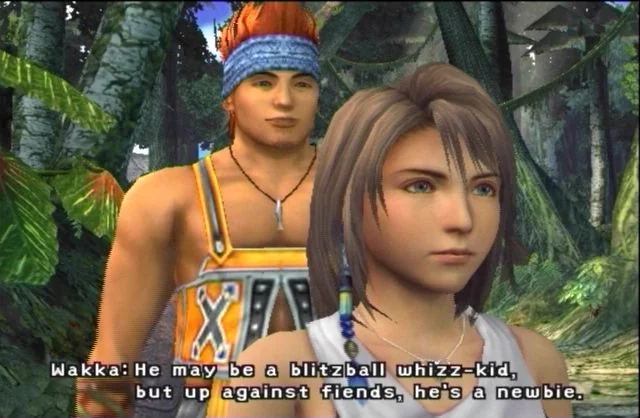
A concrete map makes the inventory idea easier to follow. For Final Fantasy X in PCSX2, the first file to protect is usually the PlayStation 2 memory card, not a single isolated save file. If you use file memory cards, back up the memcards folder and note which card slot the game uses. If you use folder memory cards, back up the full folder-card data and keep a note that compatibility can vary by game. Save states can be helpful extra snapshots, but PCSX2 warns that they are not replacements for memory-card saves and may not stay compatible across versions.
For Shenmue in Flycast through RetroArch, the storage mode matters as much as the files themselves. Flycast documentation for the libretro core describes shared Dreamcast VMU files in the system directory under the dc folder, using filenames such as vmu_save_A1.bin through vmu_save_D1.bin, along with dc_nvmem.bin. The same documentation also describes a per-game VMU option that creates unique VMU files in the save directory instead. That means your inventory should record both the location and the option that created it. Without that note, it is easy to restore the right VMU file to the wrong place.
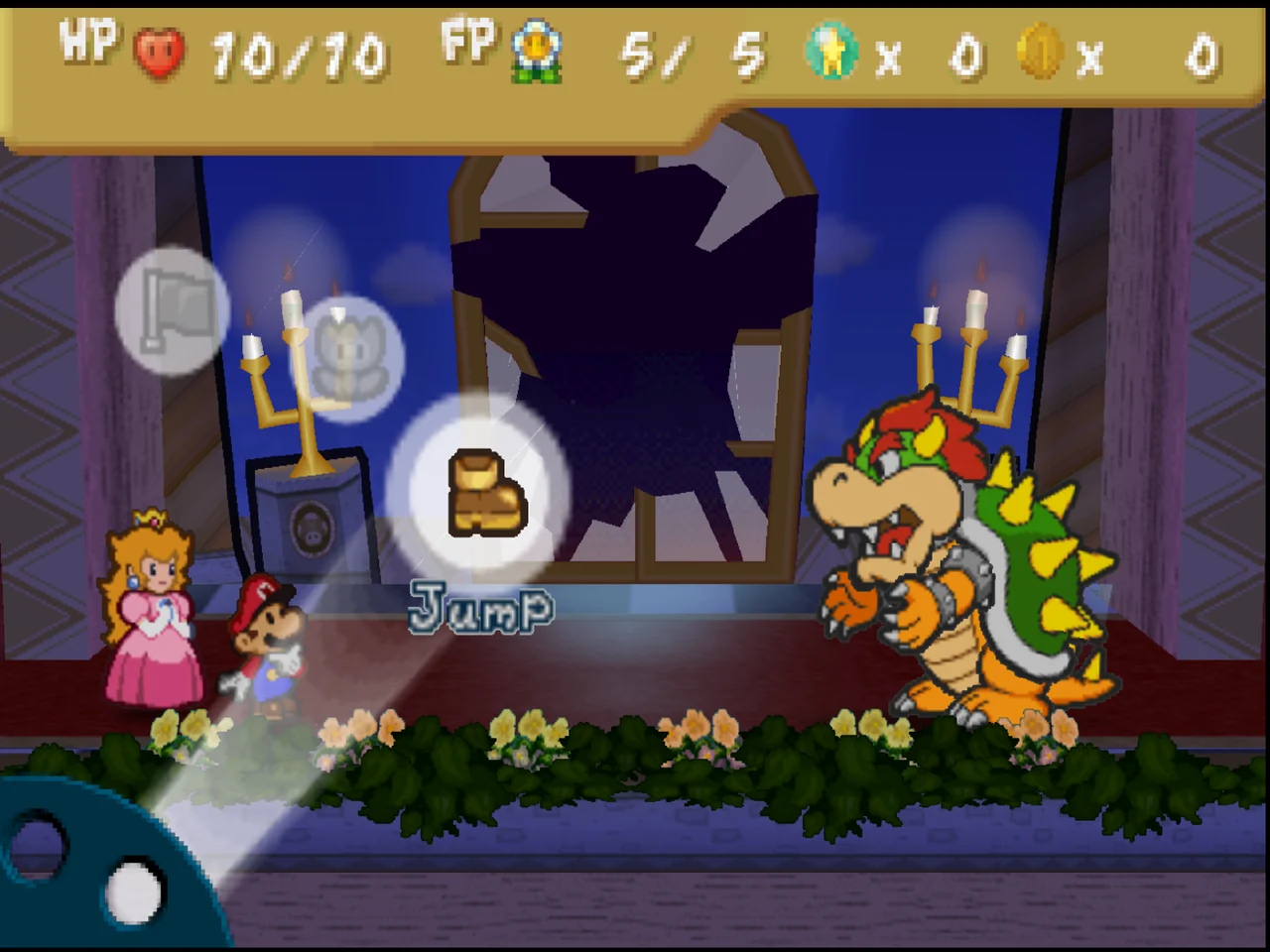
For Paper Mario in a Nintendo 64 setup, the most important habit is separating normal progress from quick snapshots. The Mupen64Plus-Next core documentation identifies the save directory for cartridge-style save data and the state directory for save states. Project64's maintained source also labels separate directory groups for N64 Auto saves and Instant saves. The broader lesson is simple: even on the same platform, different emulators may divide in-game progress and save-state snapshots differently, so your inventory has to name both.
- Final Fantasy X in PCSX2: preserve the assigned memory-card data first and save states second.
- Shenmue in Flycast for RetroArch: record whether you use shared VMUs or per-game VMUs.
- Paper Mario in an N64 emulator: identify normal save data separately from state-style snapshots.
- For every example, note the setting that decides where the files are created.
Step 4: Copy only when the emulator is fully closed
Backing up live files sounds harmless, but it creates avoidable risk. Save files, virtual memory cards, VMUs, and state files can be in the middle of a write operation while the emulator is open. If you copy them at that moment, you may preserve a half-written version that looks normal by filename and timestamp but fails when restored. The safer rule is straightforward: close the emulator first, then copy the entire save set.
This matters even more for shared containers such as PS2 memory cards and Dreamcast VMUs. One file can hold progress for several games, system metadata, or recent changes that have not fully settled to disk yet. Cherry-picking only the one item you recognize is often less safe than copying the whole relevant folder after the software is closed.
A good habit is to make backup part of the end of a session instead of a panic response. That means backing up after a long RPG chapter, before a difficult sequence you expect to retry, before changing emulator versions, before moving ROMs or BIOS files to another drive, and before enabling a new sync setup. Those are the moments when both progress and configuration are most vulnerable.
- Exit the emulator before every manual backup.
- Copy the whole relevant folder or card container, not just one recognizable file.
- Make a backup before emulator updates, drive moves, or major setting changes.
Step 5: Create dated snapshots so rollback is possible after corruption or a bad overwrite
A backup folder named Latest is better than nothing, but it is not enough. If the most recent copy already contains corruption or the wrong file, you have only preserved the problem more carefully. Use dated snapshots instead. A simple folder naming pattern such as year-month-day plus a short note is enough. The goal is to keep several recoverable points in time so you can return to last week or last month, not only to the newest state.
This is the practical answer to sync mistakes too. RetroArch's Cloud Sync can synchronize save files and save states, configuration, thumbnails, and system files, and it also excludes some items automatically, including the main retroarch.cfg file and playlist files. That can be a useful layer, but it does not replace versioned snapshots. If a synced file is overwritten or deleted by mistake, all your synced devices can quickly agree on the wrong version. Dated snapshots break that chain because they preserve older states outside the immediate change cycle.
You do not need enterprise backup rules for a personal emulator library. Keep it simple. Make a recent snapshot after major sessions, keep a weekly snapshot for active games, and make a before-change snapshot any time you update an emulator, alter save directories, or reorganize your content folders. If storage space gets tight, trim older save states first and preserve normal saves, memory cards, and VMUs longer.
- Name backup snapshots with the date and a short description.
- Keep more than one historical version.
- Make extra snapshots before updates or directory changes.
- Prioritize long-term retention of normal saves and virtual cards over disposable state files.
Step 6: Keep one local backup and one second-location copy, but do not confuse sync with backup
The safest small-scale setup uses two kinds of redundancy: one local copy for quick restores and one second-location copy in case the main device fails. The second location can be external storage kept elsewhere or a reputable cloud-backup destination. What matters is that at least one copy is separate enough that a single hardware failure, mistaken deletion, or malware event does not remove everything at once.
This is also where cloud features need careful expectations. RetroArch documents a Destructive Cloud Sync option and notes that when it is off, deleted or overwritten files are backed up locally. That is helpful, but it still does not turn synchronization into a full versioned archive by itself. Sync is transport. Backup is history. You want both functions, but you should not assume one automatically replaces the other.
For a modest collection, a sensible plan is live files on the main computer, a dated local snapshot folder on another drive, and a second-location copy of those dated snapshots. That arrangement protects against the most common failures without demanding complex server administration or always-on backup software.
- Keep a local backup on separate storage from the live files.
- Keep another copy in a second location.
- Use synchronization as an extra layer, not as the only archive.
- Review sync exclusions so you do not assume unsupported files are protected.
Step 7: Back up the configuration that explains your saves
A restore can fail even when the save data itself is intact. The missing piece is often configuration. RetroArch separates save-file and save-state directories, and its cloud-sync feature excludes retroarch.cfg. Flycast's Dreamcast VMU behavior depends on a core option that decides whether a game uses shared VMUs in the system directory or per-game VMUs in the save directory. PCSX2 portable mode changes where data lives. None of that is obvious from a lone save file copied out of context.
That is why your backup set should include the emulator's configuration folder or, at minimum, human-readable notes and screenshots showing the save-related settings. You are not trying to preserve every cosmetic preference. You are preserving the map that tells future you how the save system was assembled. Without that map, recovery becomes detective work at the exact moment you want the least stress.
A practical compromise is to back up the configuration directory and add a short text note listing the few settings that matter most: save directory, state directory, memory-card type, memory-card assignment, portable or standard install, and any core option that changes where VMUs or other save files are created. That note can still be useful even if the emulator later renames or rearranges a menu.
- Preserve configuration files tied to save locations and card assignments.
- Add a plain text note describing the key save-related settings.
- Do not assume synchronization includes every critical config file.
- Capture the options that change where files are created.
Step 8: Test a restore on a spare copy before an emergency forces the issue
The most important rule in this entire process is never to restore directly over the only known-good live copy. If you test on your real data and the restore fails, you may destroy the last usable version. Instead, duplicate the relevant emulator data to a spare folder, alternate profile, or separate non-production install, then test there first. That confirms both that you copied the right files and that the emulator still recognizes them under the expected path structure.
This spare-copy test matters because emulator saves are not universally portable. PCSX2 warns that save states are not guaranteed to be compatible across versions and documents a recovery route for an incompatible state: load it in the exact PCSX2 version that created it, then save normally to the memory card. That is the kind of detail you want to discover during a rehearsal, not during real data loss.
Your test should answer a few plain questions. Does the emulator detect the restored memory card, VMU, or battery save? Does the game show the expected progress? If you use RetroArch, did the files land in the directory structure that matches your current sorting settings? If you use Flycast, did the restored VMU appear in the location selected by your current VMU mode? Once the answers are yes, update your inventory with the restore date.
- Restore to a duplicate setup first, never straight onto the only good live files.
- Verify that the game sees the expected progress.
- If a save state fails, use ordinary in-game saving as the long-term rescue path when the emulator supports it.
- Record the successful restore date in your inventory.
Step 9: Keep the plan maintainable so you will still use it later
The best backup strategy is the one you will still follow six months from now. That usually means a short checklist, a few known folders, and a schedule tied to real play habits instead of vague good intentions. If you are rotating between Final Fantasy X, Shenmue, and Paper Mario, a practical rhythm might be a quick backup after any major story or progress milestone, a weekly snapshot while each game is active, and a full configuration-plus-save snapshot before emulator updates or device changes.
Avoid two common mistakes here. First, do not promise yourself that save states are enough for everything. They are convenient, but version changes and emulator differences make them less durable than normal in-game saves. Second, do not assume one emulator's behavior teaches you another's. Dreamcast emulation is a useful caution: standalone redream advertises save-state support, while the libretro redream core documentation marks save states unsupported. Even within one platform family, save handling can differ sharply by implementation.
A maintainable plan removes stress because it answers the same questions every time. Where are the files? Which settings decide their location? What gets copied after a session? How are snapshots named? Where is the off-device copy? How was the last restore test performed? Once those answers are written down, emulator upgrades and migrations stop feeling like roulette.
- Tie backups to play milestones, weekly snapshots, and before-change events.
- Prefer ordinary in-game saves for long-term preservation.
- Do not assume different emulators or cores handle save data the same way.
- Keep the procedure short enough that you will actually repeat it.
A reusable one-page checklist for every emulator you keep
If you want a backup plan that survives beyond one game, reduce it to a repeatable template. For each emulator, write down the emulator name, version, platform, and whether the install is portable. Record the live save location, the save-state location, the configuration location, and any system or BIOS directory that also holds save-related data. Then note whether progress is stored as normal files, file-based virtual cards, folder-based virtual cards, shared VMUs, or per-game VMUs.
Next, define the backup routine. Decide when a manual snapshot happens, where the local snapshot goes, where the second-location copy goes, and how snapshot folders are named. Include a short rule for retention, such as keeping all snapshots from the current month, one snapshot per month for the current year, and one pre-update snapshot before major emulator changes. The exact rule matters less than the existence of a rule you can follow without thinking.
Finally, define the restore rehearsal. Pick a spare folder or duplicate profile, copy in one dated snapshot, open the emulator, and confirm that the game recognizes the expected progress without touching your live data. Record the date, the emulator version used for the test, and any special steps you needed. Once that note exists, future recovery becomes a checklist instead of a memory test.
The main goal is not perfection. It is avoiding the two worst outcomes: preserving only the newest broken copy and replacing your only good save during a rushed restore. If your system prevents those mistakes, it is already doing the most important preservation work.
- For each emulator, record version, install type, save path, state path, config path, and storage mode.
- Use dated snapshots with a simple retention rule.
- Keep one local copy and one second-location copy.
- Test restores on a spare setup and log the result.
The safest emulator backup plan is not complicated. Identify every save-related file, record the settings that decide where those files live, copy them only while the emulator is closed, keep dated snapshots, and store at least one additional copy away from the live files. Most save losses happen because one of those pieces was missing, not because the player failed to care.
Just as important, prove the plan before disaster strikes. A spare-copy restore test turns a hopeful archive into a verified recovery method. Once that habit is in place, long games, shared virtual memory cards, and multi-emulator libraries become much easier to maintain without risking the only good copy of your progress.