An older graphics card cannot suddenly become a current flagship through positive thinking, RGB lighting or a sternly worded email to silicon manufacturers. It can, however, often deliver a noticeably better experience than its current frame-rate counter suggests. The most useful fixes do not require a new GPU: they involve rendering fewer pixels, cutting effects that matter less than their names imply, keeping the card cool and making sure the rest of the PC is not quietly eating resources.
That matters because modern big-budget games can make hardware feel obsolete long before it has stopped being useful. Features such as path tracing and advanced ray tracing are visually ambitious, but they are also expensive. The practical goal is not to force every game to run at an Ultra preset with every lighting option enabled. It is to find settings that preserve the parts of the image and responsiveness a player actually notices.
Start with the changes that are reversible and built into games. Save more invasive tuning for later. A sensible order is: update the graphics driver, close unnecessary background applications, use an upscaling option, adjust the biggest graphics costs, check physical airflow and only then consider an overclock. That order makes it easier to see which decision improved performance—and prevents a dusty PC from being rewarded with an unnecessarily adventurous voltage experiment.
Upscaling is usually the first setting worth trying
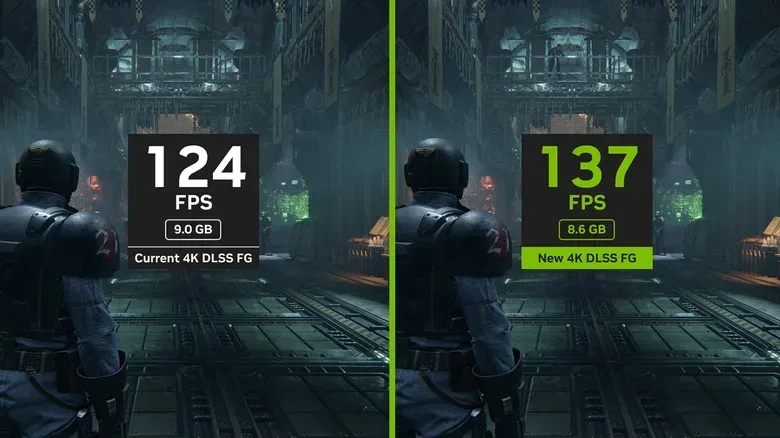
Many demanding PC games now offer a form of supersampling or upscaling, most commonly AMD FSR, NVIDIA DLSS or Intel XeSS. The terminology can sound as if someone has dropped a manual into a blender, but the basic idea is straightforward: the game renders at a lower internal resolution, which means the GPU has fewer pixels to produce, then reconstructs or upscales that image for the display resolution.
The payoff is often substantial because pixel rendering is a major workload. If a game is configured for a high-resolution display but the GPU is struggling, enabling one of these options can raise frame rates while keeping image quality close to a native-resolution presentation. Current versions including NVIDIA DLSS 4.5 and AMD FSR 4 are presented as delivering native-like image quality alongside a large performance gain. The exact result still depends on the game, the selected mode and what an individual player notices in motion.
In practical terms, upscaling is a better first compromise than simply accepting a permanently choppy game. It gives the GPU a smaller rendering job without necessarily making the image look as though it was viewed through a fogged-up diving mask. Players who have avoided the setting on principle may want to revisit it. In a visually demanding release, it can be the difference between a stable experience and one where the frame counter spends more time falling over than the protagonist.
What supersampling means here
In this context, the feature is not extra visual excess for its own sake. The key performance technique is rendering below the screen’s final pixel count and using an AI-driven reconstruction process to produce a higher-resolution image. The reduced internal resolution lowers the workload; the upscaler attempts to retain a convincing final image. The benefit is most valuable when a game offers a capable implementation and when high resolution is pushing an older card beyond its comfort zone.
It is worth changing one setting at a time. Pick an upscaling mode, play or observe a familiar scene, then decide whether the performance and image trade-off works for you. The useful question is not whether a menu label sounds premium. It is whether the game looks good enough while running well enough on your particular PC.
Related coverage includes How to Improve GPU Performance Without Replacing Your Graphics Card.
Frame generation can add frames, but it is not a universal answer
Frame generation is related to upscaling but should not be treated as the same tool. It creates additional frames between rendered ones, and that can make the displayed frame rate extremely high in supported games. NVIDIA’s DLSS 4.5 Multi Frame Generation, for example, can produce results above 200 fps in Hogwarts Legacy with its x6 setting enabled.
That impressive counter number comes with an important caveat: Multi Frame Generation can add serious input latency. Input latency is the delay between an action—such as moving a mouse or pressing a button—and the corresponding result appearing on screen. It is especially important in fast first-person shooters, racing games and other games where timing and direct control are central to the experience.
Earlier frame-generation variants with x2 and x3 modes may be a more comfortable fit in supported games. They can produce fewer distracting artifacts than Multi Frame Generation, including shimmering around on-screen text. This is why frame generation is best treated as a feature to test rather than a magic switch. A spectacular fps reading does not automatically mean a game feels better to play.
A reasonable rule is to use upscaling with confidence, then judge frame generation genre by genre and game by game. If the game is a slower-paced adventure and the responsiveness feels acceptable, the extra smoothness may be welcome. If every mouse movement begins to feel like it was routed through a small committee, turn it off. The frame counter is not in charge; your hands are.
Ultra is a preset, not a moral obligation
When performance is poor, lowering graphics settings remains the clearest path to relief. Ultra presets are designed to show what a game can do under ideal hardware conditions, not to issue a personal challenge to every GPU manufactured in the last several years. A Balanced preset is often the more realistic starting point, while a Performance preset may be appropriate for a card that is a couple of generations old.
The trade-off is graphical fidelity, but that phrase needs context. Not every individual effect has equal visual value. Ambient occlusion and screen-space reflections can add depth and polish, yet many players will not miss them in the middle of a rapid race or a frantic firefight. In those moments, consistently responsive controls and steadier motion may improve the experience more than a subtle reflection on an object nobody has time to inspect.
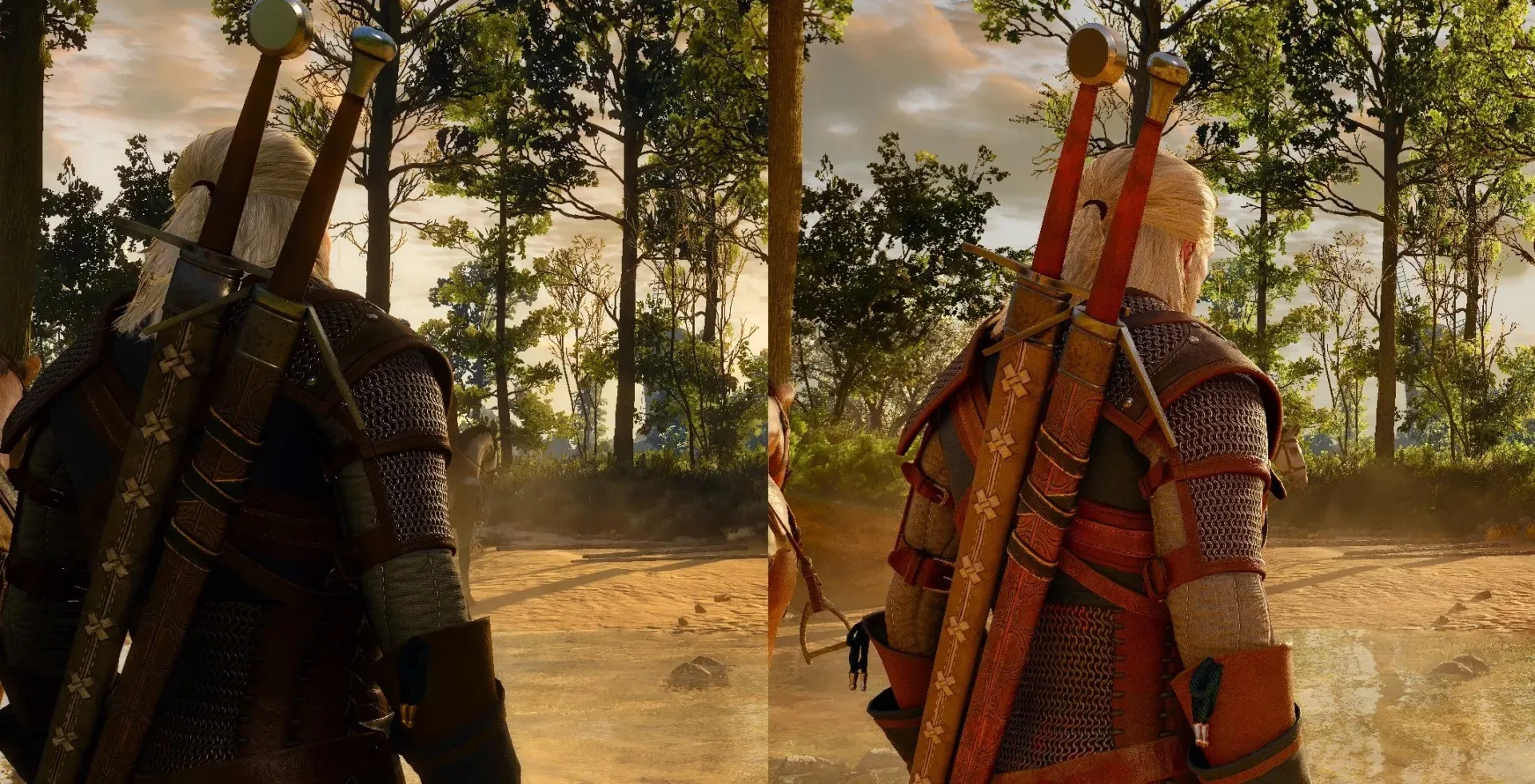
Use a game’s graphics menu as an experiment station. Some titles, including Resident Evil Requiem, provide before-and-after previews for effects. That is useful because it turns vague labels into a direct visual comparison. If the difference is difficult to spot in the preview, disabling the feature is a sensible way to recover performance. No player has ever been awarded a medal for identifying an imperceptible shadow detail while their game stutters.
Ray tracing is usually the biggest decision
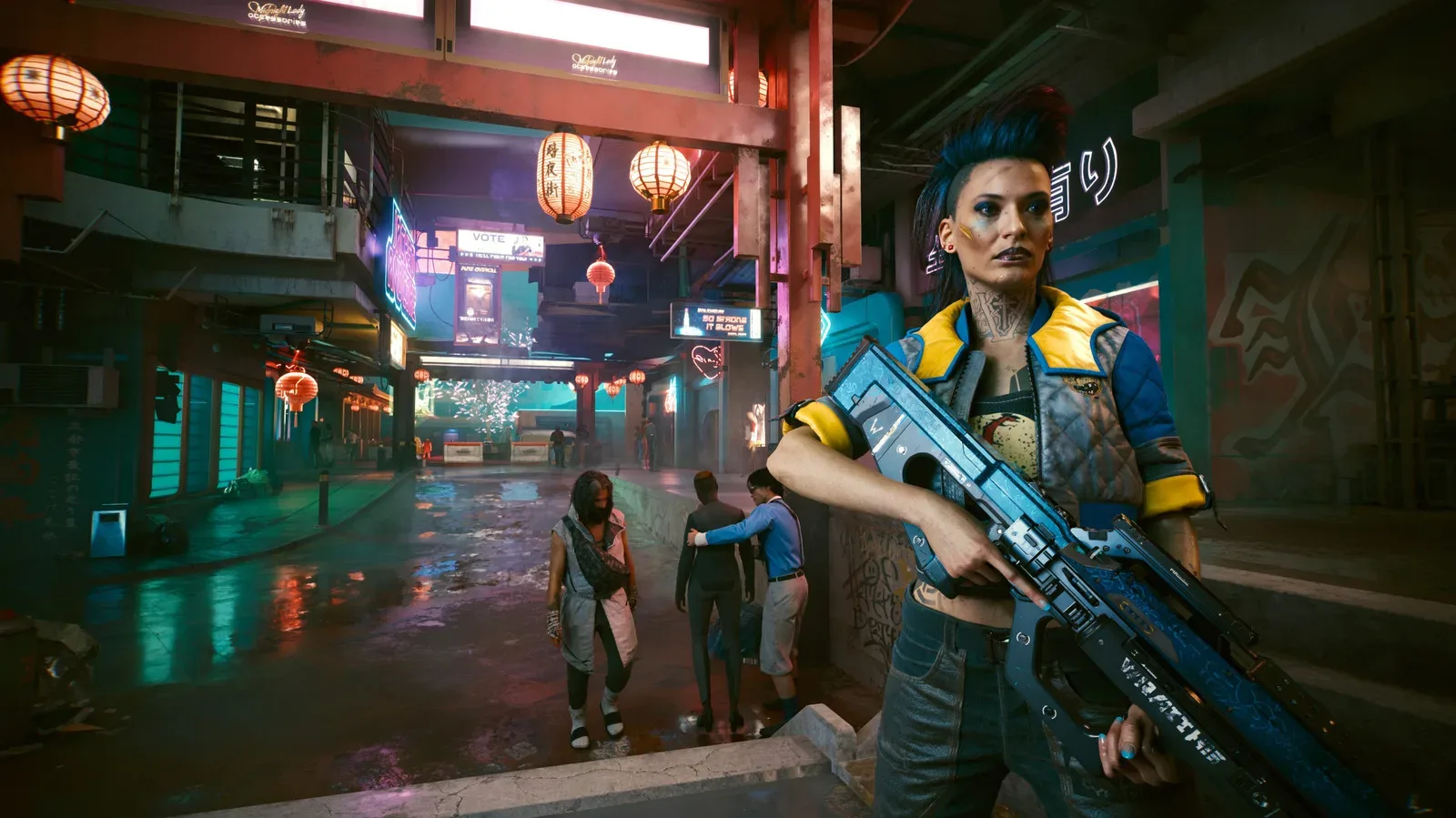
Ray tracing is an advanced lighting technique that uses multi-bounce illumination to produce more realistic shadows and reflections. It can look remarkable in games such as Cyberpunk 2077 and Marvel’s Spider-Man 2. It can also be ferociously demanding. On a budget GPU, enabling it is generally a bad performance bargain.
The reported hit can be around 20 to 40 percent of frame rate, which makes ray tracing one of the first settings to disable when a game is struggling. This is not an indictment of the technology; it is a prioritization exercise. If turning ray tracing off moves a game from erratic to dependable, it has done more for the experience than the prettier reflection ever could.
Path tracing raises the rendering ambition further and is another reason newer graphics features can outpace existing hardware. Players with older cards should be especially clear-eyed here: attractive lighting is nice, but stable performance is not an aesthetic failure. It is the foundation that lets the rest of the game happen.
Don’t let dust make the performance decisions
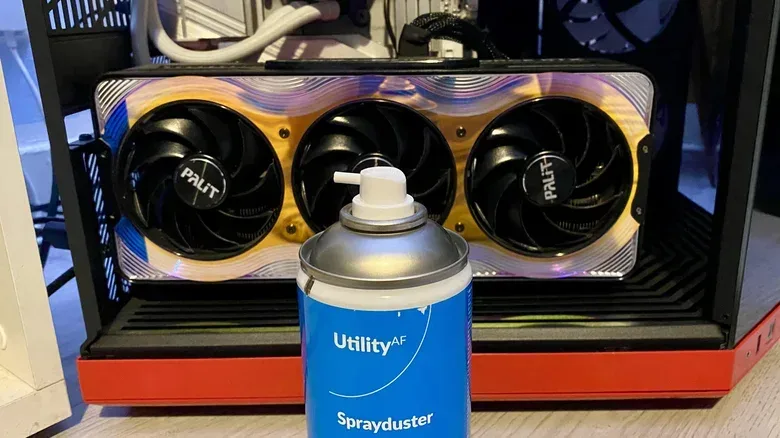
Software settings cannot compensate for a GPU that is too hot to maintain its normal operating speed. Dust buildup can obstruct airflow, particularly around graphics-card fans. When a GPU reaches its temperature limit, it may reduce its core clock speed to lower temperatures. That process is called thermal throttling, and it can reduce frame rates even when the settings have not changed.
Cleaning does not promise an instant fps miracle, but it is basic maintenance that helps the card operate under better conditions. Before accessing the GPU, switch off the PC and unplug it. Use a can of compressed air in short bursts around the fans to clear debris, then gently wipe the card with a soft microfiber cloth. The point is to remove dust without treating the inside of a computer like an archaeological dig site with power tools.
Good airflow benefits more than the GPU. CPU temperatures also matter, and keeping the system generally tidy reduces the chance that heat becomes an invisible performance ceiling. If a card has been running hotter because its cooling is restricted, restoring airflow may help it sustain its clocks more reliably rather than slowing down to protect itself.
Cover the unglamorous basics before attempting a tune-up
Driver updates are not glamorous, but they are a straightforward part of maintaining graphics performance. Keep the GPU driver current, then close background programs that are not needed while gaming. The aim is simple: avoid devoting meaningful system resources to other tasks while the game is demanding attention.
These steps are also low-risk compared with overclocking. An overclock pushes a GPU beyond the manufacturer’s intended settings in pursuit of extra performance. MSI Afterburner is identified as a tool for the task, but overclocking requires careful research and an understanding of how to do it safely. It is not the first remedy for poor performance, and it is not a substitute for sensible graphics settings or proper cooling.
For most players, the bigger wins are likely to come from disabling ray tracing, choosing an appropriate overall preset, enabling DLSS, FSR or XeSS, and making a clear-eyed decision about frame generation. Cleaning and driver upkeep support those changes by ensuring the card is not being held back by heat or neglected software.
There is also a wider purchasing lesson in resisting the urge to replace hardware before checking the basics. Whether evaluating a graphics upgrade or another budget-conscious device purchase, the specification that improves daily use matters more than decorative excess; the same principle applies in this look at which cheap Android phone specifications matter beyond a fancy frame.
A practical no-upgrade checklist
- Update the GPU driver and shut down unneeded background apps.
- Enable the game’s supported upscaler—DLSS, FSR or XeSS—and assess the image and performance in a familiar scene.
- Move from Ultra to Balanced, or use Performance on substantially older hardware.
- Turn off ray tracing first if frame rates remain poor.
- Disable individual effects whose preview differences are not worth their cost, such as ambient occlusion or screen-space reflections.
- Test frame generation rather than assuming it is always beneficial; prioritize responsiveness in fast games.
- Power down, unplug and clean dust from the GPU area using compressed air and a microfiber cloth.
- Consider overclocking only after researching safe procedures and only if the earlier steps are not enough.
An old GPU does have a limit, and no collection of menu toggles changes that. But a system does not need to run every effect at its maximum setting to remain enjoyable. The best optimization is usually the one that delivers consistent performance while preserving the visual details you genuinely care about—not the one that turns a settings screen into a bragging contest.