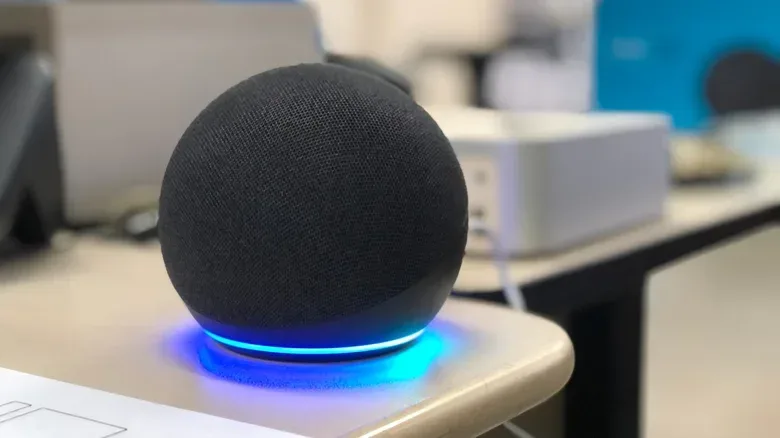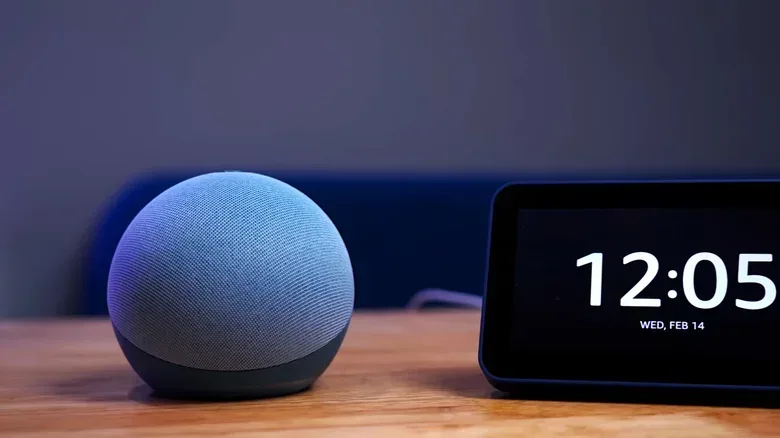
There is a special kind of domestic comedy in asking a smart speaker to turn on one lamp and hearing it confidently attempt something else entirely. Voice assistants have improved, but a misunderstanding does not automatically mean the speaker is broken. Often, the trouble starts before the assistant has had a chance to interpret anything: the microphone has picked up noise, echoes, the wrong nearby speaker, or a command aimed at two similarly named smart-home devices.
The sensible response is not to leap straight to a factory reset. That is the smart-home equivalent of deleting a save file because a menu did not load quickly enough. Start with the physical environment, then check naming and voice-recognition settings, and only finally consider restarting or resetting the hardware. This approach is both less disruptive and more likely to identify what is actually going wrong.
First, separate hearing problems from understanding problems
“My smart speaker does not understand me” can describe several different failures. The distinction matters because the fix is not the same for each one.
- It does not react at all: the wake word may not be heard, or another speaker may have responded instead.
- It hears the request incorrectly: distance, room noise, echoes, or an obstructed microphone can make speech less clear.
- It hears the words but controls the wrong thing: linked devices with overlapping names or poorly labelled rooms can create ambiguity.
- It hears a clear request but cannot complete it: the command may not be supported by that speaker or connected product.
That last case is easy to overlook. Clear speech is helpful, but it cannot turn an unsupported instruction into a working feature. Before restructuring a room around one bad request, try a few basic commands the speaker is known to handle. If those work reliably after a placement change while one particular instruction fails, the issue may be the request rather than the microphone.
Give the microphone a better shot
Start with the least dramatic maintenance task: inspect and clean the speaker. A dry cloth is the recommended tool for clearing visible dust or grime from the unit. The objective is straightforward: do not leave buildup around the device while trying to diagnose whether it can pick up speech consistently.
Next comes placement. Smart speakers are listening in ordinary rooms rather than studio booths, which means sound sources compete. Fans, surround-sound speakers and other regular household noise sources can interfere with how clearly a command arrives. Echoes can do the same. A speaker that is too close or too far away from the person speaking may also perform less well.
Move the speaker to another position and, if necessary, another room. Keep it at least one foot away from walls, and avoid planting it beside a fan or surround-sound setup. This is not cosmetic advice. It is a controlled troubleshooting step: change the listening conditions, then see whether recognition changes.
Test one variable at a time
Moving a speaker, renaming devices, retraining a voice profile and rebooting all at once may eventually make the problem disappear, but it tells you almost nothing about why. A more useful sequence is:
Related coverage includes How to Stop Your Smart Speaker From Misunderstanding Commands.
- Clean the speaker with a dry cloth.
- Move it away from obvious noise sources and walls.
- Use several short, supported voice commands.
- Compare whether its comprehension is noticeably better.
- Only then adjust app settings or smart-home names.
Short, concise wording helps make this test meaningful. That does not mean talking to the assistant like a malfunctioning spaceship computer; it means avoiding extra phrasing while you determine whether the system can reliably catch the core instruction. If a change in location produces a marked improvement, the room was probably the bigger obstacle.
Multiple speakers can turn one home into a voice-input turf war
A second common problem is not that no speaker heard the command, but that the wrong one did. Homes with multiple units can create a contest in which a more distant device takes the request instead of the closest speaker. The result may look like poor recognition even when the command itself was captured perfectly well.
Physical separation is the practical baseline. Put more distance between devices where possible, then test commands from the places where people usually speak. If the relevant app offers a sensitivity control, lowering the sensitivity of the unit that is too eager to respond may help reduce accidental captures.
Amazon Echo owners have an additional per-device option: change the wake word for a particular Echo. Using different wake words can make it clearer which unit should respond, rather than asking a cluster of nearby hardware to decide among itself. It is a small configuration change with a major everyday benefit when speakers are close together.
This is also why testing matters after every placement adjustment. A speaker may work perfectly from the sofa but grab commands intended for another device when someone speaks from the kitchen. A setup is only as reliable as the situations in which it is actually used.
Device names are part of the interface
Smart-home naming is easy to treat as boring administrative work. In practice, it is part of voice control. If multiple linked devices have very similar titles, the assistant can confuse one with another. The fix is to use names that are genuinely distinct, with a few unique words in each, and to give every room a clear label in the home-control app.
Think of this as reducing ambiguity, not adding needless formality. A collection of near-identical labels gives the assistant a harder choice whenever it interprets a spoken command. Names should make it obvious which specific device is intended and where it is located.
There is a useful practical rule here: change the setup so a person can tell devices apart at a glance, then make sure the spoken names are equally clear. Room labels should be treated with the same care. This makes routines simpler to manage and gives voice commands more context.
That wider principle applies beyond speakers. The value in well-organized settings is not flashy AI branding but fewer avoidable friction points, a theme also explored in this look at useful Galaxy software upgrades.
Train the assistant to recognize your voice
Once placement, noise and naming have been addressed, voice recognition is the next worthwhile setting. Voice recognition means creating a profile that helps the assistant identify the way you speak. It is a more targeted step than repeating commands louder and hoping for a better result.
On Amazon Echo, the route in the Alexa app is More > Settings > Account Management > Your Profile > Voice ID. The app prompts the user to say various commands while setting up Voice ID, which is intended to be recognized across platforms.
On Google-powered speakers, open the Google Home app and go to Settings > Google Assistant > Voice Match. Voice Match can be configured for connected devices, and a home can include up to six distinct voices. That capacity is especially relevant in a household where a speaker is regularly trying to distinguish among several people rather than repeatedly responding to one person.
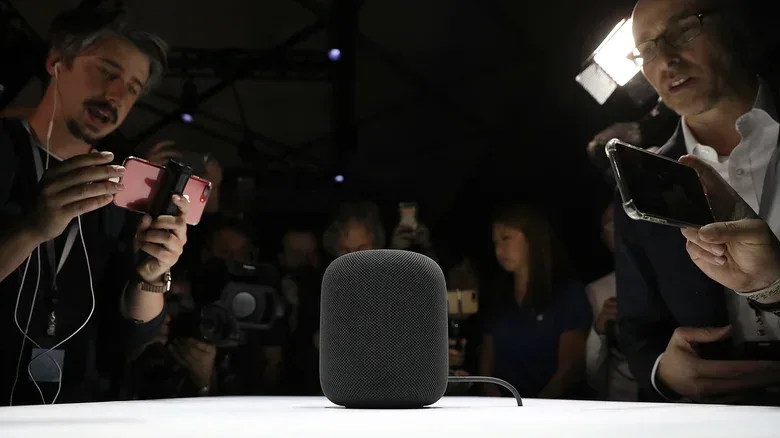
For Apple HomePod, use the Home app: tap the More button, represented by three dots, to reach Home Settings. Open the relevant user profile and enable Recognize My Voice. For a smoother experience across devices, the phone-side setting is also important: open Settings, tap the name at the top, enter iCloud, select See All beside Saved to iCloud, then enable Siri.
These steps do not replace sensible room placement. Voice recognition can help an assistant better identify who is talking; it cannot fully compensate for a microphone fighting fans, reflections and a nearby speaker system. Consider it an improvement layered on top of a cleaner audio environment, not an excuse to ignore one.
Restart before you reset
If the speaker still misunderstands routine requests after the earlier checks, restart it by unplugging it for one minute and plugging it back in. This is the last low-cost step before a factory reset, and it preserves the work already put into configuring the device.
A factory reset restores the speaker by removing custom settings. It is therefore not a casual first move. A reset may be appropriate when there appears to be a major issue and the other measures have failed, but it also means accepting that your personalized setup will be cleared. Treat it as a recovery option, not a standard response to one annoying misheard command.
A quick troubleshooting order worth keeping
- Wipe visible dust or grime with a dry cloth.
- Move the speaker away from fans, surround-sound speakers and other consistent noise sources.
- Keep it at least one foot from walls and assess whether echoes or distance are involved.
- Use a handful of concise commands the device can actually perform.
- Separate multiple speakers; reduce sensitivity where the app permits it.
- On Echo, consider different wake words for individual devices.
- Rename linked products with distinct wording and label rooms clearly.
- Set up Voice ID, Voice Match or Recognize My Voice for the platform in use.
- Unplug the speaker for one minute and reconnect it.
- Use a factory reset only after the less destructive steps do not help.
The recurring lesson is wonderfully unglamorous: smart speakers work best when the physical room, the network of devices and the account settings all agree about what is being said and what should happen next. Before blaming the robot, make its job less ambiguous.