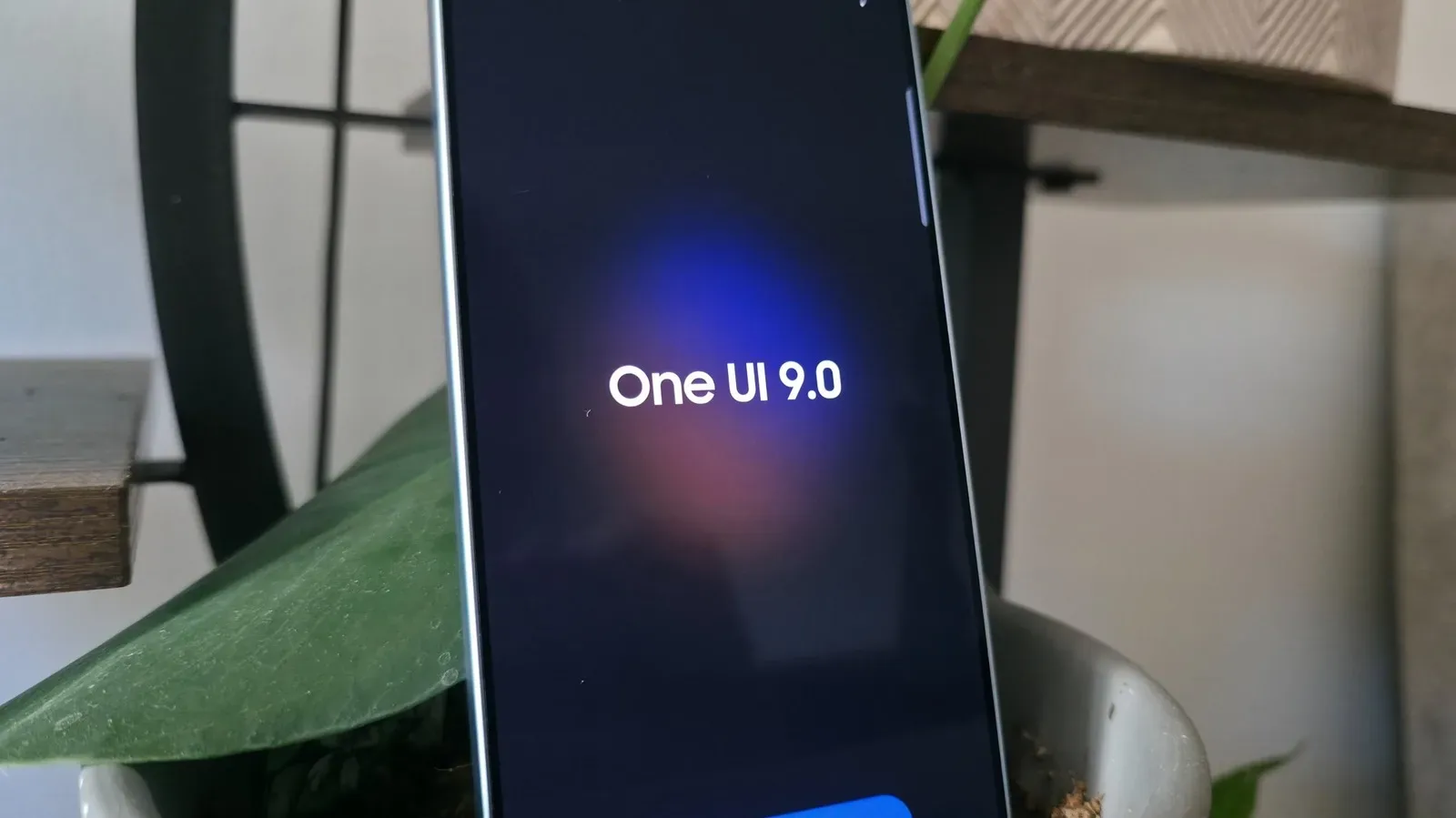
Samsung’s One UI 9 update, built on Android 17, is rolling out to eligible recent Galaxy flagships with a set of changes that are notably less interested in turning every ordinary phone task into an AI magic show. There is still plenty of AI branding, naturally, but the potentially meaningful additions are practical: tighter video edits from footage already in the Gallery, better scans of awkward paper documents, a more flexible quick-settings layout, scheduled lock-screen summaries and warnings about suspicious app behavior.
That makes One UI 9 relevant to people who use a Galaxy phone as the device that sits beside their actual gaming hardware, too. A phone often winds up handling clips, photos, messages, event details, manuals and account security. The update does not turn a handset into a console, nor do all of its new “smart” surfaces appear equally smart. But several features could reduce friction around the unglamorous parts of digital life.
My FanCam turns a broad recording into a focused subject clip
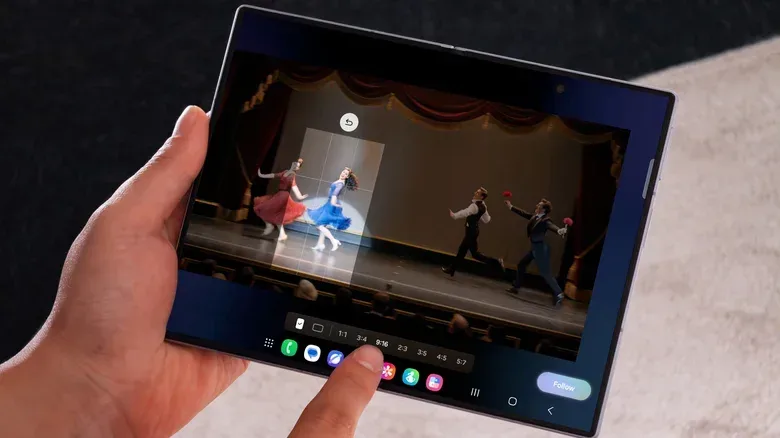
The marquee addition is My FanCam, a Gallery editing feature that identifies people in an existing wide video and lets the user select one person for a closer, tracked crop. In simple terms, it creates the appearance of a camera operator following a chosen subject even though the original clip was framed broadly.
That distinction matters. The feature does not require a special camera mode while recording. After taking a video, users can open it in Samsung Gallery and select the Galaxy AI control, represented by a sparkles icon. The result is especially suited to situations in which framing the right person in the moment is difficult: a performance, a dance recording, or a youth sports game. Recording wide preserves the full scene; selecting the focal person later produces a shareable highlight.
For players and convention-goers, the same workflow could be useful when a group clip includes several people at once but only one cosplayer, speedrunner or presenter needs to be the focus in a shorter version. It is an editing convenience rather than a replacement for deliberate filming: a crop necessarily relies on the original video having enough room and clarity around the selected person. Still, automated subject tracking is normally the sort of painstaking job associated with dedicated editing software.
Its most important technical detail is that My FanCam is reported to work on-device. That means its processing can happen on the phone rather than uploading the video to a remote server; it was available while a device was in airplane mode. On-device processing is valuable for both privacy and practicality, particularly with personal recordings, but it does not eliminate every requirement. A Samsung account login is still needed.
Availability is a moving target during a staged software rollout. The feature has been used on Galaxy S26 Ultra and S25 Ultra devices, while Galaxy S24 phones have been identified as the oldest models with it in a One UI 9 beta. Owners should therefore check their particular model and installed build rather than assume every phone receiving One UI 9 has precisely the same feature set.
Quick Panel refinement is small-scale quality-of-life work
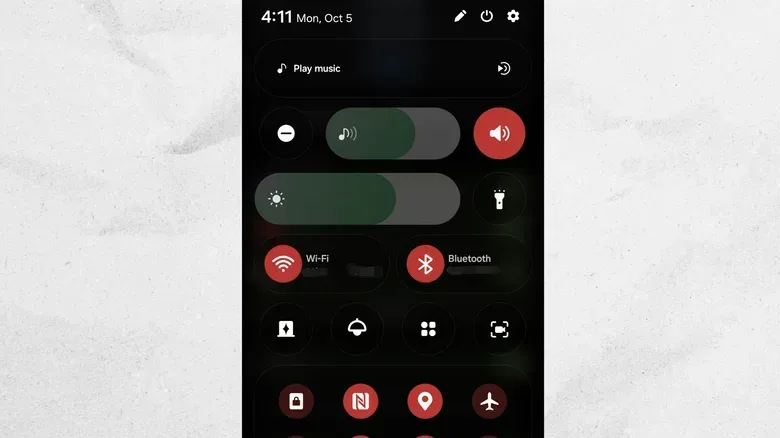
One UI’s Quick Panel is the area used for rapid controls such as brightness, volume and connectivity. Samsung split quick settings from notifications in One UI 7, then added repositioning and resizing options in One UI 8 and 8.5. One UI 9 keeps pushing that customization further, with an emphasis on a cleaner visual layout.
Related coverage includes 5 One UI 9 Features Galaxy Users Should Explore First.
The clearest change affects the brightness and volume sliders. Earlier versions allowed vertical orientation, but attached controls remained fixed to the sliders: a ringer mute shortcut on volume and a dark-mode shortcut on brightness. One UI 9 lets users remove those attached buttons, leaving standalone sliders. The surrounding visual pads and tile borders have also been reduced.
It is an extremely modest change on paper, yet it addresses a familiar interface problem. Quick controls are accessed in moments when someone wants an immediate result—lower the volume, dim the display, turn on a setting—not an invitation to visually parse a crowded panel. A layout that places frequently used controls where the owner expects them can be more useful than an entirely new headline feature.
There is also a cosmetic music-player detail: the waveform on its playback scrubber can match the current album artwork. It changes no function, but it reflects the update’s broader UI polish. Players who manage long listening sessions or watch streams from a phone will see the player not only in the Quick Panel but also above notifications and in the live-notification chip.
The scanner is aiming at the real-world documents people actually struggle with
Samsung has long included document scanning inside the camera app, but flat sheets are the easy case. Books, bound manuals and folded pages pose a different challenge because the camera records their curves, creases and shadows exactly as they are. A scan that looks warped may be readable, yet it is much less useful as a clean reference copy.
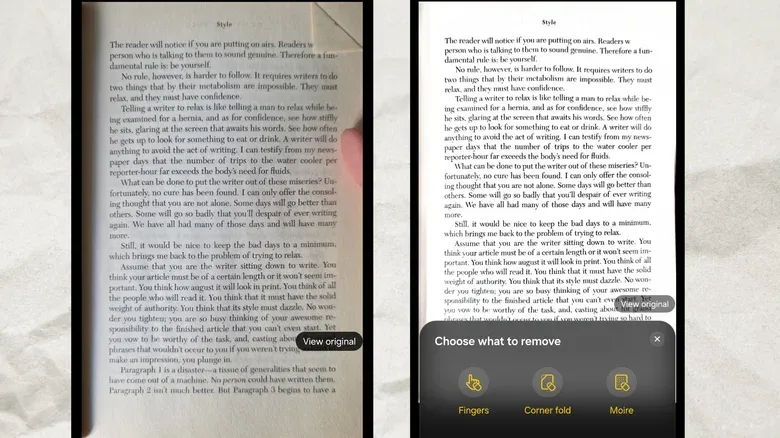
One UI 9 improves the scanner’s ability to compensate for curved pages and folded corners. The intended outcome is a flatter-looking digital version of a book spread or bent sheet without relying entirely on manual correction. It also adds an updated finger eraser, plus compensation for moiré and glare. Moiré is the distracting interference pattern that can appear when a camera captures a finely repeated printed pattern; glare is reflected light that obscures the underlying text or image.
The practical payoff is straightforward. Someone cataloging notes, scanning event information, preserving a page for reference or capturing a paper instruction sheet should have a better chance of a usable result without needing to flatten every page perfectly. A home-screen shortcut can launch directly into the scanning tool, avoiding a trip through the standard camera interface.
There are limits. The upgraded scanner has shown promise removing a thumb and reducing the visual impact of a dog-eared page, but a full two-page book layout can still be difficult. That is worth treating as a boundary rather than a failure: software correction can improve a challenging image, but it cannot guarantee that every curve, gutter and reflection disappears. For retro-focused players working with portable hardware and software projects, tools such as the Ghostship Vita v1.3 update are a reminder that the surrounding documentation and setup material can be as useful as the app itself.
Now Brief becomes more useful when it stops pretending to know you
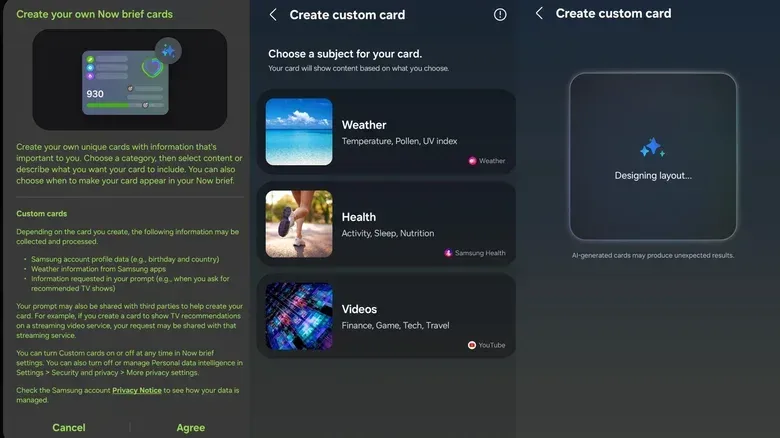
Samsung’s Now Bar is a lock-screen surface for live information, and its Now Brief cards have not always been convincing as proactive personal assistance. One UI 9’s more interesting adjustment is to make the cards more user-directed. Rather than relying solely on the system to infer what matters, users can make cards that deliver chosen information at a selected time.
Supported examples include Samsung Health, Samsung Weather and YouTube. A user might ask for a card at 9 PM that reports daily steps and calories burned through Samsung Health. The card-building process uses a fill-in-the-blanks-style generative prompt rather than a dense conventional settings menu.
This approach has an obvious advantage: the user defines the desired summary. It is easier to trust a scheduled health recap or weather update that was specifically requested than a vague piece of machine-generated advice. But it also carries two caveats. First, generated cards are served once a day, which puts a ceiling on how dynamic they can be. Second, creating and using them involves personal data and off-device processing. Anyone considering these cards should weigh convenience against that data handling rather than treating “AI” as an automatic benefit.
There is additionally a daily limit on generating or editing cards. That may be a minor annoyance for a person who quickly settles on one or two recurring summaries, but it is a real constraint for anyone experimenting with multiple configurations. The sensible way to use Now Brief is narrowly: choose a genuinely useful, repeatable update, set it once and then decide whether it earns its lock-screen space.
Security Brief may be the most valuable addition—provided alerts are judged carefully
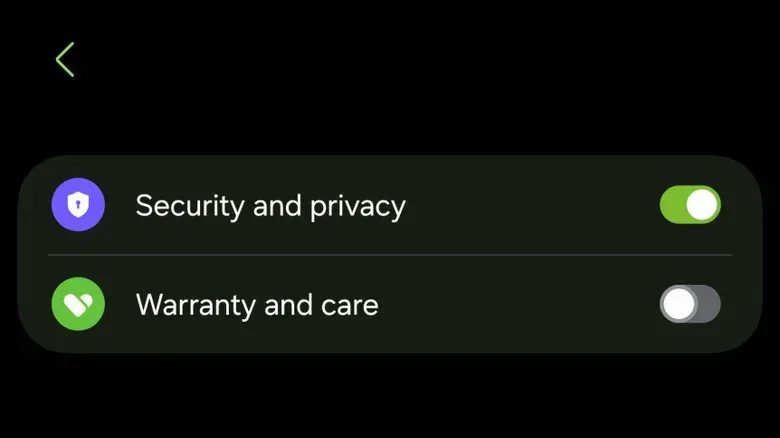
The most consequential new Now Bar option is Security Brief. After enabling the “Security and privacy” control in Now Brief settings, users can receive a notification when the phone detects an app that could be malware or appears to be behaving suspiciously. Potential triggers include excessive background location requests or other questionable behavior.
Malware is software intended to harm, exploit or otherwise compromise a device or its user. A security alert is not, by itself, proof that an app is malicious; it is a signal to investigate. One UI 9 allows the user to follow the warning and take action if the concern appears legitimate.
That distinction matters most for Android users who install apps from outside the Play Store. This practice is commonly called sideloading, and it can expose users to unsigned app packages. An unsigned package is not necessarily dangerous—hobbyist developers may distribute software that way—but it lacks the same form of developer signing that helps establish provenance. Security Brief can therefore produce false positives in these situations.
For the majority of people relying on Play Store installs, alerts should be uncommon unless an app is actually overreaching with permissions or behavior. For people who deliberately use apps from elsewhere, the answer is not to reflexively dismiss every warning or blindly delete every flagged package. Check what app was flagged, consider where it came from, examine the permissions it has been given, and use the alert’s path to take action when the risk seems credible. Samsung lists Security Brief support back to the Galaxy S23 series, though rollout status should again be checked by model and software version.
The sensible One UI 9 checklist
- Try My FanCam on a previously recorded wide clip in Samsung Gallery; it is a post-capture tool, not a special shooting mode.
- Rearrange the Quick Panel around the controls used most often, and remove attached slider shortcuts if the simplified layout suits you.
- Use the scanner shortcut for books, folded sheets and paper documents, while keeping expectations realistic for wide two-page spreads.
- Create one deliberate Now Brief card for a summary you actually want, then consider the personal-data and off-device-processing trade-off.
- Enable Security Brief if you want proactive suspicious-app warnings, especially if your app-install habits extend beyond the Play Store.
One UI 9’s strongest ideas are not the ones asking users to surrender judgment to an algorithm. They are the ones that simplify concrete tasks while leaving the person in control: choose a subject, arrange a panel, scan a page, request a specific update, investigate a warning. That is a healthier direction for phone software—and considerably more useful than another feature that merely tries to look futuristic.