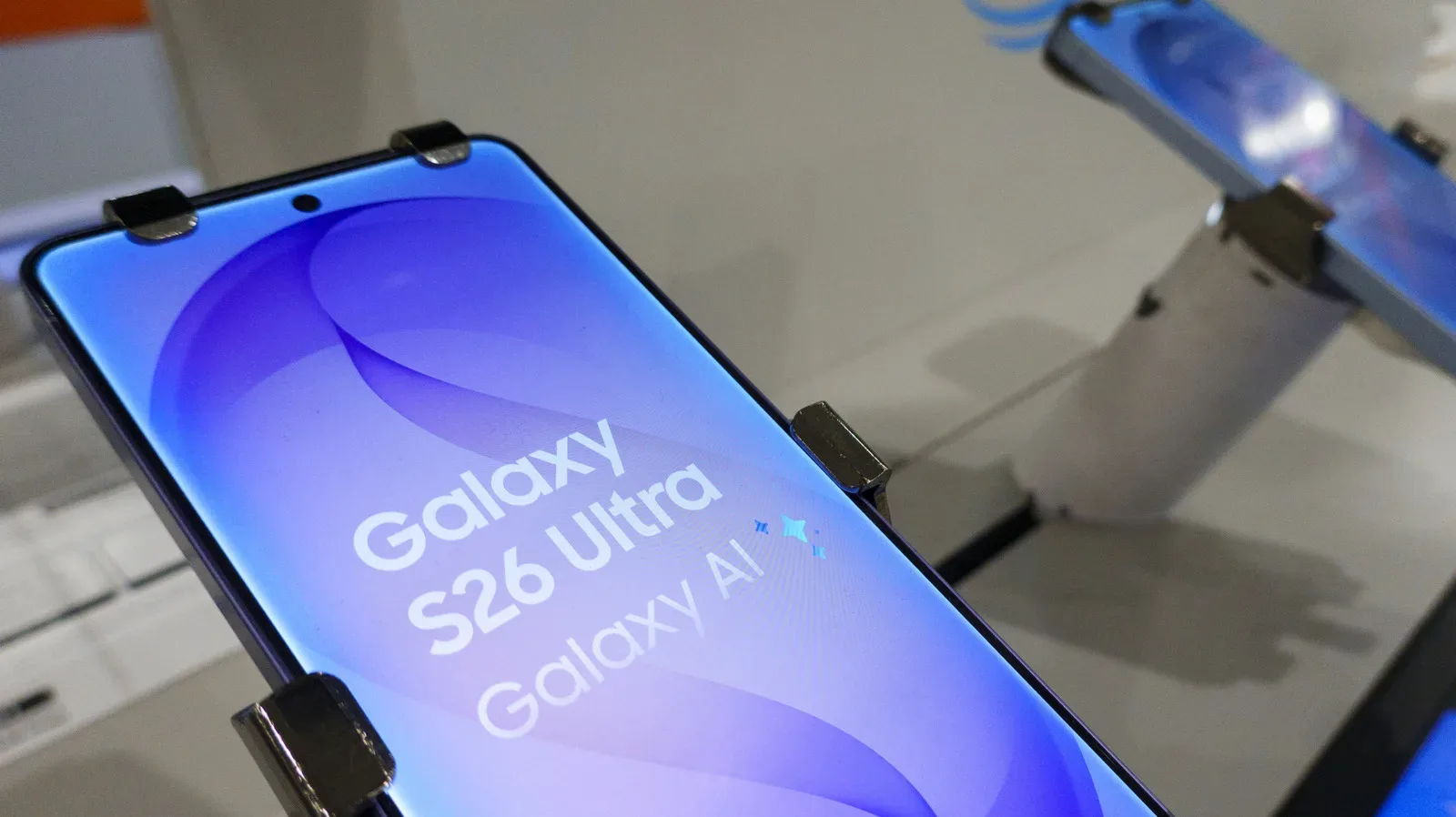
Samsung’s One UI 9 rollout began on September 16 and is expanding by device and region, meaning the update may already be waiting on some Galaxy phones while others will need to wait. That staggered approach makes preparation more useful than repeatedly tapping the update button: confirm that a phone is in the supported group, protect important data, and make sure the device has the storage, power and connection needed to complete the installation without avoidable trouble.
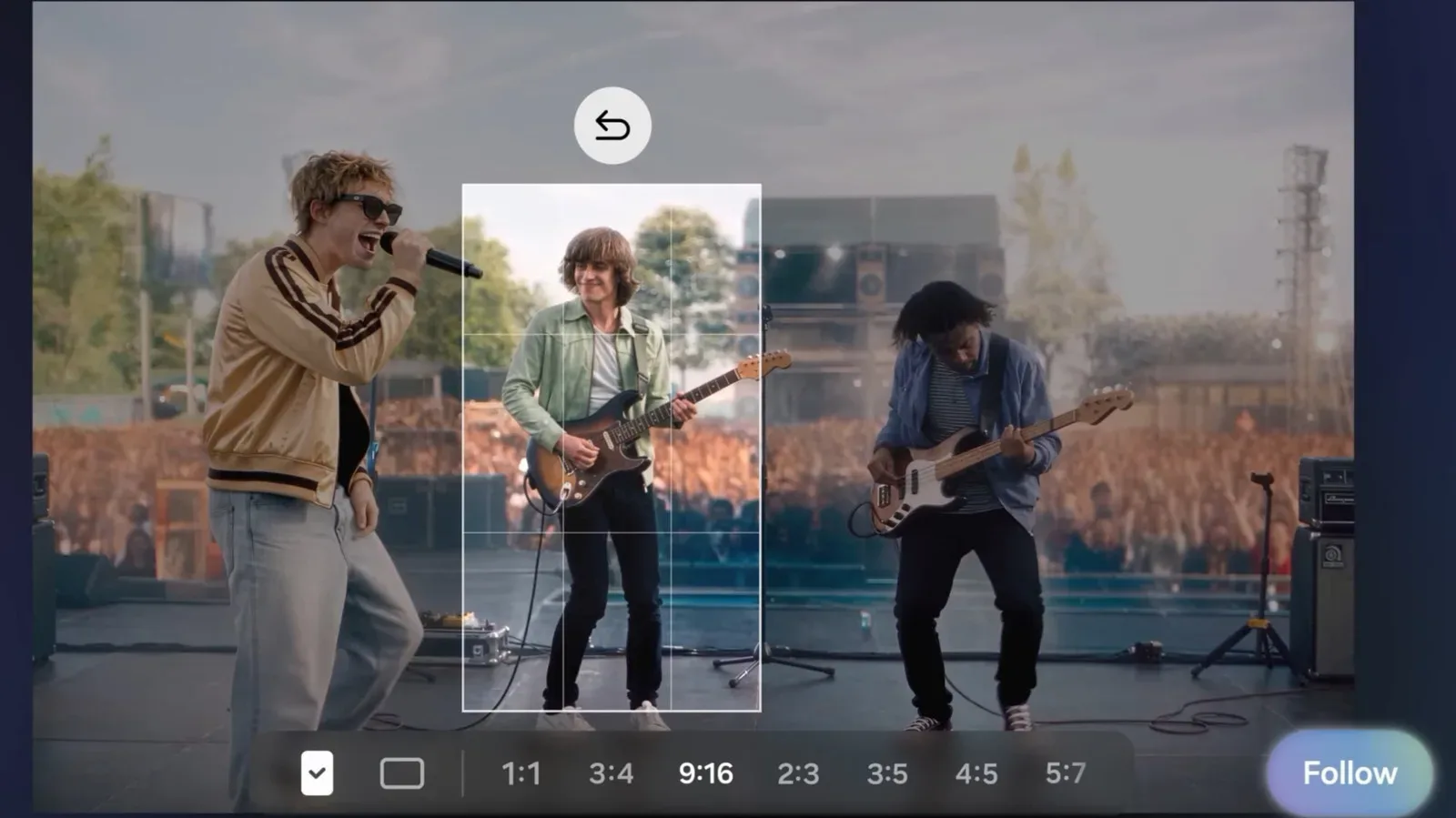
One UI 9 is based on Android 17 and places substantial emphasis on AI-assisted tools. The cited additions include My Fancam intelligent tracking, Now Nudge suggestions during text conversations, expanded scam detection and privacy alerts designed to flag possible security breaches in the background. Those features may be the attraction, but an operating-system update is still a significant change to a phone’s core software. Treating the installation as a small maintenance task rather than an instant download is the sensible move.
First, establish whether the phone is eligible
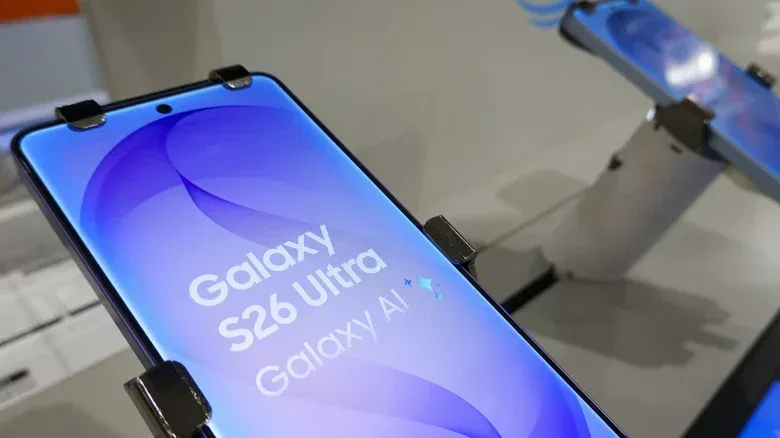
The available compatibility guidance covers the Galaxy S23 series and newer S-series phones, alongside Galaxy Z Flip and Galaxy Z Fold devices from the 5 generation onward. A supported model does not necessarily mean the update will appear immediately. Rollouts can vary by region and device, and the stable version has only begun reaching the S26 series so far. Other eligible Galaxy devices may receive it later.
On the phone, open Settings, select Software Update, then choose Check for updates. If One UI 9 has reached that particular handset, this is where the device should offer the download. If it has not, there is no need to force the issue; availability is still spreading.
For people who do not want to install a major update in the middle of a busy day, the same area includes Download and install, which can be used to arrange an automatic download for a later time. Scheduling is especially practical when the phone will be charging and connected to Wi-Fi. It gives the update the conditions it needs while keeping the initial download and installation out of the way.
Clear more storage than the stated download size
The stable One UI 9 update is expected to require around 4GB of storage. That figure should be treated as a minimum target rather than a reason to stop freeing space the instant 4GB becomes available. Leaving additional room is prudent, because the phone needs working space while it processes an operating-system package.
Before beginning, review what is occupying local storage and remove files you no longer need. The immediate aim is straightforward: create at least the expected 4GB requirement, with a buffer beyond it. Do that before downloading rather than discovering a storage warning after the process has started.
This is also a useful moment to think about what belongs on the phone versus what should be retained elsewhere. A device backup is not the same thing as simply having room for an update. Storage preparation makes the installation possible; a backup protects files if something goes wrong.
Related coverage includes How to Get Your Galaxy Phone Ready for One UI 9.
Back up important files before changing system software
An update is intended to preserve a user’s data, but important material should be backed up before installing One UI 9 if there is any concern about an unexpected problem. The available guidance recommends a physical backup or a cloud backup. Either approach can provide a separate copy of files that would be difficult or impossible to replace.
The key principle is separation. Files that exist only on the phone remain dependent on that single device throughout the update. A copy stored in the cloud or kept physically elsewhere gives the owner another option if the installation does not proceed as expected.
Backups are especially worth prioritizing before a beta build, which is explicitly less stable than a finished public release. But they are worthwhile before the stable update as well. Major system upgrades affect the software foundation used by apps, settings and stored content, so the modest time spent safeguarding essential files is a reasonable precaution.
Use sufficient battery power and Wi-Fi
Charge matters for a software update because the phone should have enough battery to download and install the package without interruption. If the installation has been scheduled, make sure the handset will have adequate charge at the scheduled time. Keeping it on charge is the simplest way to avoid a low-battery complication.
Wi-Fi also matters, particularly for the stable package’s roughly 4GB footprint. Confirm that Wi-Fi will be available if a delayed download has been arranged. In practical terms, the ideal setup is uncomplicated: a backed-up phone, enough free storage, a dependable Wi-Fi connection and a charge source available for the duration.
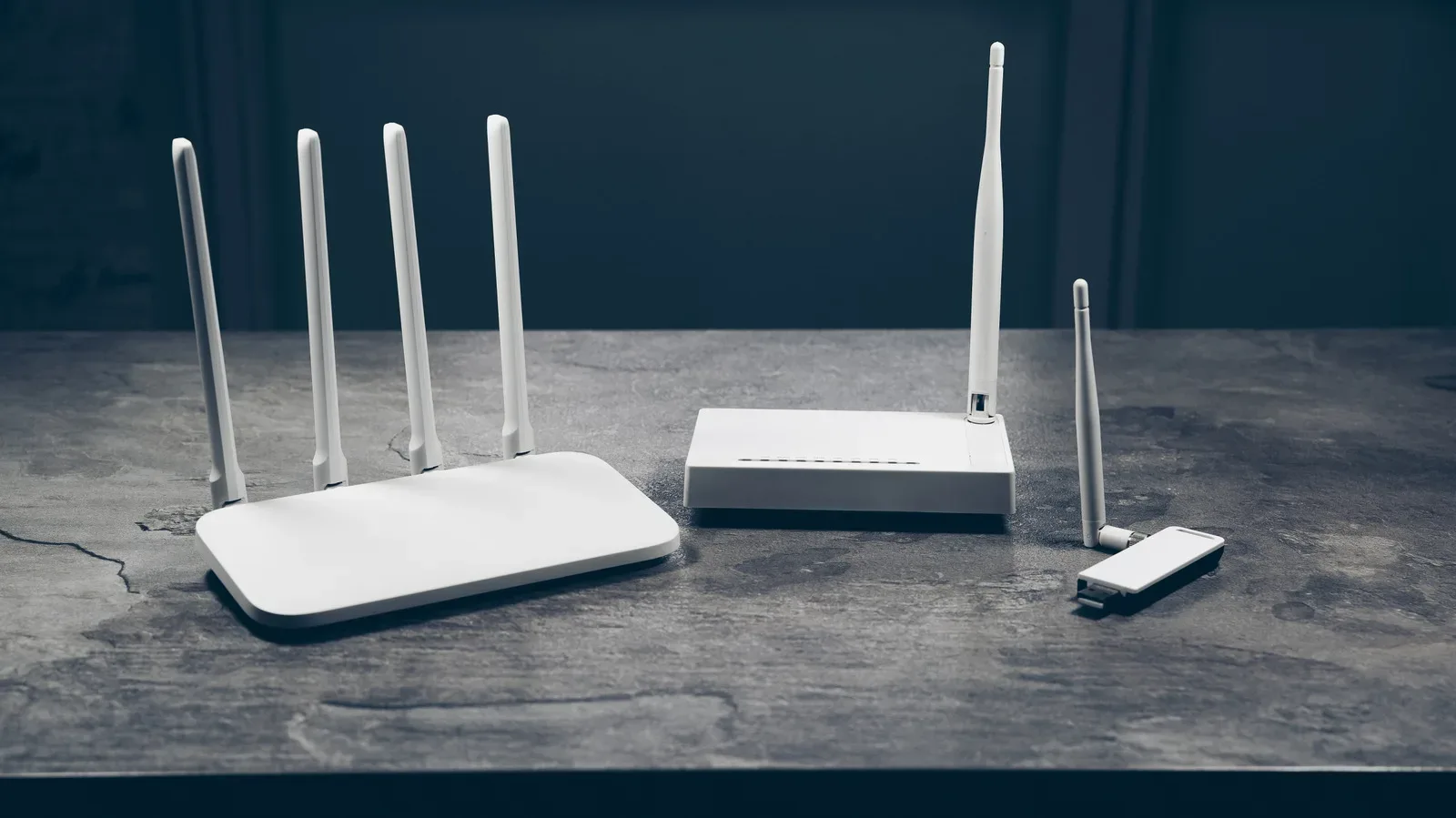
These steps are not unique to One UI 9, but they are more important for an operating-system update than for a small app patch. Users focused on security should also keep the wider home-network picture in mind. Software support and maintenance matter for connected equipment beyond the phone itself; an older router that no longer receives updates can still warrant replacement planning.
What One UI 9’s new AI-oriented tools are meant to do
One UI 9’s highlighted changes are centered on contextual assistance and background protection. My Fancam is described as offering intelligent tracking. Now Nudge is intended to provide timely suggestions during a conversation, including surfacing reservation details or saving location details while a user is texting.
In this context, “contextual” means the tool is designed to react to information relevant to what is happening in the moment, rather than requiring a user to search manually through their phone first. That can be convenient, but it also explains why privacy alerts are a notable part of the update’s feature set. One UI 9 adds AI-enhanced privacy alerts that are designed to detect potential security breaches in the background, alongside additional scam-detection support.
Users should distinguish the promise of a feature from a guarantee that it will solve every security or fraud risk. Background detection and alerts can add another layer of assistance, but they do not remove the value of keeping software current, maintaining backups and paying attention to suspicious activity.
Stable release versus beta: choose deliberately
Not every One UI 9 download currently being offered is the same kind of release. The stable rollout has begun on the S26 series, while some older Galaxy devices are receiving a second beta version. A beta is pre-release software: it provides earlier access to changes, but it is less stable than the finished version.
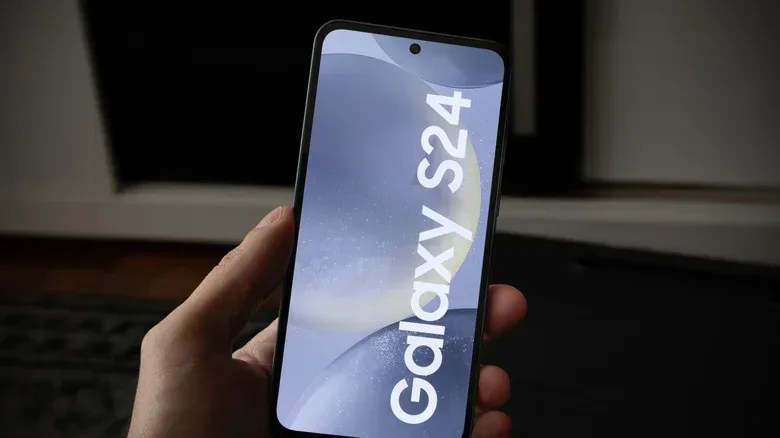
The second beta is rolling out for the Galaxy A55, Galaxy A35 and Galaxy S24 series. For the A55 and A35, the rollout begins in South Korea. The Galaxy S24 Beta 2 rollout begins in India. As with the stable version, region is part of the availability picture.
Beta participants should make storage decisions based on their own update package rather than the stable build’s 4GB figure. The Galaxy A55 beta is listed at about 403.66MB; the Galaxy A35 beta calls for roughly 500MB of free space; and the Galaxy S24 beta is about 600.90MB. Leave extra room beyond those listed sizes, retain a backup, charge the phone and use Wi-Fi just as you would for the stable update.
Enrollment is also required for the applicable beta program. In other words, checking Software Update alone will not turn an ordinary device into a beta device. Those who prefer fewer variables should wait for the stable release assigned to their model and region. Those already enrolled and comfortable using less-stable software should still follow the same careful preparation routine.
A concise pre-install checklist
- Confirm the device is an eligible Galaxy model and remember that rollout timing varies by region.
- Open Settings > Software Update > Check for updates.
- For a delayed installation, use Download and install and choose a time when Wi-Fi and charging will be available.
- Free at least 4GB plus additional working room for the stable update.
- Back up important files physically or in the cloud.
- Ensure the battery is sufficiently charged; keeping the phone on charge is preferable.
- Use a Wi-Fi connection for the download.
- If joining a beta, verify enrollment, your region’s availability and the beta package’s separate storage requirement.
That preparation will not accelerate Samsung’s regional rollout, but it will ensure the phone is ready when One UI 9 arrives. More importantly, it turns a potentially disruptive system upgrade into a planned maintenance task, with the user’s important files protected and the phone supplied with the resources the installation needs.