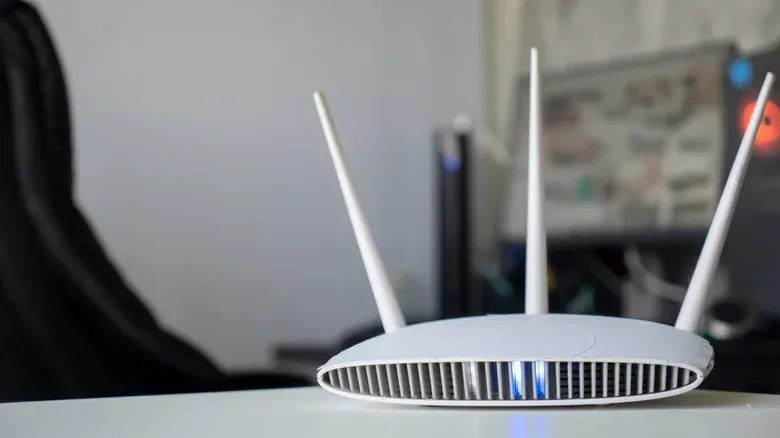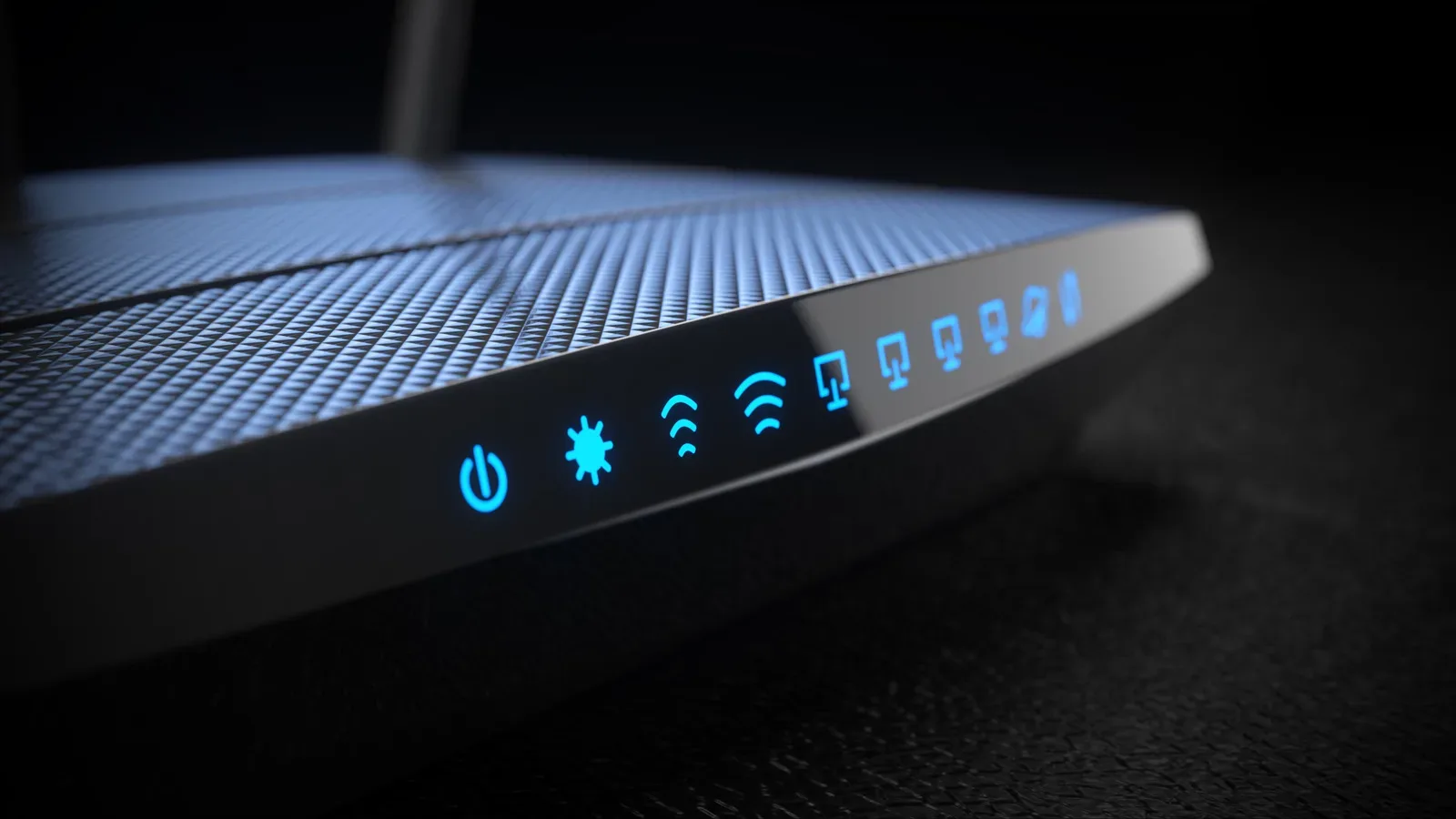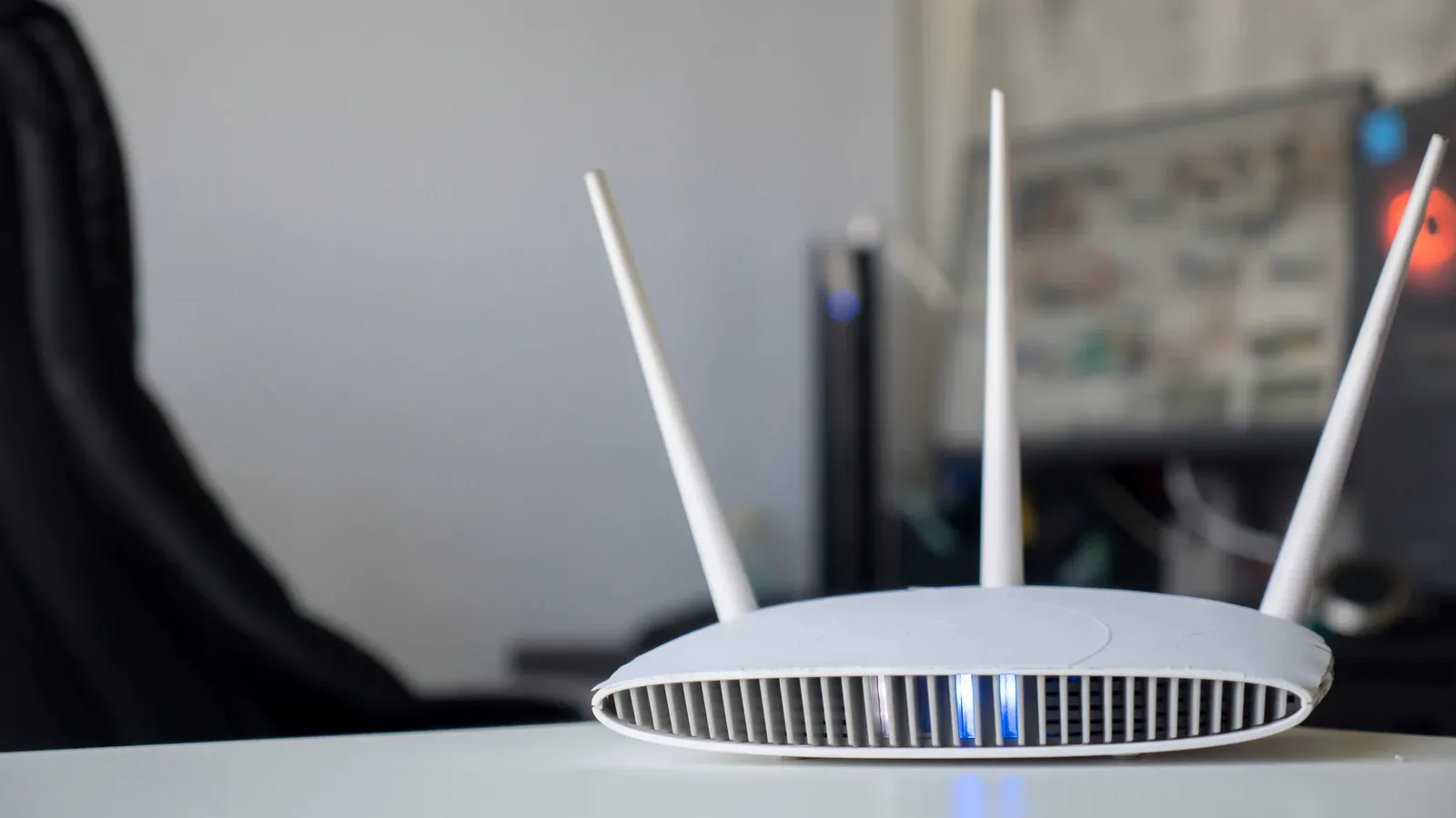
When a game disconnects, voice chat cuts out, or every device in the house suddenly starts behaving like it has joined a speedrunning category called “No Internet,” the row of lights on a Netgear router can be more useful than it looks. Those LEDs are not merely decoration: they show whether the router has power, whether it can see the modem, whether Wi-Fi radios are active, and whether connected ports are actually carrying data.
The important trick is to read the symbol, color, and behavior together. A light that is solid can mean the device is ready; a blinking light often means normal traffic is moving. Amber is not automatically an emergency, either. On some indicators it is part of startup, while on an Ethernet port it can identify a slower wired link. The same general idea applies to Netgear’s Orbi mesh hardware, although Orbi uses a much smaller set of status lights.
For the broader distinction between the boxes involved in a home connection, see our guide to routers, modems and gateways for a lag-free game night. Here, the focus is on what the lights on a Netgear router or Orbi are saying right now.
Start with the three LEDs that explain most outages
When the connection is down, do not attempt to interpret every tiny symbol at once. Start with the power LED, the internet LED, and the Wi-Fi LED. They represent three different stages: whether the router is running, whether it has a connection to the modem and internet service, and whether it is broadcasting Wi-Fi for local devices.
Power LED: power, startup, and firmware status
The standard power symbol identifies the power LED. It does more than say whether the router is plugged in: it can also indicate a firmware process or a fault.
- Off: The router has no power.
- Solid green or white: The router is powered on and ready.
- Solid amber: The router is starting up.
- Blinking amber: Firmware is being upgraded, or the reset button has been pressed.
- Blinking white: The router firmware is corrupted.
- Blinking white and amber: The device is in access point mode.
Firmware is the software that operates the router itself. A blinking amber power light during an update should not be treated like an ordinary connection problem. It signals that the router is updating. Likewise, the alternating white-and-amber pattern has a specific meaning: access point mode. In that mode, the device functions as a connection point for other devices rather than handling its usual router role, and functions including VPN and remote management are unavailable.
If the router is not behaving normally, a restart is the first sensible action. If it is fully unresponsive, a factory reset may be necessary. That is a more consequential step than a restart: the status light indicates that a reset process may be occurring, but it does not make a reset the default solution for every lost connection.
Internet LED: check the modem-to-router handoff
The internet indicator uses an icon resembling a small circle orbiting a larger one. This is the LED to check if your wired and wireless devices can see the router but cannot reach online services.
Related coverage includes How to Read the Lights on a Netgear Router or Orbi Mesh System.
- Off: The router is not connected to the modem.
- Solid green or white: The internet connection is ready.
- Solid amber: An Ethernet connection to the modem has been detected.
- Blinking white: The port is transmitting and/or receiving traffic.
An unlit internet LED points directly at the Ethernet link between modem and router. Check that the cable is fully seated and is not damaged. A solid amber light is still useful information: it means the cable connection to the modem has been detected. A blinking white LED, meanwhile, is generally an activity indicator. It means data is being sent or received, not that something is necessarily wrong.
Wi-Fi LED: whether the wireless radios are active
The Wi-Fi symbol is the familiar dot with curved lines on either side. It reports the status of the router’s Wi-Fi radios as a whole.
- Off: Wi-Fi radios are turned off.
- Solid white: Wi-Fi radios are operating.
- Blinking white: Wi-Fi traffic is being transmitted or received.
This distinction is useful because an online router and a working Wi-Fi network are not exactly the same thing. If the internet LED shows a ready connection but the Wi-Fi LED is off, the router may have a connection through the modem while its wireless radios are disabled. Conversely, blinking Wi-Fi activity means the router is communicating over Wi-Fi; it is not an automatic warning light.
A quick troubleshooting order that avoids LED panic
Reading the indicators in sequence turns a confusing light show into a basic diagnostic path.
- Look at power. If it is off, the router is not powered. If it is solid green or white, it is ready. If it is blinking amber, account for a firmware upgrade or reset action before interrupting anything.
- Look at internet. If this is off, inspect the Ethernet cable between router and modem. If it is solid green or white, the connection is ready. Blinking white denotes traffic.
- Look at Wi-Fi. If this is off, the Wi-Fi radios are disabled. If it is solid or blinking white, Wi-Fi is operating or moving traffic.
- Only then inspect the more specific lights. A numbered Ethernet light, a USB light, or an individual band LED can narrow down the issue to a particular device, port, or wireless band.
This order matters because it separates broad failures from local ones. An inactive Ethernet LED beside a single numbered port does not mean the whole internet connection has failed; it means nothing is connected to that specific port. A blinking Wi-Fi light alone does not prove every device has a perfect connection. It simply shows activity over Wi-Fi.
What the individual Wi-Fi band LEDs mean
Many current Netgear routers display separate lights for the 2.4GHz and 5GHz bands. Wi-Fi 6E models or newer can also have a 6GHz light. A band is a portion of radio spectrum used by Wi-Fi; the separate LEDs let the router show whether each corresponding radio is running and carrying traffic.
The meanings are the same for each displayed band:
- Off: That specific Wi-Fi radio is off.
- Solid white: That radio is operating.
- Blinking white: Traffic is moving over that band.
These indicators are especially helpful when the general Wi-Fi LED says the router is active but a particular band is not. They do not need to blink constantly to be healthy. Blinking indicates that data is being sent or received on that radio at that time; solid white means the radio is operating.
USB and Ethernet LEDs: physical connections, spelled out
USB: connected, connecting, or safe to remove
Routers that include USB ports have an LED for each one, marked with the USB trident icon or “USB 3.0.” The light tells you the state of the device attached to that particular port.
- Off: No USB device is attached, or Safely Remove Hardware has been used and the device can be removed.
- Blinking: A USB device is attempting to connect.
- Solid green or white: A USB device is connected and ready for use.
This is a narrow but clear status check. If a connected USB device is not ready, its port LED can distinguish an attempted connection from a completed one. If the LED is off after using the safe-removal control, the router indicates it is clear to disconnect the attached device.
Ethernet: a light for each numbered LAN port
Numbered LEDs correspond to the router’s Ethernet ports. They identify whether a powered-on device is connected and, by color, the link speed.
- Off: Nothing is connected to that port.
- Solid: A powered-on device is connected.
- Blinking: The port is sending and/or receiving data.
- White or green: A 1 Gbps Ethernet connection.
- Amber: A slower 100 Mbps or 10 Mbps Ethernet connection.
Gbps means gigabits per second, while Mbps means megabits per second. In practical troubleshooting terms, the color can reveal that a wired device has established a connection at a slower rate than 1 Gbps. That is different from a port being dead: amber identifies a functioning but slower 100 Mbps or 10 Mbps link, while no light means no connected device is detected on that port.
WPS: a successful connection is not the same as best practice
The WPS LED is marked by an icon resembling a router emitting signals. WPS stands for Wi-Fi Protected Setup. It is designed to add devices to the network without manually entering the network name and password.
- Off: No WPS connection is active.
- Blinking: A WPS connection is in progress.
- Solid: The WPS connection succeeded.
The solid indicator confirms that the WPS process worked, but the convenience comes with a security caveat: WPS should be disabled for better router security. In other words, a “success” light here means the setup action completed; it is not necessarily a feature that should remain enabled as part of a long-term network setup.
Orbi mesh lights use a different, shorter visual language
Netgear Orbi mesh systems are less crowded with LEDs than conventional routers. Their key messages are split between a front light and a rear light. The front indicator describes the connection state, particularly the relationship between the router and a satellite. The rear light covers power and firmware-related status.
A mesh system uses a router and satellite units to extend Wi-Fi coverage. In this context, backhaul is the connection between the router and satellite. If that link is missing, a satellite may not be able to pass traffic back to the main router.
Orbi front LED: router-to-satellite connection quality
- Solid blue: The connection between router and satellite is strong.
- Solid amber: The router-to-satellite connection is acceptable but not especially strong.
- Solid magenta: There is no backhaul connection or no internet connection.
- No light: The Orbi is not receiving power.
The front light is therefore the quickest Orbi check when coverage seems inconsistent away from the main router. Blue means the router-satellite link is strong. Amber means it is working but weaker. Magenta is the more urgent state because it identifies either a missing backhaul connection or a missing internet connection.
Orbi rear LED: power, rebooting, updates, and failures
- Solid green: The router and satellite are powered on.
- Solid amber: The unit is rebooting.
- Pulsing amber: The unit is updating firmware or resetting to factory settings.
- Pulsing red: A possible hardware problem or connectivity failure.
- No light: The Orbi is not receiving power.
As with a standard router’s power LED, the rear Orbi light separates ordinary startup and maintenance activity from a potential failure. Solid amber means a reboot is occurring, while pulsing amber indicates a firmware update or factory reset. Pulsing red is the warning pattern to take seriously, as it can indicate hardware trouble or a connectivity failure.
The main lesson is reassuringly simple: blinking is frequently evidence of work, not disaster. First identify the icon, then the color, then whether the light is solid, blinking, or pulsing. Begin with power, internet, and Wi-Fi; use per-port and per-band LEDs to isolate a more specific issue; and on Orbi, distinguish front connection status from rear power and firmware status. That is enough to turn a row of mysterious lights into a useful first diagnostic tool before the next queue, match, or download is derailed.