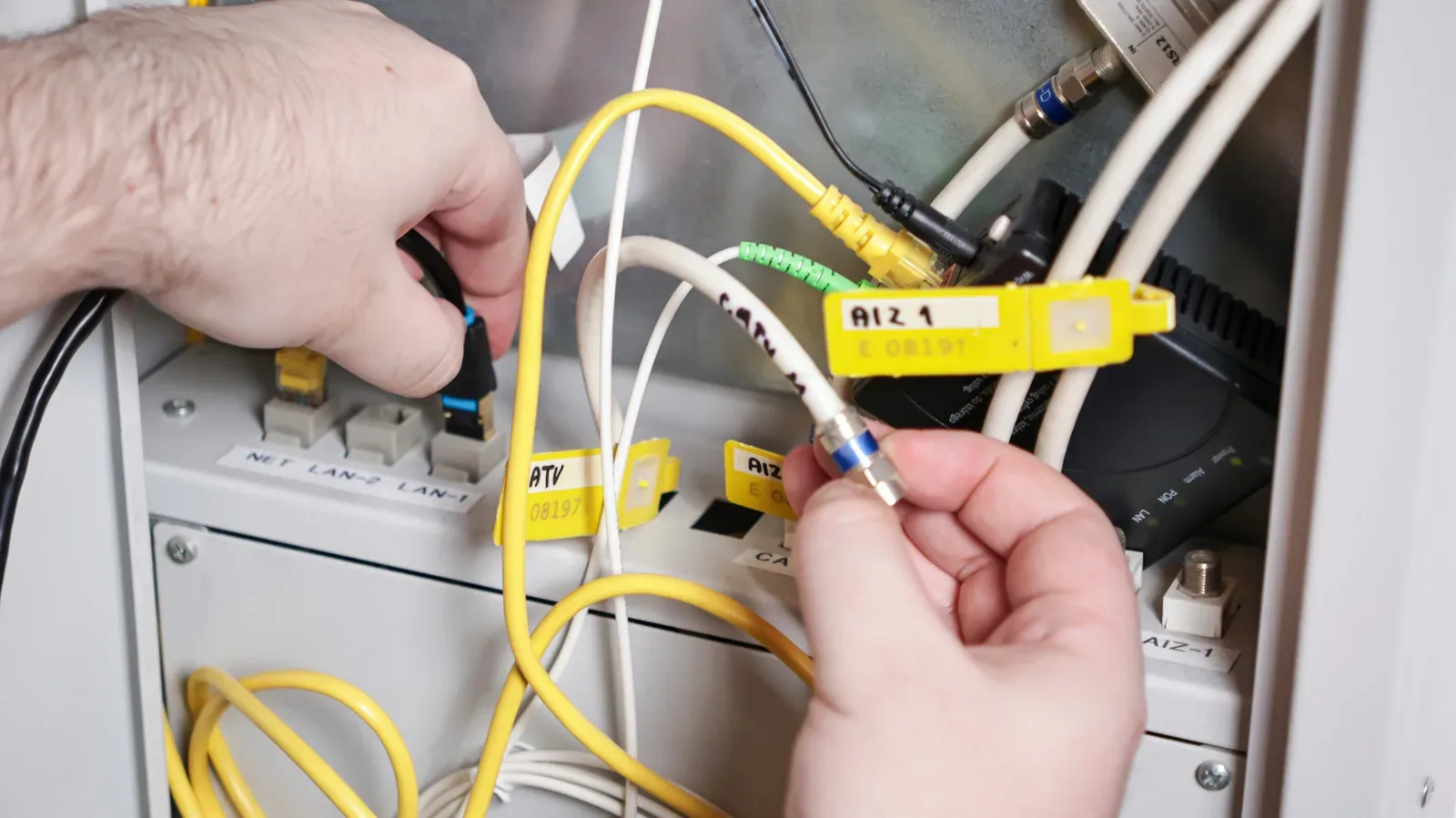
When a download stalls, voice chat breaks up, or a game suddenly reports a connection problem, the black box with blinking lights tends to receive the blame. The trouble is that “the Wi-Fi box” can describe several very different pieces of equipment. A modem, router and gateway each sit at a different point in a home network, and the distinction matters when deciding what to restart, what to replace and what an internet provider is actually charging for.
The quick version is simple: the modem communicates with the internet service, the router moves that connection among devices in the home, and a gateway folds both roles into one unit. That basic map does not solve every networking problem, but it cuts through plenty of confusing product labels and rental-plan jargon.
The three jobs, without the networking fog
Modem: the link to the provider
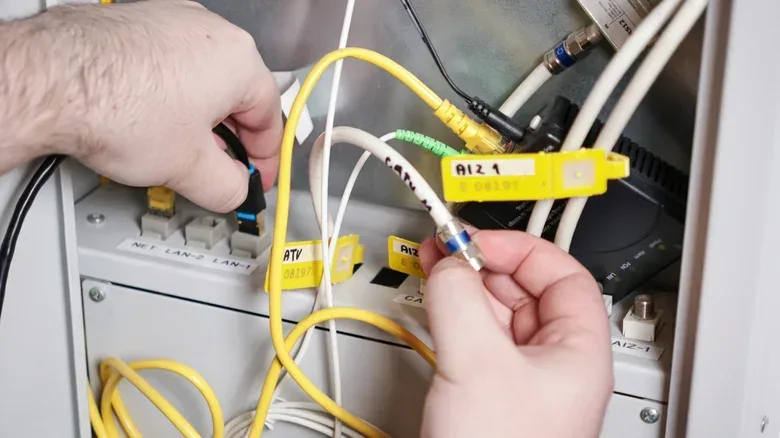
A modem—short for modulator-demodulator—translates signals from a cable or phone line into digital data that home devices can use, and translates data going the other way for the provider’s network. In practical terms, it is the piece of equipment that talks to the internet connection arriving at the home.
That does not mean the modem is necessarily delivering Wi-Fi to a console, PC, television or phone. Its central role is establishing the connection between the household and the service provider. The device may be a stand-alone unit, or it may be embedded inside a larger box supplied by the provider.
Pure fiber service changes the label, not the broad idea. Instead of a traditional modem, a fiber installation uses an optical network terminal, often abbreviated to ONT. It performs the practical role of converting the incoming service into a form the home network can use. So a fiber customer may not have a device called a modem, but still has a comparable boundary between the provider’s line and their own network.
Router: the traffic director inside the home
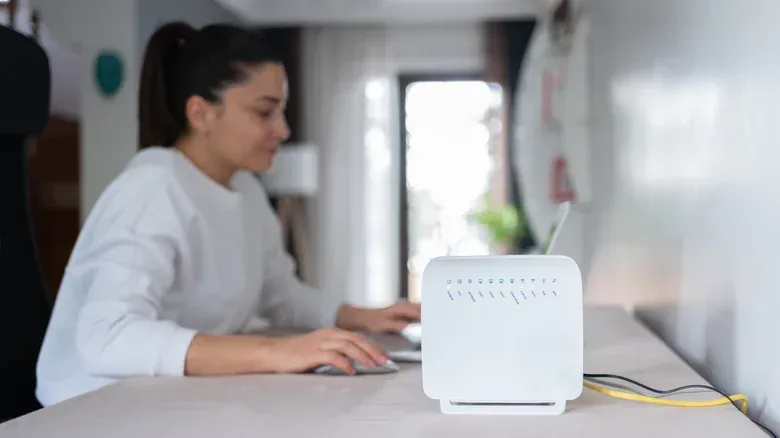
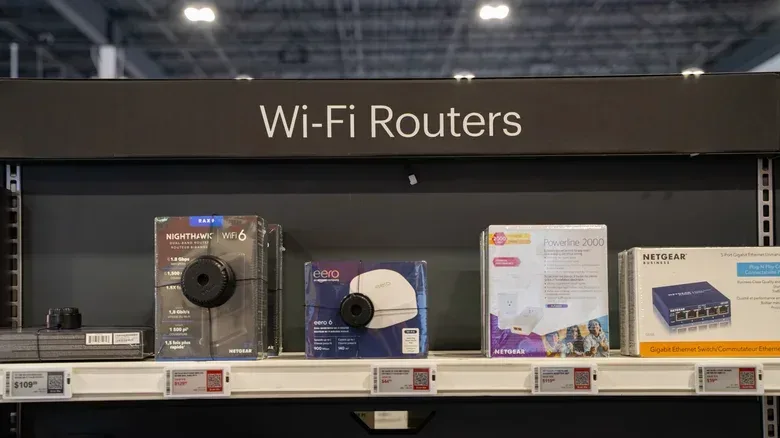
A router takes the internet connection and directs data to and from individual devices. It can do that wirelessly over Wi-Fi, through wired Ethernet connections, or both. For a gaming household, that may mean connecting a PC in one room, a console in another, several phones, a streaming box and a handheld device without every bit of traffic becoming everyone else’s problem.
Its job is broader than “making Wi-Fi.” A router also handles local traffic that never needs to leave the house. If a Plex server is streaming video to a TV, for example, the router can direct that data between those devices on the local network. The internet service may be irrelevant to that particular trip; the router remains the traffic manager.
Modern routers can take on additional duties. Some act as Matter controllers or bridge Thread-based smart-home accessories to the local network and internet. Matter is a smart-home standard, while Thread is a low-power networking technology used by compatible accessories. Those features are useful only to households using them, but they demonstrate why routers have become more than simple signal broadcasters.
Related coverage includes Router, Modem or Gateway? How to Identify Your Home Network Gear.
Routers also form a line of defense for the household network. Firewalls and related safeguards help protect against unwanted access and malware. Many routers offer management tools such as user profiles and guest networks. A guest network is a separate connection intended for visitors, keeping guest devices apart from the main household network. User profiles can help organize or manage access for particular people or devices.
Gateway: both core jobs in one enclosure
In a home-network setting, a gateway is generally a combined modem and router. One device accepts the provider’s connection and distributes it locally through Wi-Fi and Ethernet. This is often the hardware handed over by an internet provider, and its main appeal is obvious: fewer boxes, fewer cables and a simpler initial setup.
That simplicity is not automatically a bad deal. An included gateway can be entirely sufficient in a smaller home with modest coverage needs, especially when its rental cost is zero. It also gives the provider a single device to recognize when a customer needs basic service support.
But the all-in-one design can make upgrade decisions less flexible. A household may be happy with the provider’s connection hardware while wanting stronger Wi-Fi coverage, more modern wireless capability or a mesh setup. Separate hardware makes it easier to treat the incoming service and the in-home network as different problems.
Why gamers should care about the distinction
“Internet speed” is only part of the gaming equation. A fast plan does not guarantee that a bedroom, basement or upstairs office gets a strong and reliable wireless connection. The path between a device and the router—walls, distance and the general layout of a home—can matter greatly to the experience of playing online, downloading games or keeping a stream stable.
This is where the difference between the modem and router becomes practical. If the service entering the home is working but devices are struggling in a particular area, replacing or improving the router setup may be more relevant than changing the modem. Conversely, better Wi-Fi cannot repair a failed connection from the provider.
Wired Ethernet remains an option where it is practical: the router can send data directly to a console or computer by cable. Wi-Fi is still the convenient default for many devices, but Ethernet is part of the router’s basic role and can be useful for stationary gear.
Local-network demands also extend beyond competitive games. A home with a media server, multiple TVs and smart-home equipment is asking the router to organize substantial traffic inside the home, even when it is not all headed to an online game server. That is why a router should be judged as the center of the household network, not merely as an accessory included with an internet plan.
Wi-Fi 6, 6E and 7: what the labels mean here
Provider-supplied gear may use Wi-Fi 6, which remains viable in many homes. Still, Wi-Fi 6 has been followed by Wi-Fi 6E and Wi-Fi 7. The key distinction noted with those newer formats is access to a 6GHz band in addition to the familiar 2.4GHz and 5GHz options.
It is easy to read a newer Wi-Fi number as an automatic need to upgrade. It is not. The useful question is whether the network’s real limitation is its wireless technology, its coverage, or something outside the home altogether. Buying a router with a more recent standard does not make every device newer, and it cannot change the internet service supplied to the address.
Still, newer equipment may be worth considering when the household has recent phones and computers capable of benefiting from it, or when the current setup is plainly failing to cover the space. In those cases, the router—not necessarily the provider’s modem function—is the component most directly connected to the in-home experience.
Mesh systems target coverage, not magic
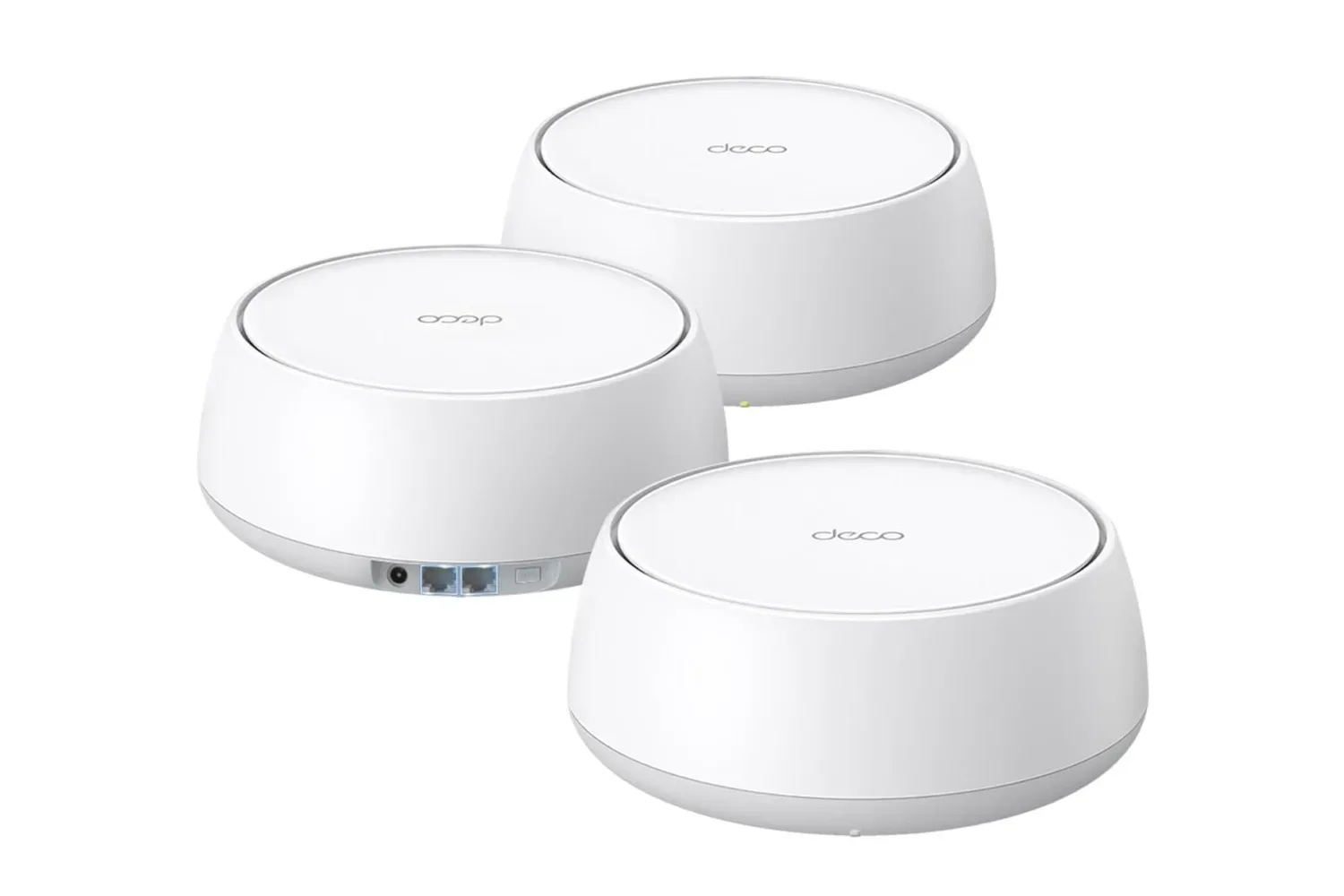
A mesh system uses multiple networking units to extend coverage across a home. Instead of relying on one centrally located router to reach every corner, the system can place additional units where coverage needs reinforcement. That can be valuable when dead zones or inconsistent speeds affect parts of the house.
The point is coverage consistency. A single router may serve one home perfectly well and another poorly, depending on layout and distance. Mesh equipment is not a universal requirement, but it can be an appropriate response to a specific problem: the connection is fine near the main router and unreliable elsewhere.
Provider upgrades can include Wi-Fi 7 and mesh extenders, but the ongoing cost deserves scrutiny. One example is AT&T’s All-Fi Pro, which includes Wi-Fi 7, mesh extenders and equipment upgrades every 36 months. Outside certain ultra-fast plans, it adds $25 per month to the existing plan cost. That totals $300 over a year, before considering the base internet service.
That comparison is not a declaration that every household should buy its own mesh system. Included equipment may be the right answer for someone who values a provider-managed arrangement or does not need broader coverage. It is, however, a reminder to compare recurring equipment charges against the cost and flexibility of hardware a household owns. Owned networking gear can move with the customer to another provider, assuming it is compatible with the next service.
Bridge mode: letting separate gear do separate work
Someone using their own router does not always need to discard the provider’s supplied device. The supplied equipment can be put into bridge mode, allowing the customer’s router to take over the routing function. In that arrangement, the provider equipment remains involved in delivering the service while the personal router handles the home network.
Conceptually, bridge mode is a way to avoid making two devices compete to be the router. It is relevant when a gateway is already present but a household wants its own Wi-Fi, coverage plan or router features. The details can vary by provider and hardware, so it is a configuration choice to approach carefully rather than a button to press blindly.
The larger principle is straightforward: a gateway is convenient because it merges functions, while separate equipment can provide more control over the part of the network that affects devices around the home.
A practical way to identify what is in the house
- Find the device connected to the incoming cable, phone line or fiber equipment. That is the provider-facing end of the setup: a modem, an ONT, or a gateway containing one of those functions.
- Look for the device providing Wi-Fi and Ethernet to household devices. That is the router function, whether it is a separate router or part of the same gateway.
- Check whether there is one box or more than one. One box often indicates a gateway, though the essential question is still which functions it performs.
- Match an upgrade to the actual problem. Dead spots point toward coverage and potentially mesh hardware. A concern about a recurring equipment charge points toward ownership and plan comparisons. A service outage is not automatically a Wi-Fi issue.
- Do the monthly math. An equipment fee that feels small can become substantial over a year or two. Compare it with the cost of compatible equipment that the household would own.
Understanding the terminology also helps keep expectations realistic. A router can improve the way a home shares its connection and reaches difficult rooms, but it is not a substitute for the provider connection itself. A modem or ONT connects the home to the service, but it does not by itself solve wireless reach. A gateway minimizes complexity, while separate devices can make targeted upgrades easier.
For households weighing a new internet arrangement, connection type and plan rules still matter alongside home equipment. Our look at Starlink’s two $55 plans is another example of why similarly priced internet options can have meaningfully different purposes.
The best network setup is not necessarily the newest or most elaborate one. It is the one that provides dependable coverage where people play, work and stream, without paying indefinitely for features or hardware they do not need. Knowing whether the box in the corner is a modem, router or gateway is the useful first step toward making that call.