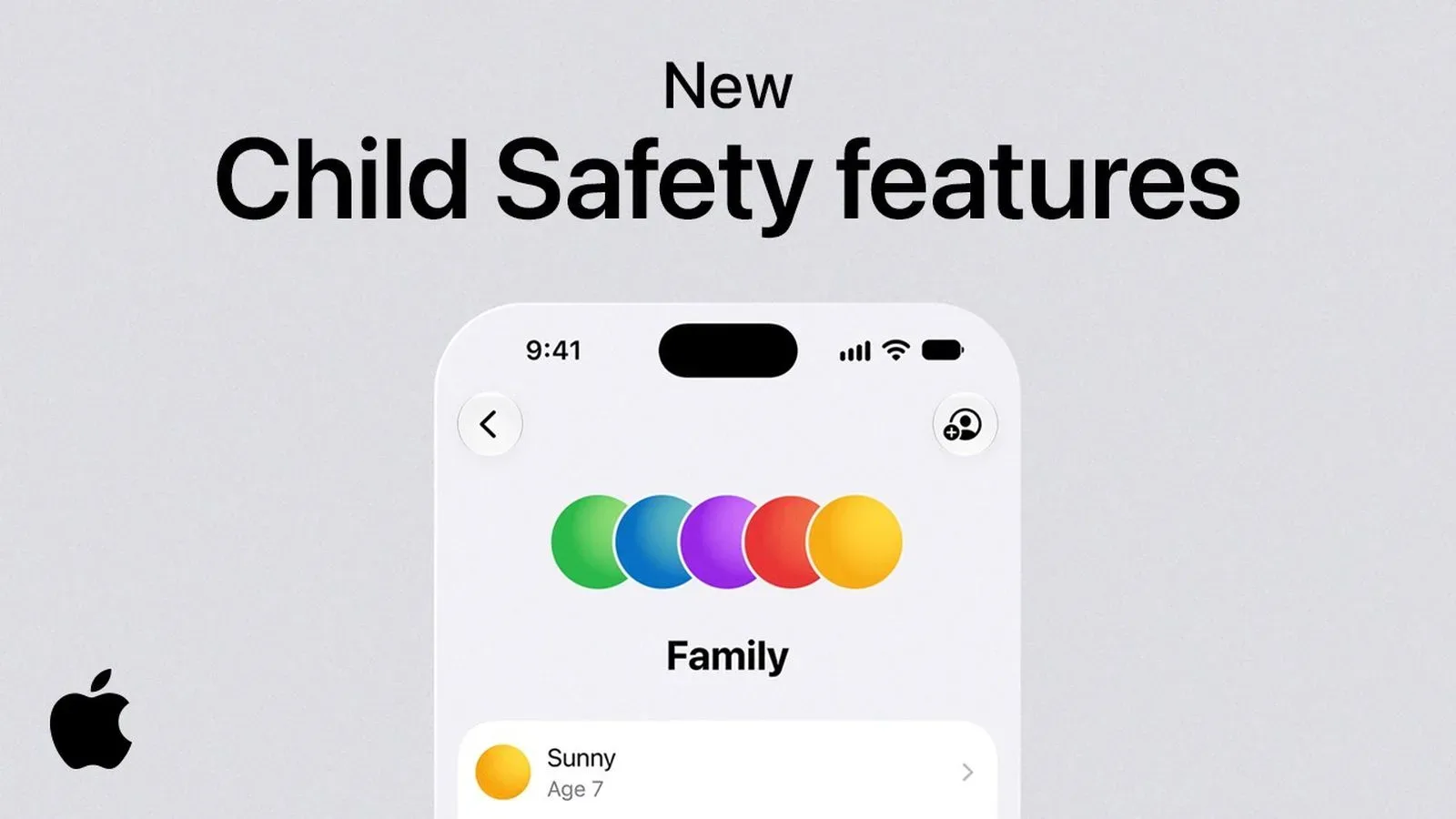
iOS 27 expands Apple’s family-management tools with a more structured approach to screen time, web access, contacts and communication safety. The headline change is Time Allowances, a replacement for the previous app-by-app limits system. It is joined by Ask to Browse, Ask to Add Contacts, expanded Communication Safety, and Pause Devices, which can lock a child’s device immediately.
These settings are intended to make a child’s Apple device more age-appropriate without making every decision a daily negotiation. Yet there is an important practical catch: merely updating one iPhone is not enough. The newer Screen Time system requires every device in the Family Sharing group to be on the matching generation of software: iOS 27, iPadOS 27, macOS 27, watchOS 27 or tvOS 27. A family with an older device that cannot update will continue using the older iOS 26 controls on that hardware.
That requirement makes the first job less glamorous than configuring limits: check the entire family’s device list and software compatibility. Once that is done, iOS 27 offers a clearer way to set boundaries around games, entertainment and social apps while retaining the ability to adjust expectations as a child grows.
The big change: App Limits becomes Time Allowances
Previous app limits asked a parent to manage usage at the app level. iOS 27 instead introduces Time Allowances, which organize limits around categories. In plain terms, a parent can begin with a total amount of daily device time, then reserve portions of it for different types of activity, including social media, entertainment and gaming.
For example, a family that permits three hours of phone use per day can decide how that total is divided. Rather than maintaining a separate restriction for every individual game, streaming service or social app, they can assign time to an appropriate category. Custom categories are also available, allowing a household to build groupings that reflect its own routines.
This is an important distinction. A daily total is a broad boundary; a category allowance is a more specific one. Used together, the two settings can avoid a situation where one type of app consumes the entire day’s discretionary time. At the same time, category labels are not a substitute for a family conversation about what counts as schoolwork, relaxation, socializing or gaming. The controls manage access, but adults still need to decide the rules those controls are meant to enforce.
Why category-based limits may be easier to maintain
Time Allowances reduce the administrative burden of app-by-app management. When a child changes from one game to another, or tries a different entertainment app, a category approach can remain useful without requiring a parent to revisit a long list of individual titles. The benefit is flexibility: a household can set one gaming allowance rather than trying to anticipate every game that may appear on a device.
The trade-off is that parents should inspect the categories and custom groupings they create. A broad category can be convenient, but it also means several apps may draw from the same pool of time. Parents who want a tighter distinction between certain activities can use custom categories rather than assuming one general bucket captures every use case.
Related coverage includes How to Set Up iOS 27 Parental Controls for Child Accounts.
Ask to Browse puts Safari approvals in Messages
Ask to Browse adds a permission step for unapproved websites in Safari. When a child tries to visit a site that is not approved, the parent receives a request in Messages and can review and approve the link there. It is designed to make an access decision without requiring the adult to hunt through a separate parental-control interface.
The feature is best understood as oversight at the moment of access, not as an automatic declaration that every website is safe or unsafe. It gives a parent an opportunity to look at an unfamiliar link before opening it for a child. That can be useful when a web search, a message or a game-related link leads somewhere new.
For children under 13, Ask to Browse and Limit Adult Websites are enabled by default during the new child-account setup flow. Ask to Browse does not automatically turn on for older children, so parents of teens who want that approval layer should review the settings directly instead of assuming the default will cover them.
Contact approval and broader Communication Safety
iOS 27 also adds Ask to Add Contacts. With this switched on, a child needs parental permission before they can call or text a new number. It is a contact-management control, meaning it focuses on approving new communication connections rather than simply restricting the amount of time spent messaging.
Communication Safety has been expanded as well. It already addressed nudity in Messages, AirDrop and FaceTime; iOS 27 extends its detection and blurring protections to graphic violence and gore. The distinction matters. Communication Safety relates to potentially sensitive visual content within supported communications, while Ask to Add Contacts concerns whether a new person or number can be reached. Families may find value in using either setting, but they solve different problems.
Communication Safety is enabled for everyone under 18. Contact-management controls, like Ask to Browse, are among the protections that are automatically enabled for children under 13, but no longer switch on automatically after that age. This makes a settings review particularly worthwhile at transition points: a child’s age can affect which protections appear by default, while a family’s own expectations may remain different.
Pause Devices is the immediate option
Some limits are planned in advance, and others are needed right now. Pause Devices is the latter. It enables a parent to lock a child’s device with a single tap. That makes it suitable for moments such as dinner, homework or a requested break from a screen.
The practical value is straightforward: it gives a parent a fast, direct response instead of requiring them to edit a schedule or wait for a category allowance to expire. It also highlights the difference between a recurring rule and an immediate intervention. Weekday and weekend schedules establish predictable routine; Pause Devices handles the exception.
A one-tap lock is powerful, so it works best when expectations are established before it is needed. Explaining when a device may be paused—during a meal, at the start of homework or at bedtime—can make the setting a consistent household rule rather than a mystery button that appears only during a dispute.
Before changing settings: update the whole Family Sharing group
The iOS 27 parental-control experience depends on an up-to-date Family Sharing group. Every participating iPhone, iPad, Mac, Apple Watch and Apple TV needs the corresponding version 27 operating system for the new Screen Time system to function across the group. Devices unable to update stay on the older iOS 26-era controls, creating an uneven setup.
Start on the organizer’s iPhone by opening Settings > Family. This is also where iOS identifies devices that still need an update. Complete the appropriate updates first, then return to Family settings to configure the child account. For a separate iPhone settings topic, see our guide to enabling and troubleshooting Live Activities on iPhone and CarPlay.
This update check is more than housekeeping. A mixed-version household can otherwise leave parents believing a new control applies everywhere when older hardware continues under a different ruleset. Identifying that divide early helps families decide whether to use the older controls on a legacy device, adjust expectations for that device, or avoid treating its behavior as identical to the new Screen Time experience.
How to configure a child account in iOS 27
- Confirm Family Sharing is set up. Each child needs a Child Account associated with the family group.
- Open Settings, then Family, on the parent or organizer’s iPhone. Check for notices about devices that require the latest software.
- Select an existing child’s name to view and revise their settings. This is the place to review the iOS 27 additions after updating.
- To create a new child account, use the Add button in the upper-right corner and follow the setup process. The revised flow supplies age-appropriate app recommendations rather than placing every default app on the child’s Home Screen.
- Set the overall daily framework, then add category allowances. Use Time Allowances for categories such as gaming, entertainment or social media, and create custom categories if the default groups do not match the household’s needs.
- Create distinct weekday and weekend schedules. A different routine for school days and non-school days can be set within the redesigned Screen Time tools.
- Review browsing, contact and communication settings. Confirm whether Ask to Browse, Limit Adult Websites, Ask to Add Contacts and Communication Safety are configured as intended for the child’s age.
- Consider Ask to Buy for app purchases. This adds a purchase-approval layer alongside the time and content settings.
Defaults help, but periodic review matters more
New child accounts receive settings that vary by age. Under-13 accounts have Ask to Browse, Limit Adult Websites and contact-management features switched on by default. Communication Safety is enabled for people under 18. After age 13, many other restrictions—including the automatic activation of Ask to Browse and contact management—become a parent’s choice.
That age-based structure should be treated as a starting point, not a set-and-forget solution. The redesigned Screen Time dashboard is meant to provide a quick view of usage, making it easier to see the existing setup without wading through menus. Parents can use that view when revisiting schedules, category limits and approvals as habits, school demands and family routines change.
Apple’s accompanying healthy digital habits guidance emphasizes balancing device use with sleep, exercise, schoolwork and family time. The useful takeaway is not that every household needs the same number of screen-time minutes. It is that limits have a clearer purpose when they protect the priorities a family has already identified. iOS 27 supplies more levers for that task: Time Allowances for planned distribution, approval requests for specific access, Communication Safety for sensitive visual material and Pause Devices for the moments when the phone needs to be put down now.