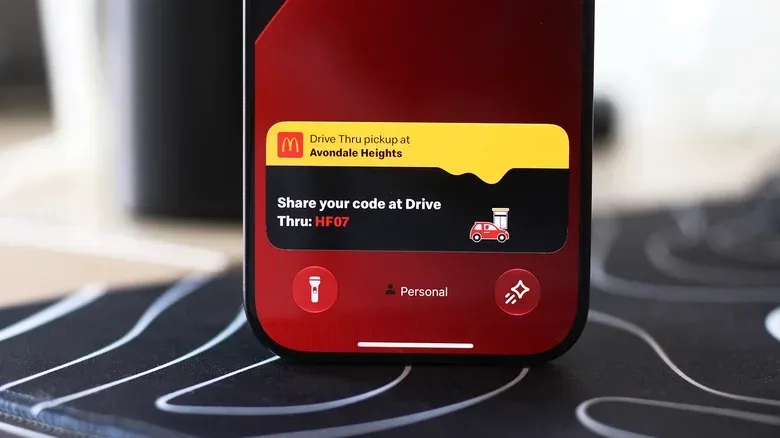
Live Activities are Apple’s answer to a familiar phone problem: an update matters, but opening the same app every few minutes is a nuisance. Rather than making a person repeatedly jump back into a timer, navigation app, music player, score tracker, delivery service or flight tracker, a supported app can keep a small, current status display visible in key parts of the iPhone interface.
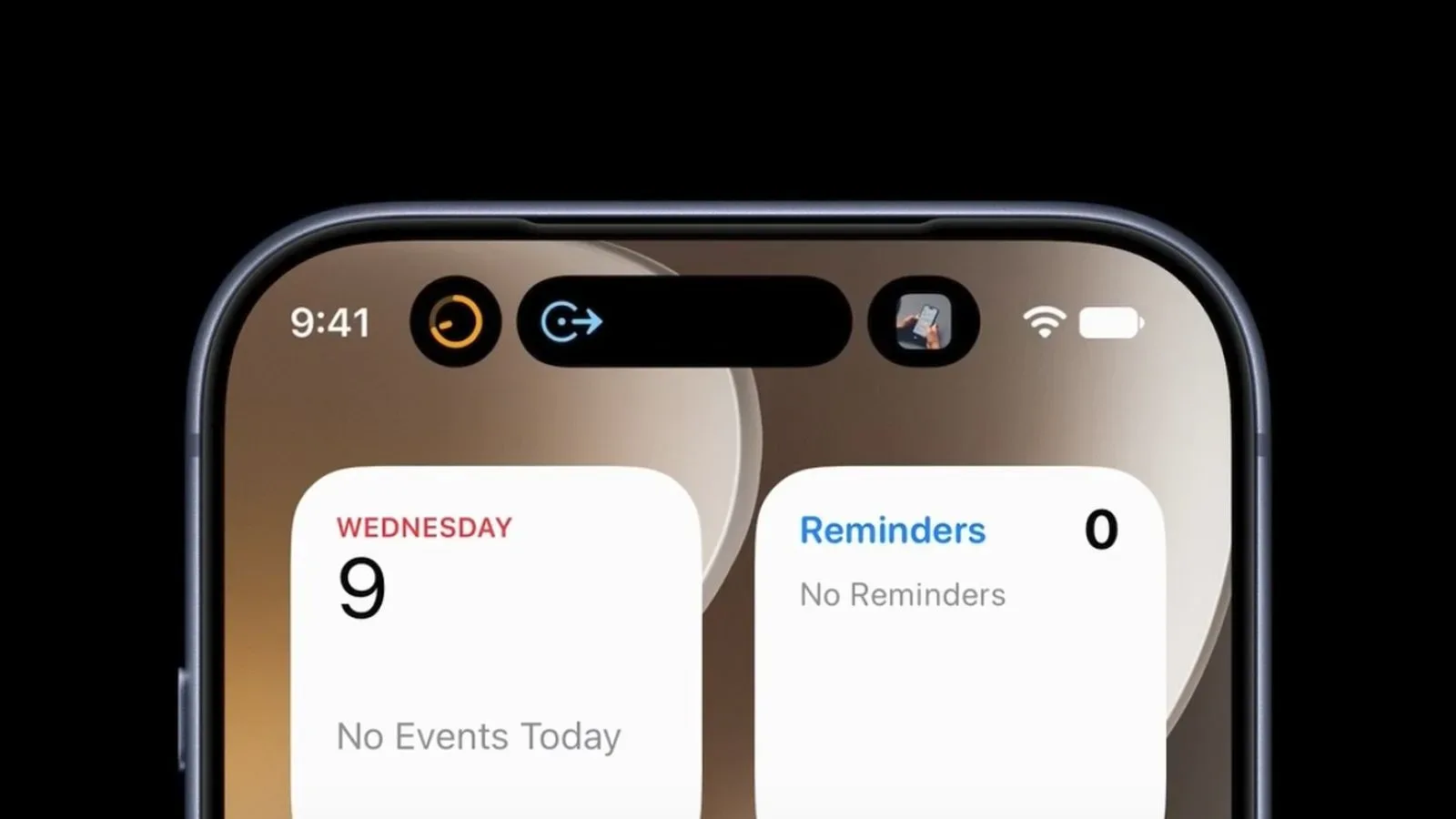
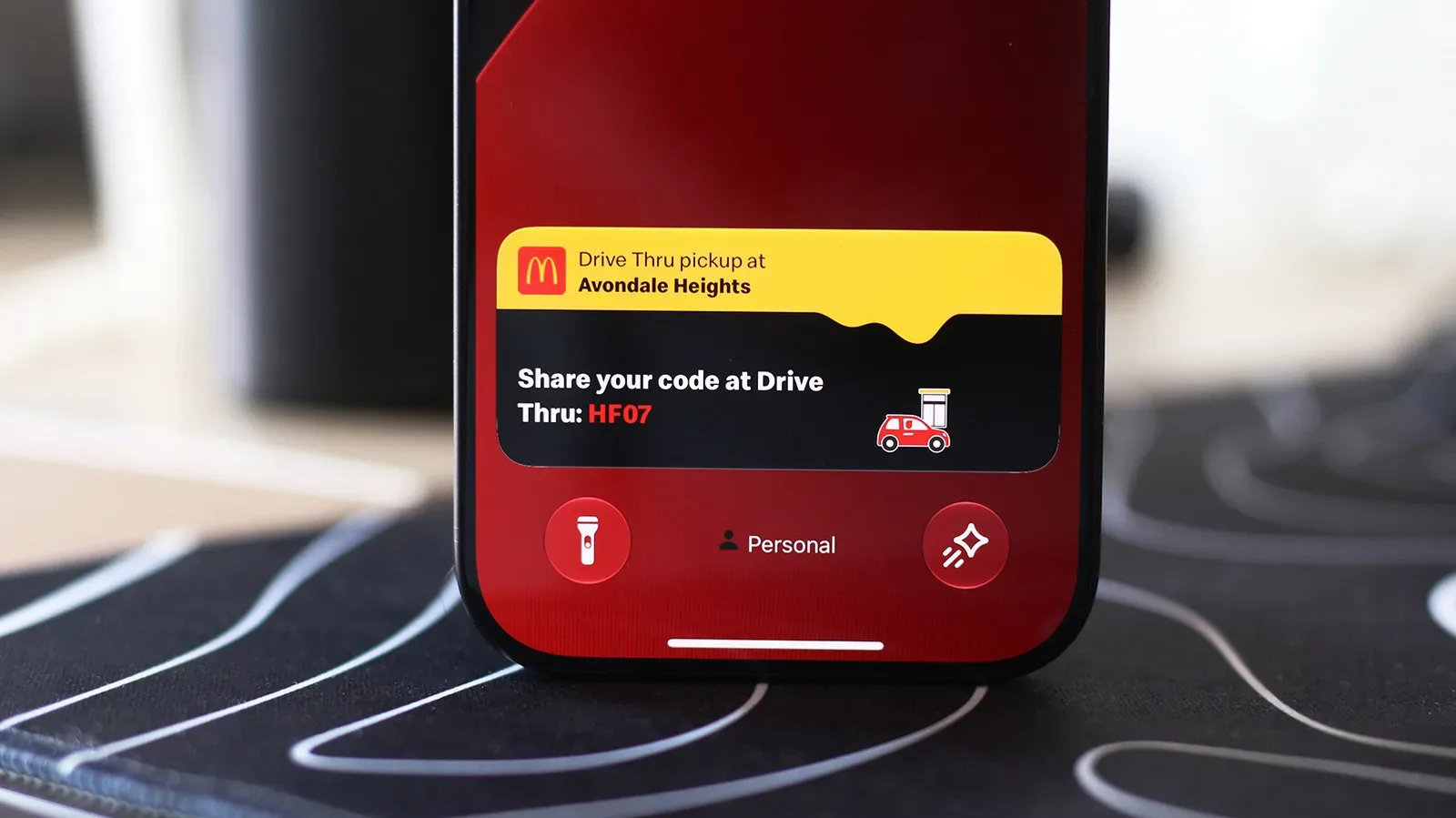
On compatible iPhones, that information can appear around the Dynamic Island while the phone is in use. It can also appear on the Lock Screen, allowing a quick check without opening the associated app. In the car, the same type of information can be surfaced through CarPlay’s Dashboard or, when another app is occupying the display, as a notification at the bottom of the screen.
The useful part is not merely that updates exist. It is that they can remain available at a glance, reducing the need to navigate back to an app just to see whether a timer has finished, a route has changed, a song is playing, or an expected delivery or flight has progressed. The caveat is equally important: Live Activities depend on the individual app supporting the feature, and several separate settings can prevent them from appearing where expected.
Here is how the system fits together, which switches to check, and how to narrow down a missing Live Activity without treating every notification setting as the same thing.
What Live Activities are, and where the Dynamic Island fits
The Dynamic Island is the interactive display area surrounding the pill-shaped front cutout on certain iPhones. The cutout contains more than a front-facing camera: it also accommodates sensors used by Face ID. Apple’s software approach is to use the surrounding display space for ongoing information rather than trying to make the hardware disappear.
A Live Activity is the changing status item an app can place in that interface. Common examples include:
- Countdown timers
- Navigation directions
- Music playback information
- Sports scores
- Supported food-delivery status
- Supported flight-tracking updates
This is distinct from an ordinary notification. A notification is typically an alert about something that happened. A Live Activity is an ongoing view of something still in progress. A game-like way to think about the difference is that a notification is a quest prompt, while a Live Activity is the persistent objective tracker that keeps updating as events unfold.
The distinction matters during troubleshooting. Live Activities work independently of standard notifications, so an app’s Live Activity may be disabled even if its notifications are enabled. Conversely, turning on the Live Activities option does not guarantee every kind of alert from that app will be delivered. If expected updates are absent, it is sensible to check both controls—but not to assume they perform identical jobs.
Related coverage includes How to Enable Live Activities on iPhone and CarPlay.
Enable Live Activities for a specific iPhone app
Live Activities should normally be enabled by default. If an app that supports them is not showing an expected status display, begin with its individual settings. This targeted check is preferable to disabling the feature everywhere, especially if only one app is failing to surface an update.
- Open Settings on the iPhone.
- Select Apps.
- Choose the app that is not displaying its Live Activity.
- Find the Live Activities control and turn it on.
If the app is intended to provide regular alerts as well as a persistent status view, inspect its notification settings too. Notifications are separate from Live Activities, but enabling them can help where the missing information is tied to alerts rather than the activity display itself.
Why per-app control is useful
Per-app settings make it possible to keep the feature helpful without allowing every supported service to compete for attention. A navigation activity or a timer may be worth keeping visible; an especially chatty service may be less welcome. The practical approach is to leave Live Activities enabled for the apps whose changing status genuinely saves time, then disable them only for apps that become distracting.
That is more precise than treating Live Activities as a universal yes-or-no feature. It preserves the benefit for high-value information while reducing unnecessary interruptions from individual apps.
Make sure Live Activities are available on the Lock Screen
Seeing an activity while actively using the iPhone is only part of the feature. Live Activities can also appear on the Lock Screen. If the Dynamic Island display works but the Lock Screen does not show the same kind of ongoing update, check the access setting for the locked device.
- Open Settings.
- Tap Face ID & Passcode.
- Enter the iPhone passcode when prompted.
- Scroll to Allow Access When Locked.
- Make sure Live Activities is enabled.
This setting addresses when the phone is not being actively used. It does not replace the per-app Live Activities switch. In other words, the app needs permission to supply the activity, while the locked-device setting allows that information to be shown on the Lock Screen.
That two-layer setup is useful from a privacy and attention perspective. An owner can decide whether an app may use Live Activities at all, and can separately decide whether those ongoing updates should be available while the device is locked.
How Live Activities appear in CarPlay
CarPlay brings iPhone information to a vehicle display, with the aim of keeping essential details accessible without requiring constant interaction with the phone. Live Activities can be part of that arrangement. For example, CarPlay can show an ongoing food-delivery status or an update for an upcoming flight.
When available, Live Activities from the connected iPhone are shown automatically on the CarPlay Dashboard. The Dashboard is the split-screen area positioned to the left of the app list. It is designed to place more than one kind of information in view rather than forcing the driver to open an app solely to check an update.
If a full-screen app is open, the activity can still appear as a notification along the bottom of the CarPlay display. This preserves a route or other full-screen task while allowing an update to surface. However, the feature should be configured with attention in mind. A status that is useful at a stop can be unwelcome if it repeatedly demands notice while driving.
For that reason, CarPlay provides more than one way to cut down the noise: the broader Live Activities setting can be turned off in CarPlay, or a particular app’s Live Activities can be disabled on the iPhone. The latter is generally the more selective option when only one service is generating unwanted activity cards.
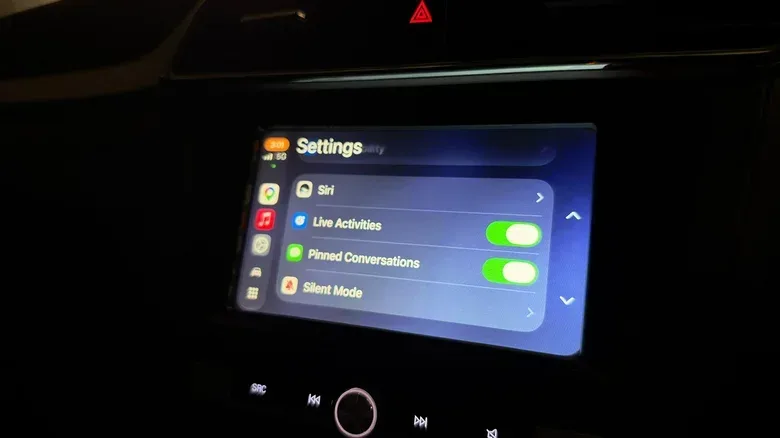
Turn on Live Activities in CarPlay
If the iPhone settings look correct but Live Activities never appear in the car, inspect the settings on the CarPlay side as well.
- Open the Settings app in CarPlay.
- Scroll down to the Live Activities option.
- Confirm that the toggle is enabled.
- Also confirm that Suggestions in CarPlay, which may be labeled Suggestions in Dashboard, is enabled.
The suggestions control is worth checking because the Dashboard is the place where these at-a-glance items are expected to appear. If either setting is off, the system may not present the Live Activity in the dashboard context even if the app itself is otherwise configured properly.
If CarPlay still shows nothing
One further setting to inspect is Driving Focus. If it is active and activities remain absent after the CarPlay toggles and app-level setting have been checked, try turning Driving Focus off and see whether the expected item returns.
This is best treated as a troubleshooting step, not a reason to discard focus settings wholesale. The goal is to identify the setting preventing the update from appearing, then choose the arrangement that balances useful information against distraction.
Live Activities versus CarPlay widgets
Live Activities are not the only compact-information tool in CarPlay. Widgets can also offer quick controls and app information without requiring an app to be opened. These widgets live in the leftmost section of the CarPlay Dashboard.
The difference is largely one of purpose. A Live Activity represents an active, changing event: a timer, playback, directions, tracking status or score. A widget is a quick-access dashboard element for controls or information from an app. Both can reduce app hopping, but they should not be confused when diagnosing a missing item. If the desired status is a current event from a supported app, inspect Live Activity settings. If the goal is a persistent shortcut or quick control, look at the Dashboard’s widget options instead.
Anyone adjusting an Apple setup more broadly may also want to consider the practical advice in this guide to MacBook battery heat and plugged-in use. It is a different device question, but it shares the same useful habit: distinguish the setting or condition actually responsible from the one that merely seems related.
A quick checklist for missing updates
When a Live Activity does not appear, work from the narrowest cause outward:
- Confirm that the specific app supports Live Activities for the type of update expected.
- On the iPhone, go to Settings > Apps > [app] and enable Live Activities.
- Check the app’s standard notification settings as a separate measure.
- For Lock Screen visibility, use Settings > Face ID & Passcode > Allow Access When Locked and enable Live Activities.
- For CarPlay, enable Live Activities in CarPlay Settings.
- Ensure Suggestions in CarPlay or Suggestions in Dashboard is on.
- If the activity remains absent in the car, test whether turning off Driving Focus resolves it.
Once configured, Live Activities can make routine status checks considerably less repetitive. The strongest use is not to fill every available screen area with updates, but to reserve that space for time-sensitive information that is genuinely useful at a glance.