Changing the country or region attached to an Apple Account sounds like a routine settings job: select a new location, agree to terms, add billing details, and continue. In practice, it is better understood as a storefront migration. Your account is being moved between regional versions of Apple’s digital storefronts, where payment methods, subscriptions, catalogues and feature availability can differ.
That distinction matters particularly for players with a sizeable digital library. Mobile games, paid apps, subscriptions, in-app purchases, pre-orders, season passes and rented video can all be tied up in the account’s current regional setup. A country change is not inherently a disaster, but it is a change worth planning rather than attempting in the middle of a move—or five minutes before a long flight.
The central rule is straightforward: sort out unfinished business before you switch regions. Download items you want to keep available, spend or resolve any remaining account balance, address subscriptions and pending transactions, leave Family Sharing if necessary, and have a valid payment method and billing address for the destination. Only then should the Country/Region menu become the final step rather than the opening move.
Why a country change can disrupt a digital library
Digital content is not necessarily offered in every country or region. An app, album, book, film or streaming title available through one store may not be viewable from another. That does not mean every item will vanish after a move, but it does mean users should not assume a library will look identical after the account changes country.
For more context, explore Sonic Racing: CrossWorlds Year Two DLC Roadmap Adds Godzilla, Bayonetta, Final Fantasy VII Remake and Persona.
For games, the practical concern is less about completing a migration screen and more about access later. If something becomes unavailable in the new storefront, it may no longer be possible to download it onto another device. That is why downloading wanted purchases in advance is sensible. Put the apps, music, video and books you expect to need directly on the devices you will use.
This is not the same as making content universally transferable or permanently available across every device. The important limitation is that once an item is inaccessible in a region, moving it to a different device may no longer be possible. Think of the download as a precaution for access on the device in hand, not a blanket promise that regional catalogue rules no longer apply.
There is at least one useful development for people managing a split setup: Apple allows digital purchases to be transferred between accounts, though limitations remain. That option should be treated as a separate process with its own constraints, not as an automatic consequence of changing the country on an existing account.
Do this before touching Country/Region
1. Download the purchases you expect to use
Start with the content that would be most inconvenient to lose access to. That can include paid games and apps, music, streaming video and books. If a game is part of a regular routine, download it. If a document, film or book is needed during travel or immediately after a move, download it too.
It is easy to treat a digital purchase as something that can always be retrieved later. A regional move is precisely the moment when that assumption can fail. The best defensive move is simply to make sure the content is already installed where you need it.
It is also a useful moment to distinguish device storage from account access. Downloading something addresses the immediate availability of a local copy. It does not erase the regional terms governing where a storefront item can be offered or transferred. That nuance matters when deciding which devices need the item before the account switch.
2. Check and clear the Apple Account balance
Any remaining Apple Account balance may not transfer to the new store country. Apple does not generally provide a cash refund for that balance unless a refund is required by the law where the user lives. In other words, do not leave a small amount behind assuming it will automatically follow the account to its next region.
Use the balance on App Store products or Apple services before changing country. In some places, it may also be usable for products or accessories. If the remaining amount is too small to purchase anything, Apple Support can be contacted to clear the balance.
On an iPhone or iPad, the balance can be checked in the App Store by tapping the profile photo or initials. The funds appear under the account name. Make that check early, not after the rest of the move checklist is complete; an unexpected leftover amount can stop what appeared to be a ready-to-go account change.
3. Audit subscriptions, then wait for pending activity
Subscriptions are one of the major blockers. Many memberships cannot be retained while changing the account’s country or region. Apple typically allows a subscription to be cancelled when it is preventing the country change, but cancellation should be a deliberate decision: it may mean losing membership access rather than merely pausing a billing preference.
On Apple devices, open Settings > your name > Subscriptions. Select a subscription and choose Cancel Subscription. If an expiration message appears in red, the subscription has already ended.
Do not stop at recurring subscriptions. Pending transactions require attention too. A premature region change can mean losing access to selected memberships, pre-orders, season passes and movie rentals. For gaming audiences, pre-orders and season passes are the especially easy ones to overlook: they can feel like future purchases, but they are still active account obligations that may complicate a storefront move.
If a pre-order will not become available before the move, it can be cancelled from the App Store account area through the Pre-orders menu found beneath Subscriptions. The safer route is to wait until all pending transactions are completed before amending the account at all.
That advice applies beyond Apple’s own services. The point is not that every subscription behaves exactly alike, but that subscriptions are regional commerce arrangements. Treat each one as something to verify individually before committing to a new country setting.
4. Check Family Sharing status
Family Sharing can also prevent a country or region change. If the account belongs to a Family Sharing group, leaving that group may be necessary before making the adjustment. This is another reason to prepare ahead: a change that involves a group arrangement should not be sprung on the organizer or other members without considering what it affects.
Family Sharing is not just another toggle in this situation; it is a condition tied to the account’s ability to change storefront region. Confirm whether the account is in a group before beginning, and resolve that status before expecting the Country/Region setting to work.
5. Confirm a valid local payment method
Apple asks for a new payment method before it confirms the country change. That requirement is the clearest sign that this is not merely a cosmetic location setting. The account needs payment information and a billing address appropriate to the destination region.
Check which payment methods are accepted for the new location before attempting the change. If a suitable new payment method cannot be added yet, it may be necessary to wait until physically present in the new country or region. At that point, creating a new Apple Account under the new location settings is another possible route.
Do not repeatedly attempt the switch with incomplete billing information and hope the process will fill in the gaps. A verified plan for payment and billing makes the rest of the checklist meaningful.
How to change the country or region
Once downloads, balance, subscriptions, pending purchases, Family Sharing and payment details are all handled, the actual change is comparatively short.
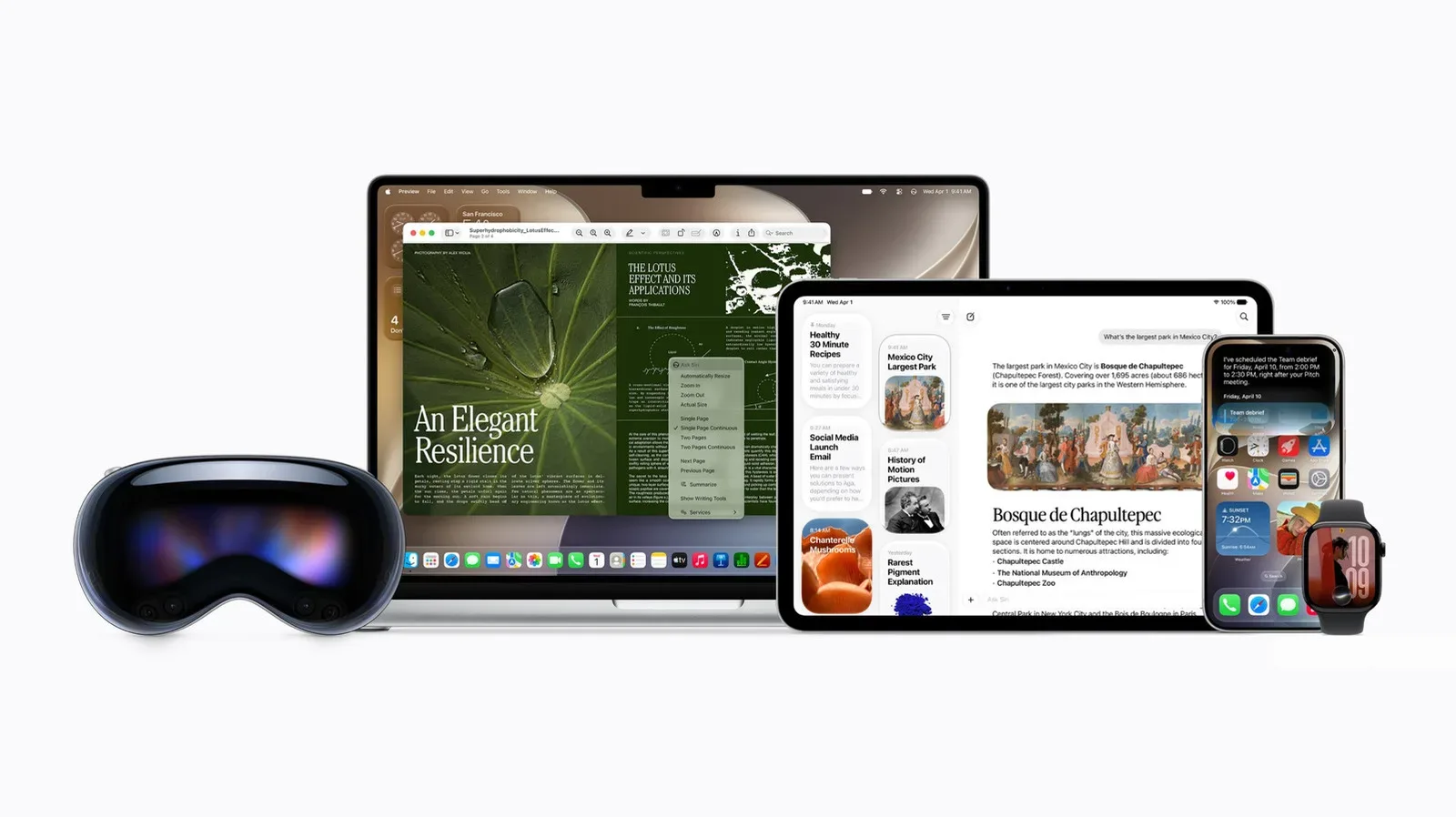
iPhone, iPad and Apple Vision Pro
- Open Settings and tap your name.
- Choose Media & Purchases and sign in to the Apple Account.
- Tap Country/Region.
- Select the new country or region and tap Continue.
- Review the Terms & Conditions and tap Agree.
- Select the payment method, then enter the new payment details and billing address.
Mac
- Open the Apple Music or Apple TV app.
- Use the Account section in the menu bar and choose Account Settings.
- Sign in to the Apple Account.
- Click Country/Region, select the new location and continue.
- Agree to the Terms & Conditions, then enter payment information and billing address.
Windows PC
- Open the Apple Music or Apple TV app.
- Click the account name at the bottom of the sidebar.
- Choose View My Account > Change Country or Region.
- Select the country, agree to the terms, enter new billing information and click Continue.
There is also an online route through account.apple.com: go to Personal Information > Country/Region.
What changes after the move—and what may not be there
A completed account change does not guarantee that every Apple feature will be identical in the new region. Feature rollouts and legal or regulatory conditions can vary by country. Apple’s updated Siri AI is cited as an example of a feature not being rolled out to European customers amid an ongoing legal dispute with the European Union, while Apple Intelligence reached China after a prolonged regulatory stalemate.
The practical lesson is to separate two questions that are often bundled together: “Can I change my account country?” and “Will every feature I used before exist there?” The first is an account and billing question. The second is a regional availability question. They can have different answers.
For someone whose phone doubles as a games device, media player, travel wallet for downloads and general-purpose computer, a country switch deserves the same caution as moving save data before replacing hardware. It is administrative rather than technical in the usual sense, but the consequences can still be felt in daily use. Download first, reconcile purchases and subscriptions, establish local payment details, then change the setting.
If the change option still is not available after those steps, work back through the checklist before escalating the issue. A lingering balance, active subscription, pending order, Family Sharing membership or unsupported payment method is more useful to identify than endlessly revisiting the final menu.