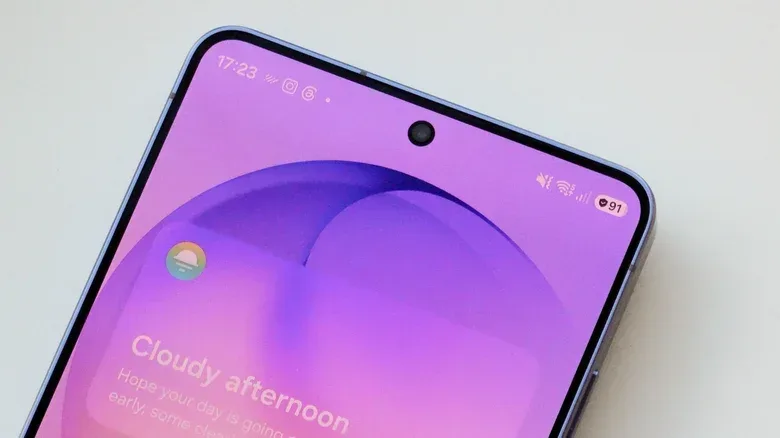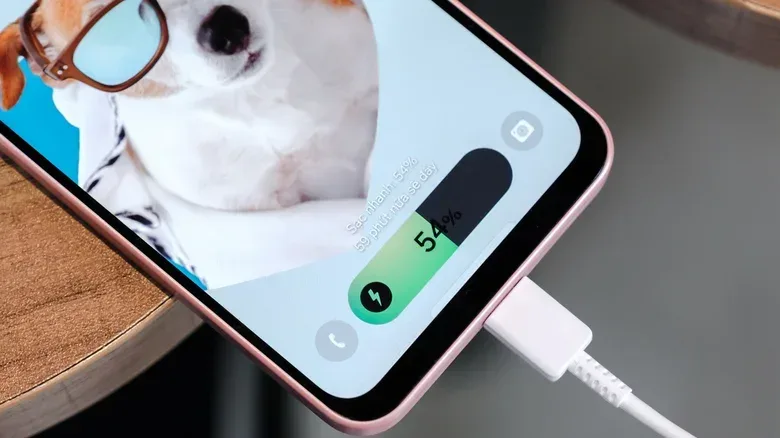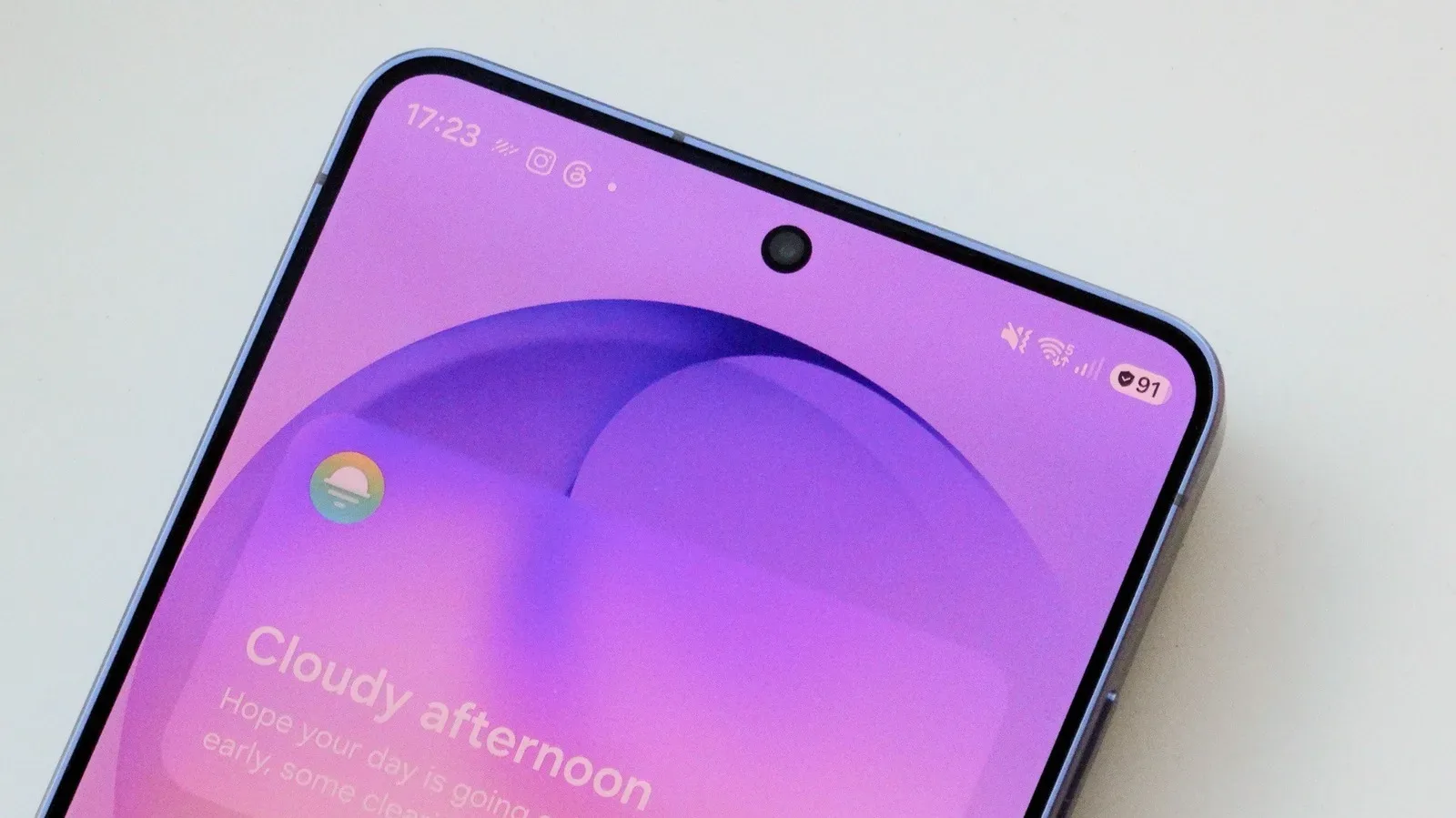
The small shield that can appear beside the battery indicator on a Samsung Galaxy phone looks like the sort of icon that should prompt a frantic security check. In this case, it is not warning about malware, account protection, or a threat to the device. It means Battery Protection is enabled and currently managing charging behavior.
Battery Protection is Samsung’s battery-health setting. Its purpose is to reduce the time a phone’s lithium-ion battery spends at very high charge levels, particularly when the handset remains plugged in for hours. The trade-off is straightforward: depending on the mode selected, the phone may stop charging below 100%, or hold its charge below full for part of the night. That can mean less runtime immediately, in exchange for helping preserve battery capacity over the much longer term.
For Galaxy owners, the shield is therefore useful confirmation rather than an alarm. It says the phone is following the charging rule that has been selected in Settings.
What the shield icon means
When the shield is shown alongside the battery icon, Battery Protection is on and active. The setting changes how the phone approaches charging instead of simply pushing toward a full battery whenever external power is available.
The reasoning is tied to battery degradation, the gradual reduction in a rechargeable battery’s ability to hold energy. All lithium-ion batteries age through normal use. The relevant point here is that keeping one at its highest charge level for extended periods adds stress and can speed up that aging process. A phone left on a desk charger through the workday, or connected to power overnight on a routine basis, has more opportunity to sit full than a phone charged briefly before leaving home.
That does not make a 100% charge harmful in an immediate, dramatic sense. Phones are built to be charged, and full charges remain practical when a long day, a trip, or a demanding activity is ahead. The effect Battery Protection addresses is cumulative. A person is unlikely to notice a meaningful difference after only a few months, while someone planning to keep the same handset for years has a stronger reason to consider it.
The shield is about long-term battery care, not phone security.
The three Galaxy Battery Protection approaches
Samsung offers Basic, Maximum, and Sleep Time Protection. Each makes a different compromise between having the most charge available now and minimizing lengthy periods at the top end of the battery range.
Related coverage includes What the Shield Icon Means on a Samsung Galaxy Phone.
Basic: full charge, with less time held there
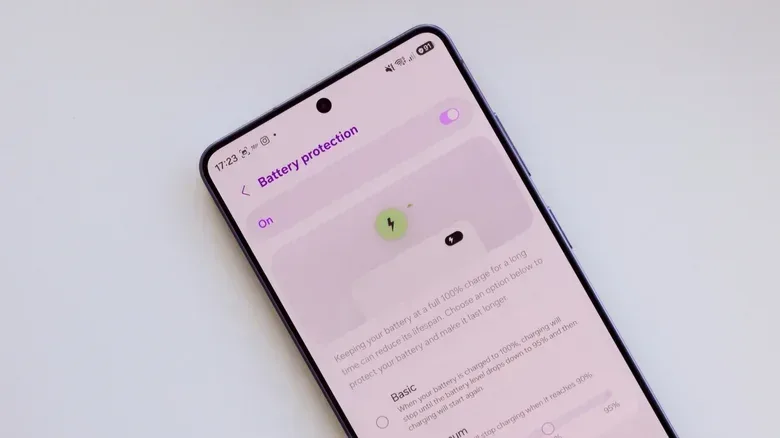
Basic is the least restrictive option and is generally the easiest fit for people who want their phone to reach 100%. When the battery reaches full, charging stops even if the cable stays connected. If the level subsequently falls to 95%, charging resumes automatically.
In practice, Basic does not impose a lower daily charge ceiling. Instead, it avoids continuously trying to maintain the battery at 100% while the phone remains attached to power. It is a sensible middle ground for someone who needs all available battery life but frequently leaves the handset connected after it has completed charging.
Maximum: choose a charging ceiling
Maximum gives the owner direct control over the upper charge limit. The cap can be set from 80% to 95%. Once that selected level is reached, the phone does not continue toward 100%.
The lower the chosen cap, the more aggressively the mode favors long-term battery preservation. The cost is equally clear: a phone capped at 80% begins the day with less energy than one charged fully. This is not necessarily a bad deal for a user whose typical day ends well before the battery is drained, or for someone with easy charging access. It is much less appealing when the next charger may be hours away.
Maximum is best understood as a deliberate capacity budget. It is not a performance mode, and it will not make a Galaxy phone last longer during a single outing. It reserves some of the battery’s theoretical charge capacity in service of its future health.
Sleep Time Protection: overnight charging with a schedule-aware compromise
Sleep Time Protection is designed around a familiar routine: plugging in before bed and unplugging in the morning. It learns usage habits, holds the battery at 80% overnight, then resumes charging automatically so the phone reaches a full charge shortly before the expected wake-up time.
This makes it the most convenient option for a regular overnight charger who still wants 100% available in the morning. Rather than leaving the device at full for the entire night, it delays the final portion of charging. Its usefulness depends on having a consistent enough pattern for the phone to recognize. Users with irregular sleeping hours, shifting work schedules, or unpredictable early departures may prefer the more explicit control of Basic or Maximum.
How to turn Battery Protection on or change it
The setting is available through the Galaxy Settings app:
- Open Settings.
- Go to Battery.
- Select Battery protection.
- Use the switch to turn the feature on or off.
- Select Basic, Maximum, or Sleep Time Protection.
- If choosing Maximum, set the preferred charge cap with the available slider.
The key advantage is flexibility. Battery Protection is not a permanent commitment that demands the same rule every day. A Galaxy owner can use Maximum while working near a charger, then turn it off before travel or select a higher limit when a full day away from power is expected.
Which setting makes sense for different routines?
The right choice is mostly about when, where, and why a phone is charged. It is not a universal instruction to avoid 100% at all costs.
- Leave the phone plugged in on a desk most of the day: Basic is a low-friction choice, while Maximum may suit users who do not need their whole battery capacity during a normal workday.
- Charge overnight on a predictable schedule: Sleep Time Protection is tailored to this habit because it holds at 80% during the night and finishes closer to the learned wake time.
- Need maximum runtime for travel or long days: Turning Battery Protection off, or avoiding a restrictive Maximum cap, can be the practical move. A full battery has clear value when recharging opportunities are uncertain.
- Plan to keep the Galaxy phone for several years: Battery Protection is more compelling because the benefit is aimed at slowing the gradual loss of capacity that becomes more noticeable over longer ownership.
- Have no consistent charging pattern: There is less reason to force a routine around the feature. Charging fully when needed may outweigh the benefit of a permanent cap.
Battery health and daily battery life are not the same thing
It helps to separate two similar-sounding ideas. Battery life is how long the phone runs on the charge it has today. Battery health concerns how much energy the battery can retain after it has aged through repeated use.
Maximum mode may reduce day-one battery life because it intentionally withholds part of the available charge. Its potential value is in battery health over time. Basic and Sleep Time Protection try to strike a more convenient balance: they still allow a full charge, but seek to reduce how long the phone sits at that level.
That distinction prevents a common misunderstanding. The shield does not mean the Galaxy is charging faster, consuming less power, or blocking a security problem. It indicates a charging policy is active. Whether that policy is worth using depends on the owner’s schedule and tolerance for arriving at 80%, 85%, 90%, or 95% rather than 100%.
Why this matters for gaming and heavy-use days
Mobile gaming, navigation, video recording, and other battery-intensive tasks make the short-term side of the trade-off more visible. If a Galaxy phone will be used heavily away from an outlet, starting below full may be inconvenient. For those days, it is reasonable to prioritize immediate runtime and revise the Battery Protection setting.
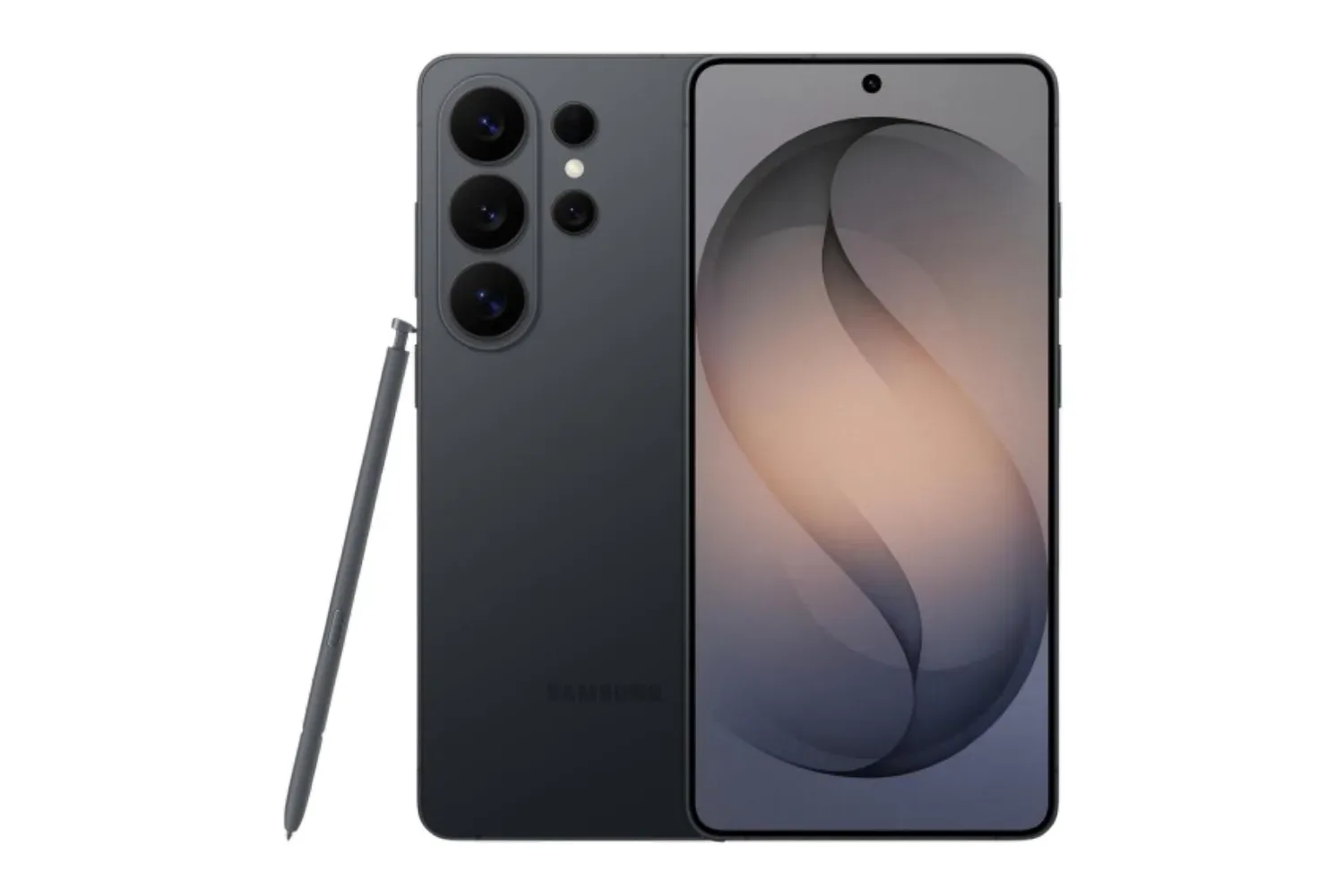
Conversely, a phone that spends most weekdays on a charger may be able to use a cap with little practical disruption. The best setting can change from day to day rather than being treated as a one-time device configuration. Galaxy hardware is also frequently positioned around high-end mobile use; see our coverage of the Galaxy S26 Ultra’s mobile-gaming specifications and Privacy Display.
The practical takeaway
The shield icon beside a Samsung Galaxy battery meter is not cause for concern. It confirms that Battery Protection is active. Basic stops charging at 100% and resumes at 95%; Maximum lets the user set a limit between 80% and 95%; and Sleep Time Protection holds at 80% overnight before completing the charge near the usual wake-up time.
For people who often leave a phone connected overnight or at a desk, the feature is a sensible way to place more emphasis on long-term battery condition. For travel, irregular schedules, or demanding days where every available percentage matters, charging to 100% remains a practical choice. The important part is recognizing the shield for what it is: a battery-management indicator, not a security warning.