A Galaxy phone that falls below 50 percent before lunch can make a normal day feel like a resource-management game played on hard mode. Navigation, messages, work tools, video, music and a few too many background processes can all be drawing power at once. But rapid battery drain does not automatically mean the battery needs replacing.
On Samsung Galaxy devices, several no-cost settings are available to reduce avoidable power use: software updates, background-app limits, display controls, connectivity toggles and a built-in battery-status check. The useful approach is not to flip every switch blindly. It is to identify which kind of drain is likely affecting the phone, make the relevant adjustment, and understand the trade-off before doing it.
That matters because a setting that extends runtime can also change how the device behaves. Deep-sleeping an app prevents it from operating in the background. Lowering refresh rate can make animation less fluid. Restricting connections means services that depend on them may not be immediately available. For rarely used apps and unused radios, those are often sensible compromises. For a chat app, navigation service or game played daily, they may not be.
Start by separating battery drain from battery health
There are two issues that can look similar from the percentage indicator alone. Battery drain is power being consumed by the phone’s current work: a bright display, a screen left awake, apps refreshing in the background, or wireless features left enabled. Those are potentially manageable through settings.
Battery health concerns the state of the battery itself. If it has degraded, adjustments may still reduce consumption, but they cannot fully restore the phone’s former endurance. Samsung’s diagnostics provide a direct way to distinguish the latter case from a configuration problem.
Cold conditions can also affect battery performance, while a phone sitting unlocked with its display at maximum brightness can consume charge surprisingly quickly. In other words, one bad afternoon is not necessarily proof of a permanent hardware failure. Look for a repeated pattern, then investigate the settings most likely to explain it.
Update the phone and its apps before chasing smaller tweaks
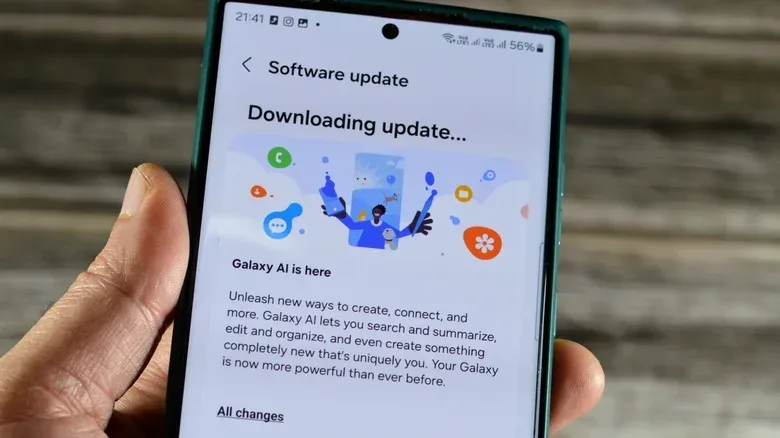
Keeping the operating system and installed apps current is a foundational step. Samsung software updates can include efficiency fixes and optimizations intended to reduce unnecessary power use. App updates matter for the same general reason: an application’s power behavior is not fixed forever, and an update may address wasteful background activity or other issues.
This is not a promise that every update will deliver a dramatic jump in battery life. It is a way to avoid diagnosing an issue on outdated software when an available fix may already address part of it. Updates are also one of the few battery-maintenance steps that do not ask the owner to give up a feature or change display behavior.
For readers who follow the wider hardware cycle, our look at Apple’s October hardware plans is a reminder that new-device news is always loud. Existing-device maintenance is less glamorous, but a few minutes in the settings menu can be more useful than treating every frustrating battery day as an immediate upgrade prompt.
Find background apps that are spending power offscreen
Background activity is among the most likely explanations when a phone drains while it appears to be doing very little. An app does not have to be visibly open to consume resources; it may be refreshing, maintaining a connection or otherwise working after the user has moved on.
Samsung’s Battery and Device Care area lets users see which apps have had the greatest effect on battery use. Checking that screen turns a vague complaint—“my phone dies too fast”—into a more actionable question: which apps are responsible on the days when the drain is worst?
For applications that are rarely needed, Samsung offers deep sleep. In practical terms, an app placed in deep sleep will not run in the background; it uses resources only when the user opens it. That makes it particularly suitable for services that are installed but seldom used, not for tools expected to stay active or deliver timely background behavior.
How to place rarely used apps in deep sleep
- Open Settings.
- Select Battery.
- Open Background usage limits.
- Add apps that do not need to run until you manually open them.
Deep sleep is best treated as a targeted tool rather than a blanket rule. Before adding an app, ask whether it needs to do something while the screen is off. If the answer is no, deep sleep can reduce unnecessary drain. If the answer is yes, limiting it could interfere with the reason that app is installed in the first place.
The Battery menu also includes Power saving. When enabled, it restricts background apps from using Wi-Fi and mobile data. That is a broader intervention than deep-sleeping one seldom-used app, so it is more appropriate when extending the current charge matters more than uninterrupted background behavior.
Use Battery protection for charging habits, not as a same-day drain cure
Samsung’s Battery protection setting addresses a different part of the battery equation: charging. It does not stop an app from consuming power this afternoon, but it gives users control over the phone’s charging behavior.
The Basic option stops charging at 100 percent and begins again after the level falls below 95 percent. The Maximum option allows a chosen charging ceiling from 80 to 95 percent. The key distinction is simple: background limits reduce consumption during use, while Battery protection governs how the phone approaches charging.
Choosing a lower maximum charge can mean starting the day with less immediately available battery, so it is a preference that deserves a realistic look at routine. Someone routinely ending a day with a large reserve may find the trade-off easy. Someone who already struggles to last to bedtime may prefer to prioritize the day’s usable charge while focusing first on display, app and connectivity settings.
The display is the most visible place to reclaim power
The screen is typically the phone’s largest power consumer, especially when brightness remains high. Unlike background activity, display use is easy to overlook because it is the part of the device people are actively seeing. A high brightness setting can feel normal indoors after the phone was used outside, and an extended screen timeout can let the device stay awake on a desk long after it is needed.
Adaptive Brightness automatically adjusts display brightness to the light around the device instead of holding the screen at a fixed level that may be unnecessarily intense. It is available in Settings > Display. Lowering screen timeout in that same general area limits the period a screen remains lit after use stops.
Neither option requires an all-or-nothing sacrifice. Adaptive Brightness is an automatic adjustment, while timeout is a personal balance between convenience and waste. A shorter timeout is likely to help a phone frequently left unlocked on a desk; a longer one may still be appropriate for reading or reference use.
Refresh rate: a real trade-off, not a mysterious battery trick
Some Galaxy models can move from a 120Hz display refresh rate to 60Hz through Settings > Display > Motion smoothness. Refresh rate, measured in hertz (Hz), is how often the display updates each second. At 120Hz, scrolling and animations can appear smoother than at 60Hz.
Reducing the setting can have a notable effect on battery life, but the cost is visible: motion and scrolling will feel less smooth. This makes it a useful option for owners who value longer runtime more than maximum visual fluidity, especially during a long day away from a charger. It is not necessarily the first setting everyone should change permanently.
Samsung also offers a Light performance profile in Settings > Device Care, within the Performance section. Light prioritizes battery life over processing speed. Samsung notes that this setting does not apply to games, an important limitation for anyone expecting it to change gaming performance or gaming battery use. The setting should be understood as a general phone-use choice rather than a gaming-specific battery mode.
Turn off connections that are not doing a job
Bluetooth, Wi-Fi and location services can all use power when left active. When they are not needed, disabling them is a direct way to trim background consumption. The quick-settings panel, opened by swiping down, provides fast access to these controls.
The practical part is deciding what “not needed” means in the moment. Bluetooth can remain useful for connected accessories. Wi-Fi may be preferable to other connections when available. Location services can be essential for maps and other location-dependent tasks. The best rule is not that every connection must remain off; it is that a connection should be on because it is serving a purpose, not merely because it was enabled earlier.
This approach also avoids the frustration of overly aggressive battery saving. If navigation is imminent, location services are doing their job. If there is no need for any connection during a long period away from a charger, switching unused options off can be an uncomplicated win.
Run Samsung’s battery diagnostic before considering service
After reviewing daily app use and changing the clearest settings, battery status is the final reality check. Samsung Members can run a diagnostic that reports the battery as Normal, Weak or Bad.
- Open the Samsung Members app and choose Support.
- Under Phone diagnostics, tap Get started.
- Run the full diagnostic, or stop the process and select Battery status.
- Review the result: Normal, Weak or Bad.
A Normal result supports the case for investigating usage, apps and settings. A Weak or Bad result points toward battery degradation significant enough that optimization alone may not fully resolve the problem. In that situation, professional replacement is the more realistic next consideration; depending on how long the phone has been owned, warranty coverage may be relevant.
A sensible order for troubleshooting
There is no need to turn a Galaxy into a stripped-down emergency device to improve battery behavior. Start with changes that have little downside: install available updates, check the battery-use list, deep-sleep genuinely rare apps, enable Adaptive Brightness and shorten a wasteful timeout. Then consider Power saving, a Light performance profile, a lower refresh rate or connection toggles based on how urgently runtime is needed and what compromises are acceptable.
Finally, check battery health. That sequence avoids both extremes: replacing hardware before investigating simple causes, and endlessly tweaking settings when the diagnostic result indicates the battery itself has weakened. The objective is not a single magic switch. It is a phone whose power use matches what it is actually being asked to do.