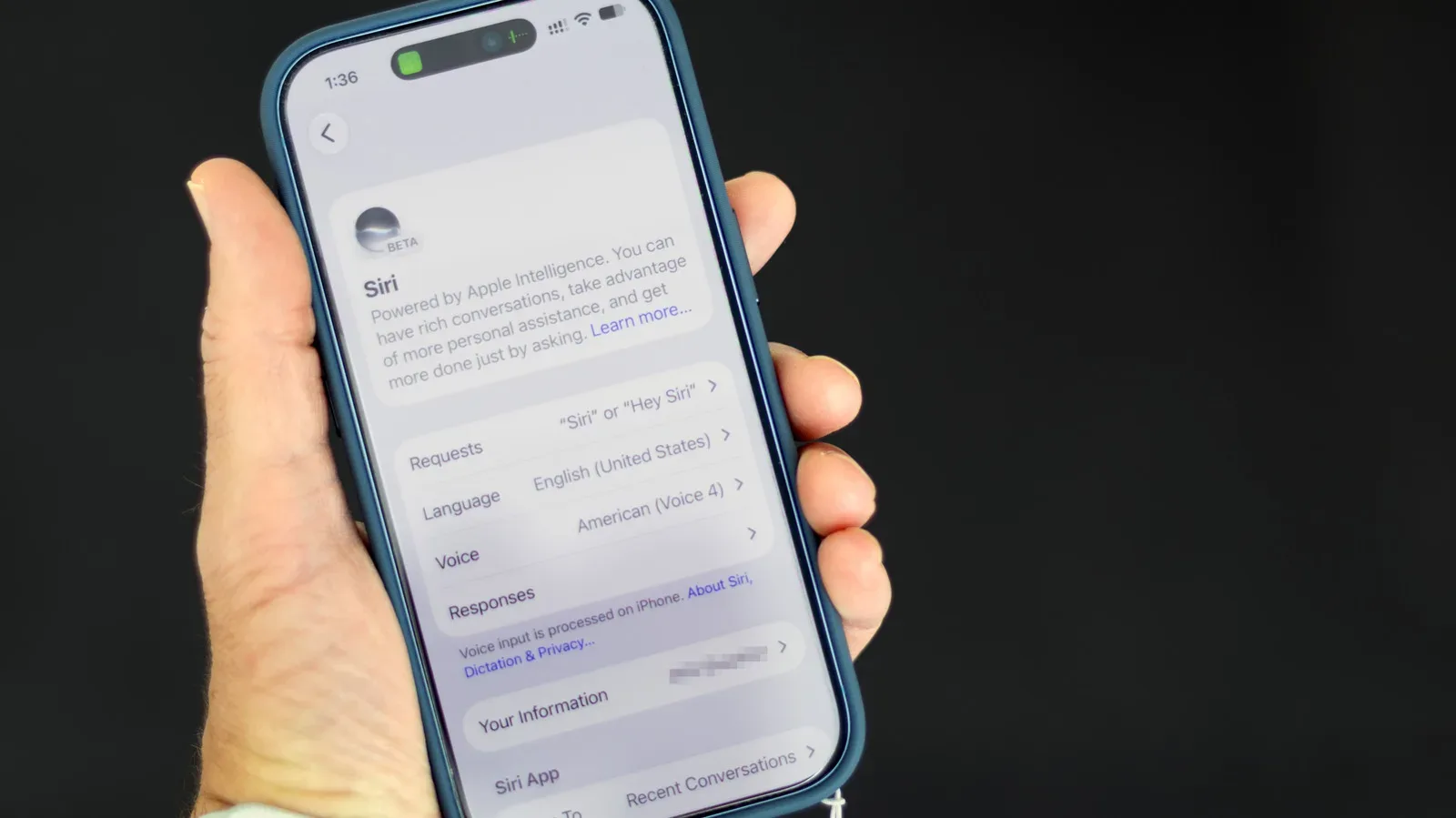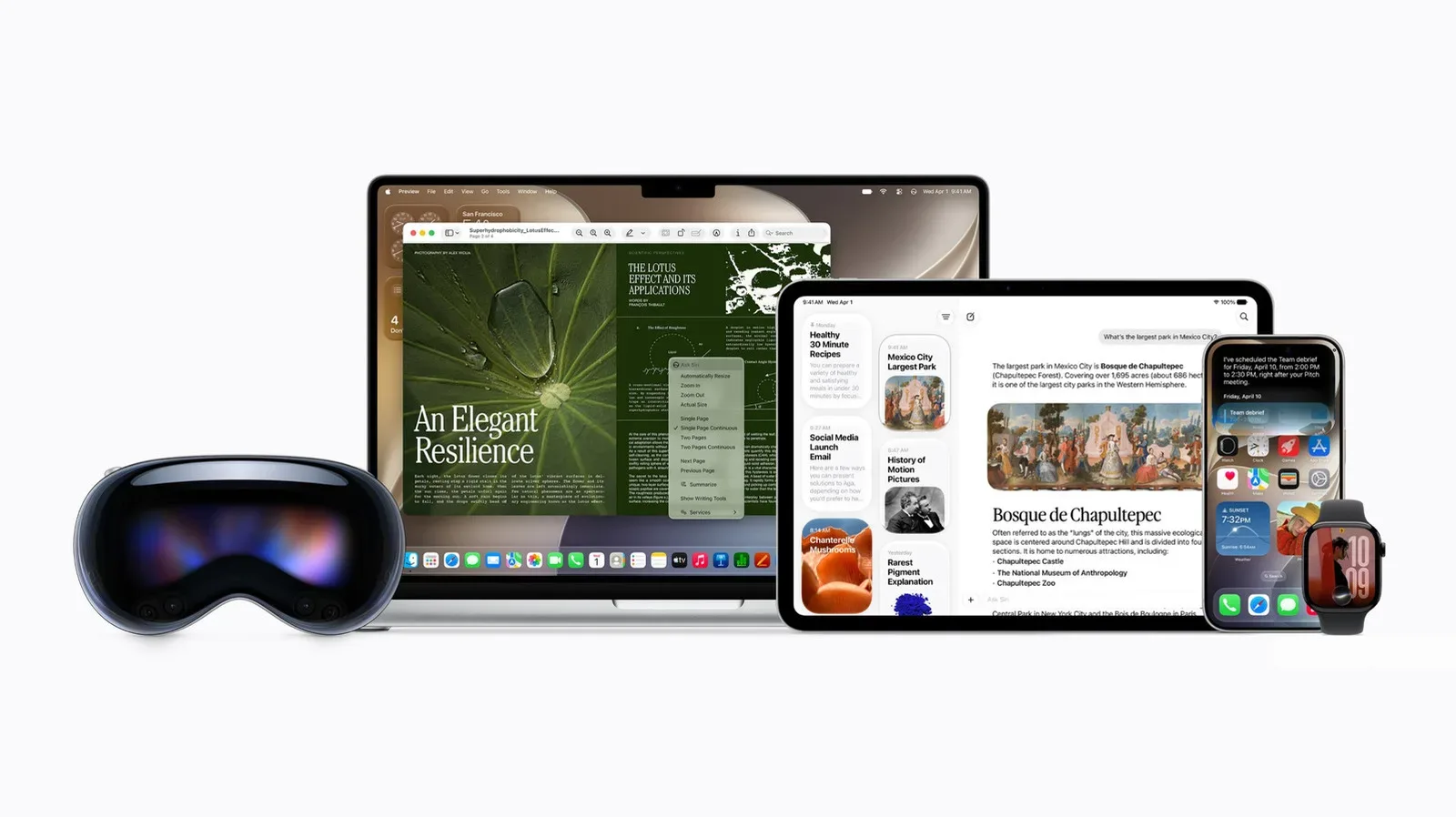
Apple’s redesigned Siri in iOS 27 is built to give answers with considerably more personal context than the older voice assistant. That means the assistant can search information inside supported apps on an iPhone, iPad, or Mac, drawing on material such as Notes and Messages when it is relevant to a request.
That capability can be genuinely handy. A voice assistant that can find a detail you wrote down, identify a recent conversation, or make sense of an item currently on screen has a clearer path to being useful than one that only searches the web or launches apps. But “personalized” is not a magical property. It is the result of allowing the system to use more personal information.
For players, that distinction is especially worth understanding. Phones routinely contain chat threads, screenshots, account emails, event reminders, strategy notes, wish lists, game-related social posts, and possibly authentication information. Not all of it needs to be searchable by an AI assistant to make Siri helpful. iOS 27 provides a per-app setting for deciding which content Siri can index, alongside options to avoid sharing Siri recordings for improvement and to return to the older Siri experience entirely.
The practical approach is not necessarily to switch everything off. It is to decide which apps contain information you would actually want Siri to retrieve, and deny access to the rest.
What changed with Siri AI?
The updated Siri is rolling out with iOS 27, although access requires joining a waitlist. Its more capable responses are enabled by large language models, the AI systems designed to interpret natural-language requests and generate responses. Apple worked with Google to train the models behind the new Siri AI.
Siri AI’s personal context comes through App Intents, a framework that lets Apple Intelligence features interact with data in apps. When Siri AI is enabled, Siri and Spotlight are combined into one interface. Spotlight is the system search feature that can surface apps, files, and other information from a device. If an app’s developer supports App Intents and permits its content to be indexed by Spotlight, Siri can use that content to answer a question.
In straightforward terms, indexation is the process of cataloguing content so it can be found later through search. Allowing an app’s content to appear in search therefore gives Siri AI a pool of potentially relevant information it may surface in response to a request. The setting is not merely about whether an app icon appears in search; it can control whether the content inside that app is available.
Apple’s own apps, including Notes and Messages, are part of the assistant’s default search scope. Supported third-party apps may also be searchable. That broad reach is why an audit is more useful than treating Siri AI as a single all-or-nothing privacy choice.
How to stop Siri from searching a specific app
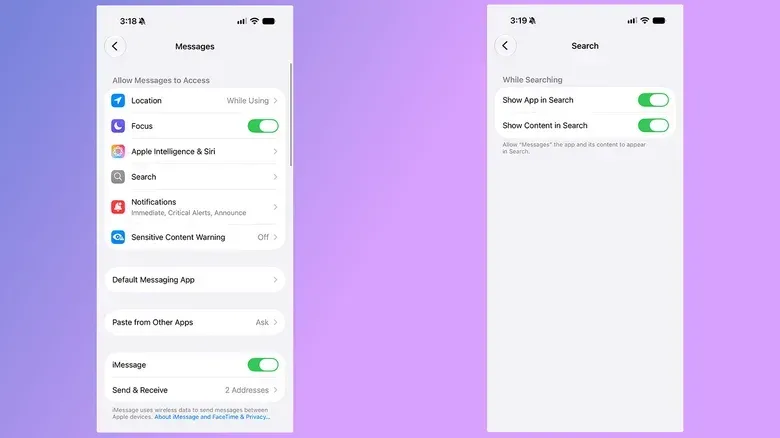
iOS 27 lets you remove individual apps from Siri’s searchable content. This is the most targeted option: retain Siri AI for information you find useful while excluding apps that hold more sensitive or simply irrelevant material.
- Open Settings.
- Scroll down and select Apps.
- Choose the app you want to restrict.
- Select Search.
- Turn off Show Content in Search.
Once Show Content in Search is disabled for an app, Siri will not retrieve its contents, even when directly asked. Disabling the setting for Messages, for example, means Siri cannot locate a particular message thread to summarize it.
This is an important practical consequence: the setting is not a cosmetic preference that merely makes search results less cluttered. It removes a feature. If Siri cannot search an app’s content, it also cannot use that content to provide a tailored answer.
A sensible way to choose what stays searchable
Start with purpose rather than panic. Consider whether you would ever deliberately ask Siri to find or summarize something from each app. Notes may be worth keeping searchable if it is where you store reminders and reference material. Messages may be useful for people who want hands-free help locating a recent exchange. Other apps may not offer enough benefit to justify inclusion.
It is also reasonable to review apps according to the kinds of information they contain. Communications, personal records, screenshots, and apps that function as a private archive deserve more consideration than a utility whose content has little relevance to voice queries.
Developers have a role here as well. Siri can only search compatible third-party apps when developers choose to support App Intents and allow Spotlight indexing. That means the scope may differ from app to app, and could change as developers update their software. Checking settings again after installing an app or accepting a major update is a sensible routine.
Suggestions are different from content access
Inside each app’s Settings area, iOS also groups controls under Apple Intelligence & Siri. These options can look alarming at a glance, especially one called Learn from this App, but they are not the control for blocking Siri from reading searchable app content.
Suggest App affects whether an app is presented in Siri Suggestions, such as the recommendations that can appear when opening the iPhone search view. Learn from this App allows iOS to observe how and when an app is used so that it can tailor when that app is suggested. These are recommendation controls: they govern when iOS puts an app in front of you, not whether Siri can search through material stored in the app.
The terminology matters because it prevents a common bad outcome in settings menus: changing a nearby option and assuming the intended privacy control has been applied. If the objective is to keep the assistant out of an app’s internal material, the relevant setting is Show Content in Search under that app’s Search options.
On-screen awareness is a separate, one-off route
Restricting app indexing does not remove every way Siri can handle context. iOS 27 also offers on-screen awareness, which enables Siri to read screenshots and images. This can be useful in accessibility situations or when asking the assistant to summarize a lengthy article or message thread captured in a screenshot.
The distinction is useful. Search indexing gives Siri an ongoing ability to look for relevant data in permitted apps. On-screen awareness is more ad hoc: you choose a screenshot or image and ask the assistant to interpret it. One limits routine app-content retrieval; the other concerns a specific item you actively present to the assistant.
That does not make screenshots trivial. A screenshot can contain exactly the information a person would prefer not to expose: a conversation, a code, a receipt, an account screen, or a game chat. Before asking Siri to analyze one, look at the entire captured screen rather than only the part you want summarized.
Some Siri AI requests use a combination of on-device processing and Apple’s Private Cloud Compute, or PCC. On-device models process information locally on the device. PCC refers to Apple’s remote infrastructure, used when a request needs more processing than the device handles on its own. Apple says data sent to PCC is not retained after the request is processed and that it cannot see that data. Still, a screenshot submitted for interpretation may be sent to PCC, which is a meaningful consideration for anyone whose preference is to minimize any remote processing.
Check the Siri recording and transcript setting
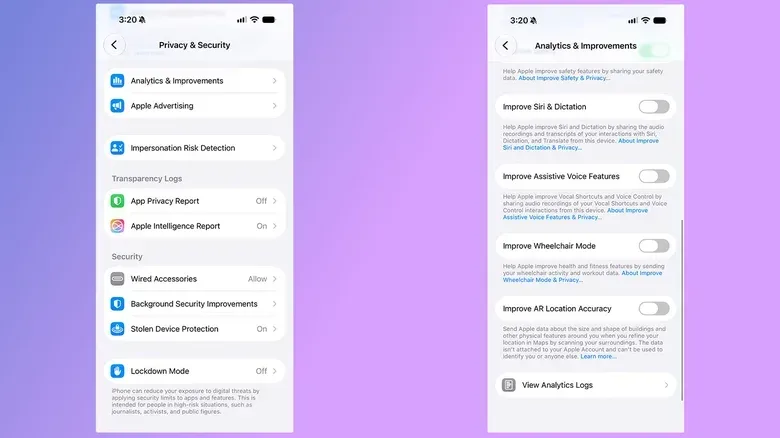
Apple says it does not collect or use the data from Siri interactions to train future assistant versions by default. However, someone may have opted in during device setup to share Siri recordings and transcripts. It is worth confirming that preference, particularly after setting up a new device or restoring one.
- Open Settings.
- Tap Privacy & Security.
- Select Analytics & Improvements.
- Turn off Improve Siri & Dictation if it is enabled.
This setting addresses a different question from app indexing. Turning it off does not determine whether Siri can search Notes, Messages, or a supported third-party app. Instead, it concerns whether recordings and transcripts from interactions are shared to improve Siri and Dictation. Privacy controls often sit in different menus because they deal with different stages of the system: the information Siri can retrieve, the processing needed for a request, and the optional sharing of interaction data are related but not identical.
Use Siri Classic, or turn Siri off
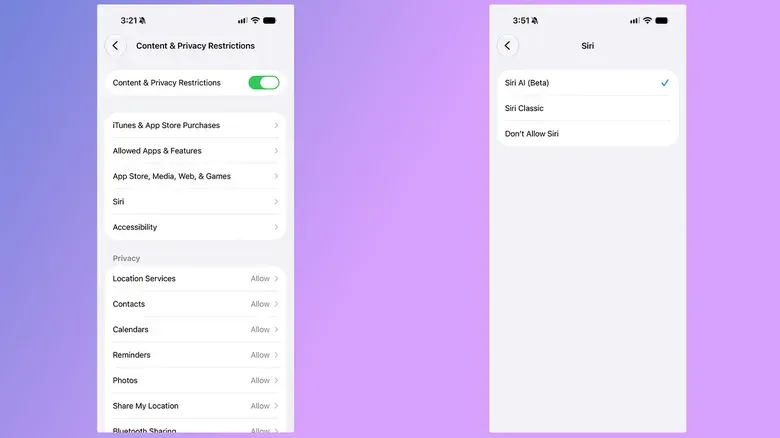
People who do not want the newer assistant’s broader personal-data reach can revert to the older version, called Siri Classic. This can preserve voice control for uses such as CarPlay while avoiding Siri AI.
- Open Settings.
- Tap Screen Time, then Content & Privacy Restrictions.
- Enable Content & Privacy Restrictions.
- Tap Siri.
- Under Allowed Siri Version, choose Siri Classic.
The location is unintuitive, but the result is clear: Siri Classic is the fallback for users who still want a conventional voice assistant without enabling the new Siri AI experience.
There is also a full shutdown option:
- Open Settings.
- Tap Siri.
- Scroll down and choose Turn off Siri.
The larger lesson extends beyond one assistant. AI features are increasingly presented as conveniences that can summarize, search, and explain information across a device. Their usefulness often depends on broad access, which makes granular controls more valuable than an abstract promise that a tool is “private.” It is also why scrutiny around AI use has become a live issue across games and technology; the concern is not only what a system can create, but what inputs it relies on. That broader tension has surfaced elsewhere in gaming, including recent debate over AI concerns around game marketing material.
For Siri AI, the clearest compromise is available in the settings already provided: allow search access only where personalized retrieval has real value, keep optional recording sharing disabled if that is your preference, treat screenshot analysis as a deliberate disclosure, and use Siri Classic or switch Siri off if the trade-off does not work for you.