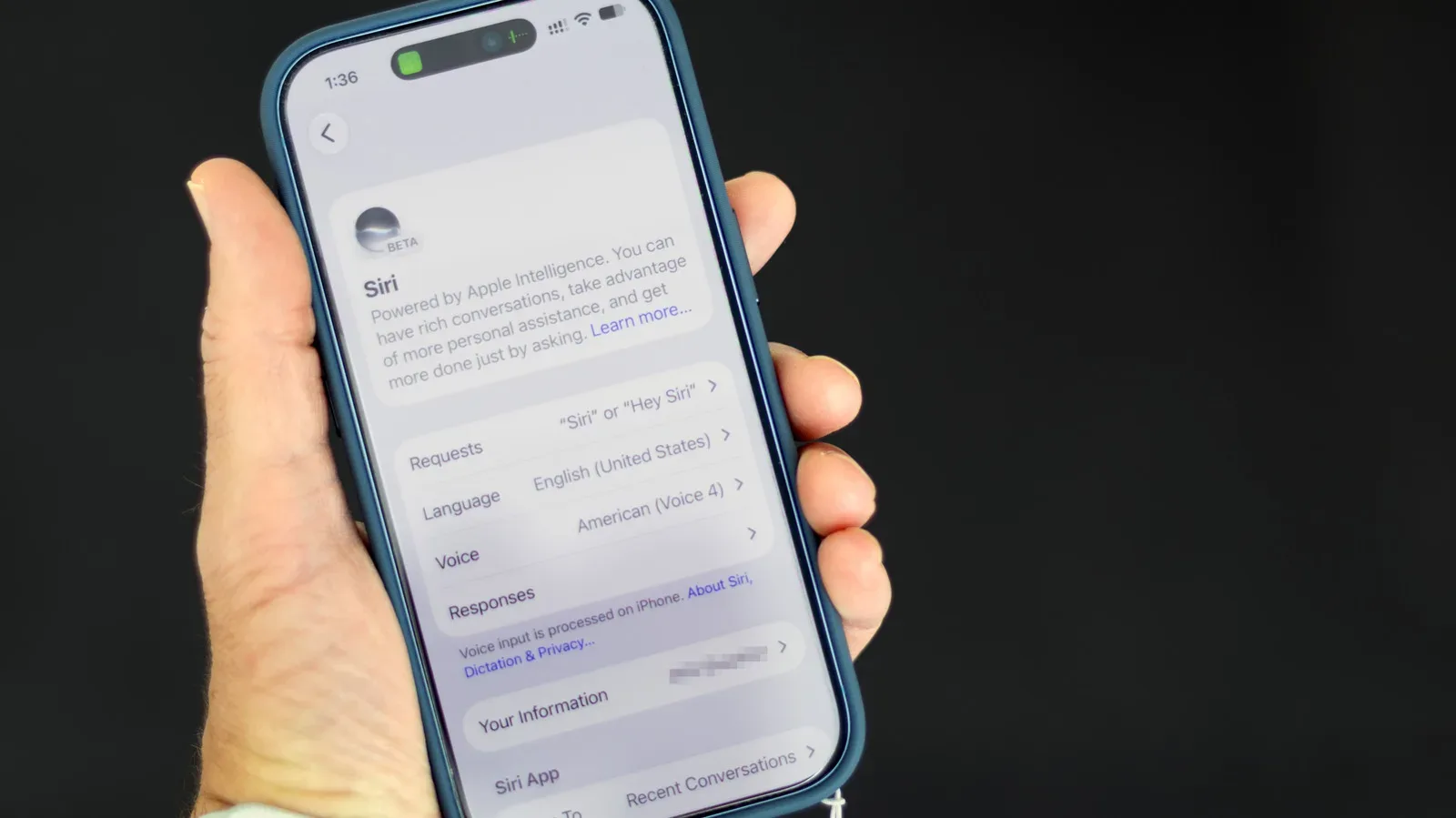
Apple Intelligence in iOS 27 is less like a single feature and more like a collection of small systems spread across an iPhone. Siri can take a more conversational, context-aware approach; Messages and Mail can condense text; notifications can be summarized and ranked; and tools can offer writing, image-generation, voicemail and Journal suggestions.
That makes the choice more granular, but it also makes the off switch harder to find. On compatible iPhones running iOS 27, there is no longer one universal Apple Intelligence control that disables every AI feature at once. Instead, the practical approach is to identify the parts you do not want and turn them off individually.
This guide applies to Apple Intelligence-capable models: an iPhone 15 Pro or later, or an iPhone 16 or later, running iOS 27. Anyone remaining on iOS 26 has a much simpler route: go to Settings > Apple Intelligence & Siri, then switch off Apple Intelligence.
The iOS 27 method takes more menu-hopping, but it has one significant advantage: you do not have to treat AI as an all-or-nothing upgrade. A person who wants ordinary voice commands but not AI-generated notification recaps, for example, can configure precisely that. Think of it as turning off individual game modifiers rather than deleting the entire save file.
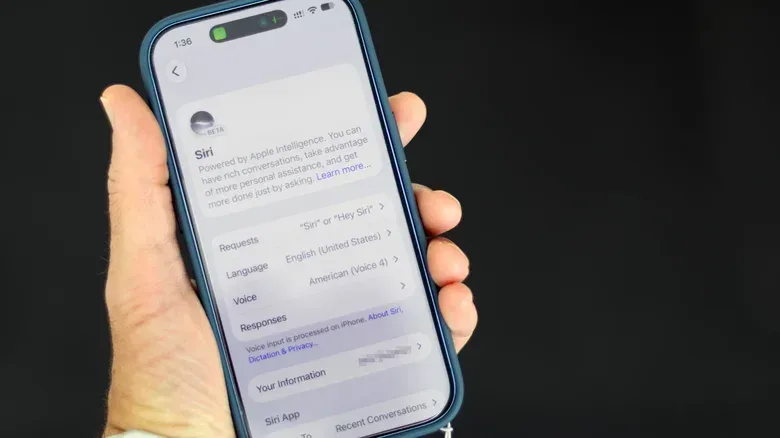
Start with Siri: turn it off, or choose Siri Classic
Siri is the most visible place to begin. In iOS 27, the assistant has been revamped from a straightforward voice helper into a more conversational and context-aware service. That may be useful to people who want broader assistance, but it is also the clearest example of the more chatbot-like experience some users may prefer to avoid.
To disable Siri entirely, follow this path:
- Open Settings.
- Tap Siri.
- Scroll to the bottom of the page.
- Tap Turn Off Siri.
- Confirm the choice on the following screen.
Turning Siri off is the cleanest option for someone who does not want the assistant at all. But it is not the only option. iOS 27 also lets users retain the familiar, simpler form of Siri.
From the same Siri settings screen, select Turn On Siri and then choose Use Siri Classic. This is the middle ground for anyone who still values basic voice commands such as setting a timer or playing music, but does not want the newer AI-driven assistant behavior.
What “Classic” changes in practical terms: it preserves Siri as a utility for direct tasks rather than making the newer conversational experience the default choice. That distinction matters because a total Siri shutdown removes even the basic conveniences some people use daily.
Remove AI summaries from Messages, Mail and notifications
Summarization is one of the easiest forms of AI to encounter without actively asking for it. It changes how content appears before you have read the original message, email or alert. That can save time, but it can also make a summary feel like a substitute for the actual information.
For Messages, iOS 27 can generate recaps in the conversation list. To disable them, go to:
Settings > Apps > Messages > Summarize Messages
Switching this off removes the AI-generated message recaps from the conversation list.
Mail has a closely related control for inbox previews:
Settings > Apps > Mail > Summarize Message Previews
With that setting disabled, Mail shows the opening lines of the most recent message rather than an AI-generated summary. This can be a meaningful preference rather than merely a cosmetic one: the first lines are direct text from the email, while a summary is an interpretation of that text.
Notifications have two separate settings worth checking. The first is summary generation itself:
Settings > Notifications > Summarize Notifications
Turn off the feature here to stop notification summaries. The same screen can also be used to leave summarization enabled generally while disabling it for individual apps. That per-app approach is useful for people who find a particular app produces alerts where wording and detail are especially important.
The second notification setting is about priority rather than summarization:
Settings > Notifications > Prioritize Notifications
Turn this off to stop Apple Intelligence from deciding which notifications should be placed at the top of the stack. A summary condenses information; prioritization ranks information. They are related, but they are not the same feature, so turning off summaries does not necessarily stop AI-selected priority placement.
This distinction is the core of iOS 27’s fragmented controls. If an alert still seems to be receiving special treatment after summaries are disabled, check the priority setting as well.
Disable reply, voicemail, calling and Journal suggestions
Several Apple Intelligence features are framed as suggestions. They do not necessarily act on their own, but they can place an AI-generated prompt, proposed reply or extracted action in front of the user. If the aim is to make an iPhone feel more predictable and less proactive, these are worthwhile settings to review.
Smart Reply in Mail
Mail can use Smart Reply to draft responses in a user’s writing style. To disable that personalization, go to:
Settings > Apps > Mail > Personalize Smart Replies
A smart reply is a proposed response rather than a full automatic send. Even so, turning it off may appeal to people who would rather write every response without AI-generated phrasing appearing as an option.
Voicemail and business-call suggestions
The Phone app has two separate Apple Intelligence touchpoints. Voicemail transcripts can prompt suggested follow-up actions, such as making a reminder or calendar event. Disable those suggestions here:
Settings > Apps > Phone > Suggestions in Voicemail
There is also a setting for information Apple Intelligence may surface when calling a business, including a reservation number. To disable that, use:
Settings > Apps > Phone > Apple Intelligence & Siri > Show When Calling
These two controls handle different moments in the Phone app: one responds to voicemail text, while the other presents information during a business call. If the goal is to remove AI from Phone as thoroughly as possible, turn off both.
Journal writing prompts
Journal can offer prompts about what to write. To remove those prompts, go to:
Settings > Apps > Journal > Get Writing Prompts
This does not mean a person must stop using Journal; it simply returns the blank page to being a blank page. That can be preferable for anyone who wants journaling to begin with their own subject and wording rather than a system-generated nudge.
Use Screen Time to block Writing Tools, image creation and extensions
One of iOS 27’s stranger design choices is where some of its largest Apple Intelligence restrictions live. Writing Tools and image-generation controls are not grouped with the standard Siri options. They are found under Screen Time’s content and privacy restrictions.
To reach them:
- Open Settings.
- Tap Screen Time.
- Select Content & Privacy Restrictions.
- Turn on the restrictions.
- Tap Siri.
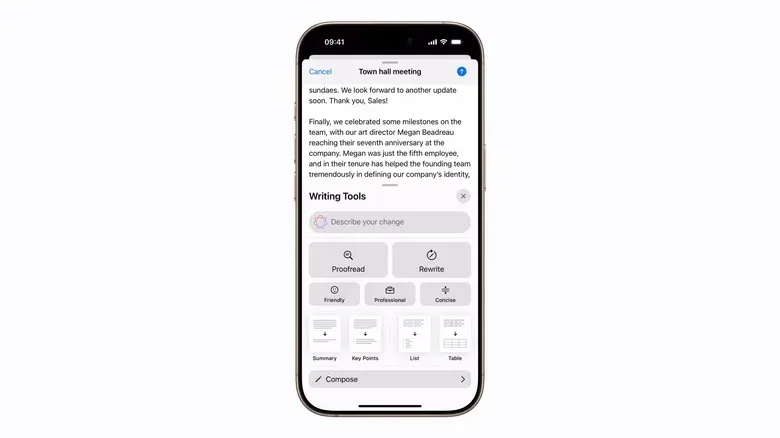
From that Siri restrictions menu, change Writing Assistance to Don’t Allow to block Apple’s system-wide tools for rewriting, proofreading and summarizing text.
Writing Assistance is broader than Smart Reply. Smart Reply concerns Mail’s proposed responses, whereas Writing Assistance covers system-level tools that can alter, check or condense text. Users who want to keep Mail free of personalized draft suggestions should disable Smart Reply; users who do not want system-level AI writing help should also block Writing Assistance.
In that same Screen Time area, Image Creation can be set to block image-oriented AI tools, including Image Playground, Genmoji and Image Wand. This is the relevant control for people who do not want those creation tools available on the device.
The menu also includes two further restrictions:
- Math Assistance, which provides help with complex math problems in Calculator and Notes.
- Extensions, which can prevent Apple Intelligence from handing requests to outside services such as ChatGPT.
“Extensions” is an important technical term here. It refers to the ability for Apple Intelligence to pass a request beyond Apple’s own feature set to another service. Blocking extensions is therefore a distinct choice from turning off Siri, summaries or image creation.
A practical way to choose what stays on
There is no universal best setup because these tools do different jobs. The useful question is not simply whether someone likes or dislikes “AI,” but whether they want a particular system to summarize, rank, suggest, create or hand off information.
- Want basic voice control without the revamped assistant? Choose Siri Classic.
- Want inboxes and conversations to show original text rather than recaps? Disable message and Mail summaries.
- Want alerts in chronological or app-defined order rather than an AI-ranked stack? Disable Prioritize Notifications.
- Want to write, journal and reply without generated language suggestions? Turn off Personalize Smart Replies, Get Writing Prompts and Writing Assistance.
- Want no generative image features? Block Image Creation in Screen Time.
- Want to prevent requests going to an outside AI service? Block Extensions.
For a similarly settings-first look at another phone feature designed to intervene in everyday use, see Android Motion Assist Turns Car Sickness Into a Settings Menu Side Quest.
The broader takeaway is that iOS 27 asks users to manage Apple Intelligence feature by feature. That is more work than the older single switch in iOS 26, but it permits selective control. You can keep a timer-setting Siri while removing the AI conversation layer, preserve ordinary notifications while stopping their summaries and priority ranking, or keep an iPhone’s everyday apps while blocking AI-assisted writing and image creation.