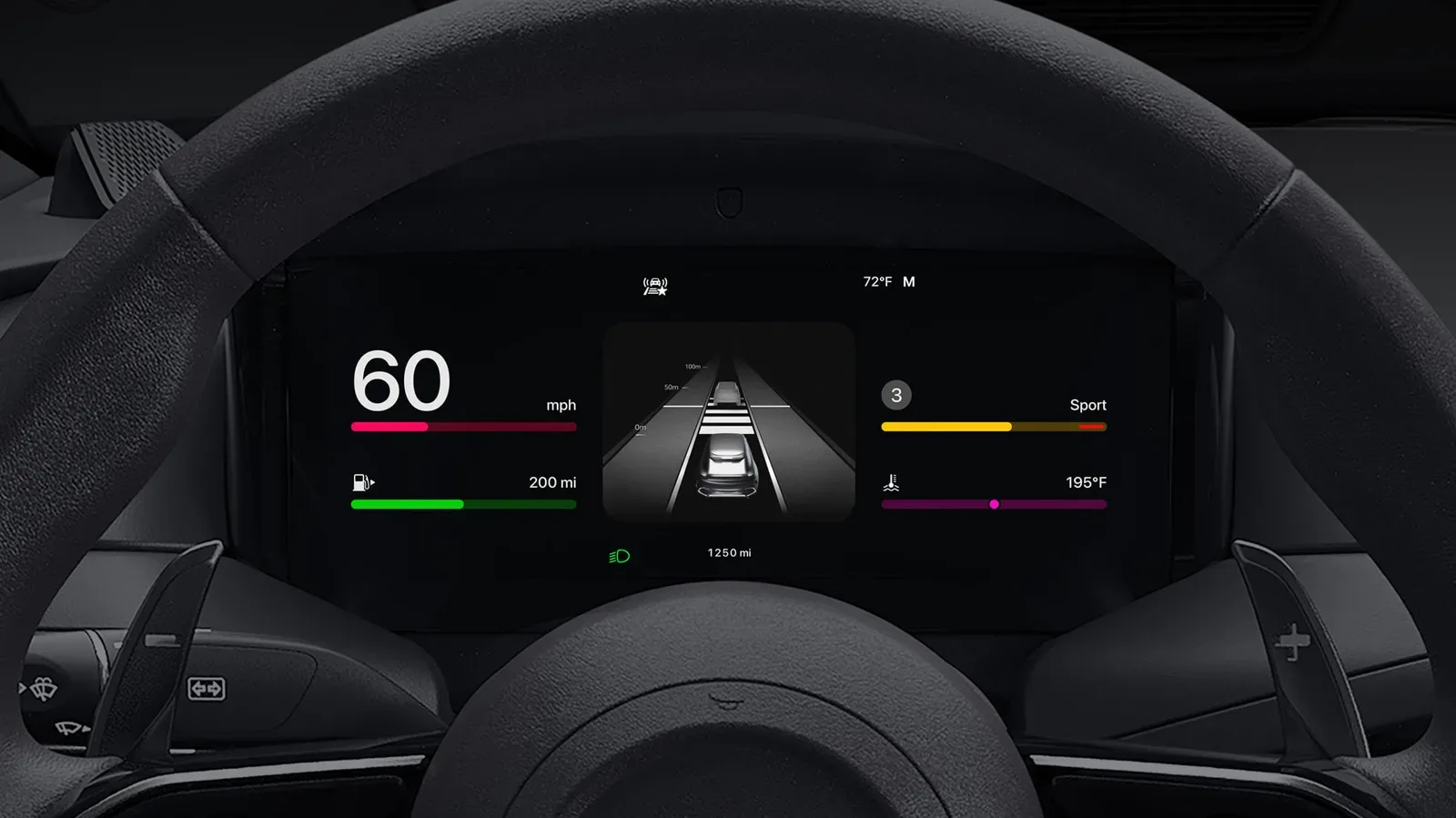
Apple CarPlay is often treated as a fixed feature: plug in an iPhone, get maps and music on the dashboard, then drive. But the useful part is that it can be shaped around the few things a driver actually needs. Its app order is controlled from the iPhone, its display can be adjusted inside CarPlay, and its notification and voice settings can be tailored to reduce the number of reasons to look away from the road.
The sensible objective is not to turn the infotainment display into a second phone. It is to make common tasks—starting navigation, choosing audio, calling a contact or checking the next appointment—faster to reach while keeping interruptions under control. A short setup session can make a meaningful difference, particularly when a vehicle screen has room for only a limited number of apps on its first page.
Start with the app layout on the iPhone
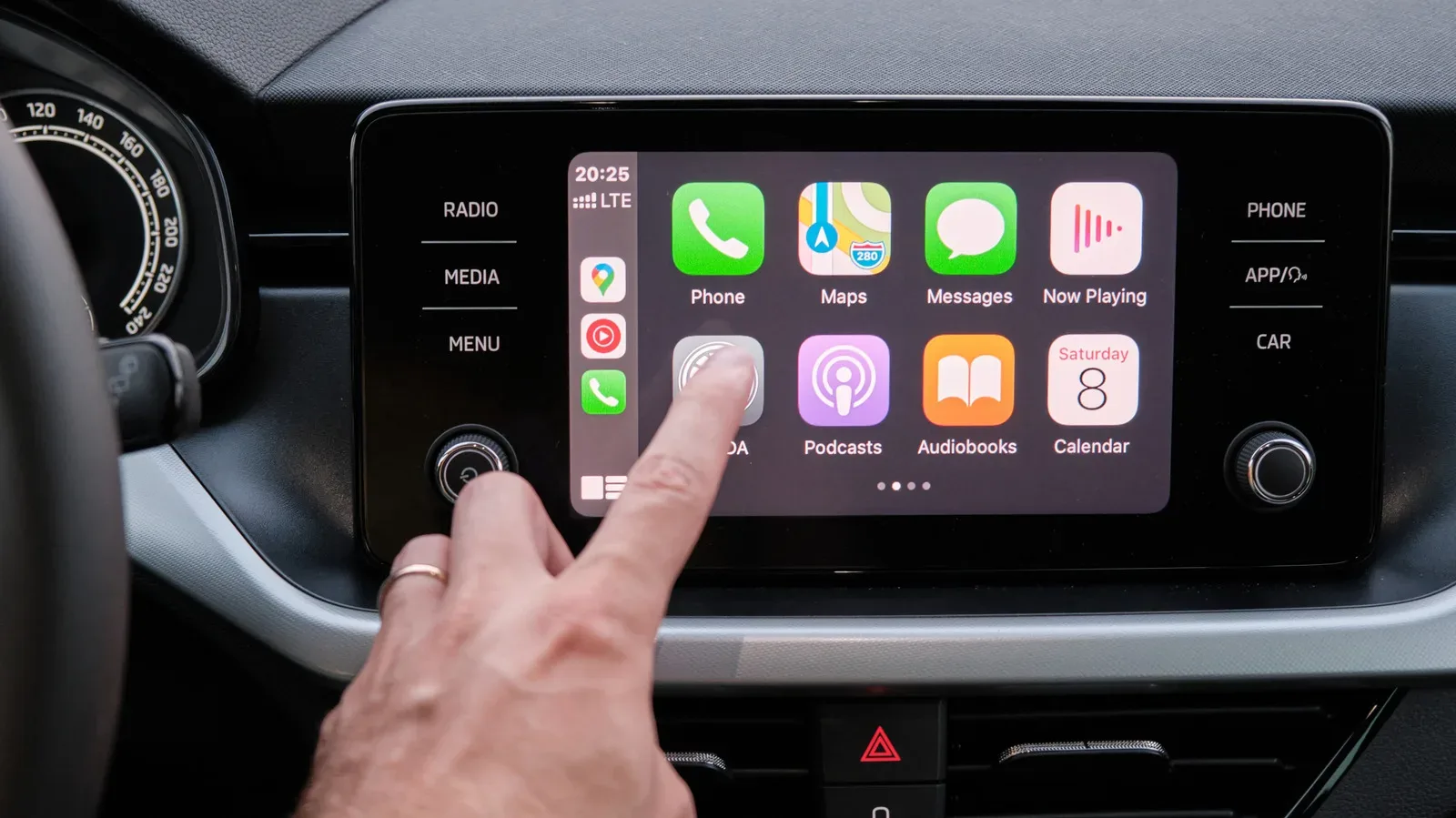
The most important CarPlay organization setting lives on the iPhone rather than the vehicle display. Open Settings > General > CarPlay, select the relevant vehicle, then open Apps. This screen lists the apps compatible with CarPlay and lets the driver reorder them by dragging each entry up or down.
That ordering determines which apps are easiest to reach in the car. Since display size affects how many icons appear on CarPlay’s first page, there is no universal best layout. The practical approach is to put the services used during almost every drive first, then move occasional-use options lower down.
- Prioritize a navigation app if directions are routinely needed.
- Keep the preferred audio app near the top for quick changes at the start of a trip.
- Place communication tools only where they are genuinely useful, rather than giving every compatible app front-page space.
- Remove apps that add clutter by tapping the red minus button; restore eligible apps with the green plus button.
This is a small but worthwhile distinction: fewer icons on the first screen can be better than maximum app availability. A layout designed around decisions that happen while parked or before setting off is usually more helpful than one designed to show every possible option.
Use widgets for glanceable information
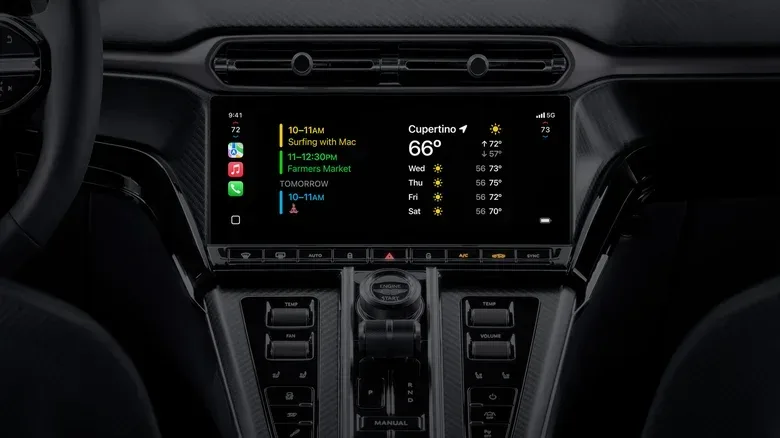
CarPlay widgets, available beginning with iOS 26, extend the display beyond a grid of app icons. They bring compact views similar to iPhone Home Screen widgets to the vehicle interface, including examples such as weather, calendar and clock information. They are managed from the same iPhone CarPlay area used for app organization: choose the vehicle and open Widgets.
A widget is a compact information panel rather than a full app. Its value in the vehicle is immediacy: it can surface a useful detail without requiring the driver to enter an app and navigate several screens. That does not mean every available widget belongs in the setup. The best candidates are the ones that answer a recurring question quickly.
CarPlay also offers Smart Rotate, which can change displayed widgets during the day, and Widget Suggestions, which can present available widgets even when they have not been manually added. These options suit drivers who want the system to adapt automatically. People who prefer a predictable, unchanging dashboard may instead want to select a smaller fixed set of panels.
The important consideration is attention. Widgets are useful when they simplify a glance; they are less useful if they create another stream of changing information competing with navigation and road awareness.
Make the screen readable before making it decorative
CarPlay’s brightness generally follows a vehicle’s dash controls, but its appearance settings allow further adjustment. On the CarPlay display, go to Settings > Appearance and select Automatic to let the interface adjust its light or dark presentation automatically.
Automatic appearance is a practical default because cabin conditions can change quickly. A display that is comfortable in one lighting condition may be distracting or harder to read in another. The aim is legibility, not a particular aesthetic. Drivers who need additional help with visual accessibility can use Apple’s CarPlay accessibility guidance as a reference point.
Cosmetic changes are available too. Inside CarPlay, open Settings > Wallpaper, select an option and press Set. Icon colors can be changed under Settings > Customize Icons, with Default, Dark and Clear choices. These adjustments are personal, but they can still have a functional effect if one color treatment is more comfortable to read at a glance.
Apple’s in-car software remains one part of a wider company ecosystem that changes over time, as seen in the recent redesign of the Apple Park Visitor Center. For CarPlay users, the immediate takeaway is simpler: revisit display choices after major software updates instead of assuming the initial setup remains ideal forever.
Let Siri handle common actions—but keep control of interruptions
Siri is integrated into CarPlay for tasks including sending messages, starting navigation and changing music. It can be activated with “Hey Siri” or, in supported vehicles, through the steering-wheel voice button. Either route is intended to replace screen interaction for routine requests.
Voice assistance is most useful when the request is simple and the result is easy to verify. Starting a familiar destination, selecting a playlist or sending a brief message can avoid a series of screen taps. The voice button on the steering wheel can be especially useful for drivers who do not want an always-listening wake phrase to be their default interaction.
iOS 27 includes an updated Siri AI experience on compatible iPhones, described as more useful in the car. Compatibility matters here: not every iPhone will necessarily receive the same capabilities. It is also reasonable to adjust Siri-related settings if the assistant is too eager to speak up. Helpful automation should support the drive, not become another passenger offering unsolicited commentary.
Voice Control is a separate accessibility option
CarPlay also supports Voice Control, an accessibility feature distinct from the usual Siri request flow. Enable it in CarPlay through Settings > Accessibility > Voice Control. Once active, it continuously listens for commands that can include opening apps, swiping left or right, or selecting a particular onscreen element.
That distinction is significant. Siri is generally used to ask for a result—such as directions or music—while Voice Control can provide commands for manipulating the interface itself. It may be useful for people who need more hands-free access to CarPlay controls. Because it continuously listens, it is a setting best enabled deliberately by drivers who expect to use its expanded command set. Apple provides a dedicated Voice Control CarPlay support page with the full command list.
Configure Driving Focus as the anti-noise layer
A polished CarPlay home screen loses much of its benefit if notification interruptions constantly pull attention elsewhere. Driving Focus is the iPhone Focus mode intended to limit distractions while preserving essential driving-related apps.
It can be enabled from the vehicle display by opening CarPlay Settings, selecting Driving Focus and choosing Activate with CarPlay. More detailed notification rules live on the iPhone under Settings > Focus > Driving.
That phone-side menu is where the setup becomes personal. Under People, choose which contacts’ messages can get through and which should be silenced. There is also an option to allow repeated calls from people who are otherwise suppressed, plus the ability to create auto-replies. The While Driving section can be used to activate the Focus whenever the iPhone connects to CarPlay, if automatic activation has not already been configured.
Repeated-call allowances and contact exceptions should be chosen with care. The supplied tools make it possible to preserve a route for urgent communication without treating every notification as urgent. An auto-reply can also make the boundary clear: a message was not ignored; the recipient is driving.
Wireless or wired: choose based on the trip
Wireless CarPlay is convenient because it removes the connection step. Its limitation is basic but important: it does not charge the iPhone unless the vehicle also has a wireless charging pad. For a long drive, a wired connection is the more dependable choice for keeping the phone battery topped up.
This is less a contest between technologies than a decision based on circumstances. Wireless connection is well suited to convenience-focused trips when battery level is not a concern. A cable is the sensible option when the phone will spend a long time handling navigation, communications and audio and needs power at the same time. Choosing deliberately before leaving can prevent the far more annoying problem of a low battery in the middle of a journey.
Two finishing touches: pinned conversations and Shortcuts
For drivers who regularly communicate with the same people, the iPhone Messages app has one useful organizational shortcut. Tap and hold a frequent conversation, then choose Pin. The conversation stays at the top of Messages on the iPhone and is also pinned in CarPlay’s Messages app. That creates a consistent place for the contacts most likely to matter.
The other option is the iPhone Shortcuts app, which can build CarPlay automations. The supplied details do not specify individual automation recipes, so it is best to approach this feature as an advanced customization tool rather than assume a particular action is available. The broad benefit is the ability to create repeatable behavior around a CarPlay routine, instead of manually rebuilding the same setup every time.
CarPlay works best when its interface reflects the real rhythm of a drive: a few essential apps, clear display choices, voice access when appropriate and a firm filter on unnecessary alerts. Rearranging apps, selecting widgets and setting Driving Focus are not glamorous tweaks, but they are the changes most likely to make the dashboard calmer and more usable.