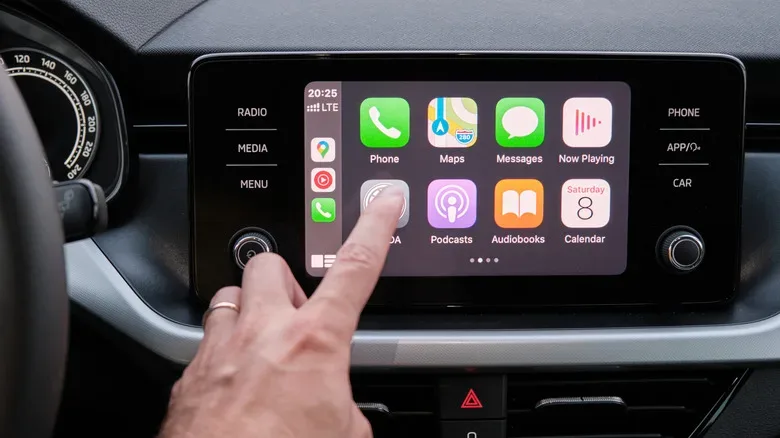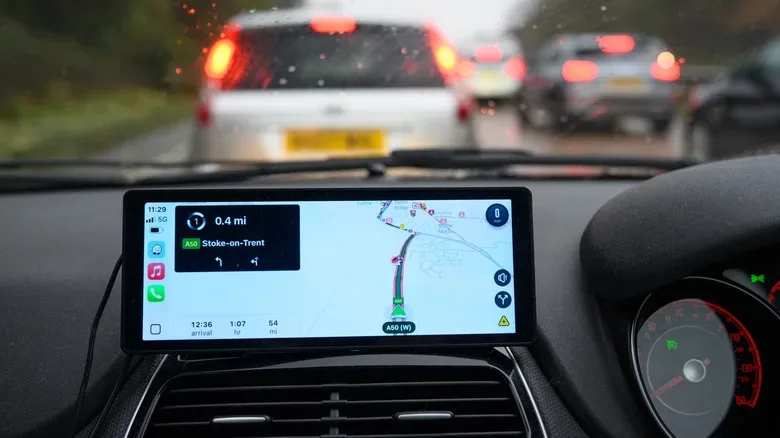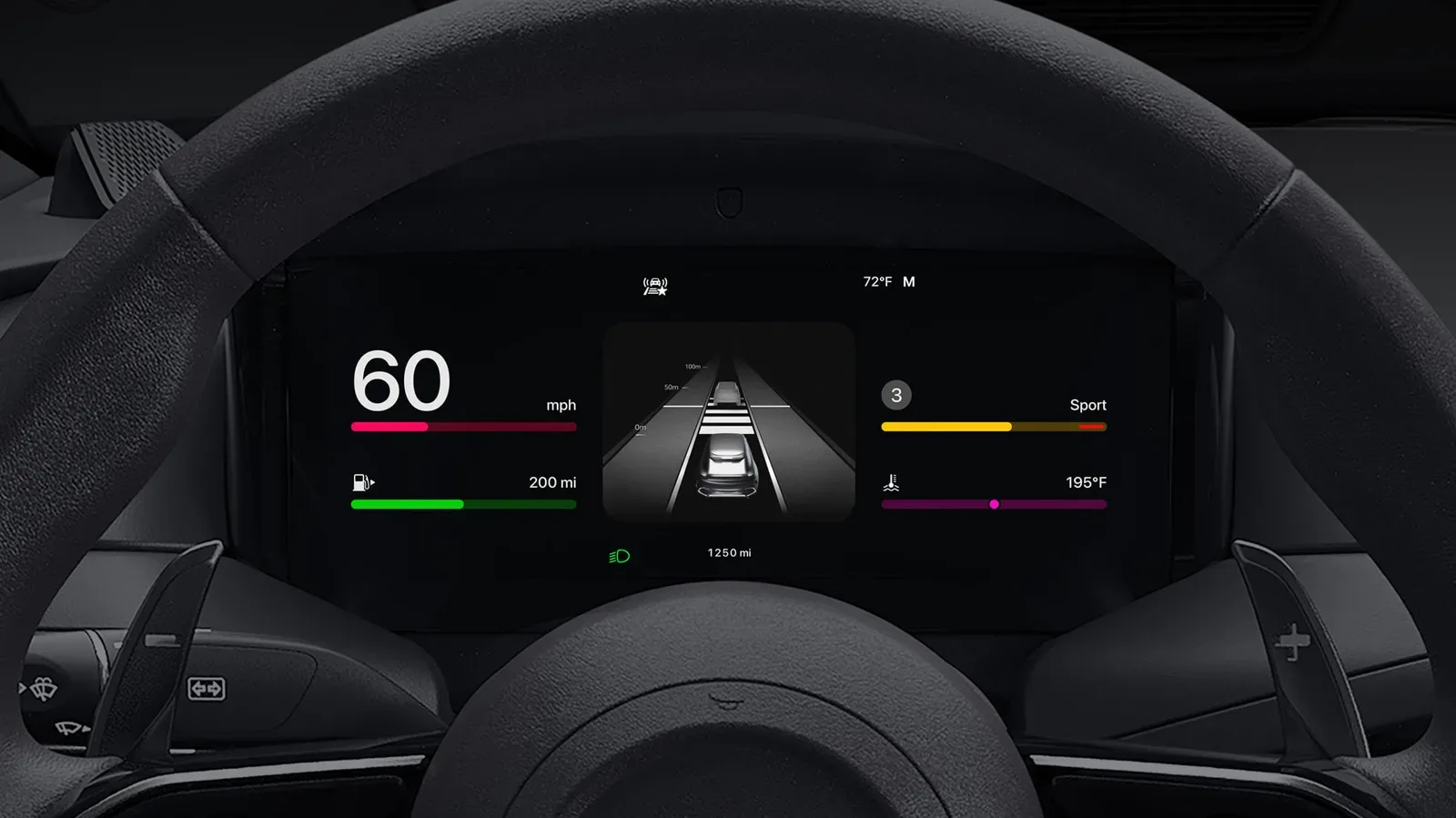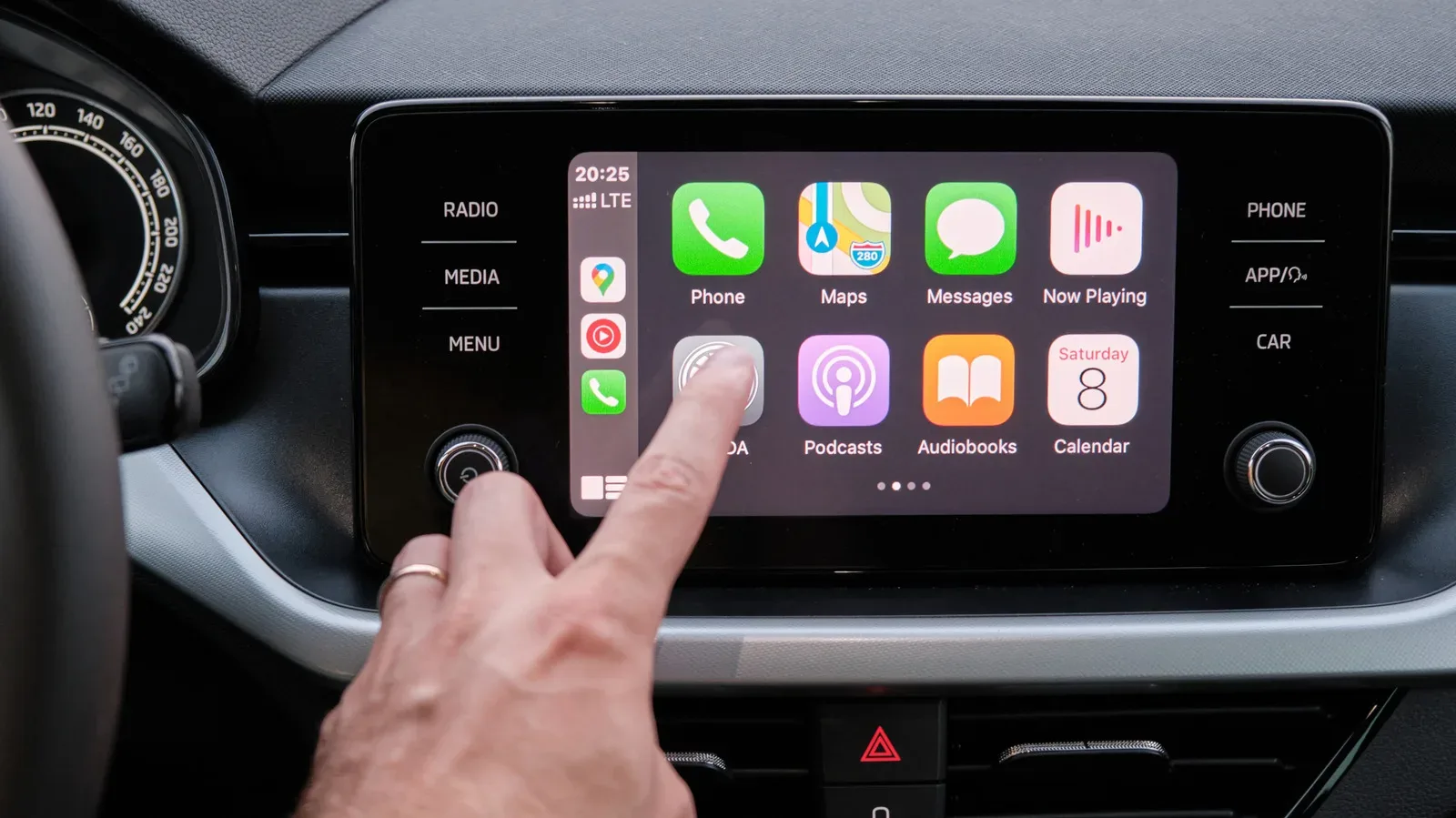
Apple CarPlay is designed to make a car’s infotainment screen feel less like an unfamiliar dashboard puzzle and more like an extension of an iPhone. Once a compatible car and iPhone are connected—whether by cable or wirelessly—the essentials are generally ready: navigation, audio, calls and the supported apps already on the phone. That simplicity is valuable. Nobody needs another settings menu competing with traffic, weather and the eternal question of why the passenger is suddenly the DJ.
Still, the default CarPlay setup is only a starting point. Several settings can make its screen easier to read, place frequently used apps closer to the front, reduce interruptions while the vehicle is moving and provide alternate ways to issue commands. Some options live on the vehicle display, while others are configured on the iPhone. The best choices will depend on the size of the car’s screen, how a driver uses maps and music, and which accessibility features are useful.
Start with the CarPlay screen’s appearance
The most immediate adjustments are visual. On the CarPlay display itself, open Settings > Wallpaper to choose a different background. This is a modest change, but it can make the interface feel less generic without affecting the app layout or driving tools.
CarPlay’s color behavior can also be changed through the Appearance submenu. Drivers who want the dimmer look at all times can retain Always Dark; those who prefer the system to adapt can select Automatic. The latter may be preferable for people who drive through changing lighting conditions, though individual preference and screen readability should decide it.
Text deserves more attention than wallpaper, especially on a dashboard display viewed at a distance. Go to Settings > Accessibility > Text Size in CarPlay to increase or decrease the lettering. There is also a bold-text option. Larger, bolder labels can be useful when quickly identifying an app, destination suggestion or interface control. Conversely, people comfortable with smaller text may prefer a denser presentation.
iOS 26 adds another display-related option: Smart Display Zoom. On the CarPlay screen, the control is found at Settings > Display > Smart Display Zoom. When enabled, it can scale interface elements down on sufficiently large vehicle displays so more information fits at once. That could mean a less spacious but more data-rich view. If large icons and prominent type are the priority, leave Smart Display Zoom disabled instead. It is not a universal “better” setting; it is a trade-off between information density and immediate legibility.
Put the apps you actually use on the first page
CarPlay app organization is handled from the iPhone rather than by rearranging icons on the car display. Open Settings > General > CarPlay, choose the relevant vehicle, then find Customize and select Apps. From there, apps can be added, removed or reordered.
Moving an app upward in the list places it earlier in CarPlay, with the top entries reaching the first app page. That is particularly helpful for drivers who routinely switch between a preferred mapping service, a music app and perhaps an audiobook or podcast app. The aim is not to fill the front page with every compatible icon. A lean first page means less screen hunting and fewer taps when stopped or when a passenger is helping with controls.
The same customization area also supports edits to widget stacks for people who use widgets. A thoughtful stack can surface preferred information more conveniently, but it is worth keeping the screen focused on what is useful in a vehicle context. CarPlay is not meant to recreate the entire iPhone home screen on the dash; it is meant to keep the key controls accessible without turning the center console into a tiny mission-control desk.
Apple’s broader software ecosystem also extends into games and entertainment outside the car. For a separate look at mobile gaming additions, see Apple Arcade’s October lineup. In the driver’s seat, though, the priority should remain navigation, communication and audio controls that do not demand extra attention.
Make Driving Focus part of the connection routine
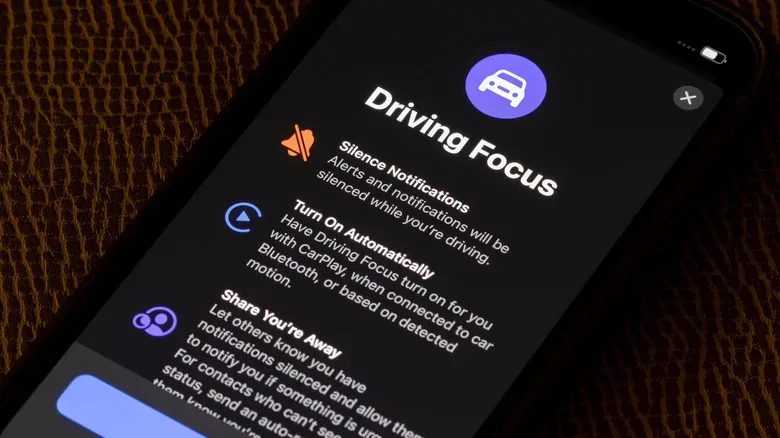
Driving Focus is one of the most practical settings to consider after pairing CarPlay. The preset can be added on the iPhone by going to Settings > Focus > Add and selecting Driving. Once configured, it can activate automatically when the iPhone detects motion or whenever it connects to the car’s CarPlay system.
The central benefit is notification management. When Driving Focus is active, notifications from apps are silenced by default. That does not mean a driver must become unreachable: exceptions can be set for people whose calls should still get through. The feature also supports an automatic reply, which can tell someone trying to reach you that you are currently driving.
This setting is worth treating as a personal policy rather than blindly accepting defaults. A person who needs availability for family or work may want carefully selected allowed contacts. Someone who finds alerts distracting may prefer a tighter configuration. The important part is deciding before the drive begins, rather than negotiating every incoming notification while moving.
CarPlay can additionally read eligible incoming notifications aloud through Siri if notification announcements are enabled. On the iPhone, navigate to Settings > Notifications > Announce Notifications > CarPlay and turn on the CarPlay option. Spoken announcements may help some drivers avoid glancing at the display, but they can also create unwanted noise or reveal message content to passengers. It is sensible to consider both attention and privacy before enabling them for every situation.
Use Siri and consider the separate Voice Control feature
Siri is an important part of CarPlay because speech is often preferable to reaching for the touchscreen. The assistant can be summoned with “Hey Siri” or, in vehicles that support it, through the steering-wheel voice-command button. That makes tasks such as starting navigation, choosing audio or placing a call less dependent on visual interaction.
CarPlay also includes Voice Control, an accessibility tool that works independently from Siri. It can be enabled in CarPlay through Settings > Accessibility. When active, a blue waveform appears on screen. Voice Control is intended to handle basic interface actions, including opening an app or returning one page.
For example, saying “Open Spotify” can launch Spotify, while “Play” can begin the item already queued there. If Siri is needed while Voice Control is running, the spoken command “Open Siri” brings up Apple’s assistant. The two tools serve related but distinct roles: Siri handles assistant requests, while Voice Control provides direct interaction with parts of the interface.
As with all in-car controls, voice features should be configured and learned while safely parked. Knowing the available commands ahead of time is more useful than discovering them mid-route. If Voice Control does not suit a driver’s speaking style or produces friction, traditional Siri activation through the steering wheel may remain the simpler route.
Consider Sound Recognition as an accessibility aid
Another option in the CarPlay accessibility settings is Sound Recognition. When it is enabled, the iPhone listens for certain sounds, including horns, sirens and a baby crying, then presents an alert on the infotainment display.
This may be helpful for drivers who benefit from visual awareness of sounds around or within the vehicle. It should not be treated as a replacement for normal observation, mirrors, awareness of emergency vehicles or any other safe-driving practice. Rather, it is an additional accessibility-oriented notification layer that may be appropriate for some users and unnecessary for others.
A quick setup checklist
- Choose a wallpaper and decide between Always Dark and Automatic appearance.
- Adjust text size and bold text if dashboard labels are difficult to read.
- On iPhone, reorder CarPlay apps so navigation and audio essentials appear first.
- Edit widget stacks only if the added information makes the display more useful.
- Create Driving Focus and decide whether it should activate on motion, on CarPlay connection, or both.
- Set contact exceptions and an automatic reply before relying on Driving Focus.
- Decide whether Siri should announce notifications aloud in the car.
- On larger screens running iOS 26, test Smart Display Zoom based on readability preferences.
- Enable Voice Control or Sound Recognition only after reviewing how each fits your needs.
CarPlay’s defaults can be perfectly adequate, but these controls make it possible to reduce clutter and build a setup around the way each person drives. The strongest configuration is usually the quietest and clearest one: essential apps within easy reach, text that can be read at a glance, fewer nonessential interruptions and voice tools ready when they genuinely help.