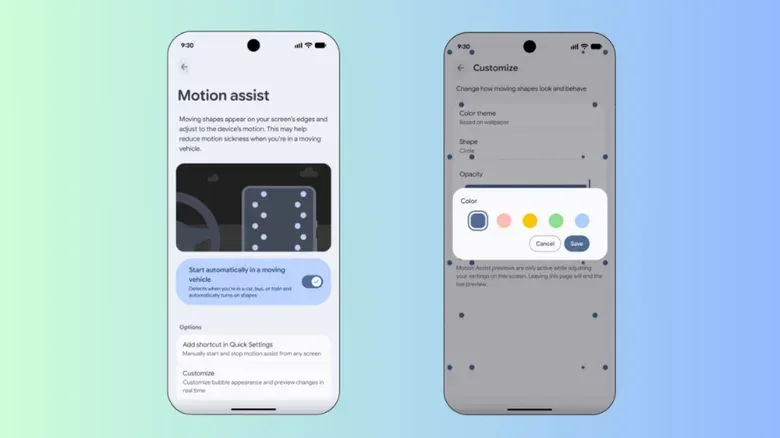
Reading a message, browsing a guide, or queuing up the next playlist while riding in a car can be a surprisingly punishing side quest for anyone prone to motion sickness. Android’s new Motion Assist feature is designed to make that screen time less uncomfortable—not by changing the road, obviously, but by changing what the screen tells your eyes about it.
The accessibility-style tool places small visual markers around the edges of the display. Those markers move in response to the vehicle’s motion, while the centre of the screen remains available for the app, page, video, or game you were already using. The intended result is a visual cue that better matches the movement your body is feeling.
There is an important limit before anyone starts treating it like an invincibility power-up: Motion Assist is intended for passengers. It is not a feature to use while driving. A less queasy glance at a screen is not a reason to divide attention from the road.
Why looking at a phone in a car can feel awful
Motion sickness is often described as a mismatch between sensory signals. During a car journey, the body detects acceleration, braking, turns, and bumps. Meanwhile, a phone held in front of you can look completely stable. If your eyes are fixed on static text or a scrolling feed, the visual information they provide can conflict with the movement information being processed elsewhere.
Motion Assist tackles that conflict with animated peripheral cues. In this context, peripheral simply means the outer area of the display rather than the main content zone. The moving shapes are kept near the screen edges so they can signal changes in movement without sitting directly over an article, map, chat, or video.
Android uses the phone’s motion sensors to make those shapes react as the vehicle moves. That is the core idea: the display is no longer entirely motionless from your visual perspective. It gains a small layer of movement that is meant to better correspond with the ride.
This does not mean the feature can promise to prevent nausea for every person or in every situation. Sensitivity varies, journeys vary, and the automatic vehicle detection is not infallible. Think of it as an optional aid for compatible devices rather than a guaranteed cure.
Which Android phones can use Motion Assist?
Motion Assist requires an Android device running Android 17 or later with updated Google Play Services. Availability also depends on the device software: Pixel phones are the clearest setup example, while Samsung phones need to be on One UI 9.
Related coverage includes How to Enable Motion Assist on Android for Car Rides.
If your handset is neither a Pixel nor a Samsung model, its settings layout may not mirror the instructions below. The most practical first move is to open Settings and search for “Motion Assist”. If the feature is available on the phone, that should be the shortest path to its controls.
For Galaxy owners, the version requirement is worth checking before hunting through menus. One UI is Samsung’s Android interface layer, and feature access can depend on that layer as well as the underlying Android release. For a broader look at that interface update, see our overview of One UI 9’s interface changes.
How to enable Motion Assist on a Pixel phone
On a Pixel, the setting is located under the Google account and services portion of Settings. The navigation path is:
- Open Settings.
- Tap your profile.
- Choose All services.
- Open Personal & device safety.
- Select Motion Assist.
- Turn the feature on.
Once enabled, the edge markers can appear while the phone is in use during a car ride. The central design decision here is practical: the visual treatment is supposed to sit out of the way rather than reformat every app or cover the thing you opened your phone to see.
Use automatic activation, but keep a manual shortcut
Motion Assist also includes a setting called Start automatically in a moving vehicle. Turn that on if you want Android to attempt to activate the feature when it detects vehicle travel. It is the lower-friction option for regular passengers, especially when nausea can arrive before someone remembers which submenu contains the helpful toggle.
However, automatic detection may not always recognise that the phone is in a moving car. That is why adding Motion Assist to Quick Settings is a sensible backup. Quick Settings is Android’s panel of immediate controls—the place generally used for functions that should be available in a couple of taps instead of after a full Settings-menu expedition.
In practical terms, automatic start is convenience; the Quick Settings tile is reliability. Enable both if Motion Assist is useful to you. The former may save a tap on a normal journey, while the latter gives you a direct manual option when the phone does not correctly identify the ride.
Customizing the moving cues
Android does not lock users into one fixed visual effect. From Motion Assist settings, open Customize to adjust three properties of the edge markers:
- Colors: Choose the colour treatment for the shapes.
- Opacity: Set how transparent or visually prominent they appear.
- Shapes: Change the form of the motion indicators.
There is also a Randomization option, which changes the colours and shapes while the feature is being used. That can make the effect feel less static from trip to trip, though people who prefer a predictable display may want to leave it off and settle on one combination.
Customization is more than cosmetic in a feature like this. The indicators need to stay noticeable enough to register at the edges of your vision, but not so conspicuous that they become their own distraction. Opacity is likely to be the most useful starting adjustment: if the markers pull focus from what you are trying to read, lower it; if they disappear into the background, increase it. The best balance will be personal rather than universal.
What Motion Assist changes—and what it does not
The feature’s contribution is narrow and specific. It adds movement-matched visual information around the display. It does not make a moving car still, and it does not alter the content in the middle of the screen. That restraint is arguably the point: a passenger can keep using their usual app without needing a special version of a browser, reader, streaming service, or game.
It also arrives in a space that already has a comparable Apple feature, Vehicle Motion Cues, introduced with iOS 18 in 2024. Android users now have a similar category of option, but the names, operating-system requirements, and setup paths are not interchangeable. On Android, check for Motion Assist rather than assuming an Apple-oriented walkthrough will map cleanly to your menus.
For passengers who regularly lose the battle against a scrolling screen and a winding route, Motion Assist is an easy setting to investigate. Check compatibility, enable it from the Pixel path or Settings search, configure automatic start if desired, and put the manual control in Quick Settings. Then leave the driving to the driver—the only correct co-op arrangement for a feature built around car travel.