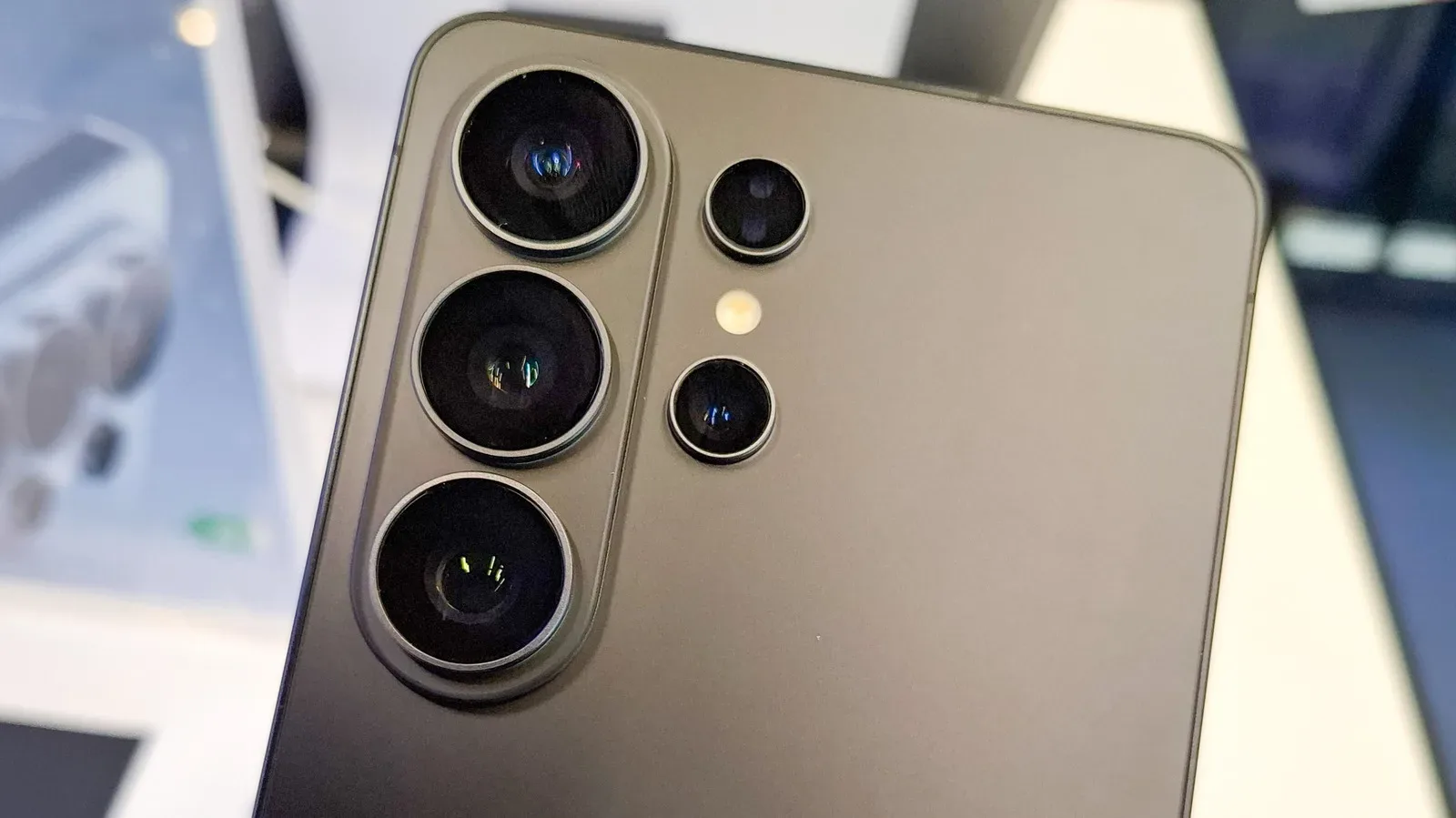
There are few situations less glamorous than fumbling with a locked phone while looking for a keyhole, navigating a dark hallway or trying to locate the one cable that has apparently rolled beneath a desk. Fortunately, Android’s flashlight does not require a full lock-screen ceremony on Google Pixel and Samsung Galaxy phones. With the right shortcut in place, the camera flash can be turned into a light source in a couple of taps, a gesture or, in some cases, a voice command.
The important idea is simple: put the flashlight control somewhere you can reach before unlocking the handset. Both Pixel and Galaxy phones offer a pull-down controls area from the lock screen, and both can be customized. Pixels also offer a back-tap gesture, while both phone families can respond to a hands-free Google request. The exact menus described here are for those two Android lines, so owners of other devices may find their layouts and options differ.
The fastest universal starting point: the pull-down controls
The most straightforward route is the controls panel that appears when you swipe down from the top of the display. It is accessible at the lock screen and contains buttons for common phone functions. The flashlight tile is the prize here: tap it once to turn the light on, then tap it again when you are done.
That is useful on its own, but it is much better when the flashlight tile is visible immediately rather than buried among other controls. A little setup now means less swiping later, which is the entire point when the room is dark and the phone is auditioning for a tiny escape-room puzzle.
Google Pixel: Quick Settings, Quick Tap and lock-screen shortcuts
Use the Flashlight tile in Quick Settings
On a Google Pixel, swipe down from the top of the screen to open Quick Settings. Find the flashlight icon and tap it to activate the light. Tap it a second time to turn it off.
If the tile is not among the first controls you see, edit the Quick Settings layout. Open the panel, then use the pencil button at the bottom. From there, add the Flashlight tile with its plus button and move it closer to the top of the panel. Think of Quick Settings as the phone’s utility belt: the tools at the front are the ones that are actually useful when time matters.
What “Quick Settings” means: it is Android’s collection of tappable system controls, separate from the full Settings app. It is designed for rapid changes such as turning features on or off, rather than for digging through longer configuration screens.
Make a double tap on the back toggle the light
Pixel owners can also assign the flashlight to Quick Tap, a gesture that recognizes a double tap on the back of the phone. To configure it, go to:
Related coverage includes How to Turn On an Android Flashlight Without Unlocking Your Phone.
- Settings
- System
- Gestures
- Quick Tap to start actions
- Enable Toggle Flashlight
Once enabled, double tapping the back of the phone toggles the flashlight. “Toggle” simply means one action switches a feature between its two states: if the light is off, it turns on; if it is on, it turns off. It is a convenient option for someone who wants a shortcut that does not require viewing or navigating the display.
It is worth separating this from another idea people may remember from older phones: shaking a handset to activate the flashlight. Pixel does not offer that as its built-in flashlight action. Third-party apps may offer shake-based controls, but the native Pixel gesture described above is the double tap on the phone’s back.
Put the flashlight on the Pixel lock screen
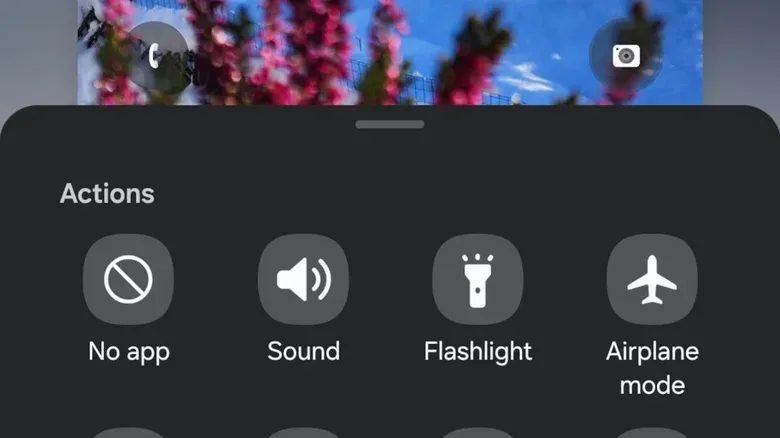
A lock-screen shortcut is perhaps the clearest solution. On the Pixel lock screen, long press, then tap Customize. Scroll to Shortcuts and select the flashlight icon to place it at the bottom of the lock screen.
This approach is especially practical for a device shared with no one but frequently used by everyone in the household as an impromptu torch. It leaves the control in a stable, visible location rather than relying on memorizing where it sits in a rearranged panel.
Use voice control when your hands are busy
For a hands-free route, say “Hey, Google” and then ask it to “Turn on the flashlight.” This can be used without unlocking the phone on both Pixel and Galaxy devices discussed here. It is the least subtle option if silence is important, but it is also the one that requires the least dexterity when both hands are occupied.
Samsung Galaxy: Quick Panel and editable lock-screen corners
Find or reorder Flashlight in the Quick Panel
Samsung calls its pull-down controls area the Quick Panel. From the lock screen, swipe down from either top corner of the display to open it. Tap the flashlight control to turn it on or off.
If the flashlight icon is absent or inconveniently placed, open the Quick Panel and look for the kebab menu or pencil icon. The “kebab” is the familiar three-dot menu symbol, named for its vertical stack of dots rather than for any relationship between phone settings and lunch. Use this editing area to rearrange the panel’s icons and give the flashlight a prominent spot.
As on Pixel, the practical advantage is not merely that a flashlight exists. It is that the control is available before unlock and positioned where you can find it without prolonged searching.
Replace a lock-screen corner button with Flashlight
Galaxy phones can also put the flashlight directly in one of the two bottom lock-screen shortcuts. These are commonly the Phone and Camera buttons, but either can be changed. Long press anywhere on the lock screen, select one of the shortcuts, then choose the flashlight as its replacement.
If the phone does not allow lock-screen customization when you long press, check this setting:
- Settings
- Lock Screen & AOD
- Enable Touch and Hold to Edit
AOD means Always On Display, the Galaxy feature associated with information displayed while the screen is otherwise inactive. In this context, it is part of the settings area where Samsung places lock-screen controls.
Which shortcut should you choose?
There is no need to enable every route. In fact, a good setup is usually the one you will remember rather than the one with the maximum number of buttons.
- Choose Quick Settings or Quick Panel if you want the familiar, visual option available from the top of the screen.
- Choose a lock-screen shortcut if you want the flashlight always in the same bottom-corner location.
- Choose Pixel Quick Tap if a physical double-tap gesture suits your routine.
- Choose the voice command if you may need the light while carrying something or otherwise unable to use the screen.
For many people, a lock-screen button plus the pull-down tile is enough redundancy without turning flashlight access into a feature-tree expedition. The lock-screen button provides a dependable direct route; the panel remains a fallback if the shortcut has been assigned to something else.
A small safety and battery-minded reminder
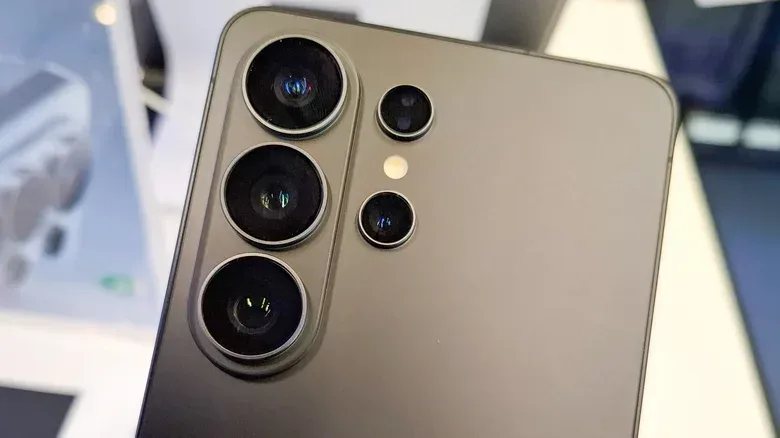
The flashlight uses the phone’s rear camera flash as a light. It is excellent for short tasks, but it is still worth turning off once the task is finished. The same “tap again” rule applies to every method: reopen the relevant tile, use the lock-screen shortcut, double tap a configured Pixel, or use the voice assistant again.
And although flashlights can help during an outage or when checking connections, do not treat the phone as proof that a cable or accessory is safe around water. If you are sorting equipment in a damp environment, our guide to what IP67 and IP68 ratings mean for USB-C cables explains why markings and real-world conditions matter.
The larger lesson is pleasantly unexciting: customize the one utility feature that you may need when unlocking a phone is inconvenient. Put Flashlight in Quick Settings or the Quick Panel, assign a lock-screen shortcut, or enable Quick Tap on a Pixel. Then, when the lights go out, your phone can do the basic job immediately—without asking you to first prove you are worthy of a settings menu.