iPhone automation has traditionally asked users to think like flowchart designers. The Shortcuts app can connect actions, apps and device settings in surprisingly useful ways, but building even a modest workflow means knowing which actions exist and arranging them in the correct order. Apple Intelligence now aims to remove much of that discovery work: describe the result in ordinary language and let Shortcuts assemble a starting workflow.
For an iPhone that supports Apple Intelligence and is running iOS 27, the feature is available directly in Shortcuts. It is potentially one of the more practical uses of generative AI on a phone because the output is not merely prose. It is an editable chain of actions that can interact with the device’s available automation tools.
That distinction matters. A good shortcut can eliminate a repeated bit of tapping, filing or formatting. A bad one can look plausible while doing only part of the job. The sensible way to approach AI-generated automation is therefore not as a one-button promise, but as a faster route to a draft that still requires testing and inspection.
How to create a shortcut with a natural-language request
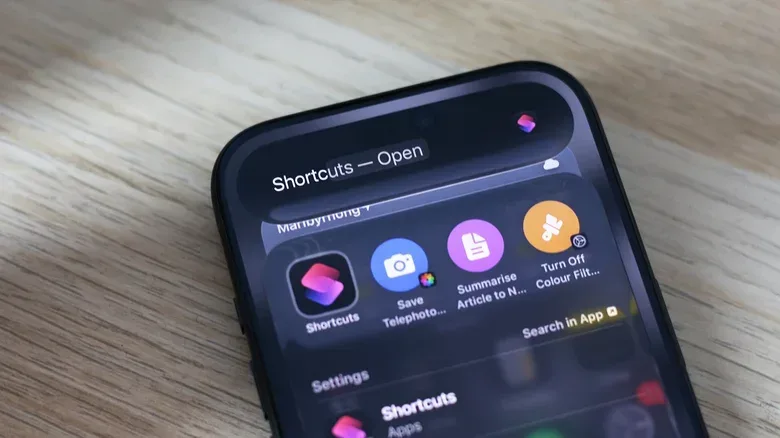
Shortcuts has been available since 2018, and users have long been able to install workflows made by other people or assemble their own. Apple Intelligence changes the creation process by allowing a written description to become the basis for a new shortcut.
- Open the Shortcuts app on the iPhone. It is normally installed already; if it was removed, it can be downloaded again from the App Store.
- Tap the large + control at the bottom of the app.
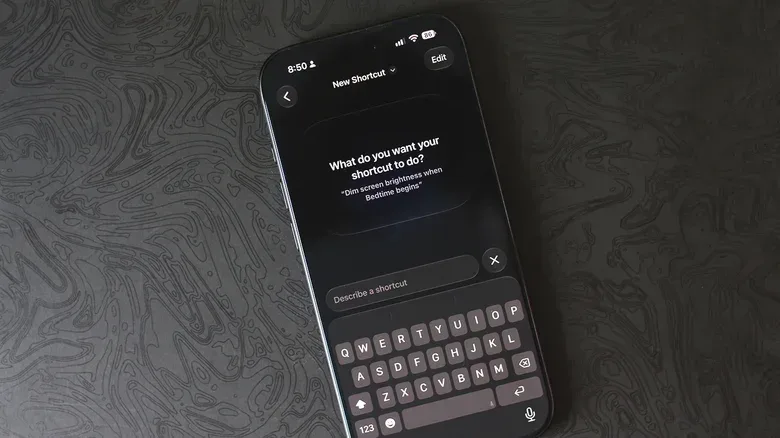
- Enter a clear description of the intended outcome in the text box.
- Let Shortcuts generate the workflow.
- Use the play control to test the assembled shortcut.
- Tap Edit and inspect the individual actions before depending on the result.
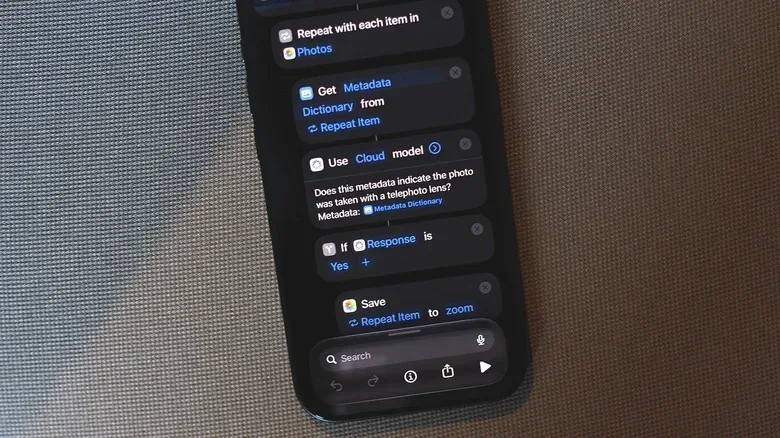
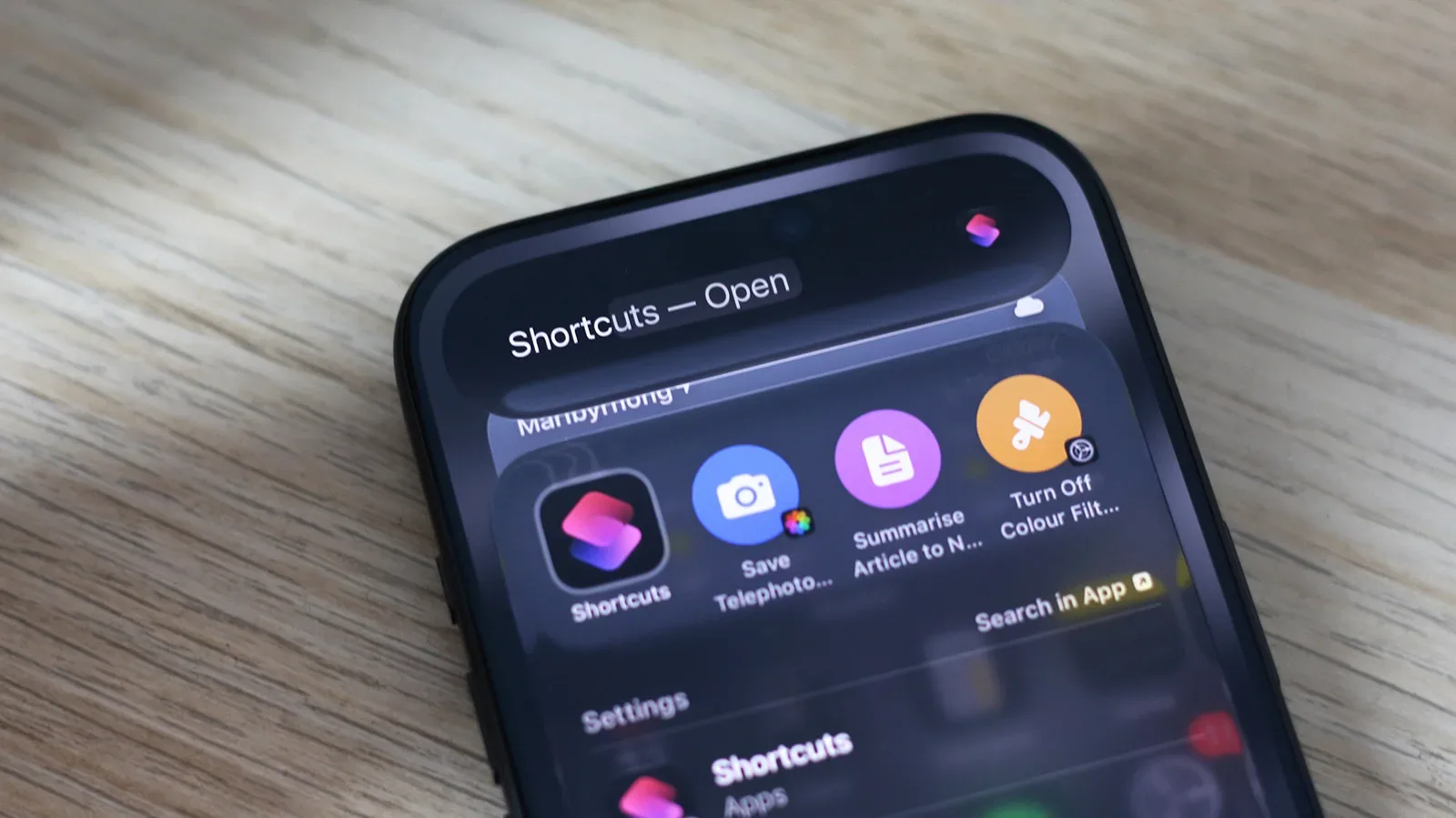
A prompt should focus on an observable outcome and the information the phone needs to act on. “Put photos taken with the telephoto camera into a separate album” is a constrained request: it identifies the content, a distinguishing condition and a destination. Broad requests leave more room for the system to select an action sequence that sounds reasonable but does not match the user’s actual goal.
This does not mean every request needs to be technical. The point of natural-language creation is that users do not need to know the exact names of Shortcuts actions beforehand. But the shortcut itself remains technical enough to deserve a quick audit. Think of the generated workflow as a recipe: the plain-English request is the dish, while the editable actions are the ingredients and steps.
What the AI is actually building
A shortcut is an automation workflow made from discrete actions. An action might retrieve content, change a setting, send text to another service, save a file or pass an earlier result into a later step. Apple Intelligence can assemble these pieces from a description, but it remains constrained by what Shortcuts and the iPhone expose as available actions.
That last point explains both the appeal and the limitation. It can make an otherwise intimidating interface more approachable, yet it cannot reliably make unsupported behavior possible. If the requested result depends on a missing trigger, unavailable system control or a relationship between two events Shortcuts cannot express, an AI-generated answer may be incomplete.
One example demonstrates the problem neatly. A request to switch the display to grayscale when Instagram opens and return it to colour when Instagram closes produced only the first half reliably: colour filters were enabled on launch but not disabled on exit. Splitting the idea into two shortcuts proved more effective than repeatedly trying to force one generated workflow to cover both events.
That is a helpful practical lesson. When an automation has two distinct states—turning something on and later turning it off—verify both states separately. A shortcut that successfully begins an action is not necessarily capable of recognizing or responding to the condition that should reverse it.
When “close enough” is not close enough
Generated automation can also substitute a nearby action for an impossible one. A request to turn off an iPhone once its battery falls below 20 percent resulted in a screen lock instead. Locking is an understandable approximation in a loose natural-language sense, but it is materially different from powering down a phone.
For low-stakes convenience tasks, a near match may be obvious and harmless. For anything involving device settings, personal notes or information passed from one action to the next, it is worth checking every step. The most important question is not whether the shortcut has been generated without an error message. It is whether the exact action chain delivers the result requested.
- Test the beginning and the ending. A workflow may perform its first action correctly while failing to clean up, restore a setting or save the final result.
- Look for substitutions. If a desired operation is unavailable, the generated shortcut may use a related operation instead.
- Prefer smaller workflows when troubleshooting. Two simple shortcuts can be easier to understand and maintain than one ambitious automation with unreliable logic.
- Keep the goal specific. Identify the content, condition and destination whenever they matter to the task.
This is also why the edit screen is central rather than optional. Shortcuts generated with Apple Intelligence can be modified in the normal way. Users are not locked into the first interpretation. The AI can do the initial assembly, then the user can correct an action, remove an unwanted step or restructure the workflow once its limits are visible.
Using Apple Intelligence inside a manually built shortcut
Natural-language generation is only one part of the integration. Shortcuts can also use Apple Intelligence as an action within a workflow. When making a shortcut manually, select Apple Intelligence and use the Use Model action. This sends a request to an AI model, processes the response and makes that response available to later actions.
In plain terms, this allows the model to serve as a text or data-processing stage inside an otherwise conventional automation. A shortcut could first retrieve information, then ask a model to summarize or interpret it, then save the resulting text somewhere else. The AI response becomes an input for the next stage rather than the entire shortcut.
Available model choices include Cloud, Cloud Pro and On-Device, alongside an option to use ChatGPT and its OpenAI models. The source material establishes those choices but does not set out a task-by-task performance comparison, so it is best not to assume one option will be ideal for every workflow. What is clear is that the model selection is part of the shortcut’s setup and that the output can be reused in subsequent actions.
A strong example is a reading workflow: fetch an article from a URL, summarize its contents, then save that summary in Notes. It ties together retrieval, AI text generation and a destination app in a way that can be immediately useful. Apple Intelligence appears particularly capable with text generation in this context, though the accuracy of the assembled workflow still depends on whether the request was understood and the needed actions were selected.
For readers who regularly handle documents and notes across devices, a broader look at productivity software can be useful too: Free Office Alternatives: OnlyOffice, LibreOffice and Microsoft’s Web Apps Compared.
Make an AI-assisted shortcut available from the Share Sheet
A shortcut becomes more convenient when it appears at the moment the relevant item is already on screen. Shortcuts can be placed in the iPhone Share Sheet, the menu reached by tapping Share in compatible apps and views. For the article-summary idea, that means a user can invoke the shortcut while looking at a URL rather than opening Shortcuts first and manually supplying the link.
- Open Shortcuts and select the shortcut you want to expose.
- Tap the i information control.
- Enable Show in Share Sheet.
That arrangement illustrates a practical design principle: a shortcut is most valuable when it meets the user where the task starts. If the workflow operates on a link, document, image or selection, placing it in the Share Sheet can remove several steps from the routine.
Useful ideas with appropriately modest expectations
The telephoto-photo example is a good model for a first experiment. Automatically putting photos captured with the iPhone’s telephoto camera into their own album has a clear classification rule and a clear destination. It is narrower than asking AI to manage an entire photo library, and it creates a result that can be checked immediately.
Similarly, a URL-to-summary-to-Notes workflow has understandable stages: take a link, retrieve an article, produce a summary and save it. Each stage has a purpose, which makes it easier to spot a failure. By contrast, a request that combines app launches, display settings, exit behavior and restoration logic contains several opportunities for an interpretation mismatch.
Analysis: Apple Intelligence is most compelling here not because it makes Shortcuts infallible, but because it shifts the difficult first step. Instead of searching through a large catalogue of actions just to learn whether an idea is feasible, users can describe that idea and examine a proposed implementation. For people who would never otherwise build an automation, that is meaningful friction reduction.
The trade-off is a familiar one with generative systems: fluency can conceal uncertainty. A shortcut that has been assembled confidently may still be wrong, partial or merely adjacent to the intended behavior. Apple Intelligence sometimes acknowledges that a request cannot be done, but it can also provide a best-effort solution that fails the literal requirement. Treat the play button and Edit view as required parts of creation, not postscript.
A sensible checklist before relying on the result
- Confirm the iPhone supports Apple Intelligence and is running iOS 27.
- Describe one focused task rather than several loosely connected behaviors.
- Run the shortcut with a safe, easy-to-check example.
- Open Edit and read the action sequence rather than trusting the shortcut’s title or description.
- Verify where the output goes, especially when working with Notes, photos or retrieved web content.
- Test any reversal or exit behavior independently.
- If the workflow is unreliable, simplify it or separate it into smaller shortcuts.
Apple Intelligence makes Shortcuts easier to enter, and its model action adds another way to handle text and data within automations. Neither feature removes the need for judgment. The best use is to let the system handle the tedious first draft, then make sure the finished workflow does exactly what it says on the tin.