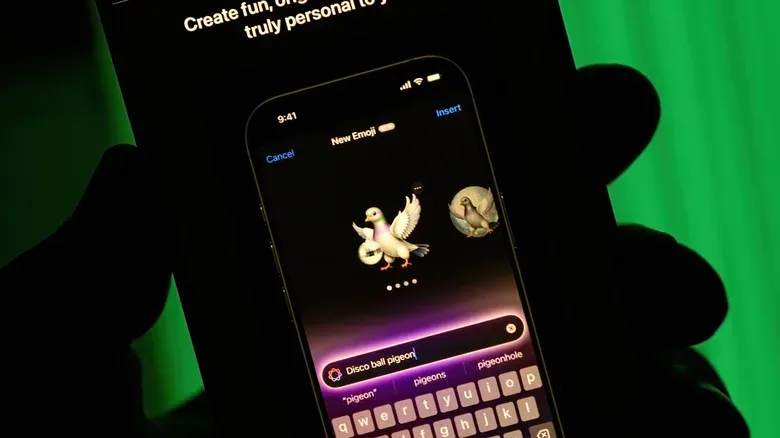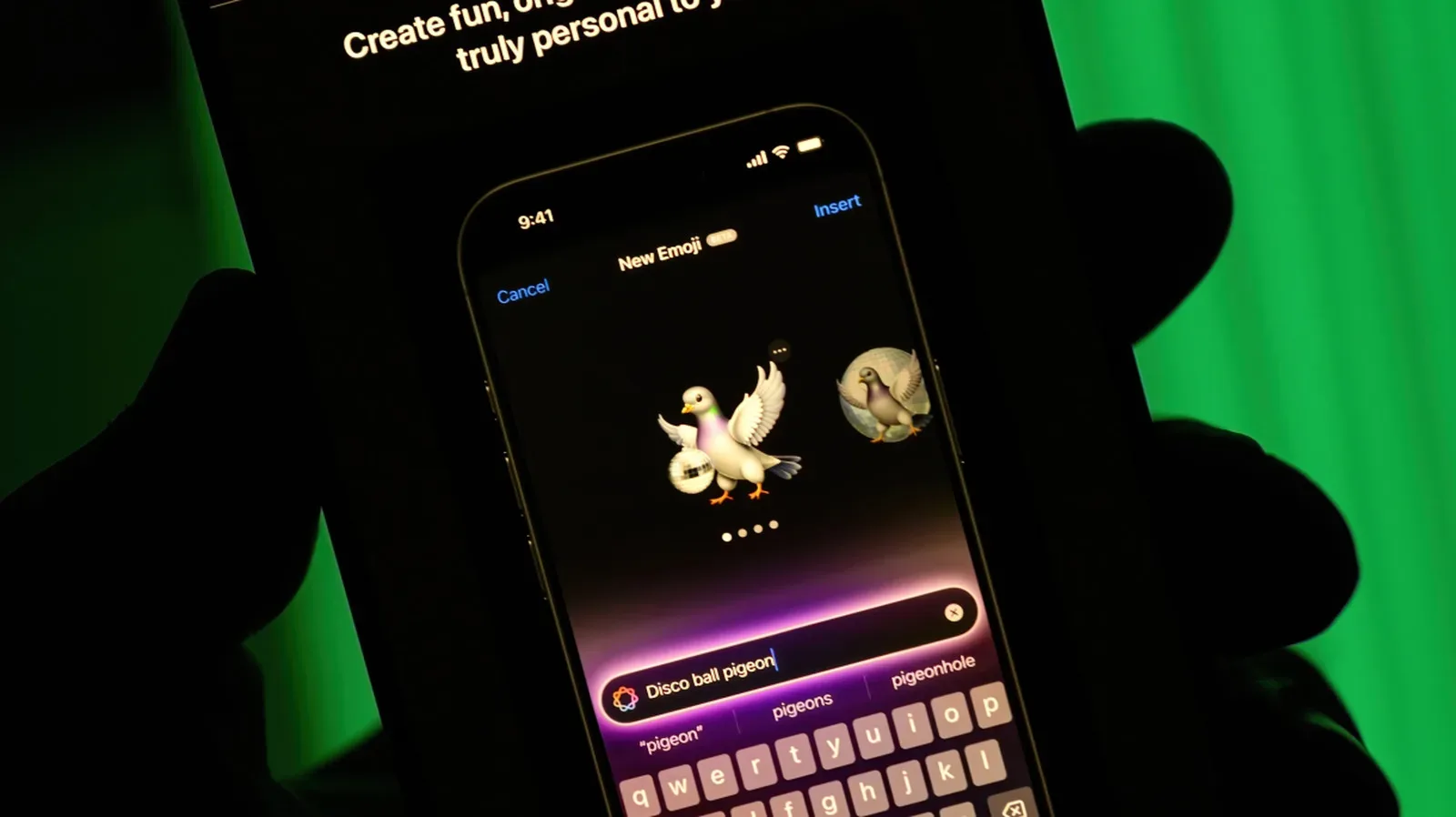
There is a particular kind of message that a conventional emoji cannot carry: an avocado expressing righteous fury, a friend depicted as an astronaut, or a cabin whose door must be red for reasons that need not be explained. Apple’s Image Playground is built for those small, highly specific visual jokes and ideas. It is an Apple Intelligence image-generation tool that creates images users can save, share and, in some cases, convert into Genmoji.
First introduced in December 2024, Image Playground can be used as a standalone app and from within select Apple apps, including Messages, Keynote and Freeform. That integration is an important part of its pitch. Rather than interrupting a chat or presentation workflow to make an image elsewhere, the tool is designed to sit close to the place where the finished picture will be used.
The version included with iOS 27 expands the process beyond a small set of preset looks. Its new Any Style option lets people describe the desired visual treatment in natural language. The update also adds touch-based changes to an image already generated, as well as tools for making Contact Posters and Lock Screen wallpapers.
What Image Playground does
Image Playground is a generative image tool: the user supplies an instruction, called a prompt, and the system produces an image matching that request. A prompt can describe the subject and the situation, such as an astronaut version of a person or an imaginary scene with friends. It can also help define how the resulting image should look.
The app offers more than one starting point. A person can begin with a plain text description, select a person from their photos as a reference, or choose a photo they have taken as the basis for the creation. These routes matter because they solve different creative problems. Text is useful when the whole scene is invented; a person reference is useful when the goal is to place someone in a new scenario; and a photo-based start gives the app visual material to work from.
Its output is intended for ordinary communication and personalization rather than just a gallery of experiments. Images can be saved and shared. Choosing Genmoji from the app’s menu saves the creation with the user’s stickers so it can be used like an emoji. A Genmoji is Apple’s term for a personalized emoji made through Apple Intelligence.
Device requirements before you start
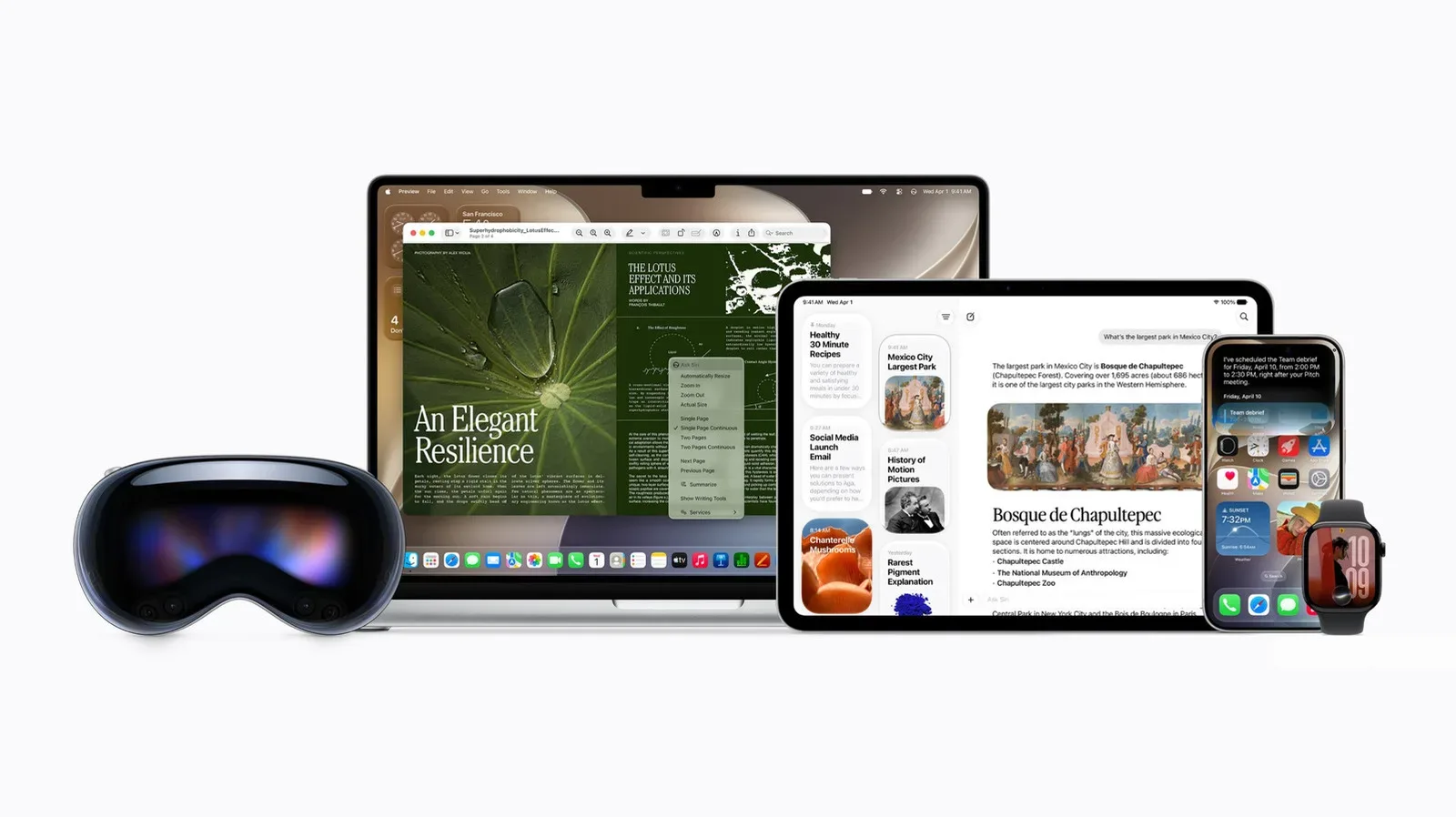
Image Playground requires a compatible device and Apple Intelligence switched on. On iPhone, that means an iPhone 15 Pro, iPhone 15 Pro Max, or an iPhone 16 model or later. iPad support covers models with an M1 chip or later, along with iPad mini models using A17 Pro. On Mac, the baseline is an M1 chip or later.
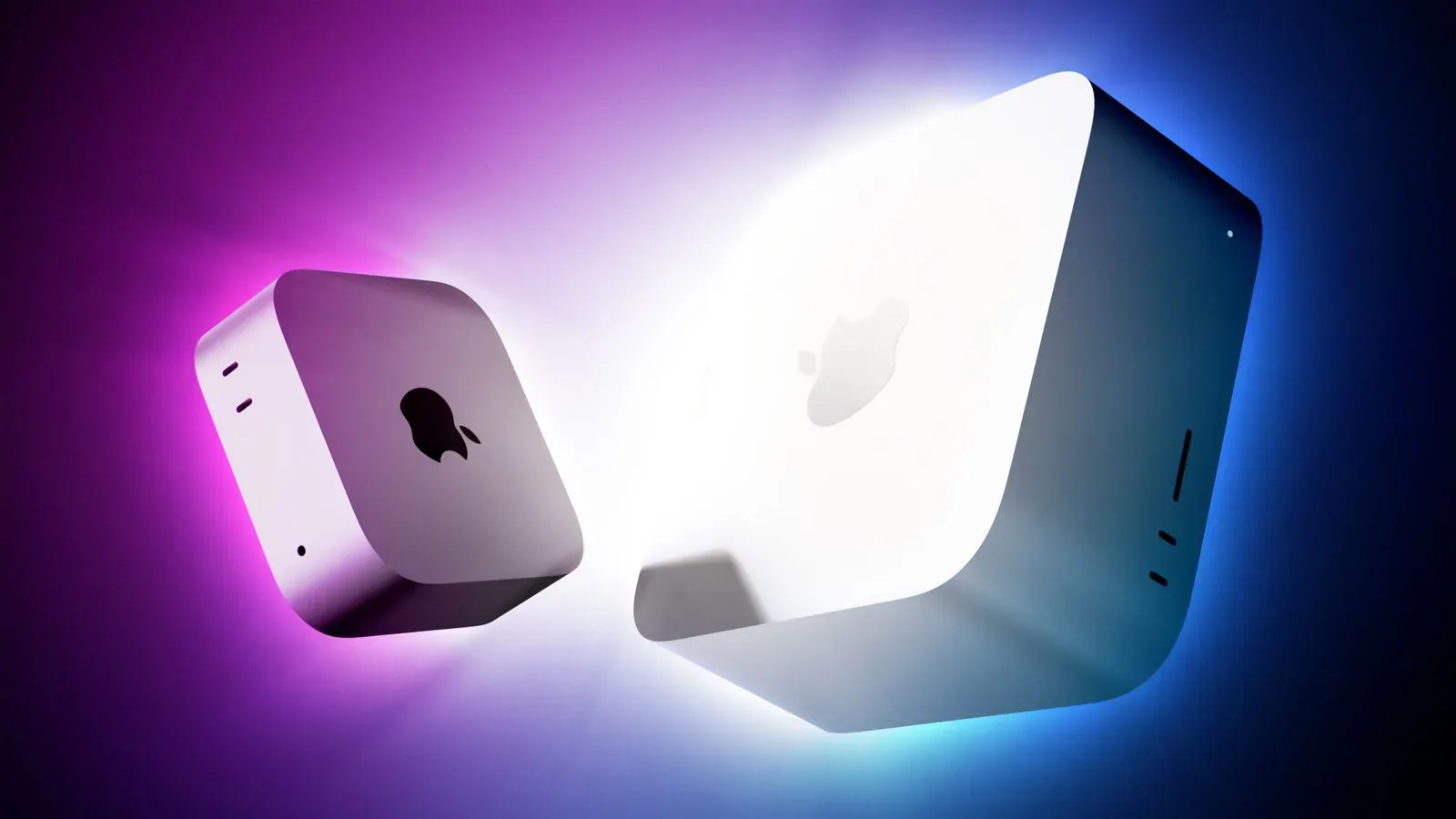
That hardware line is not merely a footnote. If the app is missing or unavailable, compatibility and Apple Intelligence status are the first things to check, rather than repeatedly searching for an option that the device cannot provide. Mac owners considering compatible Apple hardware can also see how newer desktop configurations fit into the wider market in this look at current Mac mini and Mac Studio discounts.
Related coverage includes Apple Image Playground: Compatible Devices, Features and How to Create Images.
Once the requirements are met, the basic choice is simple: make something from words, make something involving a person, or build from a photograph.
How to create an image from a text prompt
- Open Image Playground.
- Use the prompt field to describe the image you want to create.
- Open the available menu to choose a style, such as animation or sketch, if one suits the idea.
- Use Any Style when the specific visual approach is as important as the subject, and describe that approach in natural language.
- Refine the result with another prompt or touch edits when needed.
- Save or share the finished image.
Writing a good prompt does not require elaborate technical language. Specificity is more useful than length. Identify the central subject first, then add the setting or action, and finally state the visual style when that style is important. “A cabin” is a starting point; adding details about the cabin, its surroundings or the intended appearance gives the tool more direction.
Any Style changes the creative conversation. Earlier versions offered a limited selection of styles, including illustration. With the newer option, users can describe the look they have in mind rather than choosing only from a predetermined list. The practical implication is not a guarantee that every request will be reproduced exactly; it is that style becomes another piece of the instruction the user can provide.
How photo and person references work
Beside the prompt field is a person icon. Tapping it allows the user to select a face from photos. If they choose themselves, for example, they can select which photo will serve as the reference and then ask Image Playground to place them in a fresh scenario, such as an astronaut image.
The photo picker offers a separate route for using a photograph as the basis of an image. This is distinct from selecting a person: the person control focuses on a face from the user’s photo collection, while the nearby photo option starts from an image the user has taken. In both cases, the original material gives the request a visual anchor, while the prompt supplies the imagined change.
That division is worth keeping in mind when a result misses the intended target. If the priority is depicting a particular person, start with the person reference and explain the scenario. If the priority is transforming or building from a particular photo, start with the photo option and add an instruction that describes the desired result.
Editing an existing creation with touch and language
iOS 27 adds a more targeted way to change an already generated picture. Users can select part of the image with a finger, then tell Image Playground what should change. Apple’s cabin example illustrates the idea: select the door and prompt the app to make it red. The selected element can also be moved.
This is a notable shift from treating every adjustment as an entirely new prompt. A natural-language edit describes the desired alteration in words; the touch selection identifies the portion of the image to which that alteration should apply. Used together, they can make an edit more focused than a broad request that asks the app to reinterpret the entire scene.
For practical use, keep the edit narrowly scoped. Select the thing that needs attention, then describe one clear change: color, position or another stated adjustment. If several parts need revisions, handling them one at a time can make it easier to see what changed and preserve the elements that already work.
Turning an image into Genmoji, a wallpaper or a Contact Poster
When the goal is a custom reaction rather than a standalone picture, choose Genmoji from the style menu. The creation can then be saved with the user’s other stickers and used as an emoji. It is a direct way to make a recurring in-joke or reaction image easier to reuse in messages.
The iOS 27 update also broadens Image Playground’s role in device personalization. It can create Contact Posters, the visual contact presentations associated with calls, and wallpapers for the Lock Screen. These options turn an image-generation session into something that can live beyond a single chat or share sheet.
There is a useful difference in choosing among these outputs. A Genmoji is geared toward repeat use in conversation. A Contact Poster is tied to how a person is represented in calling contexts. A Lock Screen wallpaper is for an at-a-glance visual on the device. Starting with the destination in mind can guide the prompt: a simple, expressive idea may suit Genmoji, while a more composed scene may better fit a wallpaper.
What to remember
- Image Playground works on supported Apple Intelligence iPhones, iPads and Macs, not every Apple device.
- It can be opened directly or used inside Messages, Keynote and Freeform.
- Start with text, a selected person from photos, or a photo you have taken.
- Any Style in iOS 27 accepts natural-language style descriptions.
- Touch selection plus a written instruction enables focused edits to generated images.
- Finished creations can be saved, shared, used as Genmoji, or made into Contact Posters and Lock Screen wallpapers.
For users who want a custom visual without leaving the Apple ecosystem, Image Playground’s value is its short path from idea to shareable result. Its newer controls make that path less dependent on accepting the first image unchanged: describe the look, pick the part that needs work, make the revision, and send the strange avocado into the world.