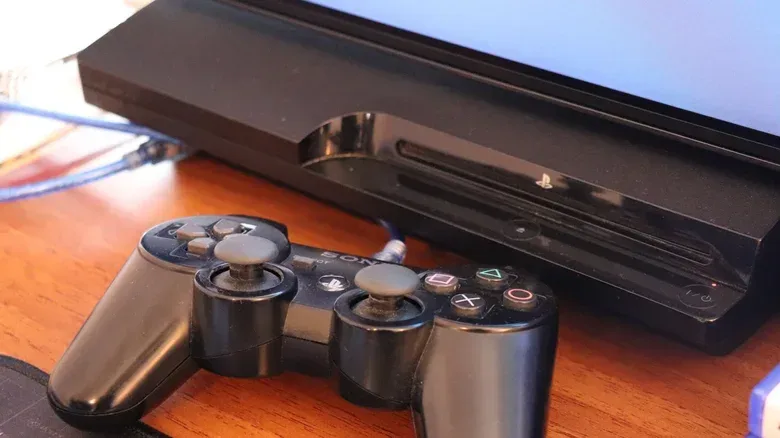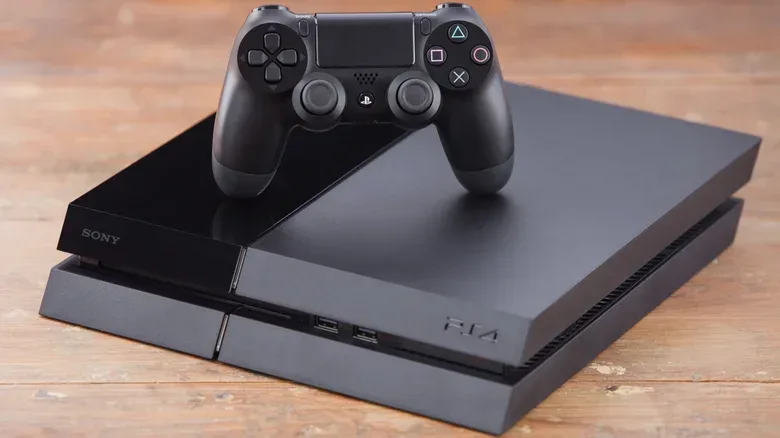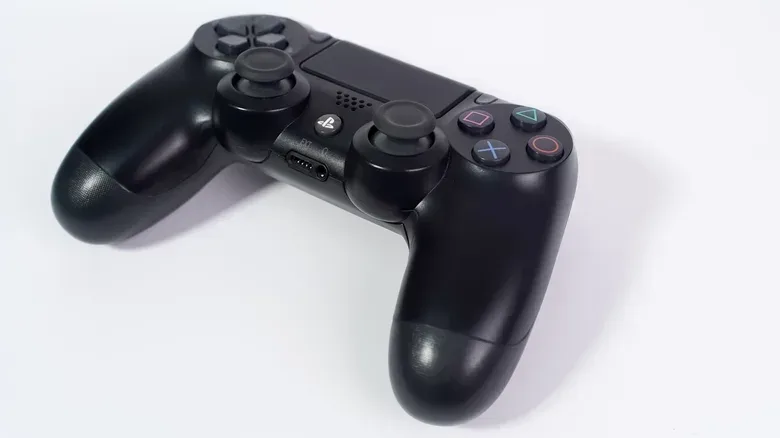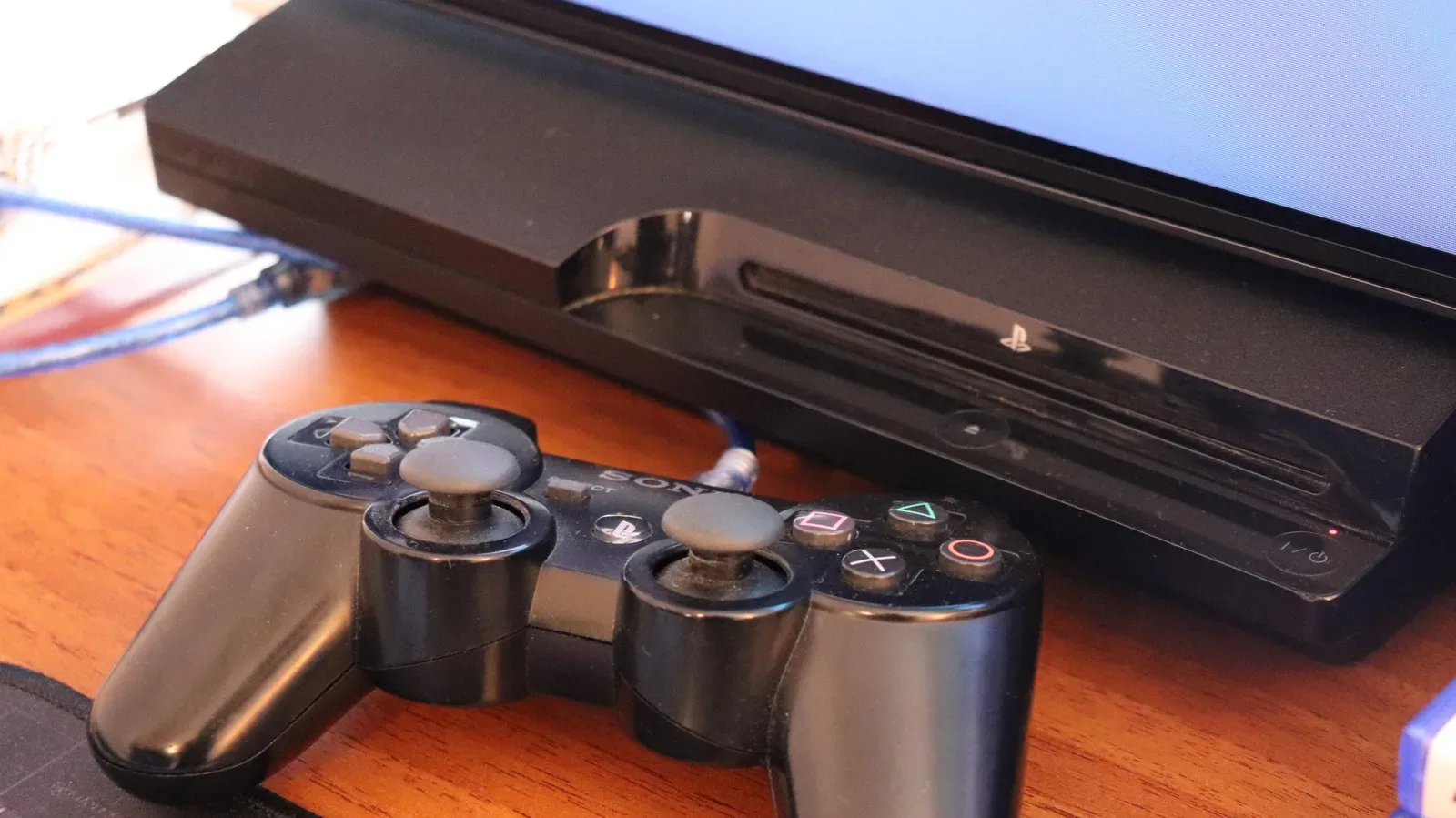
An old PlayStation can look like dead weight once it has left the main TV setup, but “not your current console” is not the same thing as “useless.” A working PS2, PS3 or PS4 may still have a practical role as a disc player, a local-media machine, a spare controller source or a console for somebody else. Even a broken unit can yield cables or, in some cases, reusable storage before the remainder is sent to an appropriate electronics recycler.
The first decision is not where the console should go; it is whether your personal data is still on it. Saved games, account access and console activation settings matter far more than squeezing one last job out of aging hardware. Back up what you want, reset the machine if it is changing hands, and then pick the route that matches its condition and your tolerance for effort.
Pick the job that suits the console’s condition
A simple triage prevents needless work. If the console powers on, reads discs and has a usable controller, handing it down, donating it, selling it or making it a media device are all plausible options. If it works but has cosmetic wear, selling may still be possible, though its condition should be represented clearly. If the console has stopped being dependable, keeping select accessories and recycling the hardware is often more sensible than passing along a problem.
There is also a difference between a console that is old and a console that is no longer supported. The PS3, for example, has lost support from many major streaming services. That does not prevent it from playing compatible discs or locally stored files, but it makes it a less dependable choice for someone whose only goal is modern streaming. Think of a second-life project as a focused task, not an attempt to turn an older system into a fully current entertainment hub.
A quick route chooser
- Keep it as a media machine if its disc drive works and you still use DVDs or Blu-rays.
- Reuse accessories or storage if you have other devices that can use a controller, HDMI cable, power cable or external drive.
- Sell it if it is functional and you are willing to choose between convenience and potentially higher proceeds.
- Hand it down or donate it if getting it into active use matters more than recovering money.
- Recycle it if it is damaged beyond useful service or no other route makes sense.
Physical discs are a particularly straightforward reason to retain an older system. As explored in why physical games still matter in a digital age, disc-based media provides a different kind of utility from a library that depends entirely on an app remaining available. Here, the practical point is narrower: a console that can still read discs can remain useful even after app support recedes.
Turn a PS2, PS3 or PS4 into a dedicated media player
For a console that will stay in your home, physical media is the most stable repurposing option described here. The PS2 can play DVDs. The PS3 and PS4 can play DVDs and Blu-rays. That makes an old PlayStation a candidate for a spare-room disc player, particularly for a collection that no longer has another convenient way to play those formats.
Streaming is possible on some older systems, but it is more conditional. App availability and installation processes differ by console, and major services have already moved away from PS3 support. Treat streaming as a bonus where it still works rather than the sole justification for keeping the hardware connected.
Local playback from a USB drive is another option. This means playing video, music or other supported media files stored on the drive itself, rather than retrieving them over the internet. The drive’s file system is important: it is the format that organizes how a storage device holds files. A drive formatted as NTFS needs to be reformatted before use in this scenario. Use exFAT for the PS4, while the PS3 specifically requires FAT32. On PS4, install the Media Player app before connecting the prepared USB drive.
Related coverage includes What to Do With an Old PlayStation Instead of Throwing It Away.
Formatting is not a harmless cosmetic adjustment: it can erase the drive. Move any files you need elsewhere before changing its format, then place the intended media in folders on the newly formatted drive. Once connected, the console can serve a focused local-media role without relying on the changing app landscape.
Keep the parts that can have a second life
The console itself is not the only useful item in the box. Controllers and cables can outlast a system’s place in your setup. The DualShock 4 is especially flexible: it can work across phones, tablets and PCs, as well as some newer-generation consoles. It can also connect to an Amazon Fire TV Stick for cloud gaming or use as a makeshift remote. That makes a spare PS4 pad worth setting aside even when the PS4 is headed elsewhere.
The PS3’s DualShock 3 can also be used beyond its original console, although it supports fewer devices and its connection process is less straightforward than the DualShock 4’s. The distinction is useful when deciding what to keep: a controller’s value is not only about its original hardware, but also how easily it fits into devices you currently own.
A console’s HDMI and power cables may be useful too, provided they suit another device safely. Keep them only if you can identify a real use; otherwise, include them with a sale or donation when appropriate, or recycle them with the rest of the electronics. A tidy, working bundle can be more useful to a recipient than a console without its essential leads.
Converting the internal drive to external storage
For someone comfortable removing a few screws, the internal hard drive can be another salvageable component. The PlayStation drive was designed to be replaceable, so extraction does not necessarily demand advanced technical skill. Once removed, it can be reformatted and placed in a USB enclosure to become external storage for other files and devices.
A USB enclosure is simply a case and connection interface that lets an internal drive behave like an external USB drive. Reformatting prepares that drive for its new use, but it also removes existing data. Do not skip the backup step just because the drive is leaving the console. And if opening the hardware is not appealing, that is fine: responsible recycling is a better outcome than forcing a disassembly project you do not want to undertake.
Selling: choose convenience, cash or a compromise
A functioning older PlayStation can still have resale value, including a PS2. The better question is what kind of transaction you want. Three broad paths make different trade-offs: a retailer trade-in, a specialist buyback service or a person-to-person marketplace listing.
Retailer trade-in is generally the simplest route. Large retailers may take eligible consoles with minimal listing work, but the trade-off is often a lower offer and payment in store credit rather than cash. It suits someone who values speed and is already likely to spend at that retailer.
Buyback services offer a middle position. These businesses purchase used technology without requiring the seller to build a listing or negotiate with individual buyers. They may pay cash and can value older PlayStations more highly than a big-box trade-in, but the console must be shipped and payment may take longer. Shipping also introduces risk, so packing and the service’s terms deserve attention.
Marketplaces can offer the strongest return, but require the most work. Creating a clear listing, handling buyer questions, arranging delivery and waiting for a sale all take time. This route makes sense if maximizing proceeds matters more than convenience. Whichever route you choose, do not present an untested or intermittent console as fully working. A plain description of its model, operational state, accessories and visible condition helps the next owner know what they are receiving.
Give it away or donate it with care
Handing a console to a younger relative, friend or another person who will use it can be the most direct way to extend its life. It avoids the effort of a sale and keeps functional hardware out of a drawer. Before giving it away, make the same preparations you would for a buyer: preserve your own data, remove account access and reset the system.
Donation is another route for a working system. Gamers Outreach is one organization that accepts certain donated consoles for children in hospitals. Not every organization will accept every model or condition, so check current requirements before packing anything. It is also sensible to assess an organization’s online presence and reviews from previous donors. Older consoles can retain monetary value, and a purported charity may in fact be acting as a reseller.
The goal is not to assume resale is bad. A reseller can still put a console back into use. The practical concern is honesty: donors should know where a device is going and whether it fits the organization’s stated program.
Back up, deactivate and reset before it leaves
This is the non-negotiable stage for a console being sold, donated or handed down. A factory reset, called initialization on PS4, removes your information and gives the next owner a clean starting point. Backup comes first because a reset is intended to wipe the existing setup.
PS4: save backup, account deactivation and full initialization
- Connect a USB drive formatted as FAT32 or exFAT, rather than NTFS.
- Go to Settings > Application Saved Data Management > Saved Data in System Storage > Copy to USB Storage Device, then select the saves to preserve.
- PlayStation Plus subscribers who intend to remain subscribed can select Upload from the same area to place game data in PlayStation cloud storage.
- Unlink the system from your account through Settings > Account Management > Activate as Your Primary PS4 > Deactivate.
- Perform the reset through Settings > Initialization > Initialize PS4 > Full.
Deactivation matters because it separates the departing hardware from your PlayStation account before somebody else starts using it. The full initialization is the appropriate clean-slate option here, not merely deleting a handful of visible files.
PS3: backup and full format
- Connect a USB drive formatted as FAT32.
- Open Settings > System Settings > Backup Utility > Back Up.
- PlayStation Plus subscribers can use the Saved Data Utility in the Game menu to upload game saves to cloud storage.
- When backup is complete, select Settings > System Settings > Restore PS3 System, read the warning, choose Yes, then select Full Format.
These steps are specific to PS3 and PS4, so do not assume their menu paths apply to another PlayStation model. The broader discipline does apply everywhere: verify that the backup contains what you need, then erase the console before passing it on.
When recycling is the right answer
Sometimes a console is too damaged to sell, donate or repurpose. It should still not go in ordinary trash. Electronics can contain hazardous substances, including lead, that can harm the environment if discarded improperly. An e-waste facility is designed to process these materials more responsibly.
Major retailers including Best Buy and Staples have electronics recycling programs, while Earth911 can help locate nearby recycling options. Check the local program’s accepted items before travelling, especially if you are taking loose cables, controllers or a console that has had its internal drive removed.
The ideal endpoint is therefore less about keeping every old PlayStation indefinitely and more about making an informed choice. A working system can play discs, handle local media, serve someone new or earn some money. A controller or drive may retain independent use. And hardware at the end of its useful life can be recycled rather than becoming landfill. Just make your data the first thing you handle, not the last.