The easiest way to lose confidence in an emulator setup is to discover that a game still launches after an update, but the exact progress you expected does not. That usually happens because two different save systems were doing two different jobs all along.
An in-game save is created by the game itself, using the storage method that platform expects. A save state is created by the emulator or frontend, capturing a suspended machine snapshot at one exact instant. Both can be useful. They are not interchangeable.
If you remember only one rule, make it this: before changing emulator versions or cores, make a normal in-game save first, close cleanly, reopen and confirm that save, then back up the game-save data, the save-state data, and the configuration or portable install folder that tells the emulator where those files belong.
Why these two save systems feel similar but fail in different ways
From a player’s point of view, both systems seem to do the same thing. You stop playing, come back later, and continue from a point you reached earlier. That surface similarity is why people often trust save states as if they were long-term replacements for memory cards, cartridge saves, or other game-native storage. The problem is that the two systems are anchored to different layers of the stack.
A normal in-game save belongs to the game and the platform model it was designed for. On cartridge-based systems that may mean SRAM or EEPROM-style save data. On Dreamcast it means VMU-style storage. On PlayStation 2 it means memory card data. The game expects that data structure to exist and knows how to read it after a reboot. As long as the game and emulator can still emulate that platform storage correctly, the save remains the standard way to continue progress.
A save state belongs to the emulator. PCSX2 describes save states as copies of the emulator’s machine state, which is the right mental model for any emulator. A state can preserve volatile memory, temporary positions, menus, battle states, transitions, and conditions the original game was never meant to write as a normal save. That makes save states excellent for short pauses and repeat attempts, but also more fragile when the emulator version, core behavior, timing, patches, or configuration changes.
This difference matters most before an update. If a state no longer loads properly after a version change, the emulator may still run the game and still read the game’s own save data. That is why in-game saves are the migration anchor and save states are the convenience layer on top.
- Think of in-game saves as game-owned progress data.
- Think of save states as emulator-owned snapshots.
- Assume in-game saves are the durable fallback after version changes.
- Assume save states may be temporary unless proven compatible in your exact setup.
What an in-game save usually protects
A normal save usually records the progress the game considers legitimate and stable. That may include unlocked stages, inventory, currency, party setup, story flags, collected items, mission completion, and your position at the game’s approved save point or checkpoint. It usually does not promise to preserve every temporary moment in RAM, such as an unfinished animation, a pause screen, or a room transition halfway through loading.
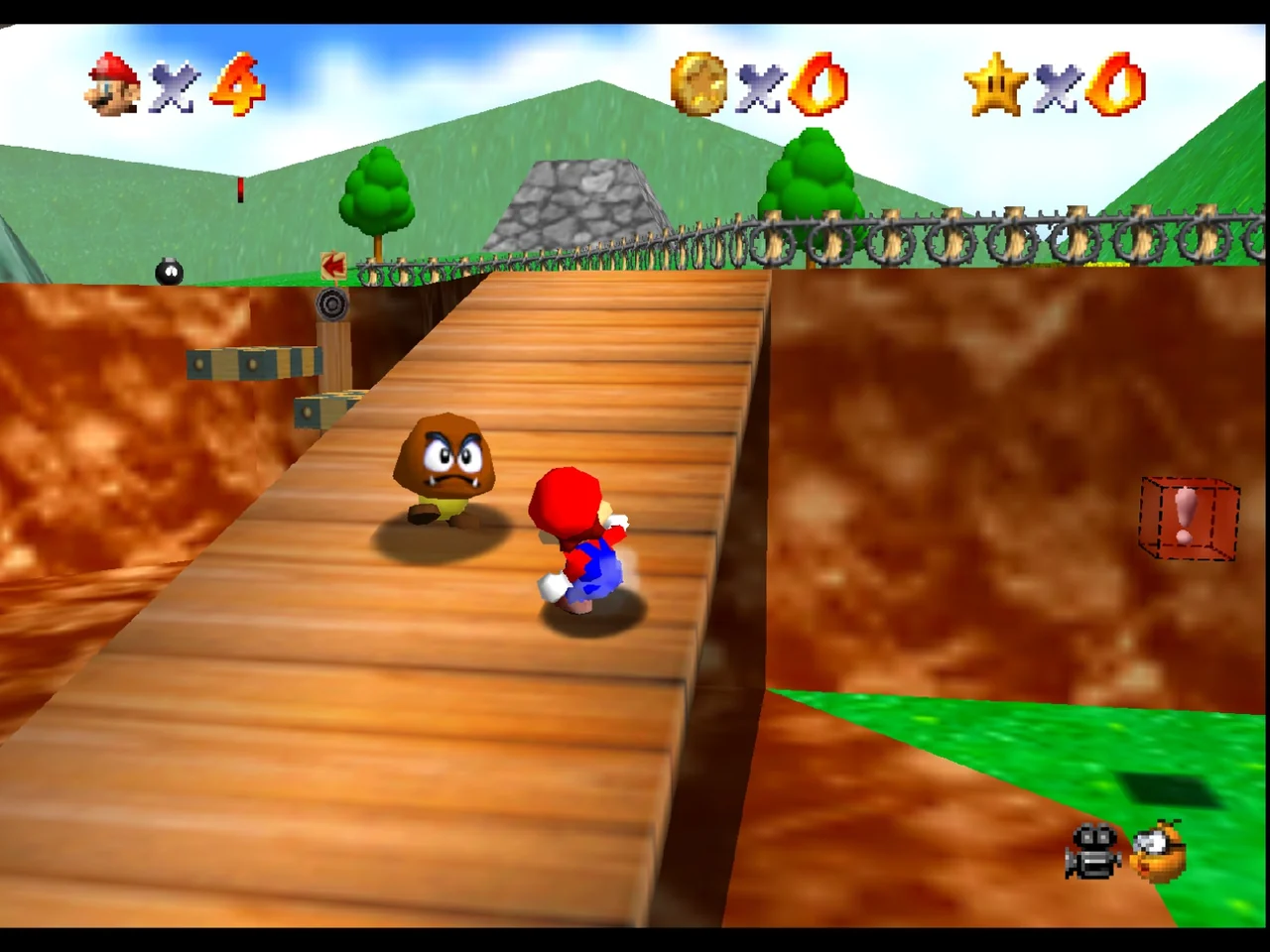
Super Mario 64 is a good example of how game-native saving can differ from an emulator snapshot. The original manual explains that the game lets you save when you collect a Power Star or a Key, and that collecting a star you already earned can still give you another chance to finish the course and save again. That means the game records milestone progress, not an exact freeze-frame of Mario’s every moment. If you save after earning a star, you preserve the durable accomplishment the game was designed to remember. You do not preserve a suspended jump arc, a camera angle, or a failed attempt inside the course.
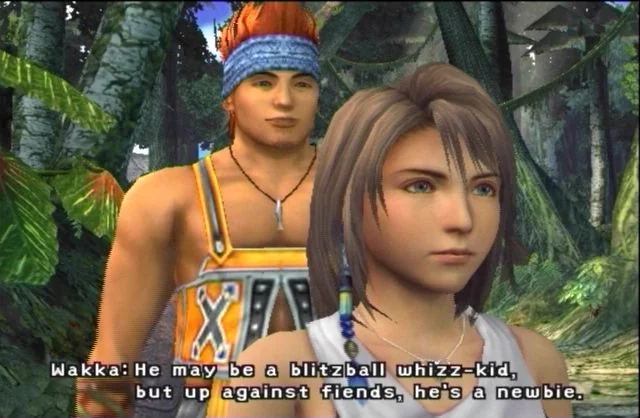
Dreamcast and PlayStation 2 games make the same distinction even when the user experience looks different. Sonic Adventure writes progress to VMU-style storage that stands in for the memory unit the console expects. Final Fantasy X uses PS2 memory card storage. In both cases, the durable save is the data the game writes to its native storage model. That is the part most likely to remain useful if you later change emulator versions, move to another machine, or need to restore from backup.
Because these are the formats the game expects, they are also the first thing to protect before any maintenance work. If you only preserve states and ignore native save files or virtual card files, you may keep your most convenient resume point while losing the long-term progression data that would have let you recover safely.
- Protect cartridge save data, VMU files, and memory card files first.
- Expect normal saves to represent milestones or approved save points, not every exact frame.
- Use the game’s own save command whenever possible before closing the emulator.
What a save state protects, and why that is both powerful and risky
A save state preserves the exact emulated machine state at a specific instant. That includes memory contents, CPU state, temporary variables, and many of the short-lived conditions that disappear when the original console is reset. In practical terms, a state can return you to the middle of a boss fight, a platforming challenge, a menu, a cutscene boundary, or a point just before a difficult input sequence.
That power is why save states are so popular. They reduce repetition, let you practice a segment, and make short play sessions practical in games that originally expected longer uninterrupted sessions. They can also save you in situations where the game itself does not allow saving nearby. For many players, that convenience is the reason emulation fits their schedule at all.
The downside is that the same exactness makes states dependent on the emulator’s interpretation of the emulated machine. PCSX2 explicitly warns that save states are not game saves, are not a suitable replacement for memory cards, and are not guaranteed to remain compatible across different PCSX2 versions. PCSX2 also notes that cheats, patches, and even accumulated runtime problems can be captured inside a state. In other words, the state may preserve not only your progress, but also the exact unstable condition surrounding that progress.
That is why state failures after updates are not unusual in principle, even if a given update goes smoothly. A state can be tied to a core revision, a patch set, a timing behavior, or a configuration detail you no longer remember changing. If it breaks, the game’s own save is usually the cleaner recovery point.
- Use save states for retry points, temporary bookmarks, and short sessions.
- Do not treat a save state as your only copy of meaningful progress.
- Be cautious with states made while cheats, patches, or unusual settings are active.
- Prefer making a state after confirming a normal save, not instead of a normal save.
Three game examples that show the practical difference
With Super Mario 64, the game’s own save system is based on milestone progress. Collecting a Power Star or Key gives you a natural moment to bank progress in the game-native way. A save state, by contrast, might place you back on a narrow ledge, in the middle of a cannon setup, or moments before a risky star attempt. That state is perfect for practice. The in-game save is what protects the star count and major advancement if you later need to change emulator versions or rebuild a setup.
Sonic Adventure shows why memory-unit style saves deserve separate attention. Its Dreamcast manual describes the game as VMU-compatible and notes that cleared action stages, story events, and boss victories are saved automatically. A save state might return you to a specific hub position, menu, or action stage moment, but your real long-term progress lives in VMU-related save data. If you move installs or update the emulator without preserving those VMU files, you can lose the game-native progress even if a few old states still exist somewhere.
Final Fantasy X highlights the issue in a longer RPG context. A state in the middle of a battle or a scene can be convenient, especially during a long dungeon or before a difficult encounter. But the dependable recovery point is the save written to the PS2 memory card structure. PCSX2 supports virtual memory cards, including standard file cards stored as single .ps2 files and folder memory cards stored in host filesystem folders. PCSX2 documents 8MB file memory cards as the most compatible baseline and warns that some games are not compatible with folder cards. For preservation before an update, the memory card data matters more than the convenience snapshot.
These examples all point to the same rule. Use save states for exact moments. Use in-game saves for durable progress. Keep both if you want flexibility, but never assume the exact-moment layer replaces the durable one.
- Super Mario 64: protect star and key progress with normal saves; use states for practice spots.
- Sonic Adventure: preserve the VMU-related save files, not just savestates.
- Final Fantasy X: preserve the PS2 memory card data first; states are secondary convenience.

The repeatable routine to use before any emulator or core update
The safest routine is simple enough to become habit. First, save normally inside the game if the game allows it. If possible, do it from a calm point rather than during a transition, script handoff, or unstable modded scenario. You want the cleanest possible game-native save data before touching anything else.
Next, close the game and emulator cleanly. Then reopen the same game before updating anything. Load the normal in-game save and confirm it behaves as expected. This step matters because it catches a surprisingly common mistake: thinking you saved normally when you really only created a state, or saving to a different virtual card, profile, or directory than the one currently in use.
After that confirmation, create an optional save state if you want a convenience bookmark for the exact place you plan to resume. That state can still be worth keeping. The mistake is relying on it alone. Once both layers exist, back up the related save folders and card files before changing emulator versions, cores, or major configuration.
This routine sounds repetitive, but it turns guesswork into verification. You are not merely hoping that progress exists somewhere. You have proven that the game-native save reloads on the current setup, and you have copied the files most likely to matter if something changes.
- Save inside the game first.
- Prefer a safe, non-transition point when making the normal save.
- Exit cleanly.
- Reopen the game before updating anything.
- Load the normal save and confirm it works.
- Create an optional save state only after the normal save is confirmed.
- Back up both save types plus relevant configuration data.
What to back up before you change emulator versions
For cartridge and cartridge-like systems, back up the directory holding normal save files and the directory holding savestates. In RetroArch, the official documentation advises users to configure Savefile Directory and Savestate Directory explicitly. The same documentation also warns that platform and distribution layouts can differ, so you should verify the live paths in settings rather than assume everyone uses the same defaults. By default, RetroArch may place save files and save states alongside ROMs unless you change those directories, which is another reason not to trust memory alone.
For Nintendo 64 through Mupen64Plus, the distinction is especially clear because the emulator exposes separate SaveStatePath and SaveSRAMPath settings. If either is blank, both types of data fall back to the emulator’s user-data save directory. On modern Windows versions, Mupen64Plus documents its user-data location under AppData Roaming, with saves in the save subfolder. On Linux, the documented save location is under the mupen64plus save directory in .local share. Those details show exactly why a pre-update backup should include the whole relevant save directory rather than a single guessed file.
For PlayStation 2 in PCSX2, include the virtual memory cards and the configuration context that tells PCSX2 where it is operating. PCSX2 says non-portable installations store data in the Documents folder, while portable mode stores data and configuration in the same directory as the executable. If you update by replacing files inside a portable install, copying only the executable and forgetting the adjacent data folders can be enough to lose track of memory cards, save states, or settings.
For Dreamcast in Flycast, preserve both savestates and the VMU-related save files that hold in-game progress. The project source exposes separate VMUPath, SavestatePath, and SavePath options, and repository discussion identifies common standalone VMU filenames such as vmu_save_A1.bin as well as per-game naming variants when per-game VMUs are enabled. You do not need to memorize every filename pattern. You only need to recognize that Dreamcast in-game progress may live in VMU-related files separate from savestates and deserves its own backup copy.
- Back up the normal save directory.
- Back up the savestate directory.
- Back up VMU files or PS2 memory card files, not just generic save folders.
- Back up the emulator configuration folder or the full portable install folder.
- If you are unsure which files matter, copy the entire relevant emulator data directory before updating.
How to verify the paths instead of trusting defaults
The most common backup mistake is not failing to copy files. It is copying the wrong files because an emulator, core, or frontend is using a different path than expected. RetroArch is the clearest example. Its documentation says directory structures vary across platforms and distributions, and users should check the active Savefile Directory and Savestate Directory in settings. If you have moved those folders in the past, an old assumption about default behavior may now be wrong.
RetroArch also documents a network control interface that can report the current savefile_directory and savestate_directory values. That matters because some users manage multiple installs, portable copies, or frontend wrappers and are no longer sure which directory the live setup is actually using. If the interface or settings page tells you where the active directories are, trust that live configuration over memory or over a guide written for a different operating system.
Mupen64Plus offers another useful model because it separates SaveStatePath from SaveSRAMPath in its documented core parameters. Even if both currently resolve to the same directory, the setting names themselves teach the distinction: normal save data and state data are different classes. If a frontend exposes only one of those locations visibly, that is a reason to inspect the rest of the config before making assumptions.
PCSX2 requires a similar check, but the big question is often not just file location. It is whether you are using a portable install or a standard one. That single difference determines whether your save-related data lives beside the executable or in a central documents location. Before updating PCSX2, confirm which mode you are using, then copy the memory cards, states, and settings from that exact environment.
- Open the emulator or frontend settings and verify the live save paths.
- Do not assume a universal RetroArch folder layout.
- Check whether your install is portable or standard.
- If multiple emulator copies exist on the same machine, identify which one you actually launch.
Which storage formats you are likely to see
Knowing a few common file types helps you avoid overlooking the real save. In the Libretro Mupen64Plus core documentation, normal cartridge backup saves use .srm files in the frontend save directory, while save states use .state# files in the frontend state directory. That simple file extension difference already tells you why copying only one folder may miss half the story.
PCSX2 uses virtual PS2 memory cards. File memory cards are single .ps2 files, which makes them straightforward to copy and archive. Folder memory cards store data in a host filesystem folder instead of one monolithic card image. PCSX2 documents folder cards as an option, but also warns that some games are not compatible with them and notes that those saves do not appear for direct management in the PS2 BIOS browser. For a compatibility-first mindset, the documented 8MB file card is the safer baseline to preserve.
Dreamcast saves are less standardized in the casual user’s mind because people tend to remember the VMU as an accessory, not as a file structure. In emulator practice, that progress may appear as files such as vmu_save_A1.bin or per-game VMU variants depending on the configuration. The important point is not memorizing every filename. It is recognizing that the VMU-related file is the in-game save container, while a savestate remains a separate snapshot layer.
Once you understand the file classes, your backup job gets easier. You stop hunting for one magical save file and start preserving all related containers: normal saves, states, card images, VMU files, and the config that points the emulator to them.
- Look for .srm as a common normal-save format in Libretro cartridge-based cores.
- Look for .state# as a common savestate format in Libretro.
- Look for .ps2 virtual memory card files in PCSX2 when using file cards.
- Look for VMU-related files in Dreamcast setups, including common .bin-style saves.
When to lean on save states, and when to avoid them as your main plan
Save states are not a mistake. They are one of emulation’s most useful quality-of-life features. They shine in action games, hard platforming sections, experimentation, and interrupted play sessions. If you want to practice a difficult star in Super Mario 64, retry a sequence in Sonic Adventure, or pause an RPG session at a precise point in Final Fantasy X, states are doing exactly what they are good at.
The trouble begins when convenience gets mistaken for permanence. A state made at the exact wrong moment can preserve a shaky condition: a bad cheat interaction, a graphics patch side effect, a broken transition, or the residue of a bug that only appears after hours of runtime. PCSX2 explicitly warns that such conditions can be burned into the state. Even if the game still boots, reloading that exact snapshot after a new emulator version may not be the reliable plan you hoped for.
The better habit is to separate your goals. If your goal is preservation, migration, or disaster recovery, prioritize in-game saves and backing up the storage files that hold them. If your goal is convenience, speed, or practice, add save states on top. That framing removes the false choice. You do not have to pick one system and reject the other. You just need to let each system do the job it is actually designed to do.
A good personal rule is simple: never end an important session with only a state if the game offers a normal save soon afterward. A few extra seconds of saving properly can save hours of reconstruction later.
- Use save states as a convenience layer, not your sole preservation method.
- Favor normal saves before updates, migrations, and large config changes.
- If a game provides a normal save nearby, take it before ending the session.
- Keep both layers when possible: native save for safety, state for comfort.
Before an emulator update, the safest mindset is to stop asking which save method is better and start asking which one is responsible for what. In-game saves protect durable progress in the format the game expects. Save states protect exact suspended moments in the format the emulator understands. Those are complementary jobs, not competing ones.
Make the routine repeatable: save in the game, quit cleanly, reopen and confirm the normal save, then back up save directories, card or VMU files, savestates, and the configuration or portable folder that defines the setup. If an update later breaks a state, your real progress should still be waiting in the game-native save data.