That enormous DVI socket on an old graphics card may look like it belongs in a museum display beside beige keyboards and CRT monitors. Yet it can still have a practical second life for retro PC gaming. In many cases, a modest DVI-to-HDMI adapter or cable lets an older computer send a picture to a modern television or monitor without complex conversion hardware.
The important caveat is that this is a compatibility bridge, not a performance upgrade. DVI can preserve a usable digital video path from legacy hardware, but it cannot suddenly provide the audio, resolution headroom, high refresh rates, or cleaner cable setup associated with modern HDMI and DisplayPort connections. For someone reviving an older desktop, knowing which DVI connection is present—and what the adapter does not do—matters far more than the adapter’s small size.
Why a DVI-to-HDMI connection can work
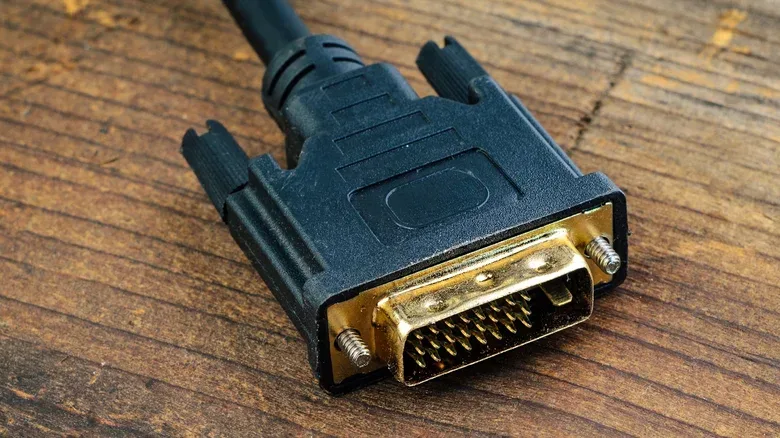
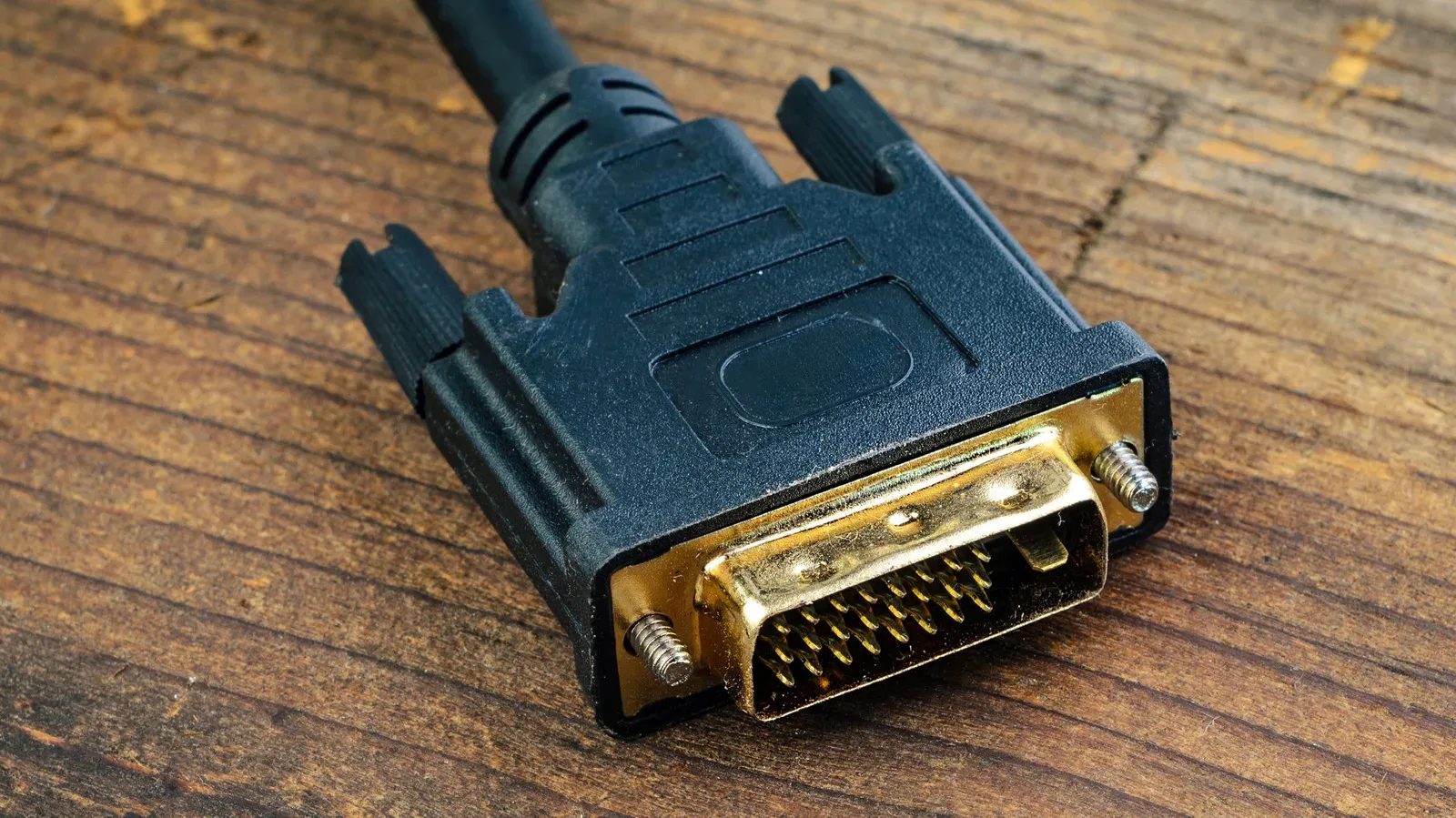
DVI, short for Digital Visual Interface, arrived in products including Apple’s Cinema Display in 1999. It became a major display connection before HDMI and DisplayPort displaced it on most consumer hardware. Its connector is conspicuously large, with a three-row pin grid and screws that secure the cable at either side.
For older PCs, that physical bulk can conceal a useful technical advantage: the digital forms of DVI share a digital video protocol with HDMI. As a result, connecting a DVI output to an HDMI input can typically be a passive operation. The adapter reroutes the appropriate connections rather than translating the signal through a powered conversion chip.
That distinction is useful in practical terms. A passive adapter is not performing the sort of signal transformation associated with active converters, and it does not need external power for this job. If the old PC has a compatible digital DVI output and the display has HDMI, the basic goal is straightforward: deliver the computer’s existing digital image to the newer screen.
This can make DVI a reasonable fallback for a legacy gaming tower, a PC being used for older software, or a room that combines older computers with newer displays. DVI also still appears in certain older PC installations and projectors, while some retail-kiosk displays continue to support it directly. Its presence is no guarantee of a cutting-edge experience, but neither is it automatically a dead end.
First, identify the kind of DVI port
“DVI” is not a single, interchangeable label. The connection family includes variants with different capabilities, and the distinction determines whether a simple DVI-to-HDMI adapter is likely to be suitable.
- DVI-D means Digital. It is designed for digital video and is compatible with HDMI through a simple adapter arrangement.
- DVI-I means Integrated. It can also work with HDMI for digital video. The key point is that the HDMI connection uses the digital portion of the DVI-I signal.
- DVI-A is analog. It is the exception: a passive adapter is not enough, because analog video must be actively converted for HDMI.
- Single Link and Dual Link describe the amount of display data the DVI connection can carry. Dual Link offers substantially more room for resolution than Single Link.
DVI-A was used less often than DVI-D and DVI-I, so it is less likely to appear in the ordinary older-PC scenario. Still, it is the variant worth checking before assuming every DVI-shaped connection will plug-and-play with a modern HDMI television.
Related coverage includes Can You Use DVI With a Modern HDMI TV?.
An active conversion device is different from a passive adapter. It contains electronics that turn one kind of signal into another and may require power. That is necessary for DVI-A because it is analog, whereas compatible DVI-D and DVI-I digital signals can usually take the simpler route. This is also why blindly buying an adapter based only on the connector shape can lead to disappointment: a physical fit alone does not establish digital compatibility.
What a retro PC gamer gets—and does not get
The main benefit is video. If an older graphics card is otherwise working and its DVI output is the only convenient display connection, an adapter can make a modern HDMI-equipped TV or monitor usable without replacing the card solely for its port. That may be particularly handy when a player wants to keep an aging system operational for a specific back catalogue rather than rebuild it around current display standards.
But DVI’s limitations arrive quickly, especially when a television is involved. The most immediate is audio: DVI does not carry audio. HDMI is normally expected to handle both picture and sound, but adapting DVI to HDMI only solves the picture side. Sound will need a separate path and should be planned as its own part of the setup.
That separation can affect convenience as much as sound quality. A TV may display the PC image over its HDMI input while the computer’s audio must go elsewhere. Anyone setting up an older gaming PC should confirm an audio solution before committing to the cable layout, rather than expecting the HDMI end of the adapter to create audio that the DVI source never supplied.
Resolution and refresh-rate limits are the next major issue. At a standard 60Hz refresh rate, a Single Link DVI connection tops out at 1,920 by 1,200. Dual Link DVI reaches 2,560 by 1,600 at that same 60Hz benchmark. Higher resolutions may be possible only by reducing refresh rate to a cinematic level, a compromise that is poorly suited to responsive play.
Refresh rate is simply how many times per second a display updates its image. A higher figure can make movement appear smoother and reduce the gap between a game’s output and what appears on screen. DVI’s constraints mean it is not an appropriate match for a modern high-resolution, high-refresh gaming display, even if an adapter makes the connection physically possible.
For older games and older hardware, that does not make DVI useless. It means the sensible target is a stable, appropriate display mode rather than an attempt to force a legacy output into duties it was not designed to perform. A 60Hz ceiling may be entirely acceptable for a particular retro PC setup; it just should not be mistaken for parity with a current HDMI or DisplayPort gaming path.
HDMI and DisplayPort are better when they are available
If the computer already has HDMI or DisplayPort, use that direct output instead of adding DVI to the chain. Both standards offer greater bandwidth than DVI and support multichannel audio, avoiding the most obvious DVI inconvenience.
HDMI’s latest 2.2 specification is positioned for resolutions up to 16K, high dynamic range, and improved audio/video synchronization. High dynamic range, commonly shortened to HDR, is a display capability associated with a broader range of brightness and color presentation. Those are forward-looking capabilities, not benefits bestowed on an older DVI source by the adapter.
DisplayPort 2.1b also goes beyond DVI in a way that matters for desk setups: it can support daisy chaining, a feature that links monitors in sequence. That makes DisplayPort much better suited to multi-monitor arrangements. DVI, by contrast, is a single-display-era connection whose practical value now lies mostly in bridging old equipment to newer screens.
For a dedicated legacy machine, that bridging role can still be enough. A DVI output can mean the difference between using the hardware and shelving it, particularly when the goal is simply to get an older game library visible on an available television. Modern display standards are the better route for a new build, but a retro rig often asks a more modest question: can this machine produce a reliable image today?
A sensible setup checklist before buying anything
- Inspect the PC output. Determine whether it is DVI-D, DVI-I, or DVI-A. DVI-D and DVI-I are the usual candidates for a simple DVI-to-HDMI adapter; DVI-A needs active conversion.
- Check whether HDMI or DisplayPort already exists. A direct connection is preferable when either is available.
- Set expectations around audio. A DVI-to-HDMI connection carries video, not sound. Arrange a separate audio solution.
- Match the display mode to DVI’s limits. Single Link DVI is limited to 1,920 by 1,200 at 60Hz, while Dual Link reaches 2,560 by 1,600 at 60Hz. Do not expect an adapter to raise those limits.
- Plan for the connector’s shape. DVI’s screw-fastened, stiff cable can complicate cable management, especially behind a wall-mounted TV or a crowded PC desk.
That last point is not trivial. DVI’s locking screws provide a secure attachment, but the large connector and rigid cable are much less convenient than the compact connections found on most contemporary displays. It is a trade-off: the old interface can be durable and functional, but it is awkward in tight spaces.
Legacy connectivity is still part of retro gaming
Retro gaming is not only about preserving software or locating older machines. It is also about keeping the hardware’s practical connections workable as TVs and monitors move on. A DVI-to-HDMI adapter is one of the simpler examples of that maintenance work: it can preserve a direct digital video route without pretending that the old port has become modern.
That same practicality applies across the broader retro-PC space. Older systems may need an intentional display plan before they are ready for a renewed run through familiar games—or even a look at newer projects arriving on vintage-minded hardware, such as a recent Bubble Ghost conversion for the Amstrad CPC 6128.
In short, a passive DVI-to-HDMI adapter is a useful tool when the port is DVI-D or DVI-I, the need is video, and the expected resolution and refresh rate fit DVI’s boundaries. It is not the right answer for audio over one cable, cutting-edge displays, multi-monitor expansion, or analog DVI-A without active conversion. Treat it as a targeted compatibility solution, and that chunky old connector can remain useful well after its mainstream era.