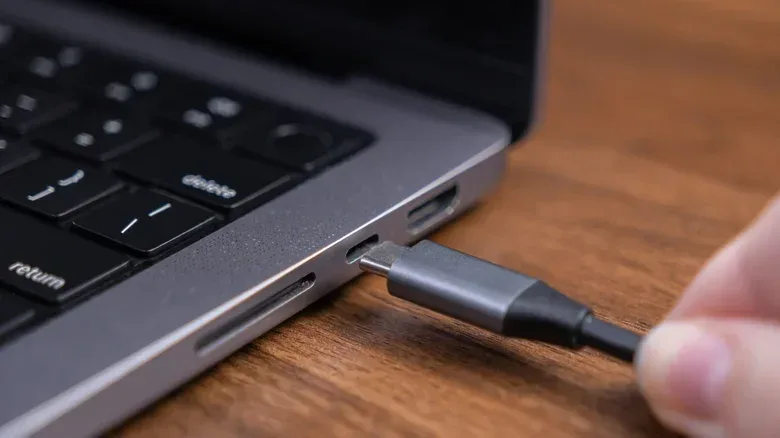
A USB-C to HDMI adapter looks like a simple fix: plug a laptop into a television, monitor or projector and get on with it. For gaming, though, that tiny adapter can be the difference between a crisp, fluid display and an unexpectedly blank screen, a locked 60Hz output or 4K that runs at a noticeably limited refresh rate.
The important catch is that USB-C describes the connector shape, not a guaranteed set of display features. A USB-C port may charge a device and transfer data without being able to send video at all. And even when the port does support video, every component between the computer and screen has to support the desired signal. The port, the USB-C cable, the adapter or hub, the HDMI cable and the display all matter.
That is especially relevant when a gaming laptop lacks a built-in HDMI port, when a desk setup relies on a USB-C hub, or when a TV becomes the evening’s big-screen destination. An adapter is not inherently a bad solution. It is simply a connection with several potential bottlenecks, and the lowest-capability part sets the practical ceiling.
USB-C is a connector, not a promise of video
The first question is not whether a device has USB-C. It is whether that particular USB-C port supports DisplayPort Alternate Mode, commonly shortened to DP Alt Mode.
DP Alt Mode lets a USB-C port carry a DisplayPort video signal. In a USB-C-to-HDMI setup, an adapter with the appropriate conversion hardware changes that signal into one an HDMI display can read. If the computer’s USB-C port does not offer DP Alt Mode, an ordinary USB-C-to-HDMI adapter has no video signal to convert. The familiar outcome is a display that stays black.
This distinction explains a surprisingly common frustration: a device can charge perfectly through USB-C, recognize accessories and move files, yet still fail as a display source. Charging and data functionality do not establish video capability.
Thunderbolt uses the same physical USB-C connection but includes video output alongside defined data-transfer standards that vary by generation. That makes Thunderbolt a more dependable sign that a port can handle display output, but the practical target still needs checking. A laptop manual or its official specifications should state what each port supports. That is more useful than relying on the connector’s appearance.
DP Alt Mode versions shape the possible picture
Not every video-capable USB-C port begins from the same place. The DisplayPort level carried through Alt Mode affects the potential output. DisplayPort 1.2 can reach 4K at 60Hz, while DisplayPort 1.4 can reach 8K at 60Hz. In real purchasing terms, 8K displays remain far from routine, but the distinction is a reminder that a USB-C port’s video support has a specification behind it.
For most players, the more immediate concern is refresh rate. Refresh rate, measured in hertz (Hz), is how many times a display updates per second. A 60Hz screen refreshes 60 times each second; 120Hz refreshes 120 times. Higher refresh rates can make motion appear smoother, assuming both the connected system and game can deliver frames to match.
A display setup may be capable of 4K in the broadest sense while still missing the 4K/120Hz mode a player expected. That is not necessarily a fault with the TV, laptop or adapter in isolation. It can be the predictable result of one part of the chain supporting a lower signal standard.
The cable may be the quiet deal-breaker
Even after confirming that the computer port supports DP Alt Mode or Thunderbolt, the USB-C cable still deserves attention. A basic USB-C charging cable is not necessarily equipped to transmit a video signal. A fully featured USB-C cable is required for that job.
This is an easy detail to miss because the cables can look interchangeable. They may fit the same port and both deliver power, yet serve different purposes. A cable that is adequate for charging a controller, phone or laptop is not automatically an appropriate link between a video-capable USB-C port and a conversion adapter or display.
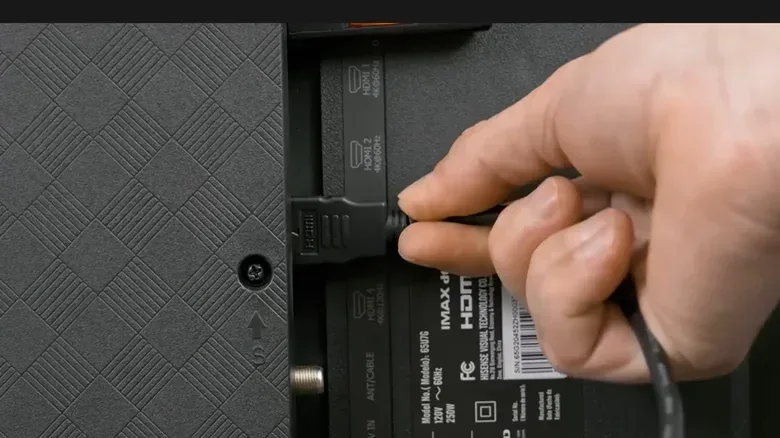
The HDMI side has the same issue. An older HDMI cable can put a modern gaming display in a much narrower lane than its hardware suggests. The relevant question is not simply whether an HDMI cable is present, but what generation of HDMI is supported by the adapter and cable, and what the display accepts through the selected HDMI input.
The connection works as a relay:
- The USB-C port sends a video signal, provided it supports the necessary video mode.
- A suitable USB-C cable carries that signal.
- The adapter or cable’s conversion hardware changes the signal to HDMI where necessary.
- The HDMI cable delivers it to the monitor, television or projector.
Any old or limited component can govern the result. A lower-specification HDMI cable or adapter does not become faster because it is attached to a high-end panel. Likewise, a capable HDMI 2.1 display cannot create features that the computer’s port did not transmit.
HDMI 2.1, HDMI 2.0 and why the distinction matters
HDMI has evolved through multiple generations, with each newer version providing more bandwidth for combinations of resolution and refresh rate. Bandwidth is the amount of data the connection can carry in a given time. Higher resolution and faster refresh increase the demands placed on that link.
The highest-quality HDMI option widely in use is HDMI 2.1, also called Ultra High Speed. It supports up to 48 Gbps of bandwidth. At that level, an HDMI 2.1 connection can deliver 8K at 60Hz or 4K at 120Hz.
For gaming, the latter figure is particularly meaningful. A 4K/120Hz connection is designed for a sharp image with fast update capability, making it a much better fit for games where smooth motion is a priority than a 4K/60Hz ceiling. HDMI 2.1 also supports variable refresh rates, broader HDR signal compatibility and eARC audio features that can accommodate Dolby Atmos and DTS:X.
Variable refresh rate, or VRR, allows the display’s refresh behavior to better align with the frame output of the connected system. In plain terms, it is part of the HDMI 2.1 feature set intended to make changing frame rates less visually disruptive. Whether it is available in a particular setup still depends on the capabilities of every relevant device and connection.
HDR, or high dynamic range, refers to a signal format associated with a wider range of brightness and color presentation. Support for wider HDR signal compatibility is another reason the HDMI version is not merely a number on packaging. Meanwhile, eARC is a feature for audio return that provides enough capacity for formats including Dolby Atmos and DTS:X. It matters most to players routing a television’s sound back to compatible audio equipment, rather than using the display’s basic speakers.
HDMI 2.0 remains a workable option. With up to 18 Gbps of bandwidth, it can carry 4K at 60Hz. That is sufficient for many streaming and general-use setups, and it may be completely appropriate for a display that is itself limited to 60Hz. The limitation becomes clearer for high-end gaming, where HDMI 2.0 does not offer HDMI 2.1’s 4K/120Hz ceiling and broader set of mentioned features.
Earlier HDMI gear takes the compromise further. HDMI 1.4 can reach 4K, but only at 30Hz. A picture may appear on screen, so the setup can look successful at first glance, but 30Hz is a substantial limitation for interactive play and desktop movement compared with 60Hz or 120Hz.
Why an adapter can cause problems even when it technically works
The adapter is not just a passive shape changer in this scenario. When it converts a DP Alt Mode or Thunderbolt video signal into HDMI, it needs the appropriate chip and support for the target HDMI signal. That is why an inexpensive or older adapter may be able to show an image but not reach the resolution or refresh rate a newer display can handle.
Heat can be another weak link. An overheating low-cost adapter can compromise the whole setup. This is a practical reason to avoid treating the smallest component as an afterthought, particularly in a long gaming session or a semi-permanent desk arrangement where the adapter remains in use for extended periods.
A direct USB-C-to-HDMI cable can reduce the number of separate pieces, but it does not remove the compatibility questions. The computer port must still send video, the cable must support the needed conversion and signal level, and the HDMI endpoint must support the intended mode. Fewer components may be simpler physically; it does not make the standards irrelevant.
For a permanent setup, a USB-C hub can be the more practical choice because it consolidates connections. However, a hub should be evaluated with the same caution as a standalone adapter. Its HDMI capability, the laptop’s USB-C video capability and the HDMI cable’s generation all remain part of the same chain.
A sensible checklist before blaming the display
When a USB-C-to-HDMI setup fails, begin with the least glamorous but most decisive checks.
- Confirm video output on the USB-C port. Look for DisplayPort Alt Mode support or Thunderbolt in the device documentation or official specifications. Do not infer video support from charging or data functionality.
- Identify the desired display mode. Decide whether the goal is ordinary 4K at 60Hz, 4K at 120Hz, or another supported resolution and refresh combination. Buying parts without this target makes it easier to accept an accidental bottleneck.
- Match the HDMI generation to the target. HDMI 2.1 is the widely available route described for 4K at 120Hz. HDMI 2.0 reaches 4K at 60Hz. HDMI 1.4 can reach 4K at 30Hz.
- Use a fully featured USB-C cable. A charge-only or basic charging cable is not enough for a video signal.
- Assess the adapter or hub as an active part of the chain. Its advertised HDMI support determines what it can pass along, and heat can be a source of trouble.
- Remember charging needs. A laptop with two USB-C ports offers a straightforward arrangement: one for power and one for the display. With only one port, the connection plan needs to account for both jobs.
It is also worth separating an actual incompatibility from an unrealistic expectation. If a laptop’s video output, cable and adapter all top out at HDMI 2.0-class output, receiving 4K at 60Hz is not a malfunction. It is the expected limit. Conversely, if the intent is 4K at 120Hz with VRR and the setup stops at 60Hz, the solution is unlikely to be a software setting alone when a cable, adapter or port lacks the required capability.
What this means for a gaming setup
The practical lesson is simple: buy for the display mode, not merely for the connector. “USB-C to HDMI” describes an end-to-end route, not a performance grade. A player who only needs a 4K/60Hz image for a monitor or television may find HDMI 2.0 hardware entirely suitable. Someone building around 4K/120Hz should ensure that the USB-C port can send video, the conversion device supports HDMI 2.1 and the HDMI cable is appropriate for that standard.
That approach also helps avoid needless upgrades. There is little benefit in replacing every component with HDMI 2.1 equipment if the screen is limited to 60Hz, just as there is little use in owning an HDMI 2.1 television while relying on a cable or adapter that only supports an older standard. Capability should be matched from source to screen.
The broader USB-C lesson applies beyond monitors. Modern connectors reduce physical clutter, but the labels and specifications behind them matter more than the plug shape suggests. That broader tension between sleek hardware and the limits of its underlying features is familiar in mobile-device discussions too, including this look at how the iPhone 18 Pro’s expanded Live Activities can still face app-alert limits.
For a USB-C-to-HDMI gaming connection, the winning move is less glamorous than a new display: verify the port, choose the right cable and adapter, and set realistic expectations for the HDMI generation in use. Do that before plugging in, and the adapter is far more likely to be a useful bridge rather than the tiny plastic gatekeeper standing between a game and the screen.