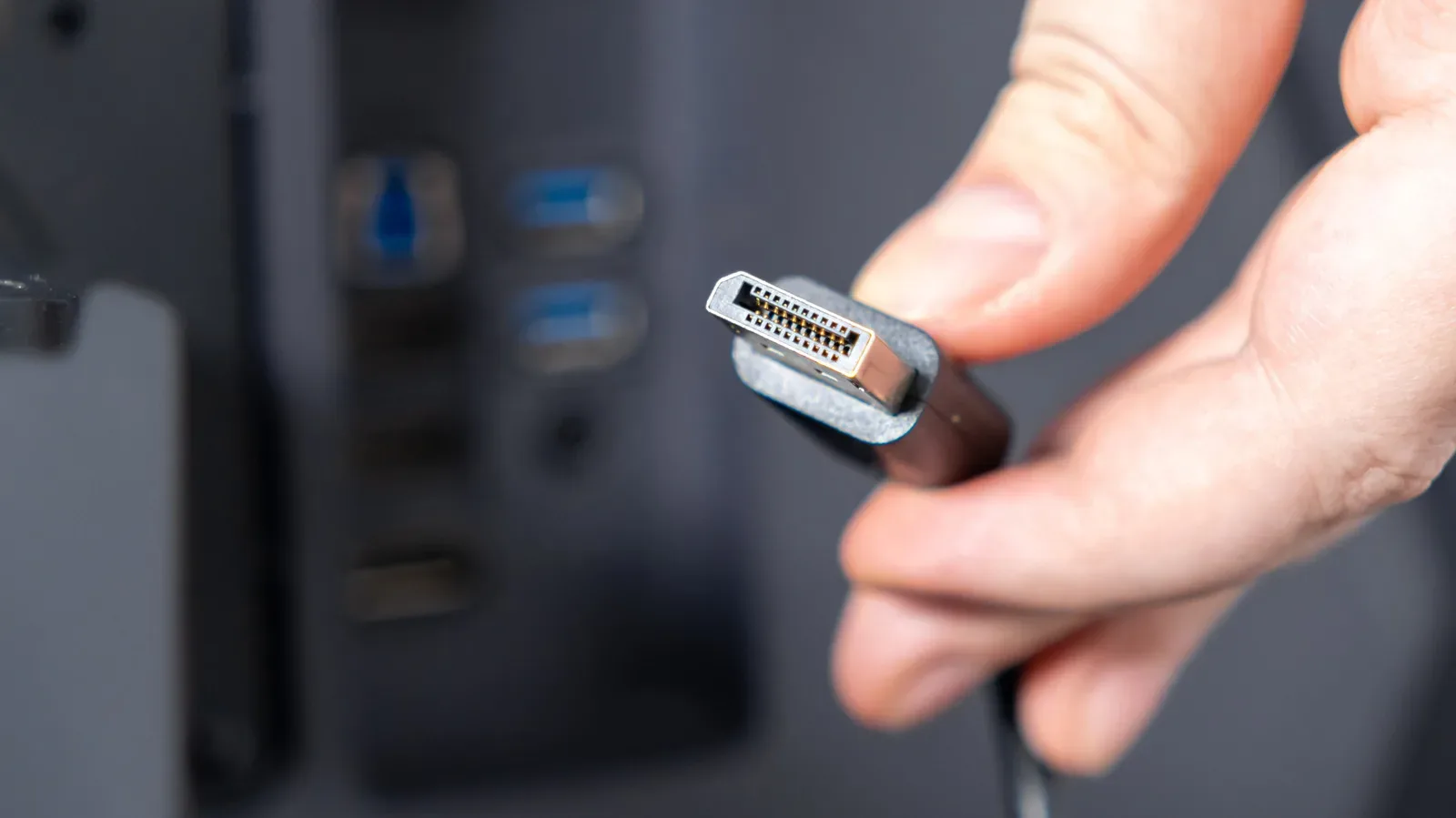
A DisplayPort cable is easy to treat as a solved problem: plug it in, get a picture, move on to the infinitely more important business of missing a jump by one pixel. But cable length can become a real limit when a PC is driving a demanding gaming display. A connection that looks fine at a modest resolution or refresh rate may not reliably carry the same signal once the monitor is asked for 4K, HDR and high-refresh output at once.
The practical message is pleasingly simple for most desk setups: use a passive copper DisplayPort cable of 6 feet or less whenever possible. At that length, it should be able to handle the resolution, color and refresh-rate combinations a modern PC monitor is likely to request, including 4K HDR at 144Hz, without signal artifacts or instability. Once a cable gets longer, the decision becomes less about finding the physically longest lead and more about deciding which display settings matter most.
That distinction is especially relevant for PC gaming, where a monitor’s headline specifications can be far more demanding than everyday desktop use. A cable can be connected and functional while the display quietly falls back to a lower refresh rate or resolution. The game still runs; the setup simply is not delivering what its components were bought to do.
The short answer: aim for 6 feet, be cautious at 10
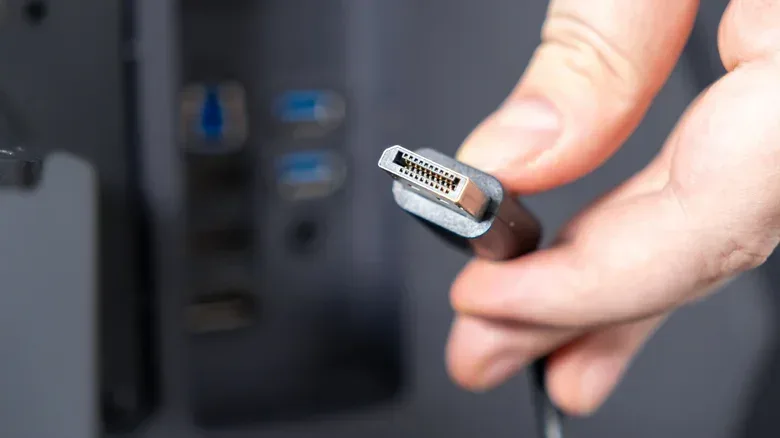
Standard passive copper DisplayPort cables have a relatively short comfort zone if the goal is maximum image quality. Up to about 6 feet, the connection should be robust for high-end monitor modes. This is the uncomplicated cable category: there is no signal-boosting hardware in the lead, just a conventional copper cable carrying the display data.
At around 10 feet, compromises can begin. A system may limit 4K refresh rates, or it may require a reduction in resolution to 1440p or 1080p. By roughly 15 feet, stable 4K is no longer the expectation with passive copper, and lower resolutions may themselves be constrained to slower refresh rates.
Those are useful planning thresholds, not a promise that every cable will behave identically at every setting. The important point is that length reduces the margin for a clean, high-bandwidth display signal. Physical damage or unusually severe interference can cause problems even with a short cable, but a well-kept cable in the short-range setup is the sensible baseline.
For a single monitor on a normal desk, buying a shorter cable is usually a better upgrade than buying a longer cable and hoping its label solves every bandwidth problem.
Why gamers notice the trade-offs first
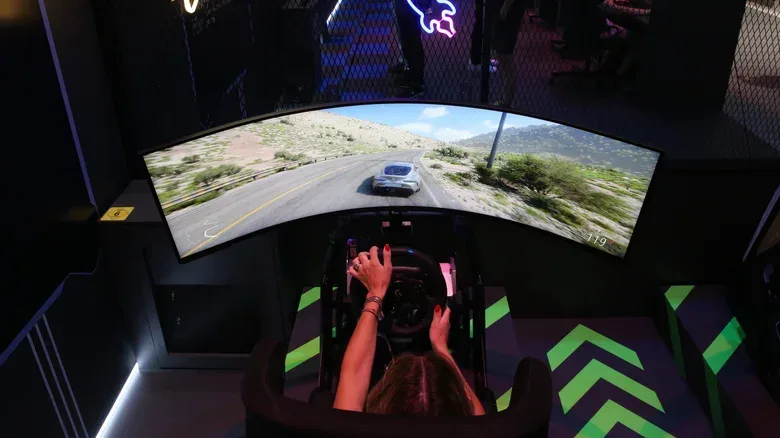
A game display mode is defined by several demands operating together. Resolution is the number of pixels shown on screen: 4K contains substantially more picture detail than 1440p or 1080p. Refresh rate, measured in hertz (Hz), is how many times the display updates each second. Higher refresh rates can make movement look smoother, provided the PC can render frames at an appropriate pace. HDR, or high dynamic range, concerns the range of brightness and color presentation the display is asked to reproduce.
Each setting raises what the cable must carry. This is why 4K HDR at 144Hz is a useful stress case. It combines a large image, frequent updates and HDR output. A cable length that causes no visible issue when browsing the desktop may become the weak link when the game or operating system requests a more ambitious mode.
The symptoms are not limited to a blank screen. A marginal connection may show visual artifacts, flicker, intermittent signal loss or complete dropouts. In other cases, the display may automatically scale back its resolution or refresh rate. That last outcome can be deceptively easy to miss: the picture remains present, but the monitor may not be operating at the selected performance target.
There is another bottleneck to keep in perspective. The graphics processing unit still has to do the rendering. Running one game at 4K and 120Hz demands powerful hardware; attempting comparable output across two screens demands more still. A shorter cable cannot make an underpowered GPU produce extra frames. It can, however, remove cable reliability as an avoidable reason a display mode is unavailable or unstable.
Passive copper, active copper and fiber: the meaningful differences
The cable type matters as much as its length. The 6-, 10- and 15-foot cautions apply to passive copper leads, the ordinary cables most buyers encounter. They are inexpensive and are usually the correct choice for a monitor positioned near a computer.
Active copper cables add signal boosting. That can extend the practical range to roughly 15 to 30 feet. They are an option when the computer must sit farther from the display and rearranging the setup is not realistic. Their value is situational rather than universal: putting one in a conventional desk setup solves a distance problem that likely did not exist.
Fiber-optic DisplayPort cables offer the greatest reach in this group, potentially extending as far as 100 feet. They are the answer for installations where the display and PC truly cannot be near one another. That might be relevant for larger office layouts, but it is far beyond what most gaming desks require.
Cost explains why the long-distance solutions should be bought with a specific need in mind. A 10-foot passive cable rated for DisplayPort 2.1 can cost as little as $10, while a 15-foot fiber-optic cable can cost more than $50. A fiber lead may provide the more dependable long run, but spending that much for a monitor parked within arm’s reach of a PC is hard to justify.
What “rated for DisplayPort 2.1” does and does not settle
A DisplayPort 2.1 rating is relevant to the capabilities expected from the cable, but it does not erase the basic issue of distance. The available information points to a 10-foot passive cable rated for DisplayPort 2.1 as an affordable example, yet also notes that compromises may start around that length. In practical terms, shoppers should not treat a version number on packaging as permission to ignore cable routing and length.
Start with the display mode you need, then choose the shortest cable that reaches without stretching or strain. That approach is more useful than choosing a long lead first because it appears future-proof. Extra unused length can turn a simple connection into an unnecessary variable when a monitor is trying to run at the upper end of its capabilities.
Multi-monitor setups leave less room for casual cable choices
The length question gets more serious with daisy-chained monitors. DisplayPort can support MST, short for Multi-Stream Transport, which is a way to connect monitors in sequence rather than running each one directly back to the computer. It can make a clean-looking workstation possible, but it also means cable planning deserves more care.
For an MST chain, the safest advice is to use the shortest cables feasible. Two 3-foot runs already total 6 feet, the distance identified as the strongest passive-copper range for maintaining maximum quality. Extending the chain with longer leads makes it easier for one screen to be limited, even before accounting for the graphics workload required to drive multiple displays.
That does not mean MST is automatically a bad fit for gaming or work. Productivity apps often impose gentler demands than running games at 4K and 120Hz. The point is that a multi-monitor desk has two separate questions: can the GPU render the desired workload, and can the display connections carry the desired outputs reliably? Cable length belongs firmly in the second question.
- One monitor nearby: choose passive copper and stay at or below 6 feet where possible.
- A monitor around 10 feet away: expect that resolution or refresh-rate trade-offs may be necessary with passive copper.
- A 15-foot run or more: consider active copper if the layout requires it.
- A very long installation: fiber-optic DisplayPort can reach much farther, up to 100 feet, but the cost is substantially higher.
- Daisy-chained displays: minimize every run in the chain and remember that the GPU remains a major performance constraint.
A practical troubleshooting order before replacing expensive hardware
If a monitor flickers, drops signal, shows artifacts or will not hold its intended resolution and refresh rate, the cable deserves early scrutiny. Before treating the display or GPU as the culprit, check whether the current lead is unusually long for the mode being requested. If it is, a shorter passive cable may be the cleanest test and the least expensive potential fix.
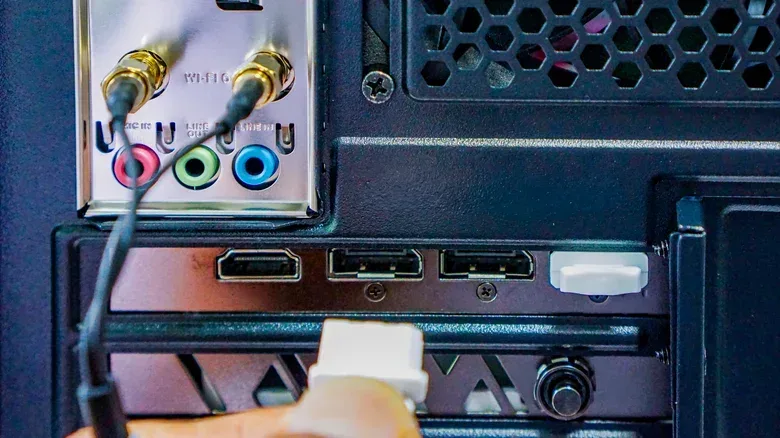
It is also worth confirming the actual output mode after connecting a display. A working desktop is not proof that the screen is running at its intended resolution, HDR setting or refresh rate. This is particularly important after moving equipment, adding a second monitor or replacing a cable with a longer one for tidier routing.
Do not confuse a display-cable problem with broader PC reliability, though. A DisplayPort cable affects the path between computer and monitor; it does not protect game installs, captures or save-related files. Hardware changes are a useful reminder that important libraries need their own safeguards, as covered in this guide to protecting game libraries with backups.
Why DisplayPort remains relevant despite USB-C and Thunderbolt
USB-C and Thunderbolt video connections are increasingly common, but DisplayPort remains a familiar fixture on many Mac and Windows PCs. Matching the bandwidth available through the best DisplayPort technology requires USB4 v2 or Thunderbolt 5. USB-C and Thunderbolt are also commonly expected to provide power delivery, while DisplayPort can remain dedicated purely to video.
That split helps explain why DisplayPort still has a place on systems where port space is limited. But longer term, broader adoption of USB4 v2 and Thunderbolt 5 could reduce the incentive to keep DisplayPort as a separate cable format. For now, it remains an everyday PC-monitor connection with a small but important caveat: the cable is not merely an accessory. At high resolutions and refresh rates, its length can decide whether the picture reaches the screen as intended.