
A monitor upgrade can feel like the most immediate way to improve a PC gaming setup. It is also remarkably easy to buy an impressive-looking display that the rest of the setup cannot fully use, that dominates a shallow desk, or that prioritizes a headline feature over the qualities a player will notice every day.
The essential question is not “Which monitor has the biggest numbers?” It is what will this monitor be asked to do, and can the PC, cable and workspace actually support it? A competitive player, a single-player HDR enthusiast, someone who also works at the same desk, and a person simply replacing an old office screen can all reasonably make different choices.
That does not make monitor shopping unknowable. It means working through the decision in the right order: viewing distance and desk space first, input capabilities second, panel characteristics third, adjustability fourth, then the marketing claims on the box. That sequence helps prevent an expensive display from becoming a very shiny compromise.
Start with the desk, not the television aisle
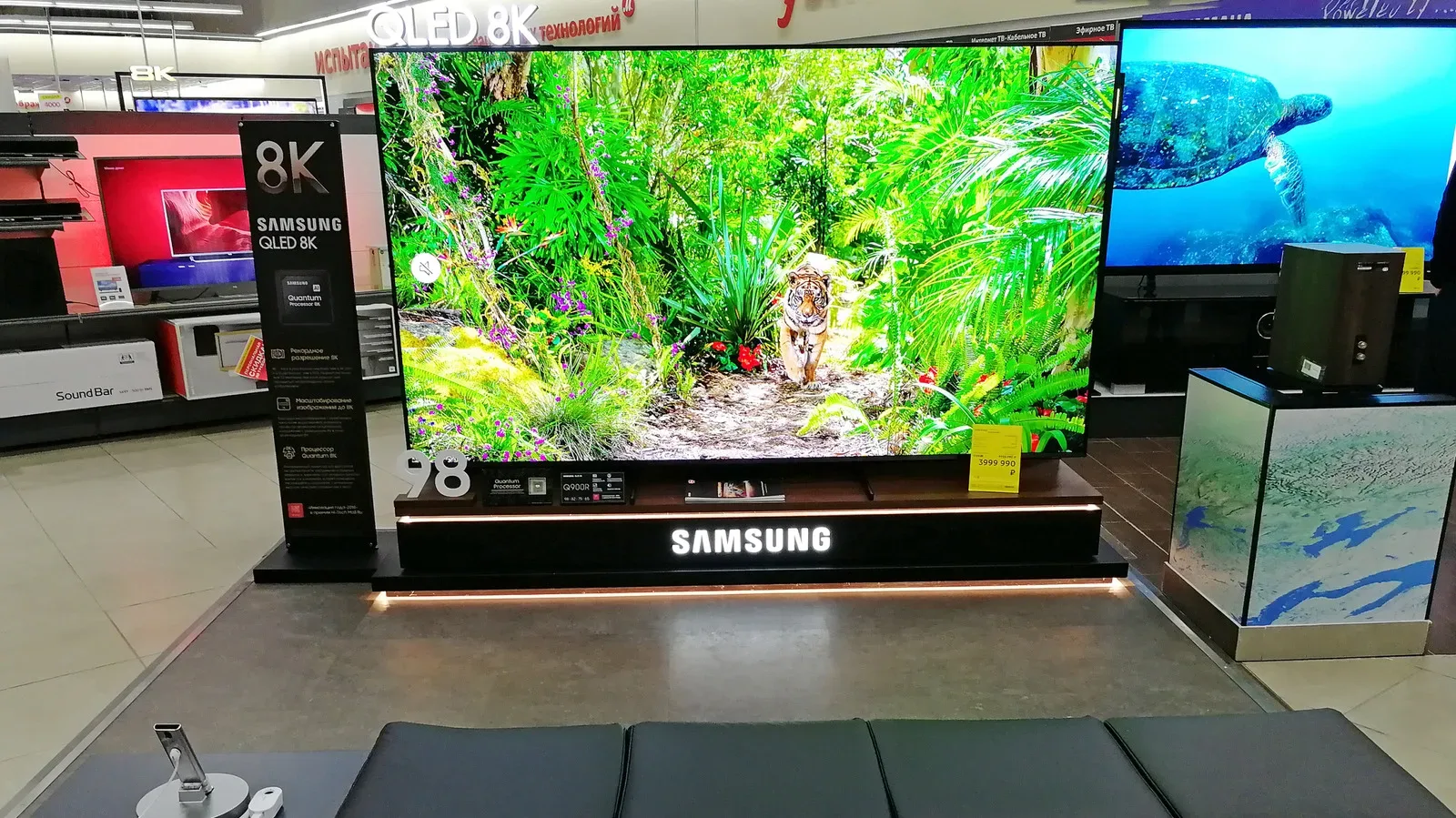
A television and a monitor may both be flat panels with HDMI sockets, but they occupy very different positions in daily use. A TV is typically watched from across a room. A desktop monitor sits close enough that its physical size, pixel density and placement affect the comfort and clarity of text as much as games.
For a viewer sitting roughly 24 to 36 inches from the screen, a 27-inch monitor is a useful fit. At approximately 28 to 42 inches, a 32-inch monitor can make more sense. These are not universal rules, but they illustrate why copying living-room buying logic can misfire at a desk. A 32-inch television is generally recommended at a viewing distance of 52 inches, a considerably different arrangement.
Screen size alone is not the whole story. Pixel density describes how tightly pixels are packed into the panel. At a close viewing distance, low pixel density can leave text less crisp. That matters in launchers, chat windows, browser tabs, strategy-game interfaces and the non-gaming work many PCs still handle. It is also one reason using a TV as a computer monitor has downsides even where the screen technically connects and displays an image.
Curvature is another example of context changing the result. A curved TV did not suit the broad, distant viewing setup of most living rooms. A curved gaming monitor, positioned much closer to a single player, can be a more natural fit. The important point is not that a curved panel is inherently better; it is that the desk position changes how its shape is experienced.
Before comparing resolutions or refresh rates, measure two things: the distance from the eyes to the present screen position, and the usable depth and width of the desk. A larger display may technically fit on the desktop while leaving no practical room to move it backward, angle it, use a stand comfortably or retain space for the keyboard and mouse.
Define the job before paying for performance
Refresh rate is among the most meaningful gaming-focused specifications, but it is useful only when it matches the way the monitor will be used. Measured in hertz (Hz), refresh rate is how often the display updates in a second. A higher figure is a sensible priority for gaming. For office tasks such as writing, browsing and spreadsheets, a conventional 60Hz monitor is usually sufficient.
This is where buyers should separate a genuine need from a tempting specification. A monitor designed around high refresh rates may be well suited to gaming, while a person editing photos or video may receive more practical value from additional pixels that reveal fine detail. For routine productivity, 1080p is generally enough. There is no obligation to buy 4K, 5K or 6K simply because those labels sound more future-facing.
That is not an argument against high resolution or high refresh rates. It is an argument for making them answer a real requirement. A player who values fast motion has a reason to concentrate on refresh rate and pixel response. Someone whose priority is detailed image or video work has a reason to care more about resolution. A mixed-use desk needs a considered balance rather than a winner in a spec-sheet contest.
Check the PC and the ports as one system
A monitor does not operate independently of the hardware connected to it. Its native resolution, refresh capability and HDR handling can be limited by the computer and the connection between the two. This is especially important with older laptops and PCs, where not every video output is capable of the same result.
For example, a system may not be able to send a 4K signal at 60Hz through every available port. HDMI 1.4 tops out at 4K at 30Hz, while HDMI 2.0 and DisplayPort 1.2 support 4K at 60Hz. In practical terms, connecting a 4K monitor through an older HDMI 1.4 output can leave the buyer at 30Hz despite owning a display and perhaps a game capable of more.
USB-C requires similar caution. The connector is not an automatic promise of video output. A USB-C port needs DisplayPort support or Thunderbolt capability to carry video in this context. The shape of a port tells only part of the story; its capabilities determine whether it is useful for the intended display connection.
A productive pre-purchase check is simple:
- Identify the video outputs on the PC, laptop or console that will use the monitor.
- Check which resolution and refresh-rate combinations those outputs support.
- Confirm the monitor includes a suitable input.
- Confirm that the specific port, not merely the connector shape, supports the desired signal.
This also keeps expectations proportionate. A monitor may advertise ambitious specifications, but the connected device still has to produce a compatible signal. Buying the panel first and investigating the link afterward is how a top-end display ends up operating in a reduced mode.
Panel type changes what the monitor is good at
Many monitor listings present panel type as a minor line item. It is not. IPS, TN and VA are LCD panel technologies, while OLED is a separate display technology. None is a universal victor because each brings trade-offs involving speed, contrast, viewing angles, color and cost.
TN: fast, affordable, narrower viewing comfort
TN panels are a gaming-oriented option because they are fast and can be less expensive than alternatives. Their major compromise is viewing angle. Colors and contrast can shift when seen off-center. For a player consistently positioned directly in front of the screen, that may be an acceptable deal. It is less appealing where multiple viewing positions or dependable off-angle image quality matter.
VA: strong contrast, but consider ghosting
VA panels are well suited to movies and media because of their deep blacks and strong contrast. Their slower pixel response can make them more prone to ghosting. Ghosting is visible trailing behind moving elements when pixels do not transition quickly enough. For games with frequent fast movement, this is a meaningful characteristic to investigate rather than an obscure technical footnote.
IPS: a balanced general-purpose option
IPS offers accurate colors, broad viewing angles and good pixel response, making it a sensible middle ground for many mixed gaming and desktop setups. Its contrast is weaker than VA, and some IPS units can show backlight bleed. Backlight bleed refers to unwanted light visible around parts of an LCD panel, particularly noticeable in darker scenes. It does not erase IPS’s strengths; it explains why a buyer focused primarily on deep blacks may reach a different decision.
OLED: exceptional image traits with a real ownership trade-off
OLED offers stronger contrast, color, viewing angles and motion performance than the listed LCD panel types. It also costs more and has a burn-in risk after prolonged use. Burn-in is persistent image retention associated with long-term display of static elements. It deserves consideration on a PC screen, where taskbars, desktop elements and game interfaces may remain in fixed positions for extended periods.
That does not reduce OLED to a simple “avoid” label. It means a buyer should understand why its strengths appeal to them and weigh those gains against price and long-term static-image use. For additional perspective on its place in competitive gaming, see why OLED’s esports presence is more complicated than a verdict on its quality.
Ergonomics are part of display quality
A great picture is less valuable if the screen cannot be placed comfortably. Ergonomics means shaping a workspace around usable, sustainable positioning rather than forcing the user to adapt to a fixed stand. In monitor terms, valuable adjustments include height, tilt, swivel and pivot. Pivot allows the panel to rotate into portrait orientation.
VESA support is especially useful. VESA mounting refers to an industry-standard hole pattern on the rear of a monitor that permits compatible mounting arms and other mounts. A VESA-capable model can provide more flexibility later, even if it initially stays on its bundled stand.
Do not assume every large monitor will work with every arm, or that every stand will leave enough clearance on a small desk. Verify the monitor’s support and the physical space available before committing. An unadjustable display that cannot be moved to a comfortable position is not a minor inconvenience; it is a mismatch between the product and the workspace.
Read HDR and contrast claims with skepticism
Marketing language becomes most hazardous when it is technically true but incomplete. HDR is a leading example. A monitor can accept an HDR signal without possessing the brightness needed to create a notably improved HDR image. Labels such as “HDR input supported” and “HDR10” can indicate signal compatibility rather than a guarantee of a visibly stronger result.
Buyers seeking meaningful HDR should look for a VESA DisplayHDR rating and consult independent reviews. The first step establishes that the display has a recognized rating; the second helps clarify what the monitor actually delivers beyond a logo or acronym.
Contrast ratio needs a similarly cautious read. Manufacturers measure it in different ways, so a contrast number on one product page is not automatically comparable with the number listed by another brand. A huge figure, detached from an understanding of how it was measured, is not a reliable shortcut to image quality.
A smarter final checklist
Monitor shopping becomes less overwhelming once every feature has to justify its place. Instead of treating every premium label as an upgrade, make the candidate monitor pass a few concrete tests:
- It fits the viewing distance. The screen size should suit how far away the user sits, not imitate a television setup.
- It fits the desk. There must be adequate room for the stand or a mount and for positioning adjustments.
- It fits the computer. The PC’s hardware and available output must support the intended resolution and refresh rate.
- It fits the cable path. HDMI, DisplayPort and USB-C capabilities must be verified, not presumed from connector appearance.
- It fits the games and other work. Select refresh rate, resolution and panel behavior around actual use.
- It fits the preferred ergonomics. Check stand adjustments and VESA support before the box arrives.
- It survives the marketing test. Investigate vague HDR and contrast claims instead of treating them as equivalent across products.
The best monitor is not necessarily the largest, sharpest or most expensive option on a retailer page. It is the one whose size works at the desk, whose inputs work with the existing machine, whose panel trade-offs suit the player’s priorities, and whose claimed features remain useful after the acronyms are stripped away.