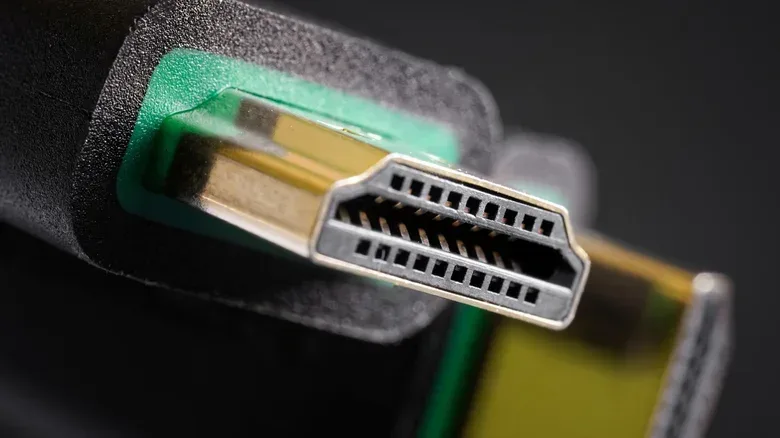
A new TV can deliver a strange kind of disappointment: the box promises a modern panel, a console is connected with HDMI, and yet the image or performance still feels as if it is passing through a polite little velvet rope. The culprit is not always the game, the console, or the television’s main picture preset. Sometimes it is the HDMI input itself.
Many televisions treat each HDMI socket conservatively until told otherwise. Their standard input mode is designed around broad compatibility, but that can restrict the bandwidth available to a connected console, PC, Blu-ray player, or streaming device. In practical terms, the TV may need an input-specific setting switched to Enhanced—or a manufacturer-specific variation—to open access to capabilities such as HDR formats and refresh rates above 60Hz.
That makes this a useful pre-flight check for players chasing the best their existing screen and hardware can provide. It is not a promise that every game will suddenly run faster or that every display feature will appear. Games, consoles, PCs, cables, and TV models all set their own limits. But an HDMI port left in a restricted mode can become an unnecessary limit before any of those other factors get a say.
Start with the HDMI input mode, not the picture preset
Television menus commonly include per-input HDMI options. On some Google-based Sony and Hisense sets, the relevant option can be found among HDMI input settings and may be called Enhanced. The wording is not universal, which is the first annoying wrinkle: owners should look for terms relating to enhanced format, signal format, bandwidth, or the individual HDMI port rather than assuming every brand labels it the same way.
The essential idea is simple. A standard mode prioritizes accepting a wide range of signals. An enhanced mode permits the port to use its full bandwidth. That matters when a signal asks for more data than a conventional 4K-at-60Hz setup. High dynamic range, higher refresh rates, and richer color information can all increase what must travel through the connection.
For a console player, the most relevant payoff can be refresh rate support. A refresh rate is how many times per second a display updates its image, measured in hertz (Hz). A 60Hz screen refreshes 60 times in a second; a mode above 60Hz has the potential to show more updates when the connected system and game support them. Enhanced input settings may be necessary before those higher-rate signals are accepted.
That does not mean a higher setting is automatically the right setting for every device. Some TVs provide multiple enhanced options, with one tailored to HDR and another intended to enable higher refresh rates. The choice should follow the device attached to that exact port:
- PCs and game consoles: Prioritize the option that supports the best available refresh rate and Variable Refresh Rate, where the TV and connected hardware support it.
- Media streamers and Blu-ray players: HDR support is the key priority. These devices are unlikely to need output beyond 60Hz for film and television viewing.
This is why checking every occupied input matters. Turning on an enhanced mode for a console’s HDMI port does not necessarily change the behavior of a PC connected to another port. Think of each socket as having its own door policy, because on many televisions it effectively does.
Why this matters to games even when the TV is already 4K
“4K” describes resolution, not the full video signal. It says a great deal about the amount of image detail available, but it does not by itself tell us whether a display is receiving HDR, which color depth is in use, whether chroma is compressed, or what refresh rate the port accepts. Those pieces work together.
This distinction is especially helpful when evaluating game-performance discussion. A title targeting 30 frames per second on consoles, for example, is governed by the game’s own rendering choices; switching an HDMI port to Enhanced cannot turn that game into a 120fps release. But it can prevent the television input from blocking features that the console and game do support. That is a meaningful difference when reading claims around performance modes, refresh rates, and display technologies, including the discussion around GTA 6’s console frame-rate targets and PS5 Pro ray-tracing upgrades.
Variable Refresh Rate, often shortened to VRR, is another setting worth recognizing. It is a synchronization feature intended to align the display’s refresh behavior with the output of the connected device. The source material identifies VRR as a feature PCs and consoles should be assigned alongside their best supported refresh rates when the enhanced HDMI tier allows it. Whether it is available will still depend on the display and hardware combination.
The sensible workflow is therefore not “activate every impressive-sounding option everywhere.” It is “give each device the input mode it needs, then verify the device can use it.” A console deserves the highest-refresh option offered for that port; a movie-focused player principally needs the HDR-capable path.
HDR and HDMI Deep Color: the setting behind finer gradients
Some LG, Sony, Samsung, and other televisions expose an option named HDMI Deep Color. Despite the dramatic name, the practical role is grounded in color depth. Color depth describes how many gradations of color a signal can represent. Higher bit depth provides more possible shades between one visible color and the next, helping create smoother transitions.
HDMI Deep Color was introduced with HDMI 1.3 and extends color depth to levels needed for HDR. HDR means High Dynamic Range. In this context, it is part of a video signal that can offer a wider range of picture information than SDR, or Standard Dynamic Range. Dolby Vision is one HDR format mentioned in connection with enhanced HDMI bandwidth; HDR10+ Advanced and Dolby Vision 2 are also cited as formats now supported by some TVs.
For consumer TVs, 10-bit color is the practical ceiling described here. A 10-bit signal can represent roughly 1.07 billion shades, providing extremely fine gradation. By comparison, an 8-bit selection is SDR. If a TV explicitly offers bit-depth choices within its HDMI Deep Color menu, selecting a value above 8-bit is the relevant move for HDR-capable equipment.
Ideally, Deep Color activates automatically when a compatible device is connected. Manual intervention is mainly a troubleshooting step if the expected HDR behavior is absent. On LG TVs, the supplied navigation path is:
- Open Settings.
- Select General.
- Choose External Devices.
- Open HDMI settings.
- Select HDMI Deep Color.
That precise route is LG-specific, not a universal instruction for every TV. The broader lesson applies across brands: HDMI color settings can be assigned at the port level, and automatic detection is preferable when it works. Forcing a configuration without compatible equipment is not inherently an upgrade; it is simply a request the rest of the chain may not be able to fulfill.
PC and console users should understand 4:4:4 chroma
Chroma subsampling is the least glamorous phrase in the whole menu, but it may produce one of the clearest benefits for anyone using a television as a PC display or regularly reading small interface text on a console. Chroma refers to color information. Chroma subsampling reduces that color data to improve efficiency.
For film and TV, this compression is usually not a major concern. Moving images and typical viewing distances make it less obvious. Desktop use and game interfaces are different. Text, menus, browser elements, and fine UI details place sharp edges beside contrasting colors, which is where reduced color information can make lettering less crisp.
The setting to seek is uncompressed 4:4:4. Switching to it can materially improve text legibility on a connected PC or console. It is not an aesthetic filter and it does not increase a game’s resolution. Instead, it avoids the color-data compression that can soften those high-contrast details.
This is also an area where HDMI bandwidth and the earlier Enhanced setting connect. The better-quality signal choices compete for the capacity of the port and the rest of the setup. If a TV offers distinct enhanced tiers, a PC or console is the device that most clearly benefits from the high-refresh path as well as VRR and 4:4:4 support.
A quick, device-by-device setup check
There is no need to turn television setup into an all-evening calibration project. A focused pass through the menus can identify whether the basics have been left at their cautious defaults.
- Identify what is connected to each HDMI port. Separate consoles and PCs from Blu-ray players and media streamers.
- Open the TV’s input or external-device settings. Look for an option named Enhanced, an enhanced-format equivalent, Deep Color, or settings tied to a specific HDMI input.
- Enable the enhanced mode appropriate to that device. For consoles and PCs, favor the highest-refresh option if the TV presents separate HDR and high-refresh choices. For movie devices, select the HDR-capable option.
- Check Deep Color where it is offered. Automatic operation is ideal; if a manual bit-depth choice is necessary, HDR requires more than 8-bit.
- For PC or console use, locate chroma options. Choose uncompressed 4:4:4 when supported, particularly where text clarity matters.
There is an important bit of restraint in that list. Do not assume every HDMI port has identical capabilities, every manufacturer uses identical labels, or every attached device can produce every format. The goal is to remove an artificial port-side bottleneck, not to demand specifications the hardware does not support.
Modern TVs can support features ranging from HDR formats to refresh rates as high as 240Hz on certain models, but their menus still make users earn access to them. The good news is that the remedy is often less complicated than the terminology suggests. Find the correct HDMI input, enable its full-capability mode, make sure HDR color handling is not stuck at SDR-grade depth, and use 4:4:4 when a PC-like text workload calls for it. That small amount of menu work can ensure the signal arriving from a game system is not being needlessly held back at the final connection.