That dreaded low-storage warning has a special talent for arriving at the worst possible moment: just as you are trying to install a game, save a video or take one more photo. The obvious culprit is usually the camera roll, but Android storage can also be consumed by a far less glamorous cast: oversized apps, duplicate downloads, pre-edit image copies, streaming and social-media caches, and files sitting in a trash folder that was never actually emptied.
The good news is that reclaiming room does not have to mean deleting everything at random. Android’s storage tools can help identify what is largest first, while app archiving and cloud-backed media cleanup offer ways to remove local data without necessarily erasing access to it forever. Menu labels and paths can differ between devices, but the safest approach remains the same: inspect a category, review the individual files or apps, then remove only what you recognize and no longer need.
Start with the storage breakdown, not the panic button
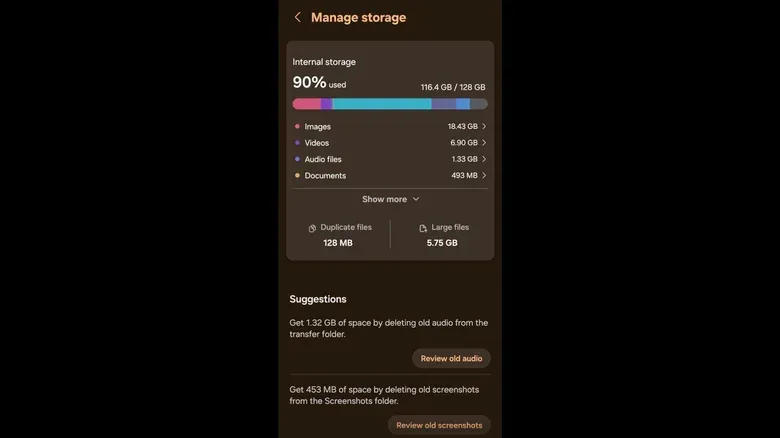
Before deleting a single file, open your phone’s storage settings and look at the category breakdown. On devices using the supplied menu layout, that means Settings > Device Care > Storage. The most useful sections are typically apps, images, videos and other files. This turns a vague “storage is full” message into a list of likely offenders.
There is a practical reason to work this way. Deleting a handful of screenshots may feel productive, but it will not make much difference if a rarely used app occupies far more space or if old downloads include a few very large files. Let the storage screen identify the biggest category first, then drill down. Storage management is much less about finding one magic setting than it is about prioritizing the files with the biggest footprint.
For people who have moved their data from Android phone to Android phone over several years, this review can be especially revealing. Data that once made sense—an old download, a duplicate picture, or an app installed for a single trip or event—can remain on the device long after its purpose has vanished.
Apps are often the quickest big win
Apps can take up more than their initial download size. They may keep software components and temporary information on the phone, so the app list is a smart place to begin. In the storage area, open Apps and sort through the largest entries. If an app is no longer useful, select it and choose Uninstall.
Uninstalling is the straightforward option: the app is removed from the phone. But it is not the only option for software you may want again someday. Android also supports archiving in the described storage flow. Archiving removes an app’s core software files and temporary data while retaining login information and personal settings. The application will need to be downloaded again before use, but the intent is to make returning less painful than beginning from scratch.
That distinction matters. An app you genuinely never use should usually be uninstalled. An app you use only occasionally may be a better archive candidate. Think of archiving as putting a bulky item into off-site storage: it is no longer occupying the same amount of room in the house, but you have not decided to throw it away.
Related coverage includes What Is Taking Up Storage on Your Android Phone and How to Clear It.
Auto-archive can make the choice for you
Android’s auto-archive feature is designed for situations where storage gets tight and the phone needs room for a new app. When a device has no available space during an app installation attempt, it can offer the option to switch auto-archive on. It can also be enabled through Play Store settings: open the profile image, choose Settings, then General, and enable Automatically archive apps.
Google says auto-archiving can recover nearly 60 percent of an app’s storage without removing the app’s presence or a user’s data from the device. That is a meaningful claim, but the key limitation is equally important: archiving is not the same as having the app ready to launch immediately. It creates room by removing locally installed material, so using an archived app again requires downloading it again.
For a phone that doubles as a controller, media device or retro-gaming companion, keeping available capacity has value beyond the storage warning itself. It can leave room for updates and new installations. If you are repurposing spare hardware, our guide on using an old Android tablet as an Android Auto screen is another example of why a quick storage audit can give older gear a more useful second act.
Photos and videos: protect them first, then clear the local copies
Images and videos are an obvious source of consumed space, but they deserve more caution than an abandoned app. Manually removing files from the gallery or from the Images and Videos sections of storage settings is an option if they are not needed. The safer route for media you want to keep is to back it up before clearing it from the phone.
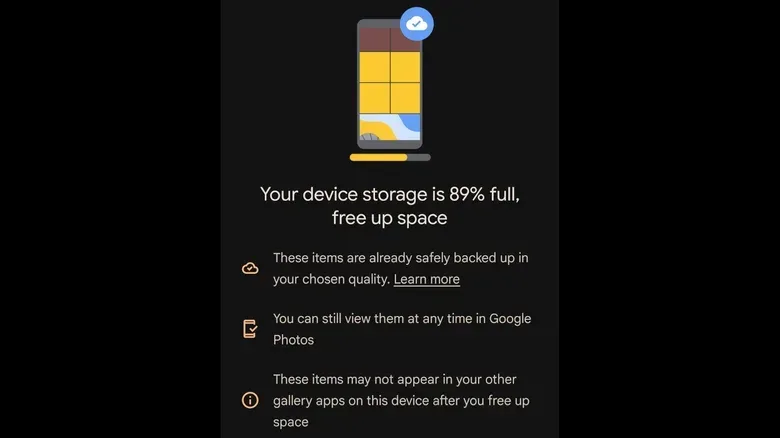
Google Photos can create cloud backups of images and videos to a Google account. Once items have been backed up, its Free up space on this device tool can remove the local copies. In Google Photos, tap the profile image and select Free up space on this device. The backed-up media remains viewable in Google Photos, but it will no longer appear in other gallery applications that depend on files stored locally on the handset.
That last point is the practical trade-off. “Free up space” does not mean the pictures are gone from Google Photos, but it does mean they are no longer local files available to every gallery app. Confirm that the backup has completed and that the chosen backup quality is what you expect before deleting local copies. This is particularly important for recordings, family photos and other files that would be difficult or impossible to replace.
Cloud storage has a shared limit
A Google account includes up to 15GB of free cloud storage, shared across Google Photos, Drive, Gmail and other services. It is not a dedicated 15GB photo vault. A busy inbox, files in Drive and years of camera uploads all draw from the same allowance.
The stated Google One options are $2 per month for 100GB and $3 per month for 200GB. Whether a subscription makes sense depends on how much media needs to be retained and how much of that 15GB pool is already used elsewhere. The relevant storage question is not simply “do I have photos?” but “do I have a verified backup destination with enough room for the photos and videos I intend to remove locally?”
Some devices also offer Smart Storage, an automation option that clears images already backed up to the cloud. In the described path, go to Settings > Storage > Free up space, open the menu, choose Settings, and turn on Smart Storage. Availability can vary by device, so treat it as an optional convenience rather than a setting every Android owner will see.
The stealthy category: duplicates, downloads and “Other files”
Once apps and media are addressed, look at the less obvious material. In the storage screen, sections labelled Duplicate files and Large files can surface the fastest candidates for review. Duplicate files are multiple copies of the same item; large files are simply entries whose size makes them disproportionately useful to inspect.
Review each suggestion rather than clearing it blindly. A duplicate may be disposable, but it could also be an intentional copy saved in a different location. Large files may include old media, a download needed for work, or a file you forgot existed. The point of these categories is triage: they help narrow a cluttered device down to items most likely to return meaningful space.
Other suggestions can include old media, old downloads, pre-edit image backups and app caches. A pre-edit backup is a version created before an image was changed, while a cache is temporary data an application stores so it can load content or operate more efficiently. Neither category is automatically junk, but both can be worth inspecting when capacity is low.
For the catch-all view, open storage details and select Other files. This can uncover forgotten material that does not fit neatly under apps, photos or videos. It is the digital equivalent of checking the drawer where chargers, cables and mystery keys accumulate: not every item belongs in the bin, but some of it will no longer earn its space.
Clear app caches, especially for streaming and social apps
Cache clearing is easy to underestimate. Streaming and social-media apps can accumulate substantial temporary files, and clearing their caches can potentially free gigabytes. In technical terms, cached data is material kept locally so an app can access it quickly instead of retrieving it anew. It is not the same thing as the core app installation.
The storage screen may present app caches among its cleanup suggestions. Review the entry before acting, just as with any other category. Caches are a sensible target when you need space and do not want to uninstall or archive an app you use regularly. They are also a reminder that a phone can become cramped even when its visible library of photos and installed apps does not look especially huge.
Empty the trash: deletion is sometimes only the first step
Finally, check the Trash or Recycle bin within Settings > Device Care > Storage and empty it. This is a small but important maintenance step. A file moved to trash may still occupy storage until that bin is cleared, so a cleanup session can appear less effective than expected if discarded material remains there.
A sensible low-risk cleanup order is therefore:
- Check the storage breakdown and identify the largest category.
- Uninstall apps that are truly unwanted.
- Archive occasional-use apps, or enable auto-archive if that trade-off suits you.
- Back up wanted photos and videos before using Google Photos’ local cleanup tool.
- Review duplicate files, large files, old downloads and other files individually.
- Clear caches where the storage tools identify them.
- Empty Trash or Recycle bin when the review is complete.
This sequence prioritizes large, understandable storage gains while reducing the risk of losing something important. The goal is not to make a phone clinically empty. It is to stop its forgotten digital luggage from blocking the files, apps and updates you actually want.