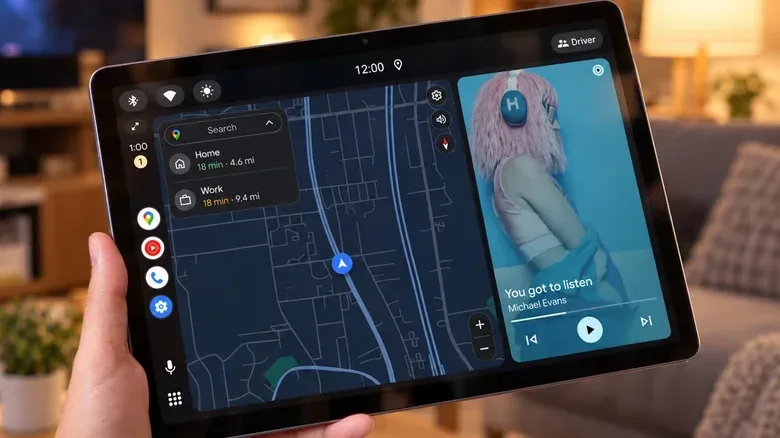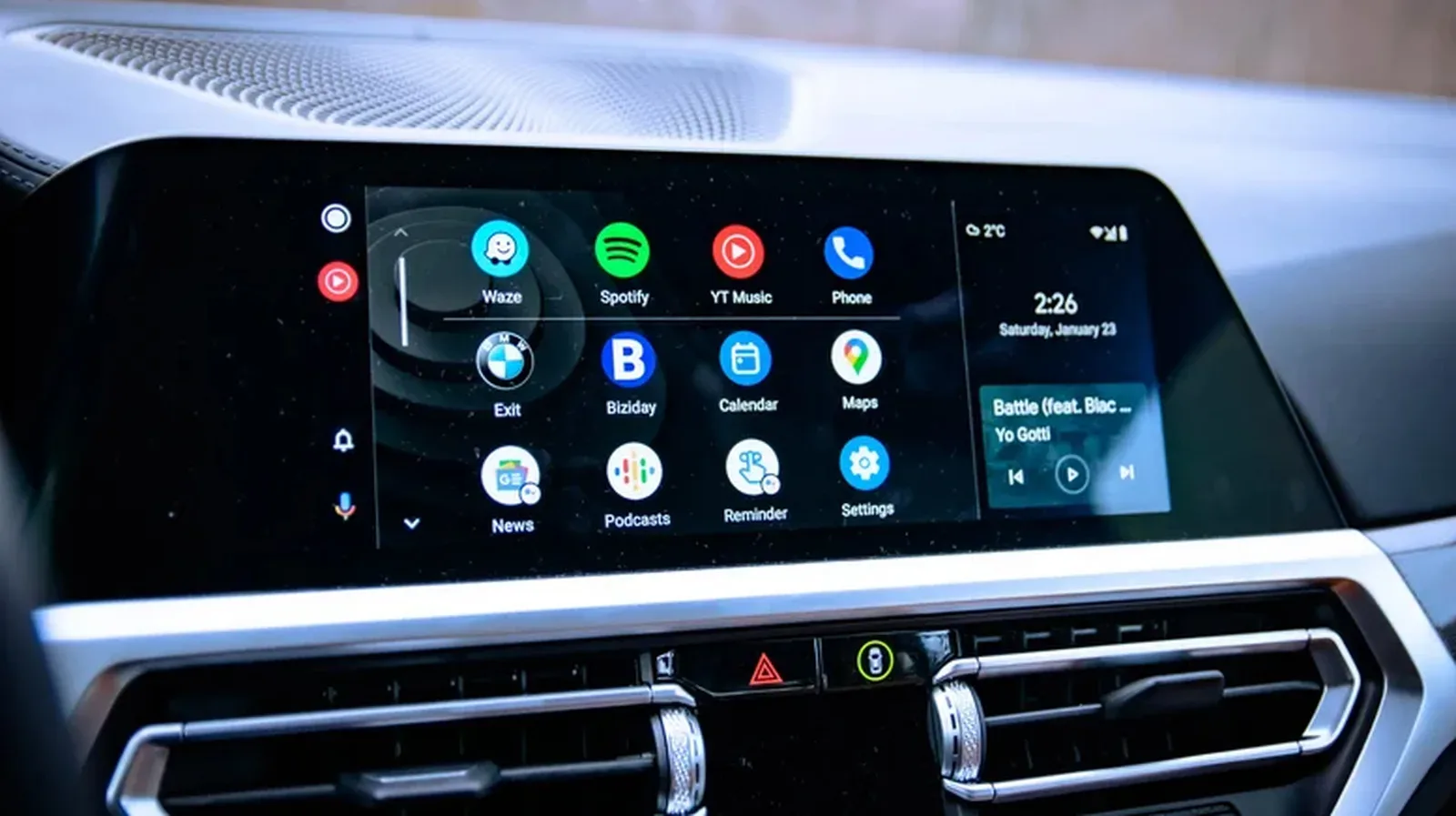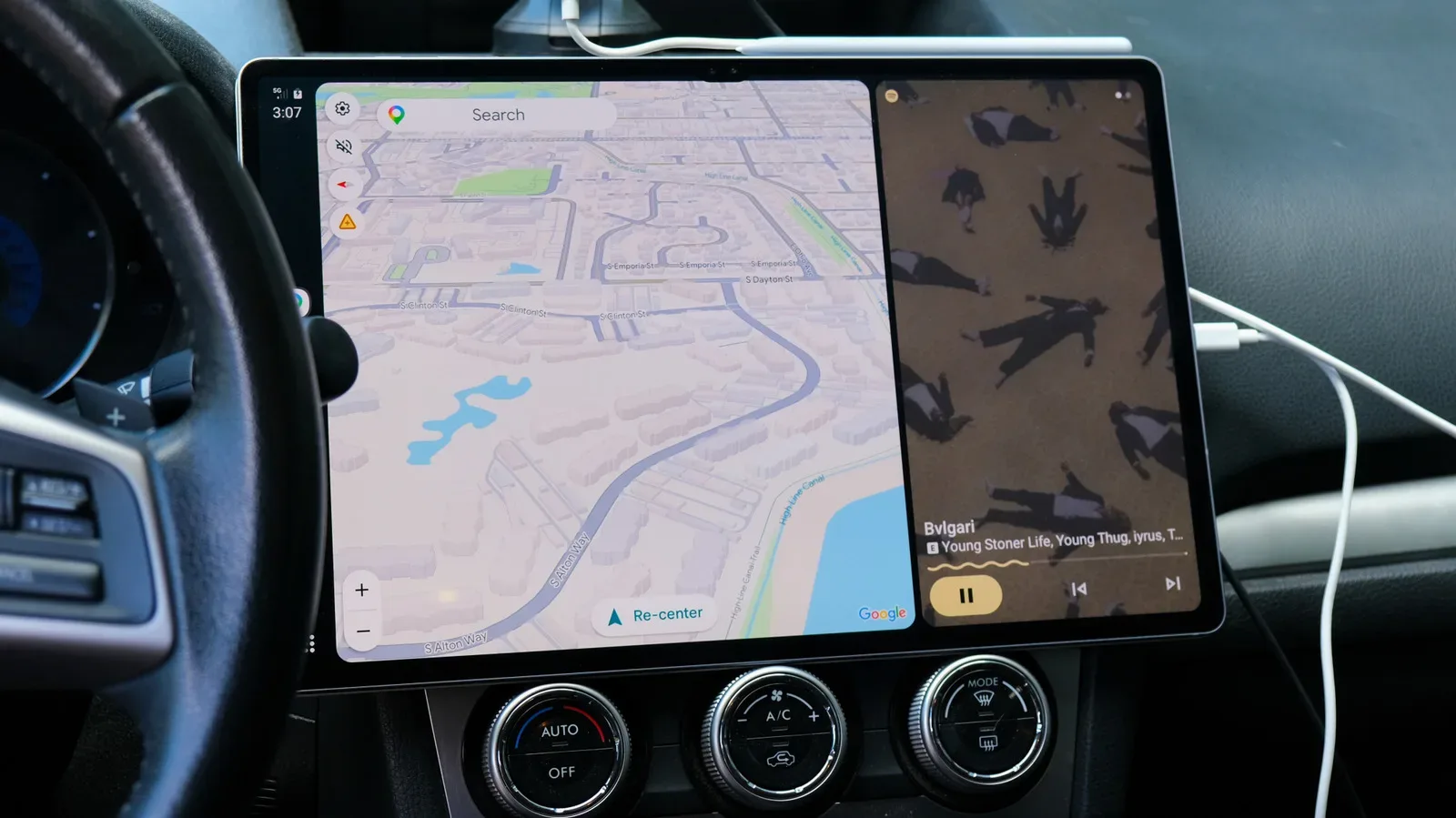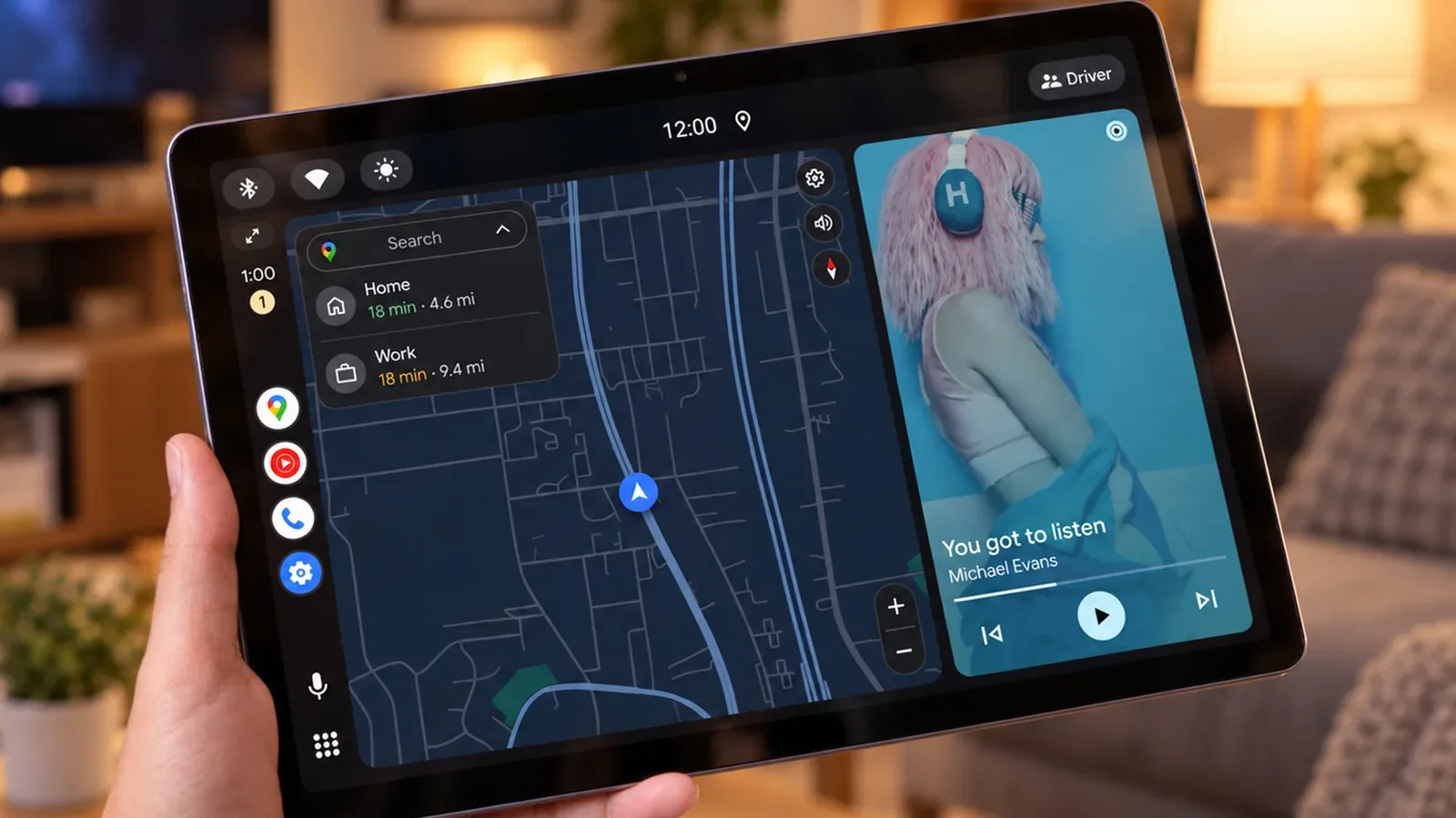
An aging Android tablet need not become a permanently dead rectangle in a drawer just because its battery is fading or its everyday apps feel slow. There is an unusual reuse option for devices that can still hold a charge: make the tablet an Android Auto display.
Android Auto is normally built around a phone projecting a simplified, driving-focused interface onto a compatible car screen. It prioritizes large controls and a restricted app selection for maps, audio and messages. With a third-party receiver app installed on a spare tablet or phone, however, that second device can impersonate the display end of the arrangement. The car is not the essential part of the setup.
That makes the idea potentially useful in two very different places. In a vehicle, an old tablet can serve as a separate Android Auto screen. At home, it can sit near a computer monitor or on a kitchen counter, offering an intentionally narrow view of music, navigation and voice-led communication. It is an inventive reuse, not an official home-dashboard feature, and it comes with meaningful compromises.
What the tablet is actually doing
The key distinction is that the tablet is generally not doing the heavy lifting. In a conventional projected configuration, Android Auto runs from the primary phone and sends its interface to the receiver device. The spare tablet acts as the screen, while the phone remains the connected device behind the experience.
That matters for older hardware. A tablet that struggles with modern standalone applications may still be capable of showing Android Auto because it is receiving the simplified dashboard interface rather than being asked to run every service locally. It also means the phone is not optional in the normal projection arrangement: it must stay connected whether the connection is wired or wireless.
The interface is deliberately more limited than a regular Android home screen. That limitation is not merely a missing-features problem. It can be the point. Someone who wants to change a track, pause a podcast or hear a message does not have the usual mass of social, entertainment and work apps demanding a tap. Big controls and voice functions make quick interactions more practical, while a smaller app catalog can reduce the temptation to drift into an unrelated app.
It should not be confused with a dedicated smart-home panel. On compatible systems, Gemini may handle requests and may be able to control Google Home devices, but that capability is not always reliable. If a household only needs Spotify or Google Home on a tablet, launching those apps directly remains the less complicated route.
What a wired setup requires
The straightforward route needs an Android phone running Android 11 or newer, a spare Android tablet or phone, and a USB cable that supports data. A cable that only supplies power will not establish the required connection. Depending on the hardware, an OTG adapter may also be necessary. OTG, short for On-The-Go, is the adapter or capability that lets a device work with USB accessories in the needed host arrangement.
Related coverage includes How to Run Android Auto on an Old Tablet at Home.
The receiver app goes on the spare device. Open Headunit, previously called Headunit Revived, is one option listed at $3.99 on Google Play. It supports receiving devices running Android 5.0 or newer, potentially widening the pool of old tablets that can be repurposed. Headunit Reloaded is another option listed at $4.99.
Software compatibility alone is not a promise of success. Older tablets may meet the Android-version requirement while still proving awkward with the necessary USB connection. That physical compatibility is a crucial practical check before treating a long-unused tablet as a guaranteed project.
Basic USB connection steps
- Install the receiver app on the spare tablet or phone.
- Connect the spare device and the Android phone with a data-capable USB cable. Add an OTG adapter if the devices require one.
- If the phone displays USB connection choices, select Android Auto.
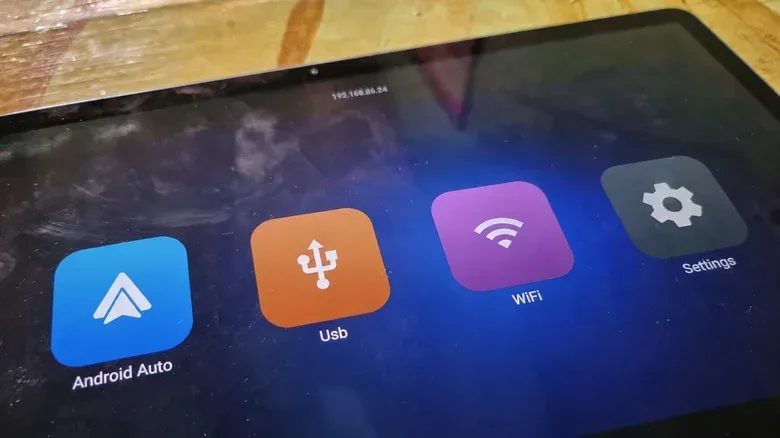
- Open Open Headunit on the receiving tablet, choose USB, grant its requested permission, and select the connected phone from the device list.
- Approve any remaining prompts on the phone. The Android Auto interface should then appear on the tablet.
Permissions and prompts are part of the setup rather than a sign that something is automatically wrong. The receiver needs authorization to communicate with the phone over USB, and the phone may need confirmation before Android Auto projection begins.
USB is the simpler option compared with a wireless link between two devices, but convenience has a physical cost: the cable occupies the tablet’s charging port. That can be a poor fit for exactly the kind of older tablet that inspired the project—one whose battery is already weak. The device may work well in short sessions yet be inconvenient as an all-day counter display if it cannot be charged while connected in the chosen configuration.
Self-Mode is different from projection
Both mentioned apps also provide a feature called Self-Mode. Instead of relying on a second phone to project Android Auto, Self-Mode runs Android Auto on the same device that is showing it. This can sound like the ideal solution for avoiding a cable and keeping the main phone free, but it carries a substantial eligibility caveat.
The device must have a working Android Auto installation of its own. An older tablet is not guaranteed to meet that condition. The fact that it can run a receiver app is not the same thing as having a functional Android Auto installation for Self-Mode.
There is also a version-specific wrinkle. The developer of Open Headunit says Android Auto 17.4 and newer may need the head unit server started through Android Auto’s developer settings before Self-Mode will work. In plain terms, a head unit server is the component involved in allowing the Android Auto interface to communicate with the display side of the arrangement. Developer settings are advanced controls rather than a polished consumer-facing home mode, so this route should be approached with the expectation of extra configuration.
Wireless projection between the primary phone and the receiving tablet is also possible, but it takes more setup than USB. It may be worth exploring for a fixed location where an occupied charging port is a deal-breaker, but it does not remove the fundamental dependency on the phone in ordinary projection use.
Why an Android Auto screen could work at a desk or kitchen
The strongest argument for this repurposing project is not that Android Auto suddenly becomes a full tablet replacement. It does not. Its value is that it can be a deliberately constrained secondary screen.
At a desk, it can keep audio controls, a podcast or message voice responses visible without requiring a phone unlock every time. On a kitchen stand, it can offer the same low-interaction functions with controls that are easy to see at a glance. Messages can be read aloud and answered by voice, which may be preferable to repeatedly picking up the phone.
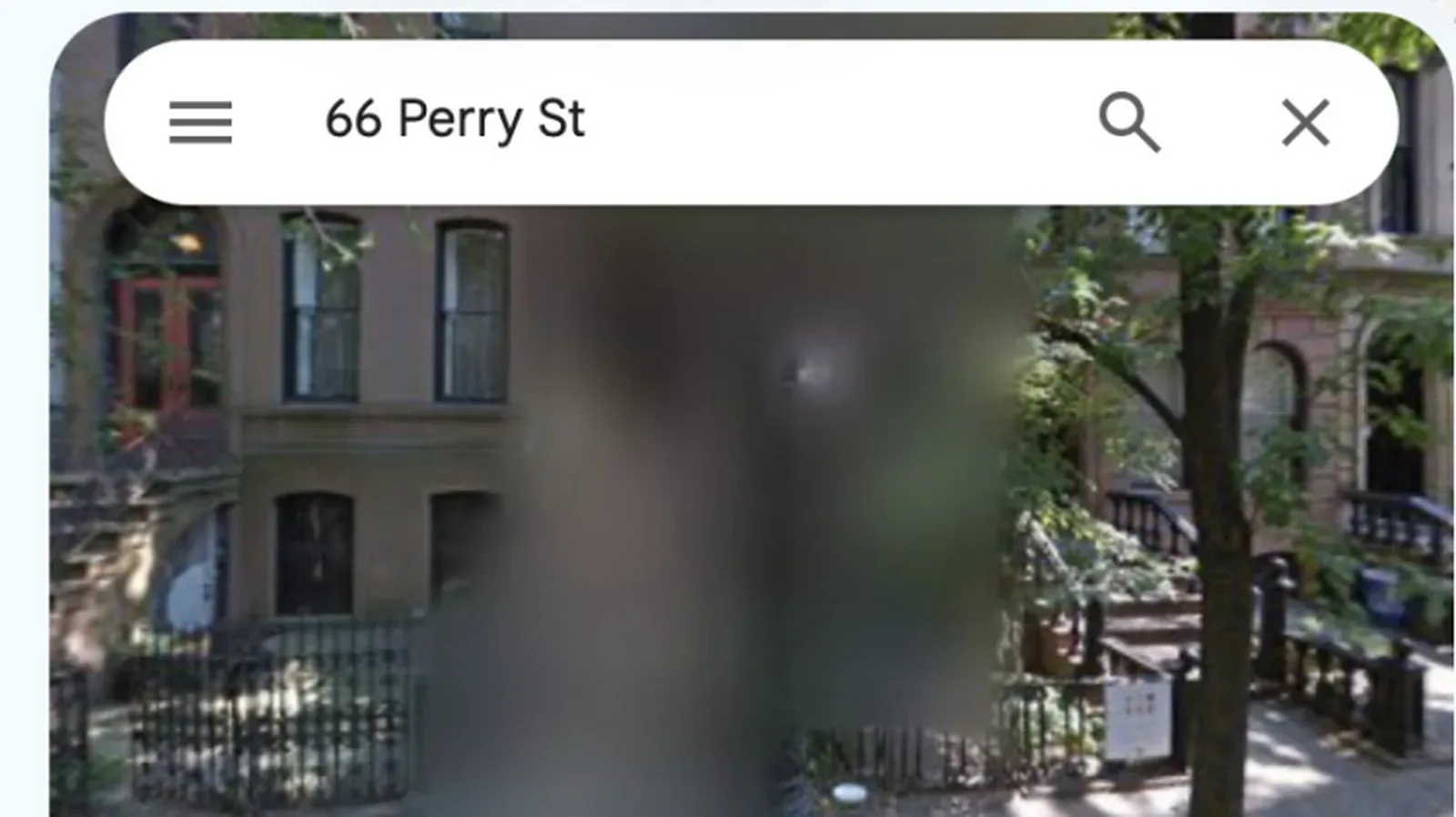
Navigation is another obvious part of the Android Auto layout, although it can become visual clutter when nobody is traveling. For readers interested in how mapping data is treated outside the car context, our guide to blurred Google Maps Street View locations and home-blur requests explains a separate privacy-facing aspect of Google Maps.
The most useful framing is therefore a purpose-built control surface, not a general smart display. The restrictive app ecosystem is simultaneously the convenience and the limitation. It keeps the experience focused on supported Android Auto functions, but it also means normal tablet apps are not available while the tablet is serving as the Android Auto screen.
The trade-offs to consider before buying an app
There is a novelty factor here, but it is not a no-compromise upgrade. First, the main phone must remain connected for wired and wireless projection. A spare screen does not free the user from the phone; it relocates the interface.
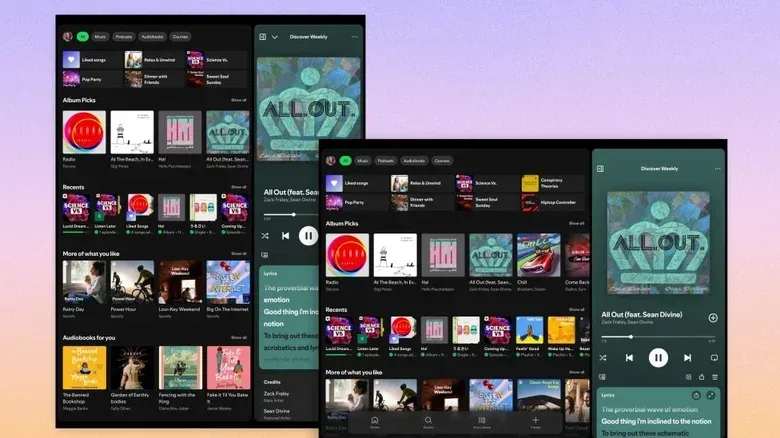
Second, subscriptions do not transfer or disappear. Services such as Spotify Premium still require their own paid subscriptions. The receiver app purchase only addresses the ability to use the tablet as a display endpoint.
Third, privacy deserves a little thought in a shared room. Message notifications may be readable by anybody nearby. A kitchen counter or desktop is usually less private than a phone held in one person’s hand, so notification visibility can be a decisive downside for some households.
Finally, the arrangement is outside Google’s documented, official Android Auto setup for using a tablet at home. That does not make it inherently useless, but it does set the right expectation: connection oddities, device-specific USB problems and setup quirks are plausible. A compatible Android version does not erase the uncertainty introduced by older ports, batteries and software configurations.
Who this makes sense for
This is best for someone who already owns a spare Android device, has a compatible phone and data cable, and likes the idea of a limited-purpose interface. It is particularly sensible when the tablet has enough remaining battery life for short use but no longer feels pleasant as a conventional app machine.
It is less compelling for someone looking for the simplest way to play music, operate a smart home or use an ordinary tablet. Direct apps will be easier in those cases. It is also a weak fit when the device needs constant charging, its USB connection is temperamental, or visible notifications would create a privacy issue.
For the right discarded tablet, though, Android Auto’s narrow design is a feature rather than a bug. The project can turn underpowered hardware into a screen that does a handful of tasks cleanly, without putting the entire phone experience—and all its distractions—front and center.