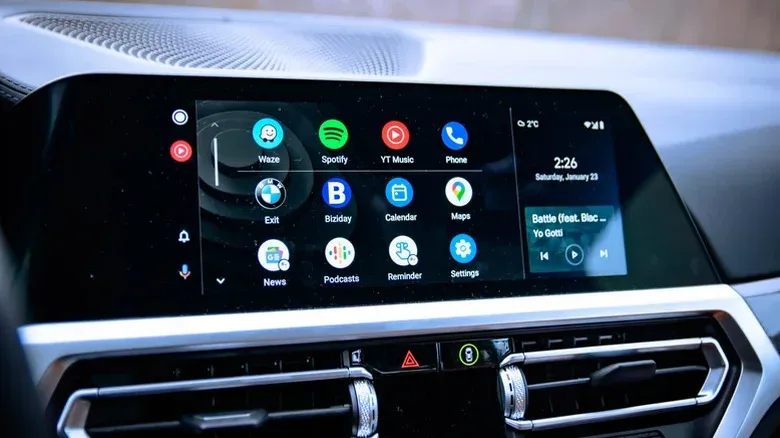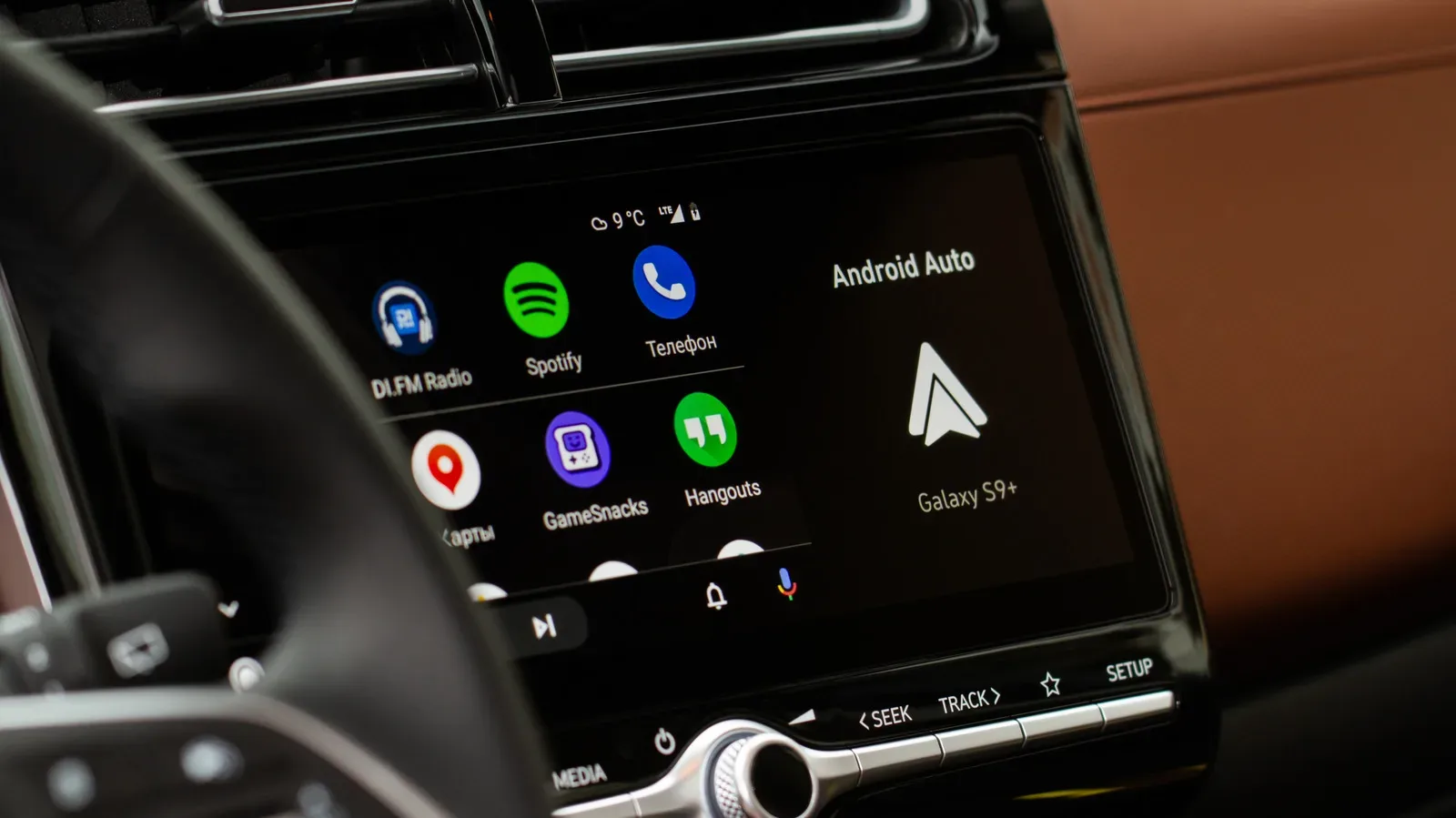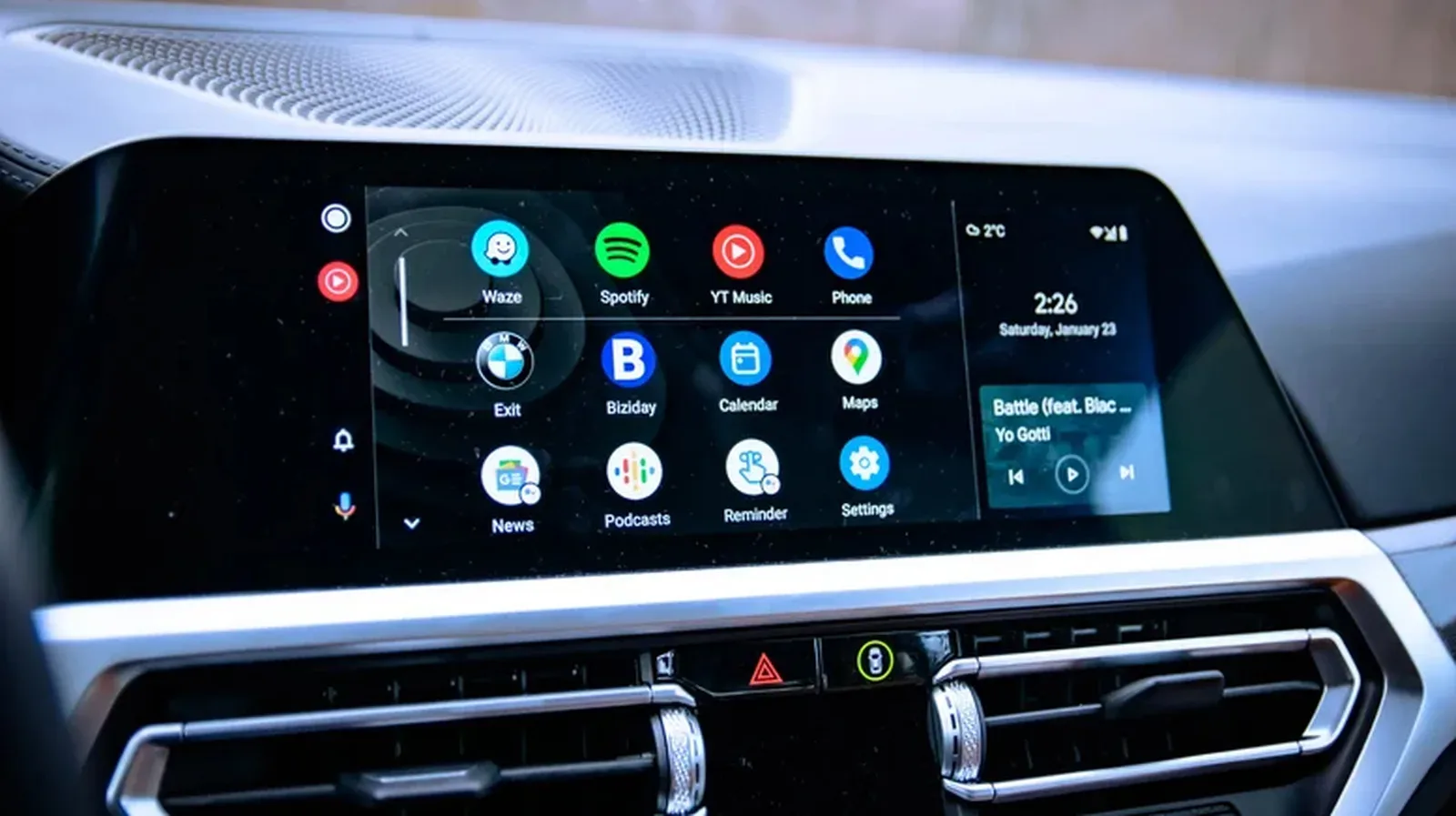
There is a particular kind of commuter frustration reserved for looking at an Android Auto launcher and realizing that the one app you wanted has seemingly packed its bags and left. Yesterday, the audiobook player was right there. Today, it has vanished into the digital fog, leaving maps, music, and a collection of apps you have not touched since a very optimistic podcast phase.
The good news is that an Android Auto app disappearing from the car display does not necessarily mean it has been uninstalled, made incompatible, or condemned to a lengthy troubleshooting ritual. Often, the cause is much more mundane: the Android phone connected to the vehicle has decided an infrequently used app should be disabled or put to sleep in the name of battery management. When that happens, the app can remain installed on the handset while disappearing from Android Auto’s launcher.
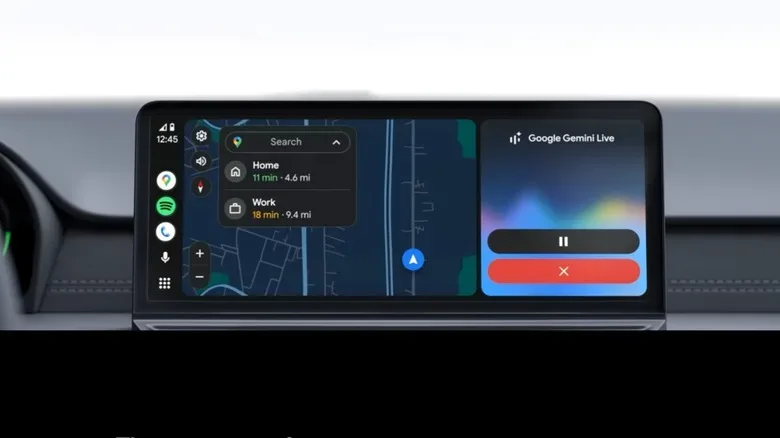
Android Auto is built to place driving-friendly functions such as navigation, calls, messaging, and audio controls on a vehicle display. Its interface is deliberately more limited than a phone’s home screen, and that is by design. The car is not supposed to become an all-purpose app drawer, no matter how compelling it may sound to turn a traffic jam into a mobile gaming session. That limitation also means there are two distinct reasons an app might not appear: it has been disabled on the phone, or it is not an Android Auto-compatible app in the first place.
First, check whether the missing app is still active on the phone
If an app previously appeared in Android Auto and has now gone missing, start with the simplest check. Find that app on the Android phone and open it. If the phone offers an update, install it before trying the car connection again.
Launching the app can be enough to signal that it is actively being used again. Afterward, reconnect the phone to Android Auto, whether the vehicle uses a cable or a wireless connection, then open the launcher on the car display. In many cases, the missing app returns without a reinstall or a deep dive through obscure menus.
- Locate the missing app on the phone.
- Open it, and apply an available update if prompted.
- Reconnect to Android Auto.
- Check the Android Auto launcher on the vehicle display.
This is especially worth trying with apps that fall in and out of a person’s routine. An audiobook app, a niche radio service, or a messaging platform may be used intensely for a few weeks and then ignored for long enough that the phone’s battery-saving system treats it as expendable background baggage.
Why battery settings can make apps disappear
Android devices use battery-management tools to reduce resource use from apps that have not been opened in a while. Exact terminology and menu layouts vary by manufacturer and Android version, but Samsung devices are a prominent example of phones that may automatically disable unused apps. The app is not necessarily deleted; rather, it is deactivated until the owner opens or re-enables it.
That distinction matters. An app that is still physically installed but disabled is not in a state Android Auto can use, so it can be removed from the vehicle launcher. From the driver’s perspective, it looks as though Android Auto lost an app. In practice, the phone’s background optimization rules may have made the decision first.
For someone who only occasionally uses a compatible app in the car, it can be worth adjusting the automatic unused-app setting. On many phones, the route begins in Settings, then moves through a battery section. Samsung’s labels may include Battery and device care, Background usage limits, and options resembling Auto disable unused apps or settings that put unused apps to sleep.
- Open Settings on the Android phone.
- Go to Battery, or on some devices Battery and device care.
- Look for background-use controls, including Background usage limits, sleeping apps, or an option to automatically disable unused apps.
- Turn off the unused-app auto-disable setting if you do not want eligible apps to be disabled automatically.
Because wording differs from phone to phone, the precise route may not match every device. The principle is the same: look for the feature that hibernates, sleeps, or disables apps that have not been used recently. Leaving it enabled can be useful for conserving battery power. Turning it off may be more convenient for drivers who want a consistent Android Auto launcher, particularly for apps they use only on longer trips.
A vanished Android Auto icon is often a phone-management issue, not proof that the app was removed or that the car system has failed.
Customize the launcher instead of tolerating a crowded screen
Not every missing icon is a problem. A cleaner launcher can make the few apps that matter easier to spot before a trip begins. Android Auto’s launcher customization controls let users choose which compatible apps are visible, so the display can be focused on the services they genuinely use rather than every eligible app installed on the phone.
On the vehicle or through the relevant Android Auto settings path, the controls can be reached through a sequence like Settings > Connected devices > Android Auto > Customize launcher. There, compatible apps can be checked to show them or unchecked to remove them from the launcher.
The exact presentation may vary by phone, vehicle, and software version, but the important point is that hiding an item is a launcher preference rather than a deletion. An unchecked app should remain installed on the phone; it simply no longer occupies an icon slot in the car interface.
That is useful for keeping choices readable. A driver might leave Google Maps, a preferred music service, a regular podcast app, and essential messaging tools visible, while hiding duplicate navigation options or audio apps that are rarely opened. It is less about building the most impressive grid of icons and more about reducing the time spent scanning a screen.
How to hide a compatible Android Auto app
Android Auto does not offer the familiar phone-style move of long-pressing an app icon on the car display and selecting a hide or remove command. Instead, use the launcher customization menu:
- Open the Android Auto settings controls.
- Choose Customize launcher.
- Find the compatible app in the list.
- Uncheck it to stop it appearing in the Android Auto launcher.
- Check it again later if you want it restored.
This is also the first place to inspect if an app is installed and active on the phone but is missing only from the vehicle display. It may simply have been unchecked during an earlier cleanup.
Not every phone app belongs on Android Auto
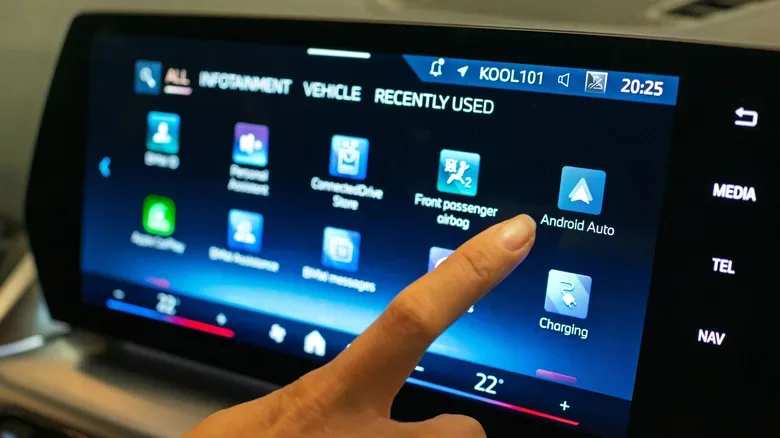
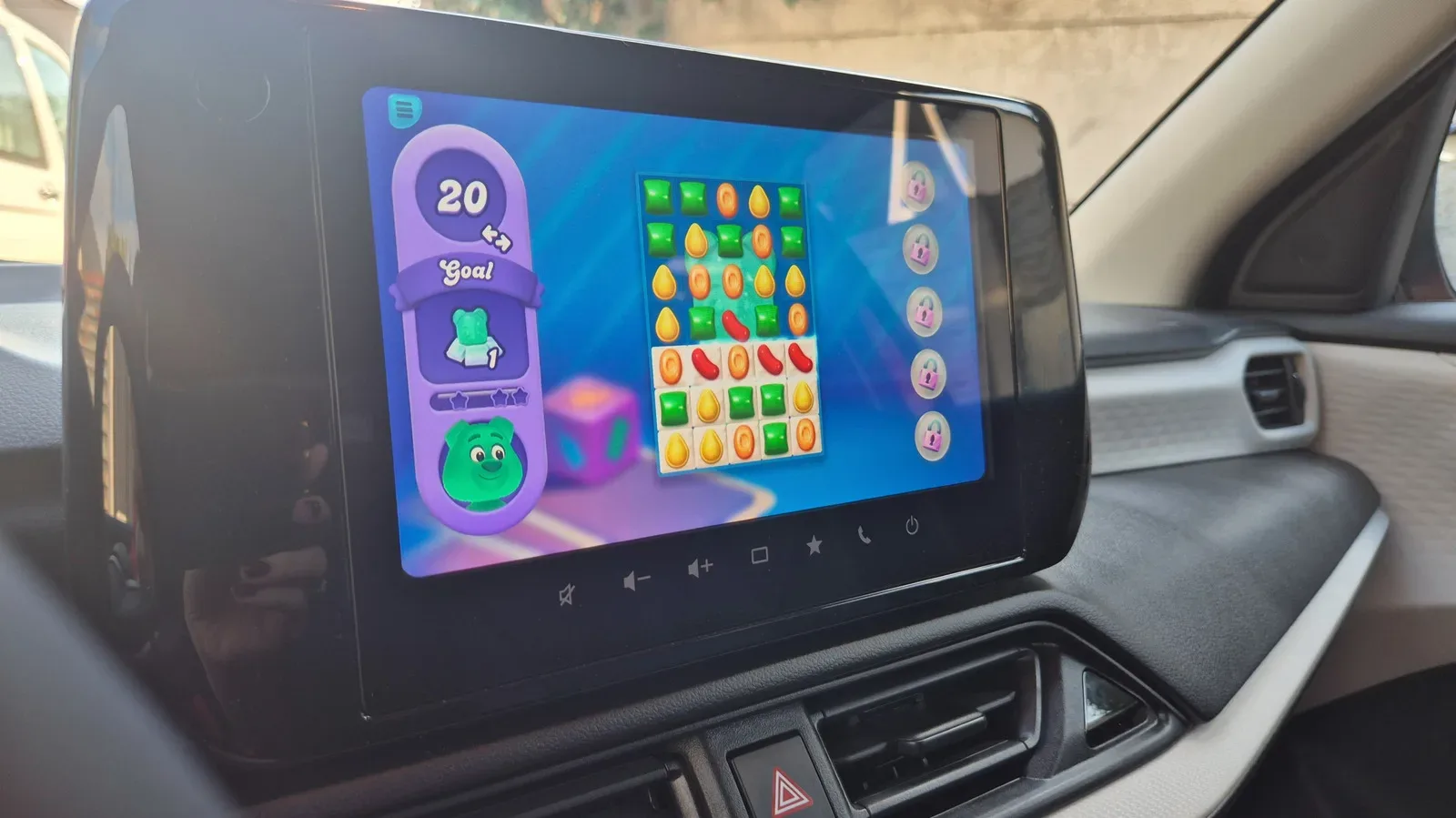
There is one limit launcher customization cannot overcome: Android Auto only lists apps designed to work with the platform. It is not intended to mirror every app installed on the phone. Navigation, messaging, music, podcasts, and other compatible driving-oriented services are the expected residents of the launcher. Games and video-streaming apps such as Netflix should not be expected to appear there.
That boundary can feel restrictive when phones increasingly act as hubs for everything else, from entertainment to sprawling connected game worlds. Even projects as ambitious as the League of Legends MMO remain part of a broader digital ecosystem that a car display is intentionally not designed to reproduce. Android Auto prioritizes controls that fit the task of driving, not a complete copy of the phone’s possibilities.
So if an app has never appeared in Android Auto, check whether it advertises Android Auto support before treating the absence as a technical error. If it appeared before, begin with the phone: open the app, update it if necessary, reconnect, and review battery settings if it keeps disappearing. If it is visible but unwanted, use Customize launcher to uncheck it.
A small maintenance job with a safety benefit
Android Auto’s usefulness comes from making frequently needed tasks more accessible without inviting drivers to dig through a full phone interface. Keeping the launcher tidy supports that goal. Restoring an accidentally disabled audio app, removing unused duplicates, and understanding which apps are actually compatible can make the interface more predictable on a daily commute or a longer drive.
The ideal Android Auto screen is not necessarily packed with every compatible service. It is the one where the navigation, communication, and audio tools a driver needs are visible, active, and easy to recognize. If something disappears, the fix may be no more dramatic than opening the app on the phone and giving Android a reminder that it still has a job to do.