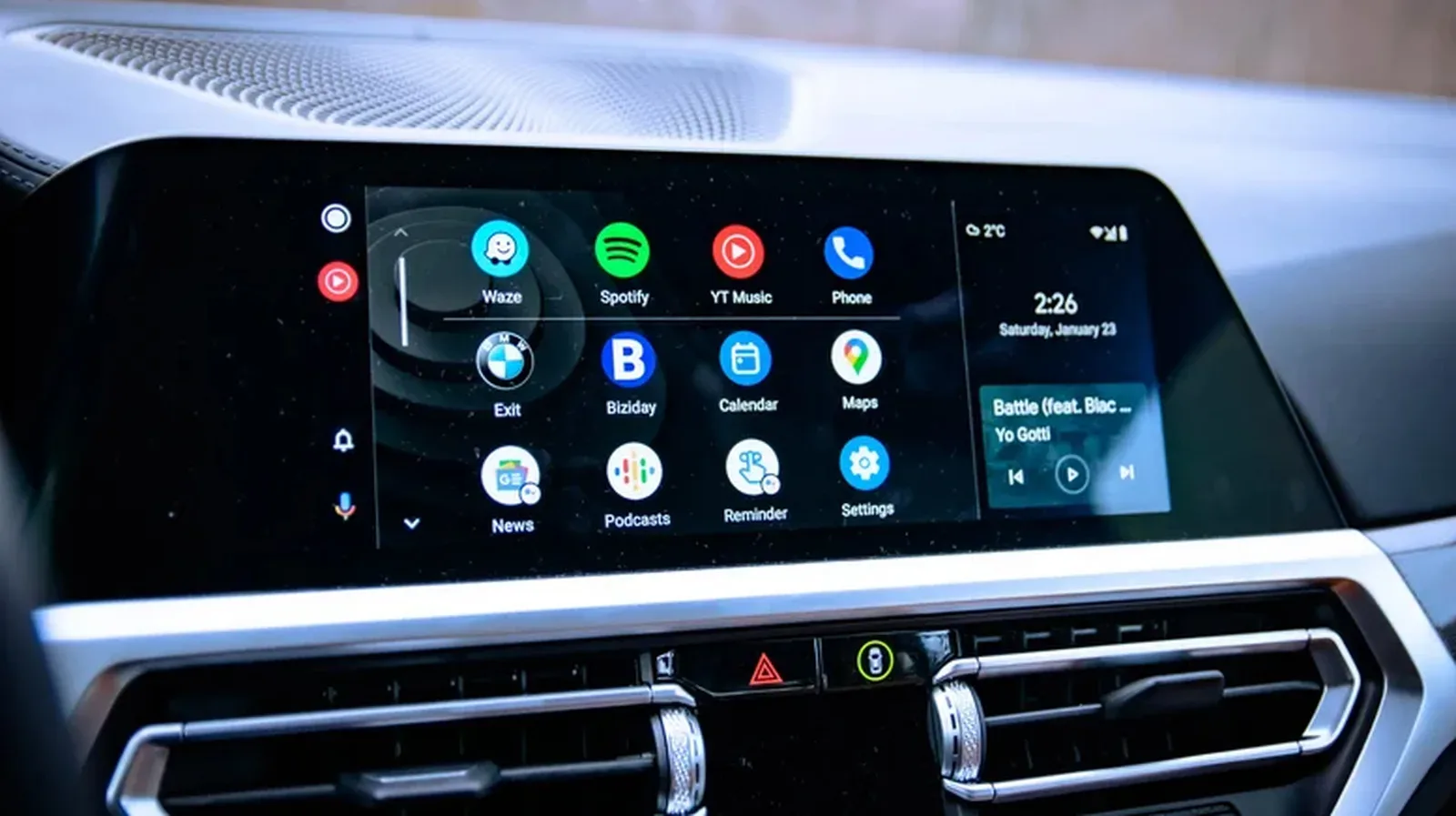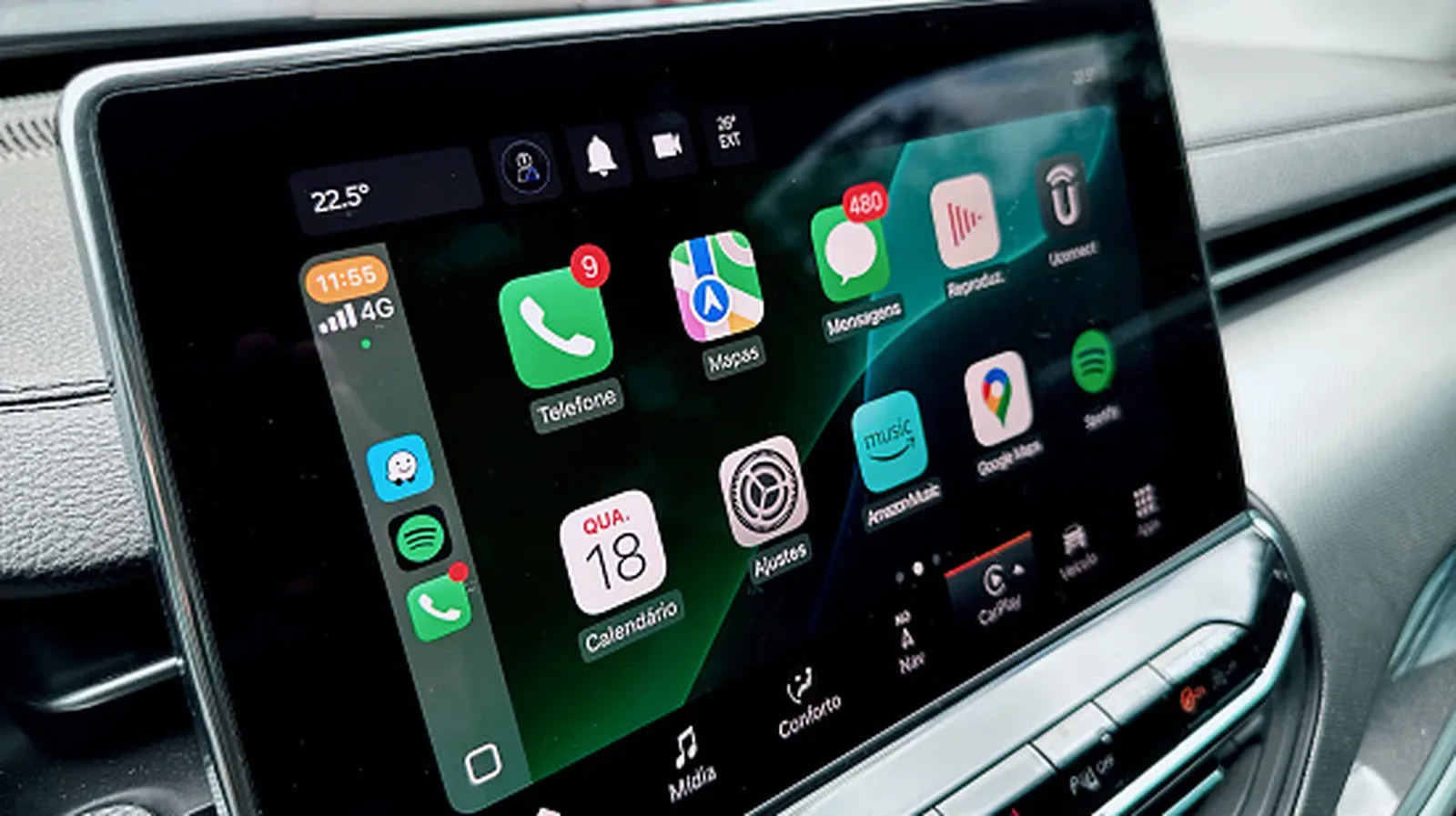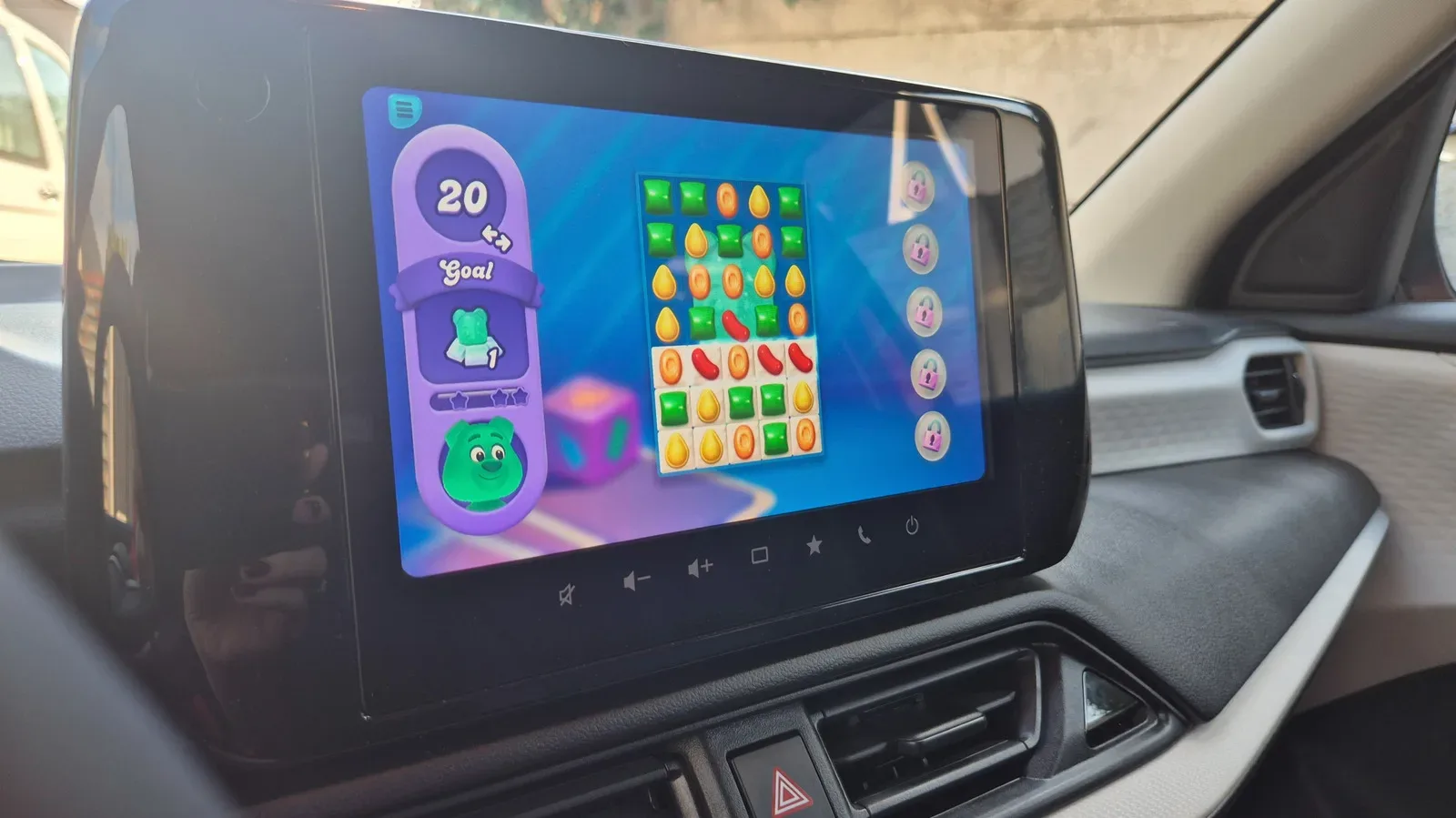
The next time you are waiting outside practice, sitting at a charging stop, or killing time before a passenger returns, Android Auto may offer something more purposeful than refreshing a feed for the 14th time. Google opened Android Auto game support to developers after the feature left beta in September 2026, and compatible games are beginning to reach car displays.
This is not an invitation to turn the dashboard into a rolling arcade. The design is explicitly built around downtime: games are available only while the vehicle is parked, and Android Auto removes a running game as soon as the car is put into gear. But within that boundary, the feature is a useful new option for people whose cars already run Android Auto and whose phones run Android.
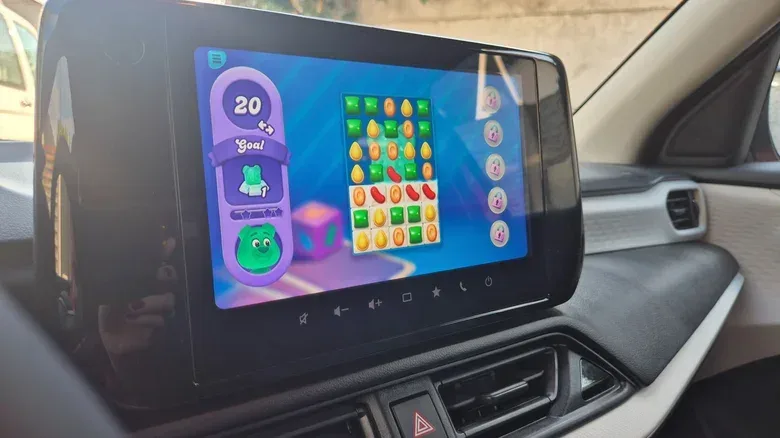
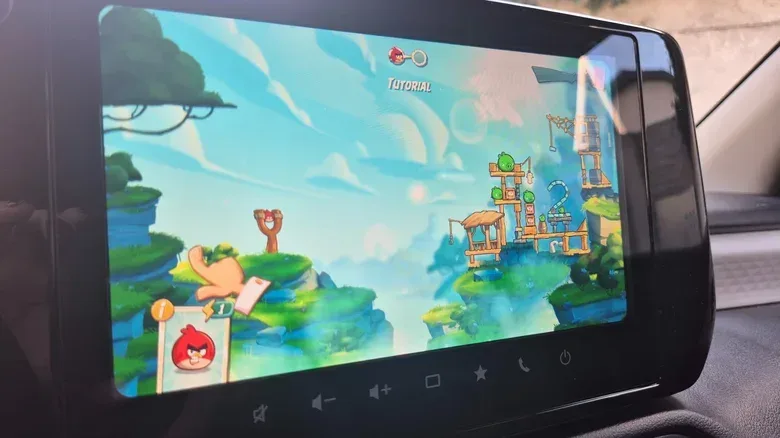
The early catalog is still small, with a little more than 35 supported games, so expectations should be calibrated. There are games for younger children focused on coloring, letters, and basic math, as well as recognizable names including Angry Birds 2, Candy Crush Soda Saga, and Beach Buggy Racing. It is a start rather than a replacement for a phone, handheld, or console. Crucially, only games made specifically for Android Auto can appear on the car display.
What Android Auto game support actually means
Android Auto is the interface that brings supported Android phone apps to a compatible vehicle screen. For games, the important word is supported. A game needs Android Auto integration from its developer; installing a normal Android game does not make it playable on the dashboard automatically.
That distinction explains both the feature’s limitations and its safety approach. Android Auto does not offer full-screen phone mirroring for playing whatever is installed on the handset. In simple terms, mirroring would mean copying the phone’s entire display to the vehicle screen. Instead, Android Auto presents native, compatible apps through its own in-car interface.
That native approach gives the system control over how an app is presented on different vehicle displays and, more importantly, prevents a game from bypassing the parked-only restriction. It also means an existing phone library full of games will not suddenly become an in-car library. Titles such as Hearthstone, Call of Duty, and Super Mario Run are not part of the current Android Auto selection described here.
The payoff is that compatible titles can support controllers, which may be the practical way to play games that are awkward on a touchscreen. Touch input can suit simple puzzle games, tapping games, and kid-oriented activities. It is far less convenient for a racer that expects two-handed steering controls on the screen. A connected controller can make that kind of game more manageable, although controller support does not change the requirement that the car must remain parked.
The non-negotiable rule: play only when parked
Android Auto’s game implementation is designed so that a game runs only when the vehicle is stopped and parked. It is not meant for red lights, slow congestion, or any other moment when a driver may need to resume driving immediately.
The behavior is direct: when the vehicle is shifted into gear, the game disappears, Android Auto returns to its home screen, and the game icon becomes grayed out. In effect, the system is checking vehicle state rather than trusting a player to close the game before moving.
This is more than a warning label. It is the central technical and practical difference between playing on a phone and playing on the dashboard. The car display is part of the driving environment, so Android Auto limits gaming to stationary periods. Passengers may also find a larger screen useful while waiting, but drivers should keep the same rule in mind: set up and play only after parking.
How to find Android Auto-compatible games
The quickest place to start is the Google Play Store. On an Android phone, navigate through:
- Google Play Store
- Apps
- Categories
- Android Auto
That category is where Google surfaces apps designed for Android Auto, including the growing games selection. Install a title from that list in the same way you would any other Android app.
The current lineup includes a mix of quick-play entertainment and child-friendly options. Angry Birds 2 and Candy Crush Soda Saga are among the familiar choices, while My Talking Tom Friends is an option aimed at families. Beach Buggy Racing is there for players who want a racing game, though games that demand simultaneous steering inputs may make more sense with a controller than touchscreen controls.
If none of the dedicated titles appeal, Android Auto also has GameSnacks available as a fallback for brief diversions. That does not mean every game is equally suited to every car screen or waiting situation. The current catalog is early, and the best fit will likely be a game that can be picked up and put down easily when it is time to leave.
How to put installed games on the car screen
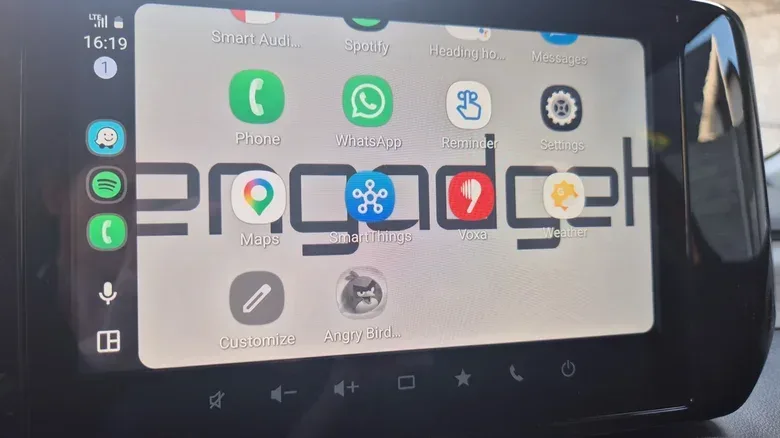
After installing a compatible game on the phone, connect the phone to the vehicle’s Android Auto system. Depending on the car, that connection can be made with a USB cable or wirelessly. Compatible installed games should then appear among the apps in Android Auto.
If a game does not appear, check the Android Auto launcher customization settings on the phone:
- Open Settings.
- Select Connected Devices.
- Choose Android Auto.
- Open Customize launcher.
- Make sure the game is enabled and not hidden from the launcher.
This setting is worth checking before assuming a title is incompatible. Android Auto lets users choose which apps are visible, so a supported and installed game can be absent simply because it has been hidden from the launcher. Once enabled, reconnecting or returning to the Android Auto app list should make it available when the vehicle is parked.
A simple setup checklist
- Use an Android phone and a vehicle with Android Auto.
- Install a game that is specifically listed as Android Auto-compatible.
- Connect the phone through the vehicle’s supported wired or wireless Android Auto method.
- Check Customize launcher if the game is missing.
- Park the vehicle before launching anything.
- Consider a controller for games whose touchscreen controls are demanding.
Why the early catalog matters even if it is limited
More than 35 games is not an enormous library, especially beside the broader Android app ecosystem. Yet the meaningful change is that developers can now implement car support after the end of the beta period. The selection can grow over time as more developers decide their games make sense for short, stationary sessions in a vehicle.
That does not guarantee every popular mobile game will arrive. A good Android Auto game needs to fit the platform’s constraints: it must work around the parked-only lockout, function sensibly on a vehicle display, and avoid a control scheme that becomes frustrating in a car. Those conditions may favor simple, readable games and family activities over deep, uninterrupted sessions.
For players, this makes Android Auto gaming less like portable-console gaming and more like a waiting-room game library that happens to be built into the car. That is not a criticism. A short puzzle session during a charging stop has different needs from a game played on the sofa for an evening. The useful measure is whether a title makes a parked interval better without asking for attention when travel needs to resume.
There is also a wider in-car software angle. Car displays are becoming more central to how people handle navigation, media, communication, and idle time, but the value of that screen depends on clear boundaries. Android Auto’s native-app route and automatic lockout make those boundaries part of the feature rather than leaving them to user discretion. For another look at how app expectations can shape the connected-car experience, see our coverage of Apple HomeView’s CarPlay app plan.
What not to expect
Do not expect phone mirroring, unrestricted access to every Android game, or the ability to keep a game open while the car moves. Those are all outside the feature’s intended model. Do not rely on an icon’s presence in the launcher as permission to play while stopped in traffic, either; Android Auto is designed for a parked vehicle.
Also, avoid judging every game by how it feels on a phone. A larger dashboard display can make touch targets and visuals easier to see, but physical reach, seating position, and the car’s screen placement are different from holding a phone. A controller can help where supported, particularly for a racing game such as Beach Buggy Racing, but it will not make every genre a natural fit.
For now, the sensible approach is modest: install one or two compatible games, verify that they are visible in the launcher before a long wait, and treat them as entertainment for genuine parked downtime. The library is young, but the setup is straightforward—and Android Auto now has a sanctioned answer for those moments when the engine is off, the wait is on, and social media has run out of anything interesting to say.