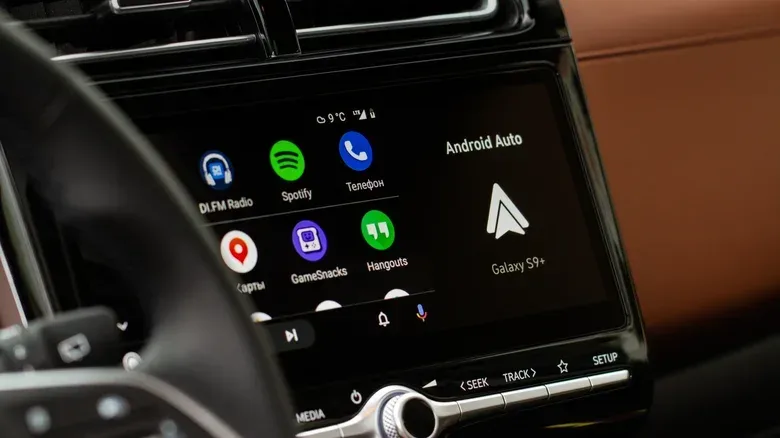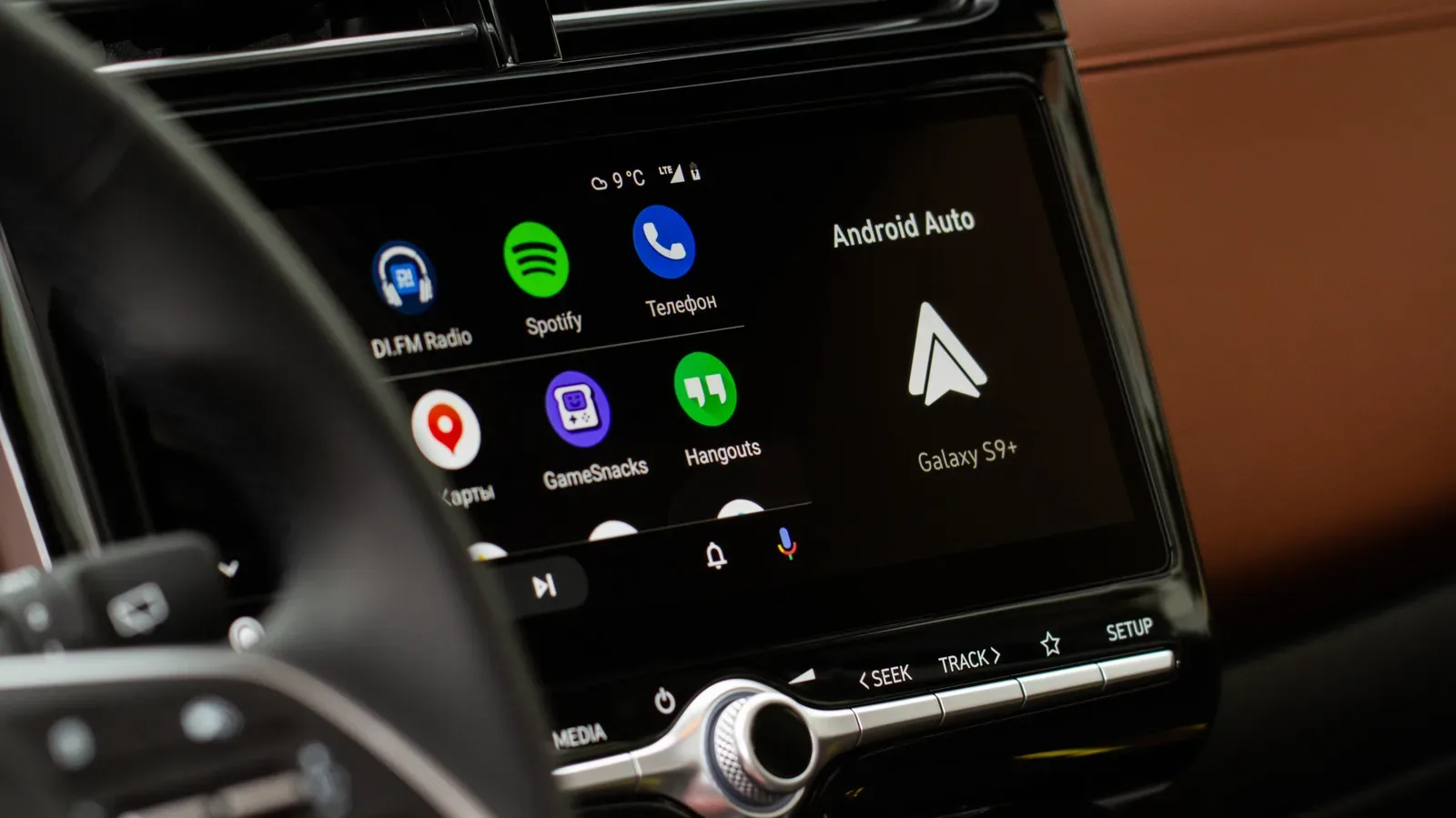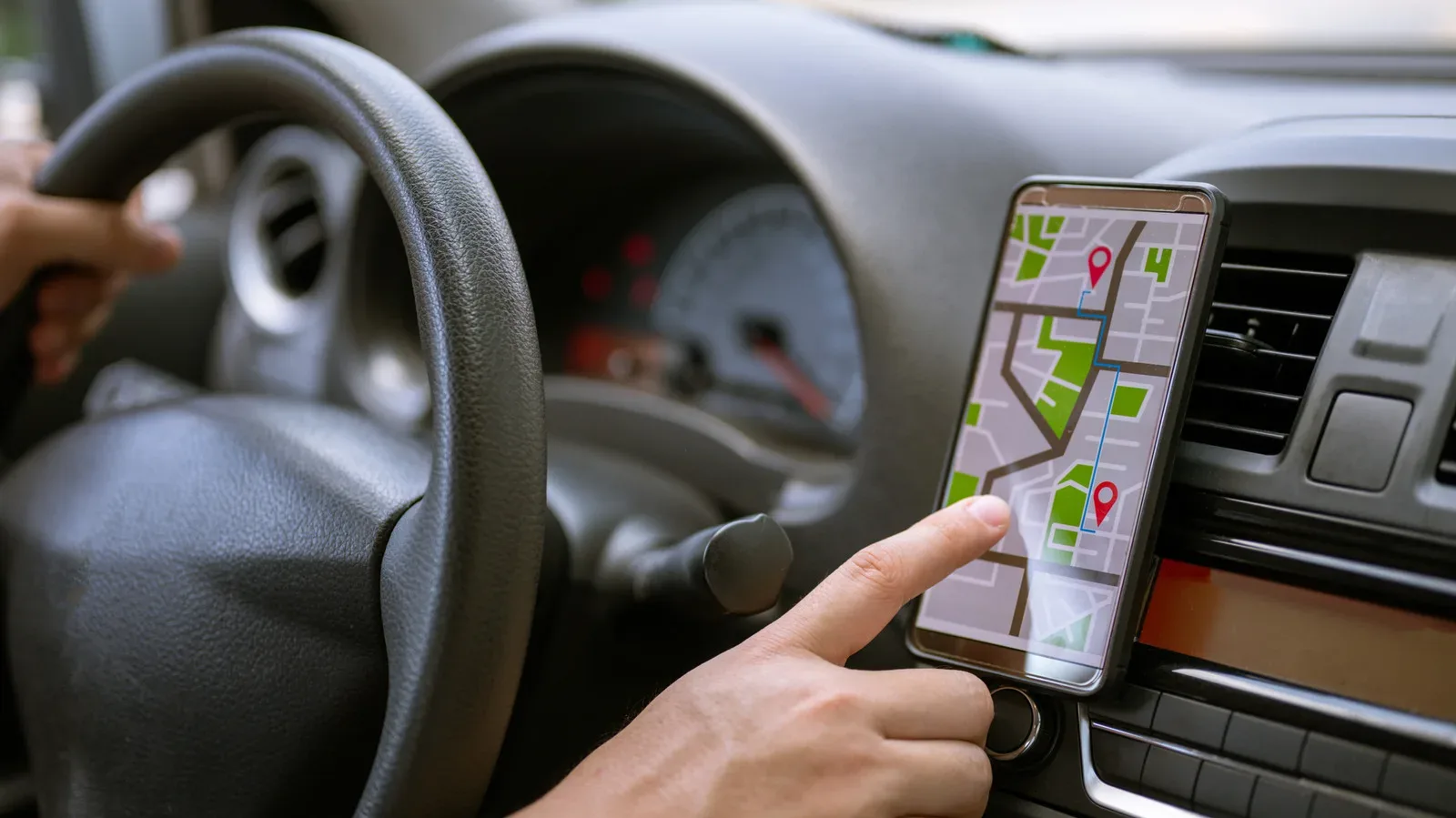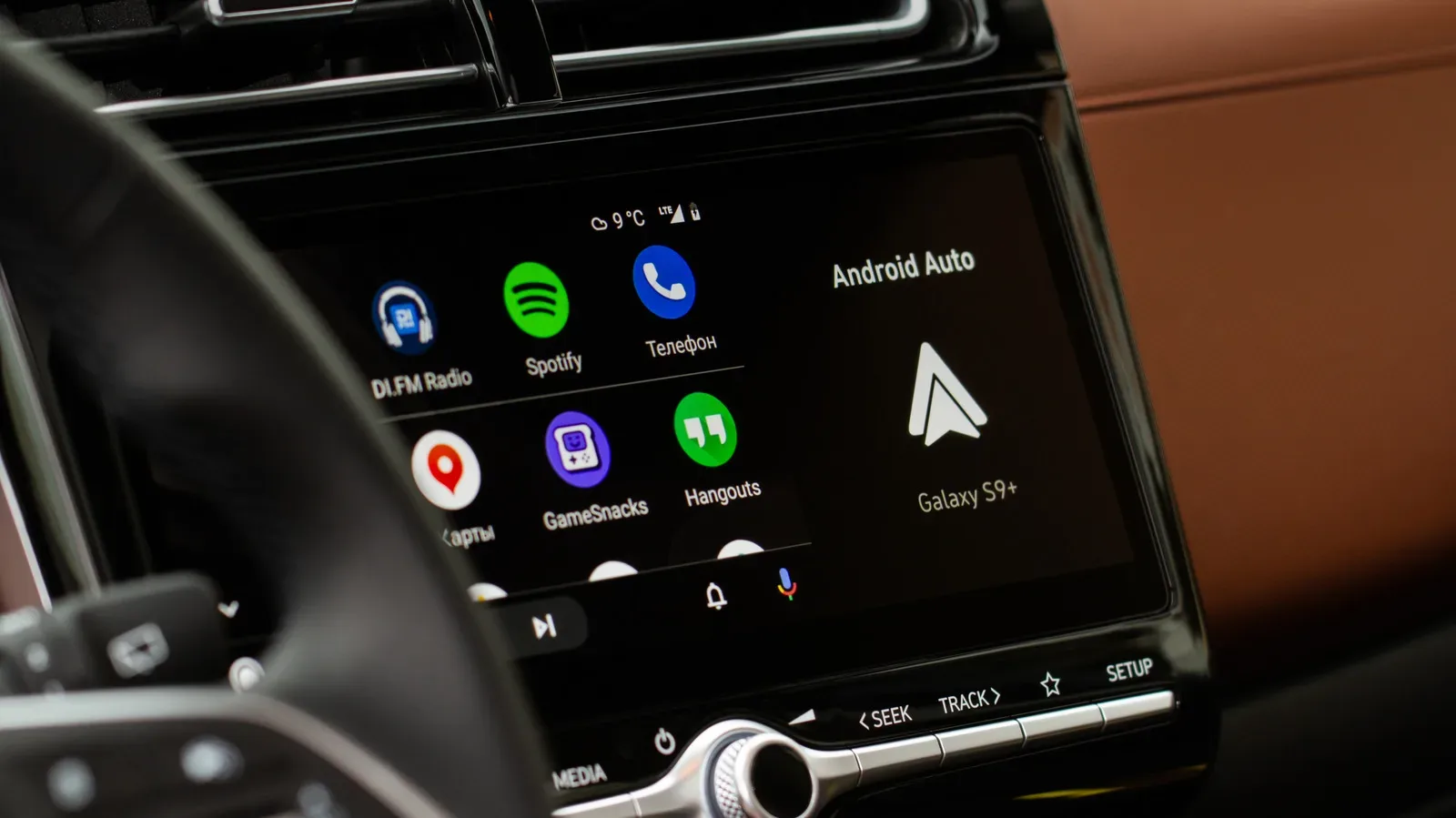
There are few less subtle ways to begin a drive than having a car stereo resume an old playlist, podcast or audiobook at the previous volume the instant a phone connects. Android Auto’s automatic playback can be useful for drivers who always want media to continue, but it is a poor default for anyone who wants a quiet start, needs to avoid unexpected volume, or has passengers who should not immediately hear whatever was last playing.
The good news is that Android Auto includes a setting intended to prevent that automatic restart. It is the sensible first move before trying app reinstalls, extra utilities or more drastic changes to a phone-and-car setup. The less convenient news is that not every apparent Android Auto autoplay problem is actually controlled by Android Auto. Bluetooth accessories, including the vehicle itself, can send their own media commands when they reconnect.
The first fix: disable Android Auto’s automatic music startup
On an Android phone, open the following path:
Settings > Connected devices > Android Auto
Look for the Startup section, then turn off Start music automatically. If the Android Auto page is not easy to locate in a particular phone’s Settings app, search Settings for “Android Auto” and open the matching result.
That toggle tells Android Auto not to resume media playback just because it has connected to the car. In practical terms, it is designed to stop a previously paused Spotify queue, podcast episode or audiobook from starting at the beginning of a trip. This setting is the least disruptive solution because it leaves Android Auto and the chosen media app available on the car display; it only changes the automatic start behavior.
Why this setting is worth trying first
There are several ways a phone can reach Android Auto: a USB cable, a wireless connection, or a wireless adapter used with a vehicle that otherwise expects a wired connection. The symptom can look the same in each case—media starts as the driver gets in—but changing Android Auto’s own startup preference addresses the most direct explanation.
It also avoids confusing two separate questions: whether Android Auto should launch its interface, and whether audio should begin playing. A driver may still want navigation, calls and the car-friendly app interface to connect normally without a song or spoken-word program taking over the speakers. Disabling automatic music startup aims for precisely that arrangement.
If audio still starts, Bluetooth may be sending the command
When the Startup toggle is already off and playback nevertheless begins, the trigger may sit outside Android Auto’s setting. Bluetooth is involved in phone-to-car communication, including call routing and the initial connection process. A vehicle or another paired accessory may issue a play command as it reconnects, powers on or resumes an existing media session.
A media session is the phone’s active playback state: the system-level information that an app is ready to play or was previously playing. A Bluetooth device can interact with that state using controls such as play, pause and skip. If the accessory asks the phone to play, Android Auto’s preference may not be enough to suppress it in every combination of phone, car and connection method.
This is why the problem can be inconsistent. Two cars can behave differently with the same phone and app; the same car can also behave differently when a cable replaces a wireless connection. It is not necessarily a sign that the driver missed an Android Auto option or that a music app is malfunctioning on its own.
A useful isolation test: remove the car’s Bluetooth pairing
If the vehicle supports Android Auto over USB, one troubleshooting option is to remove the phone from the car’s Bluetooth memory and then connect using USB only. The goal is not to declare Bluetooth broken; it is to test whether the Bluetooth connection is the event that causes unwanted playback.
- Turn off Start music automatically in Android Auto first.
- Remove the phone from the vehicle’s stored Bluetooth devices.
- Connect the phone with USB only, if that is supported by the car and the phone setup.
- Start a drive or reconnect as usual, then check whether media stays paused.
If the surprise playback stops in that configuration, Bluetooth is a plausible trigger. If it continues, the behavior may be linked to another part of the Android Auto or media-app connection. Results vary across vehicles, phones and connection types, so this should be treated as a diagnostic test rather than a universal cure.
Drivers using wireless Android Auto may have less room to use this test, because their setup relies on wireless connectivity. Even then, the distinction remains useful: it explains why a setting that works for one person may not change another person’s experience.
Why Spotify may still play even after the Android Auto change
Spotify is often the app noticed first because it can preserve a queue and resume playback quickly, but the underlying issue is broader than one service. Reports of Spotify autoplay in vehicles have persisted in user discussions since at least 2022. The recurring pattern is that some connected Bluetooth hardware interacts with Spotify in a way that triggers playback.
An API, or application programming interface, is a set of rules that allows software and devices to exchange commands and information. In this context, the important point is simple: a Bluetooth headset, speaker or vehicle can communicate a request that results in Spotify playing. The app cannot necessarily block every play request that comes from connected hardware.
That means the car is not always the culprit. Headphones and standalone Bluetooth speakers paired with the same phone can be useful comparison devices. If Spotify begins playing whenever one specific headset or speaker reconnects, that result points more strongly toward the accessory interaction than Android Auto itself. If it happens only in one car, the vehicle connection becomes the more likely place to focus.
Test the pattern before changing everything
Autoplay issues encourage shotgun troubleshooting: reinstall the app, clear settings, unpair every device and change multiple options at once. That can make it harder to identify what actually helped. A more practical sequence is to make one change, reproduce the usual connection event, and note the result.
- First, disable Android Auto’s automatic music startup.
- Next, determine whether the issue occurs only in the car or with other Bluetooth devices as well.
- If USB-only use is possible, test whether removing the vehicle Bluetooth pairing changes the behavior.
- Keep the phone operating system, Spotify and relevant device firmware current, since updates can reduce connection glitches.
- Only consider removing Spotify from Android Auto if the inconvenience outweighs having Spotify on the vehicle display.
The update step is deliberately modest. Keeping software current may help with connection problems, but there is no assurance that an update will override a play command generated by an accessory. That limitation is important: a persistent issue can be a compatibility edge case rather than a missing checkbox.
Audio behavior across devices remains a larger technology concern, too. Work on audio software continues elsewhere, including recent developments involving AI audio tools for Logic Pro and GarageBand, but that does not alter the practical Android Auto troubleshooting route: start at the playback setting, then isolate Bluetooth as a possible source of the command.
What each option costs you
Turning off Start music automatically has very little downside for drivers who prefer manual control. Android Auto remains available, and media can still be started from the car display or the phone when wanted. It simply removes the automatic resume behavior at connection time.
Unpairing Bluetooth from the car can have a bigger trade-off. It may reduce autoplay triggers in USB-only scenarios, but Bluetooth is also used for call-related functions and the connection handshake. Whether that arrangement is practical depends on the vehicle and the way Android Auto is used.
Removing Spotify from Android Auto is the most restrictive option presented here. It can prevent Spotify from being accessed through the car screen, but it also gives up the convenience that led many drivers to use Android Auto in the first place. It makes sense only when the unwanted playback problem remains more frustrating than the loss of in-car Spotify controls.
The practical takeaway
For most drivers, the answer begins with one toggle: Settings > Connected devices > Android Auto > Startup > Start music automatically. Switch it off, then reconnect normally and see whether the next drive begins quietly.
If media still starts without being requested, do not assume the setting failed in a simple way. Bluetooth devices can independently issue play commands, and the resulting behavior can differ by car model, phone and connection method. Testing another Bluetooth accessory, or trying a USB-only setup when possible, can reveal whether that is what is happening. The process may require some trial and error, but it is better targeted than removing apps or rebuilding the entire setup from scratch.