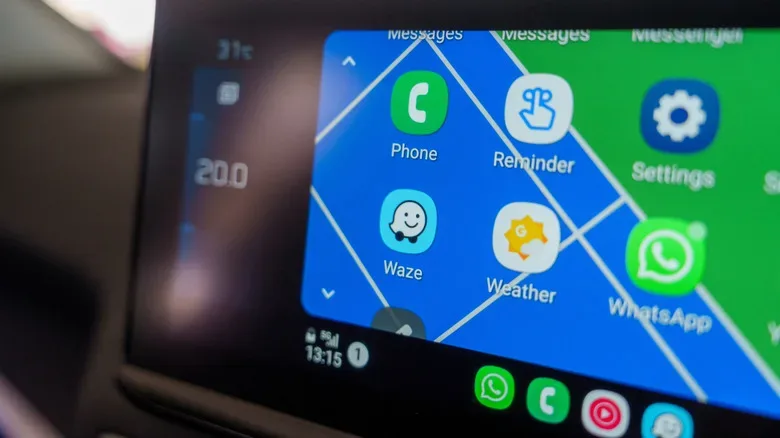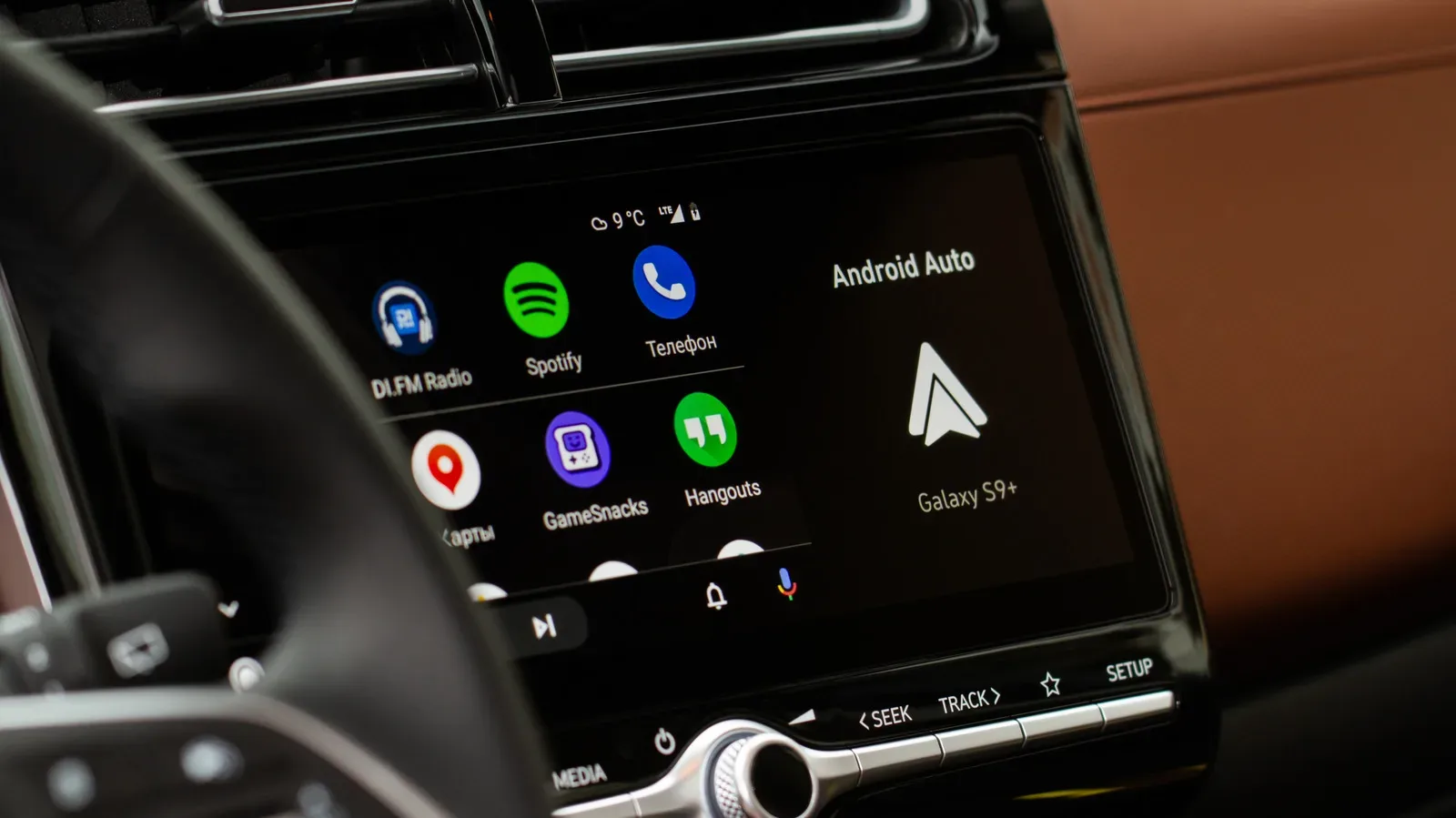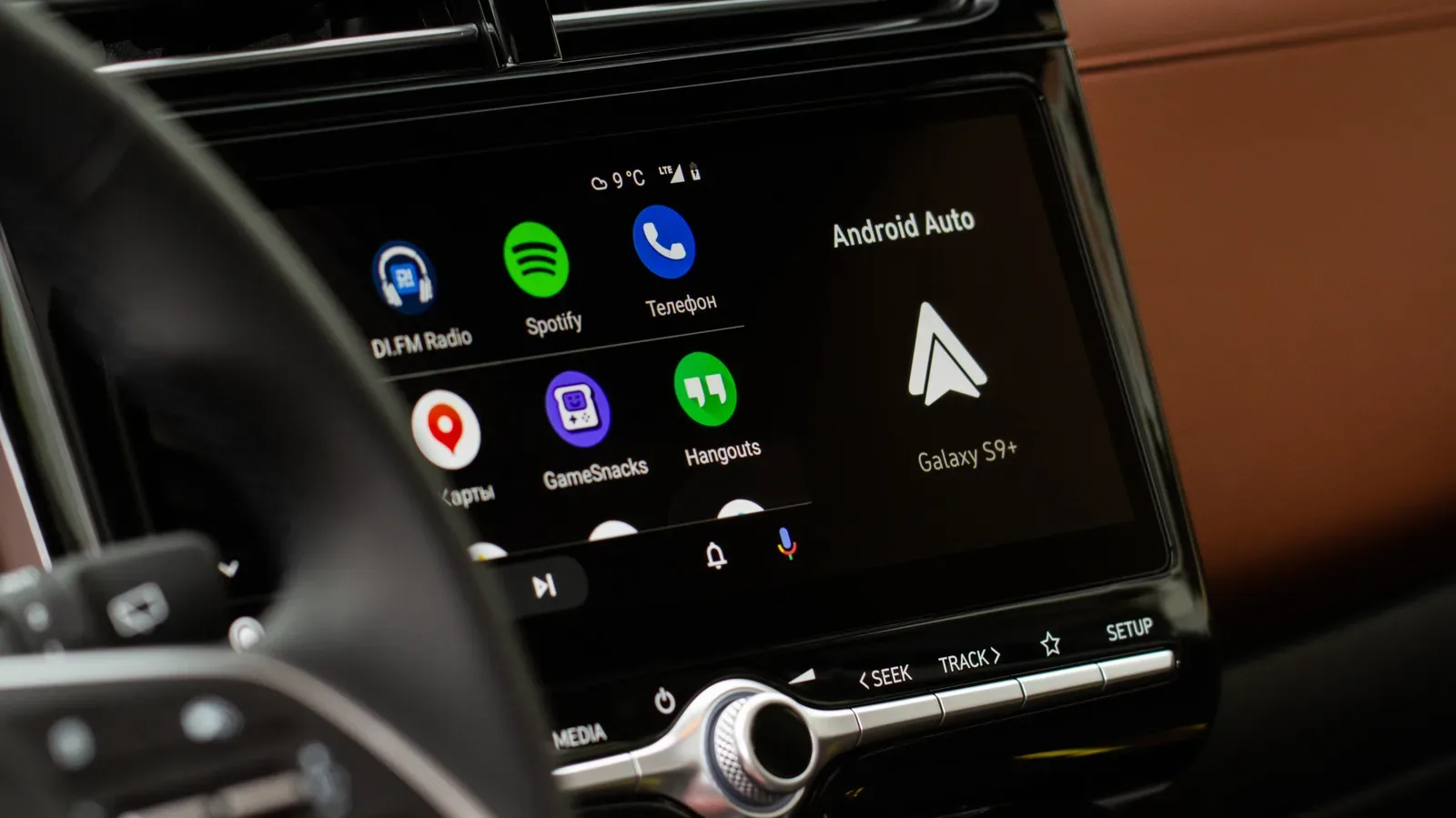
There is a particular kind of driving irritation that feels like your dashboard has developed opinions about your playlist: a song is playing at a perfectly acceptable level, then the volume suddenly falls away. A moment later it returns. Nothing appears broken, yet it is distracting enough to make you reach for the volume controls.
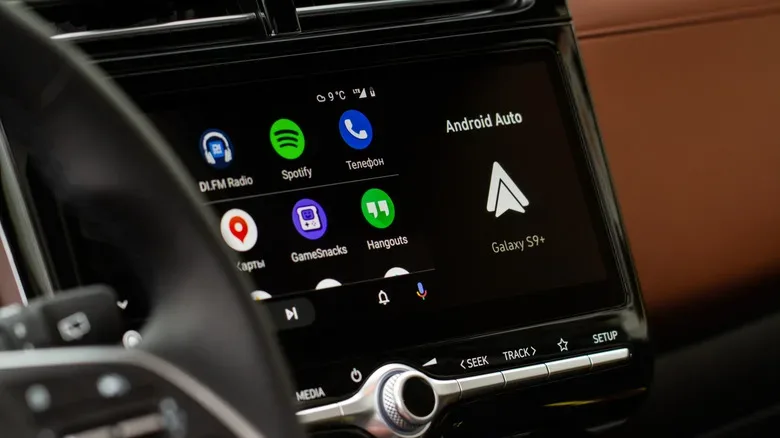
For many Android Auto users, that behavior is usually intentional. Android Auto carries audio from phone apps through the vehicle’s speakers alongside navigation instructions, calls, and alerts. When two sound sources need attention at once, the system generally gives the more urgent one room to be heard. The music is reduced briefly rather than competing directly with a text alert or a turn-by-turn direction.
The name for that quick reduction is audio ducking. It can be inconvenient, especially during a long album, podcast, audiobook, or gaming soundtrack queue, but it is fundamentally a priority system rather than an automatic sign that the phone, cable, or car stereo is failing. Knowing what triggers it makes the behavior much easier to diagnose—and helps set realistic expectations for changing it.
Audio ducking is a designed Android behavior
Audio ducking has been part of Android since Android 8.0. The basic idea is simple: when an app needs to make a short, important sound, the audio already playing is temporarily lowered. The alert can then be understood without two sources blasting at the same level.
Imagine music playing through Android Auto when an SMS notification arrives. Rather than leave the music untouched and let the notification sound get buried, Android briefly ducks the music. Once the notification sound has played, normal playback should resume. In the typical case, the interruption lasts only a few seconds.
This is not limited to SMS messages. It is part of how Android manages audio focus among apps. A music service may be the active audio source one second, then a navigation app, call, or notification takes temporary precedence. Android Auto brings that same behavior into the car environment, where concise alerts can matter more than preserving a totally uninterrupted chorus.
If the volume drops only around a notification chime, spoken route instruction, incoming call, or driving warning—and then returns rapidly—audio ducking is the likeliest explanation.
That distinction matters because there is no universal switch that simply disables all audio ducking while keeping every alert exactly as it is. The feature exists to make alerts distinct, not to treat all sound as equally important.
Navigation and notifications are the main suspects
Start by paying attention to what is happening at the instant the music drops. In most cases, the cause will be one of two familiar companions: a notification or navigation.
Messages, social apps, and calls
Android Auto generally reflects the phone’s broader notification permissions. If an app is permitted to notify you on the phone, its alerts may also make their presence known while Android Auto is running. Messages are a common cause, whether they arrive through SMS or another communications app. Social notifications can add up too, particularly if multiple apps are allowed to make sounds.
Calls are even more obvious examples of a higher-priority audio event. When a call arrives, other playback will be reduced so the call alert is audible. That is expected behavior, even if it arrives at the exact moment a favorite guitar solo begins.
Google Maps, Waze, and road alerts
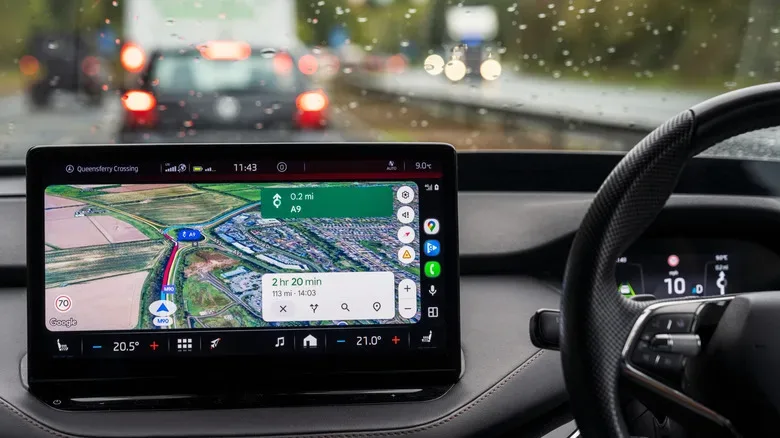
Navigation is another frequent trigger. Google Maps and Waze can issue spoken directions, speed warnings, and other route-related alerts. Android Auto will normally lower whatever is playing long enough for that guidance to come through. The exact sound and the length of the volume dip can differ depending on the navigation app and the type of alert.
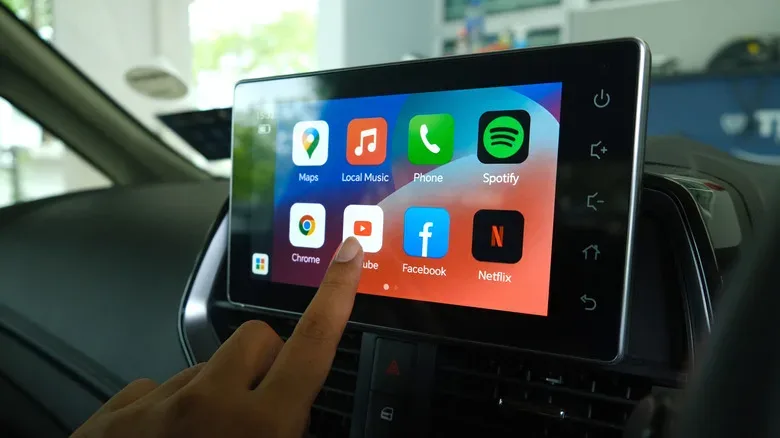
Likewise, the experience can vary among media apps such as Spotify and YouTube Music. The key pattern remains the same: the music service is not necessarily choosing to malfunction. Another app has briefly received the audio focus.
For people who use a commute to catch up on podcasts, game-industry shows, or long-form video essays, frequent directions and message alerts can make the effect feel more severe than it technically is. A dip of just a few seconds becomes very noticeable when it happens repeatedly. In that situation, reducing the number of alerts may do more than repeatedly adjusting the car’s master volume.
Can Android Auto’s volume ducking be turned off?
Usually, not in the direct way people want. Major music apps do not offer a setting to override Android’s priority behavior, and Google Maps and Waze do not provide a simple control for declaring that media must always remain at full level. Raising one app’s volume relative to another might alter the balance, but it does not eliminate the underlying ducking event.
The most reliable way to prevent a specific notification from dipping media audio is to stop that app from sending notifications. Naturally, that comes with a significant tradeoff: the alert itself will no longer appear. That may be sensible for a noisy social app, but much less appealing for messages from family, work contacts, or security-related services.
A more practical middle ground can be reviewing notification settings and trimming alerts that are not useful while driving. The goal is not necessarily to silence everything; it is to reduce unnecessary interruptions while retaining the notifications that genuinely deserve attention.
- Check which apps are permitted to send notifications on the phone.
- Prioritize essential communications and remove sound alerts from less important apps where appropriate.
- Remember that incoming calls and navigation directions are still likely to take priority over music.
- Expect separate apps to behave somewhat differently, even when they are all used through Android Auto.
Do Not Disturb can be a useful partial workaround. It can silence message and call notifications, reducing the number of non-navigation events that trigger audio ducking. It is not a complete solution for drivers who still rely on route guidance, because map-related prompts may continue to affect media playback.
For anyone weighing different phone-to-dashboard setups, it is also worth understanding the connection limits involved in vehicle integrations. Our guide to wireless CarPlay adapters and their compatibility limits covers the broader issue of how adapter-based in-car connections can differ from a vehicle’s built-in wired setup.
Android 14’s hearing-safety controls are a less common cause
Not every unexplained volume reduction is audio ducking. Android 14 introduced hearing-safety functionality that can monitor loud listening and lower volume when it has been high for too long. This is a separate protection-oriented behavior rather than a momentary handoff between two apps.
The most important clue is that Android should indicate when it is making this kind of safety-related adjustment. If a warning or system notice accompanies the change, investigate the phone’s media-volume limit settings rather than treating maps or notifications as the culprit.
It may be possible to turn the media volume limit setting off, but that decision deserves care. The feature is intended to reduce the risk associated with prolonged loud audio exposure. A stable high volume is not automatically a better outcome if it is uncomfortably loud or potentially harmful over time.
When to look beyond the phone
Audio ducking should be brief and connected to an identifiable alert. If the volume remains low, changes seemingly at random, or falls without any phone notification or navigation prompt, it is time to consider the car itself and the connection between vehicle and device.
Modern infotainment systems can have their own audio rules. Some cars include speed-sensitive volume features, which adjust output as road noise increases. Such a setting can create the impression that Android Auto is changing the audio, even though the vehicle’s sound system is responsible. Reports of volume behavior linked to driving speed have, in at least some cases, traced back to a car-level speed-sensitive audio control.
There can also be model-specific quirks involving USB, Bluetooth, or an individual infotainment system. Android Auto aims for a consistent experience across phones, but the car head unit and connection method still matter.
- Restart the phone if the behavior does not match the usual short alert-related dip.
- Disconnect and pair the phone with the vehicle again.
- If Android Auto is wired, try another cable.
- Look through the vehicle’s audio menus for speed-sensitive volume or similar controls.
- Observe whether the change occurs with a particular app, connection method, or driving condition.
Those steps will not remove ordinary audio ducking, because that is expected Android behavior. They can, however, help isolate a connection problem or vehicle-specific setting when the volume changes are persistent or do not follow any clear alert.
The useful rule: match the timing to the cause
Android Auto lowering music for a notification, a call, or a navigation instruction is generally doing exactly what it was built to do. It puts a brief spotlight on information that may matter while driving, then should return playback to normal. The annoyance is understandable, but the feature is not usually a defect.
If the dips are too frequent, focus on reducing nonessential notifications or using Do Not Disturb when appropriate. If the reduction is accompanied by a hearing-safety notice, inspect Android 14’s media-volume limit and keep the health implications in mind. If there is no alert, no warning, and no quick recovery, investigate the phone connection and the vehicle’s own audio settings.
That approach avoids chasing the wrong fix. In-car audio can feel like a single system, but it is really a negotiation among Android, individual apps, the connection to the dashboard, and the vehicle stereo. Once the trigger is identified, the mystery volume drop becomes much less mysterious—even if the next navigation prompt still chooses an inopportune moment to interrupt the beat.