Android users looking for a no-fuss way to browse camera shots can easily overlook Google Gallery. This is Google’s own pared-back image app, not the similarly named gallery software that may come preinstalled by a phone maker. Its purpose is straightforward: organize pictures on the device and make small edits without wrapping every photo task around cloud storage.
Google Photos takes the broader route. It can automatically back up images, offers a route to reclaim device storage after backup and includes a substantially larger editing toolkit. Neither app prevents the other from being useful. Google Gallery may need to be downloaded from Google Play, but both can be installed on one phone, allowing users to choose the simple local viewer for routine browsing and Photos when backup or more ambitious edits matter.
The central difference: cloud backup versus local organization
The biggest dividing line is backup. Google Photos can automatically copy images to the cloud when its Backup option is enabled. In the app, that setting is reached through the profile avatar in the upper-right area, followed by Backup. A cloud backup is a copy stored online rather than only on the phone itself. Its value is practical: a user is not relying solely on the handset’s remaining space for the images that matter to them.
Google Gallery does not provide that automatic cloud-backup function. That does not make it incomplete; it makes its role narrower. Gallery is for people who want an image organizer and do not need their photo app to double as an ongoing cloud-storage service.
That distinction should shape the decision more than the names of the apps. Someone who treats a phone as the main home for their photos, and is comfortable managing copies themselves, may find Gallery entirely sufficient. Someone who wants pictures copied automatically off the device will get a more natural fit from Photos.
Storage is shared, so the headline number is not the whole story
Cloud backup in Google Photos is tied to the storage available on a Google account. For older personal accounts, the included amount is 15GB. Personal accounts created on or after March 9, 2026 receive 5GB by default, with the ability to unlock another 10GB by verifying a valid phone number.
Crucially, this is not a Photos-only allowance. The same storage is shared by the Google services in use, including Gmail, Drive, WhatsApp and Photos. In other words, a person deciding whether Photos is a comfortable long-term archive should consider more than their camera roll. Mail attachments, Drive files and other backed-up material all affect the same storage pool.
Additional space is available through Google One: 100GB costs $2 per month, while 200GB costs $3 per month. Those prices give the backup decision a real trade-off. Photos can make image management easier, but users with growing libraries may ultimately need to pay for the convenience. Gallery does not eliminate the need to protect valuable pictures; it simply leaves the backup method in the user’s hands.
Freeing phone space is useful, but deletion needs care
Google Photos includes a Free up space on this device option, available from the profile area. It removes device copies that have already been backed up, using the chosen backup quality. This is one of the most practical reasons to use Photos for anyone whose phone storage is under pressure: the app can distinguish between images still living only on the device and those already safely copied to the cloud.
There is an important limit to the safety net. Manually sending an image to Trash in either Photos or Gallery does not merely hide it from one screen. After 30 days, the image is permanently removed from cloud backup and from devices where the app is installed. The practical lesson is simple: “backed up” is not the same thing as “immune to intentional deletion.” Before clearing a batch of screenshots, duplicate pictures or old camera images, make sure the deletion is really what is wanted across the connected setup.
For a local-first approach, users can manually back up their device and remove files as necessary. An external drive that connects through a phone’s USB-C port is also an alternative destination for photos. This shifts responsibility away from automated cloud backup and toward a personal routine: copy the files, confirm they transferred, and only then consider deleting phone copies.
That approach can appeal to people who prefer physical control over their archive, but it has a trade-off: it is only as dependable as the habit behind it. Photos reduces the number of manual steps; Gallery keeps the everyday image experience simpler.
Editing: basic fixes in Gallery, deeper changes in Photos
Google Gallery’s editing tools are deliberately modest. Users can rotate an image, crop it and apply a small selection of filters. Those options cover common housekeeping jobs: straightening an accidental sideways photo, trimming out an unwanted edge or making a quick visual adjustment before sharing.
Google Photos goes much further. Its available controls include brightness, contrast, tone, highlights and shadows. These terms describe different parts of an image adjustment: brightness changes overall lightness; contrast changes the separation between light and dark areas; highlights target the brightest areas; and shadows focus on the darker ones. Separate controls are useful because a photo may need detail restored in a bright sky without making its darker foreground look washed out.
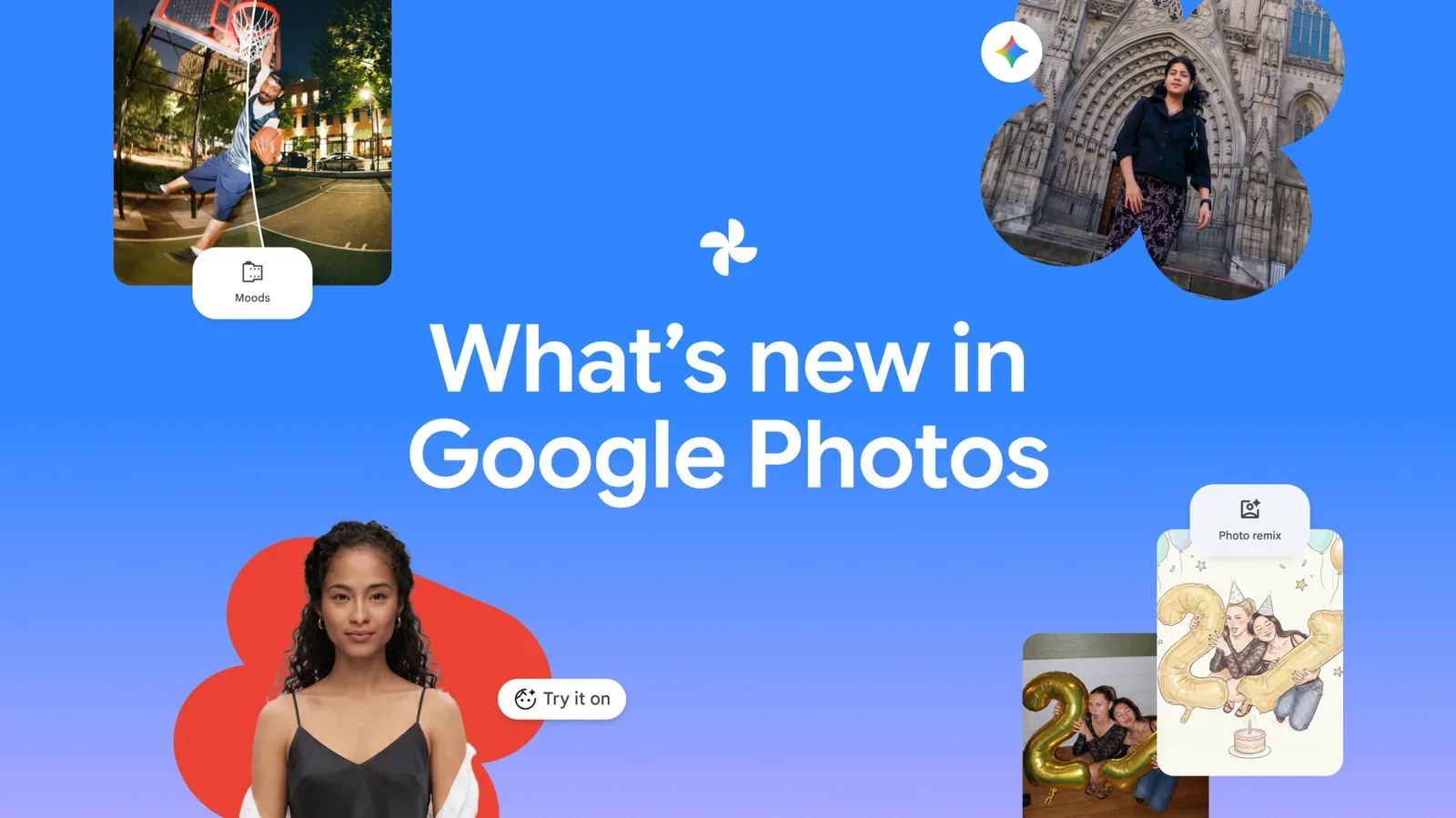
Photos also offers blurring effects, sharpening and AI-assisted enhancements. It can support more dramatic edits as well, including moving particular elements to another part of an image. Other tools allow users to draw on pictures, add text or highlights, and apply a one-tap adjustment intended to smooth skin texture, whiten teeth and reduce under-eye shadows.
“AI enhancement” here means a tool that performs or assists image changes through automated processing rather than requiring the user to make every adjustment by hand. That can make quick edits more approachable, but it is worth separating convenience from necessity. If the goal is simply to crop the edge off a photo, Gallery’s smaller toolset may be the better match. If editing is a frequent part of the photo workflow, Photos has the broader set of options—unless a separate preferred editor already handles that work.
You do not need to choose one app forever
The sensible answer for many Android users is not an all-or-nothing choice. Keep Gallery for quick, local browsing and lightweight edits; use Photos for automatic backup, storage cleanup and more advanced adjustments. Both apps can share images to social media, email and messaging apps, so sharing capability does not meaningfully separate them.
The same principle applies to other digital libraries. A simple tool can be better when its narrow task is exactly the task at hand, while a feature-rich service earns its complexity when its extra functions solve a genuine problem. For more examples of how device ecosystems are being framed around broader hardware strategies, see this report on an Xbox family of devices.
- Choose Google Photos first if automatic cloud backup, freeing phone storage and richer editing tools are priorities.
- Choose Google Gallery first if you primarily want a lightweight on-device organizer with cropping, rotation and filters.
- Use both if you want the convenience of Photos without making every quick image task feel like a cloud-management task.
- Check storage before relying on Photos, because the account allowance is shared across multiple Google services.
- Be deliberate with Trash, since manual deletions can become permanent across cloud backup and connected devices after 30 days.
Ultimately, this is a workflow choice, not a contest with one universal winner. Google Photos is built for people who want their image app to help preserve, clear and transform a growing library. Google Gallery is built for people who want to open their pictures, keep them organized and move on. Having both available is the rare tech answer that does not demand a dramatic breakup.