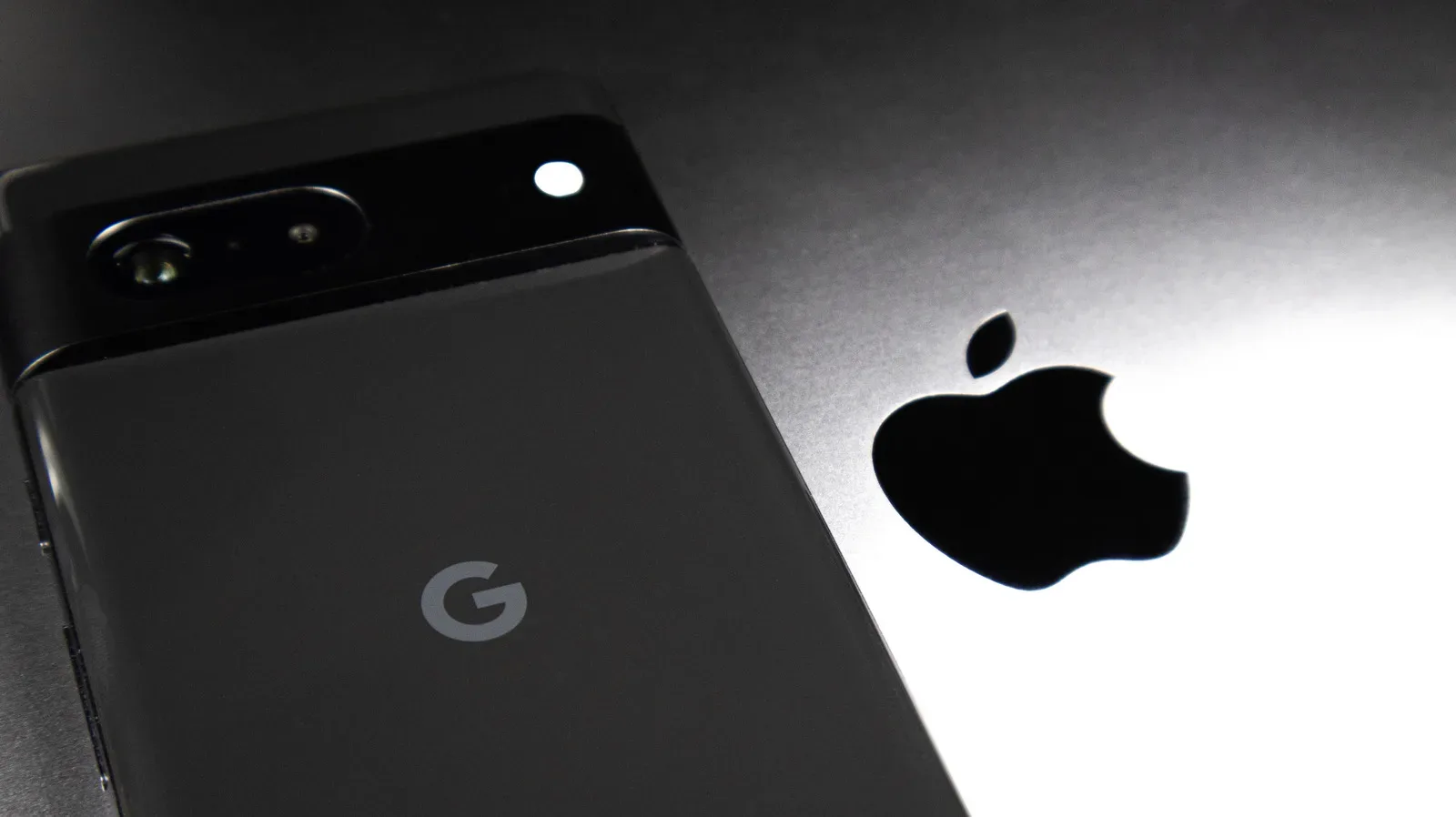
A screenshot of a rare spawn, a clean photo of a boxed Game Boy, or a victory clip that deserves more than a blurry digital burial all run into the same modern boss fight: getting media from an Android phone to an iPhone without stripping away the detail. The old cross-platform messaging experience often treated photos and videos as expendable cargo. Images arrived softer, video turned into a blocky fever dream, and fine print on a collector’s item became impossible to read.
That is less of a fixed Android-versus-iPhone problem than it used to be. RCS support on iPhone, introduced with iOS 18, gives cross-platform chats a more capable route than standard SMS. It does not remove every limit, especially with enormous video files, but it improves the situation substantially when both people are using a compatible RCS conversation. For gaming and collecting communities that regularly swap screenshots, condition photos, unboxings and short gameplay clips, knowing which share option to use can be the difference between useful evidence and visual mashed potatoes.
Why image quality matters beyond looking nice
Compression is not always bad. A smaller image can send faster, consume less data and be perfectly adequate for a quick “look what I found” message. The trouble starts when the recipient needs the actual detail. A compressed shot may conceal scratches on a cartridge label, soften corners on a sealed game box, erase printing texture on a trading card, or turn a serial-number photo into a guessing game.
The same rule applies to gameplay footage. For casual chat, an optimized clip is often fine. But footage intended for editing, archiving, documenting a technical issue, or showing a difficult speedrun moment benefits from retaining as much of the original file as practical. The goal is not to insist that every meme be transmitted in museum-grade fidelity. It is to choose the method that fits the purpose before the file is sent.
That distinction is particularly important when evaluating listings from afar. Sellers and buyers should not treat a heavily compressed message attachment as a substitute for clear, full-resolution photographs. Our guide to photo checks before trusting a retro game listing explains why details such as labels, shells, seams and condition indicators need to remain visible in the first place.
RCS is the everyday option for Android-to-iPhone messages
RCS, short for Rich Communication Services, is the modern messaging standard that replaces many of SMS and MMS’s older limitations. In an Android-to-iPhone conversation, RCS can allow higher-quality media sharing than the traditional fallback method. It is the sensible first choice when the file is comfortably within the message system’s limits and the recipient simply needs the image or clip in the conversation.
On iPhones running iOS 18, RCS Messaging is enabled by default. An iPhone owner who wants to verify the setting can open Settings, then Apps, then Messages, scroll to RCS Messaging, and check that its switch is on. That small check matters because the best Android-side setting cannot fully solve a conversation that has dropped back to older messaging behavior.
On the Android side, Google Messages may prepare photo attachments in a compressed form unless the sender selects a higher-quality choice. Before sending, look for the HD or HD+ control. Where the options are available, HD+ Original Quality is the selection intended to preserve the source file’s quality, while HD Optimized for Chat prioritizes a lighter, chat-friendly version.
A quick RCS checklist
- Make sure the iPhone has RCS Messaging enabled in its Messages settings.
- Use an RCS-capable conversation rather than assuming every green-bubble exchange has identical capabilities.
- On Android in Google Messages, select HD or HD+ before sending media when preserving detail is important.
- Choose HD+ Original Quality rather than the chat-optimized option when the recipient needs the original quality.
- Remember that a successful send is not always proof that the file was delivered at its original size; check the attachment and use a file-sharing route for large material.
The terminology matters. “HD” sounds like a blanket promise, but the two choices serve different jobs. The optimized setting is for efficient conversation. Original quality is for cases where the image itself is the point: a close-up of a card surface, a complete sequence of box-condition photos, an art reference, or footage that may later be edited.
The 100MB question: when a message is not enough
RCS is not an infinite pipeline. Attachments have a reported limit of 100MB, and videos can reach that threshold quickly. Even an image batch can become unwieldy if it includes many high-resolution photos. If a file is too large, or if it is especially important that it remain intact, it is better to stop trying to force it through a chat attachment.
Google Photos is one straightforward option when both the Android sender and iPhone recipient use the app. From the Android share flow, a user can choose Send in Google Photos and share directly with another Google Photos user. That keeps the sharing process centered on the media library instead of treating the file as a conventional text-message attachment.
Google Drive is another practical cross-platform choice for large material. It is useful for a longer gameplay video, a sizable folder of condition photographs, or a set of files someone needs to download rather than merely preview in a thread. Email and other messaging services can also be considered, but their own attachment rules and compression choices may vary. For larger files, a cloud-sharing method is generally the more dependable category of solution.
Match the method to the file
- Single everyday photo: RCS with the appropriate HD or HD+ choice is the convenient starting point.
- Photo where fine detail matters: Use HD+ Original Quality in Google Messages when the file fits, or move to Google Photos or Drive if preserving the original is crucial.
- Large image set: Share it through Google Photos or Google Drive instead of dividing it into a stream of chat attachments.
- Large video: Prefer Google Photos or Drive, especially once the file approaches or exceeds the 100MB RCS attachment ceiling.
- Nearby recipient and compatible devices: Consider Quick Share’s available local-sharing options.
There is an etiquette benefit to this approach, too. A Drive or Photos share keeps an enormous upload from dominating a group text, while giving the recipient a clearer route to the material they actually need. If the request is “send me the front label,” an original-quality close-up is useful. If it is “send me the whole inspection set,” a dedicated album or folder makes more sense.
Quick Share, AirDrop compatibility and QR codes
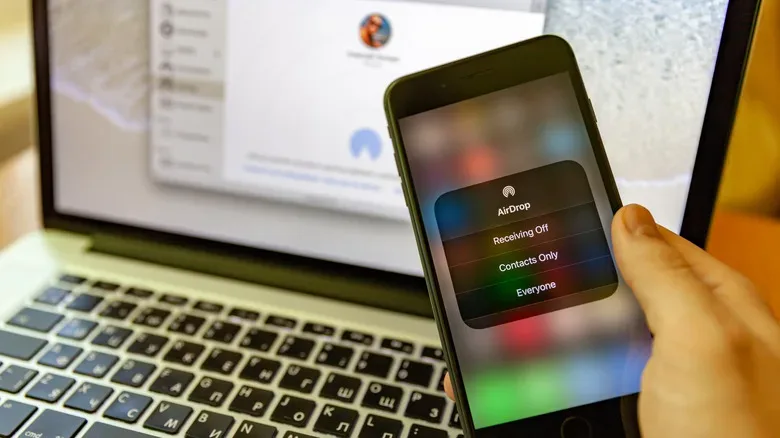
Android Quick Share provides another option for nearby transfer. It now supports AirDrop on compatible hardware, including Pixel phones from the Pixel 8a onward and a number of Samsung models, with much of the Galaxy S family included. Compatibility is the key word: not every Android phone has that AirDrop support, so it should be checked rather than assumed.
Where a device does not support the relevant AirDrop option, Quick Share still offers a fallback based on a QR code. Select the content, open the Share menu, enter Quick Share, and choose Use QR Code. The iPhone user can scan the displayed code. It is a range-limited approach, making it less suitable for sending something across town or across a marketplace negotiation, but it can be handy when two people are in the same room and conventional cross-platform sharing is being uncooperative.
Quick Share is best understood as a proximity tool, not a replacement for every cloud or messaging workflow. It can be useful at a trade night, a convention meet-up, or a friend’s house when someone wants to pass over photos immediately. Google Photos and Drive remain more appropriate when distance, large sets or access after the fact are part of the equation.
Make a preservation habit before you share
The simplest safeguard is to keep the original on the sending device or in a photo backup library before creating any chat version. Then decide what the recipient needs: a fast look, a high-quality image, or a downloadable original. That tiny pause prevents most cross-platform disappointments.
For collectors, it is worth taking multiple well-lit photographs and retaining the original set before sending selected images. For players, keep the source capture if a clip might be edited or revisited. A messaging app can be a great delivery tool, but it should not be the only place a meaningful image or video exists.
Use RCS and HD+ Original Quality for routine, detail-sensitive cross-platform sends that fit the attachment limits. Use Google Photos or Google Drive when size, volume or preservation matters more than chat convenience.
Android and iPhone owners do not have to accept a downgrade every time media crosses the platform divide. With RCS enabled on the iPhone, the right HD+ setting in Google Messages, and a willingness to use Photos, Drive or Quick Share when the situation calls for it, screenshots can stay sharp, listing photos can stay inspectable, and videos can avoid becoming a pixelated cautionary tale.