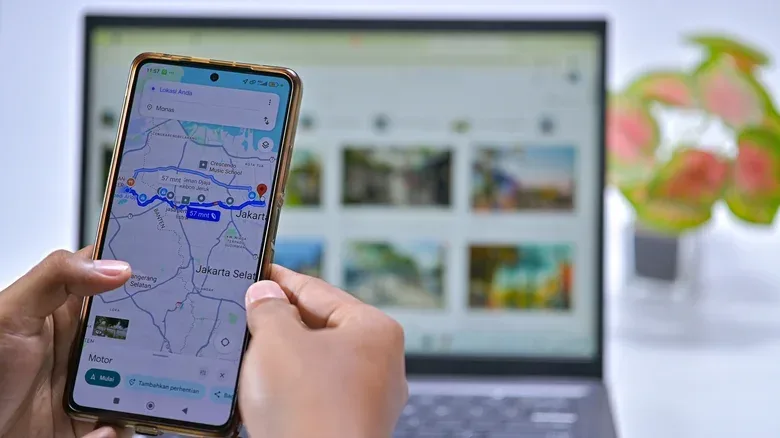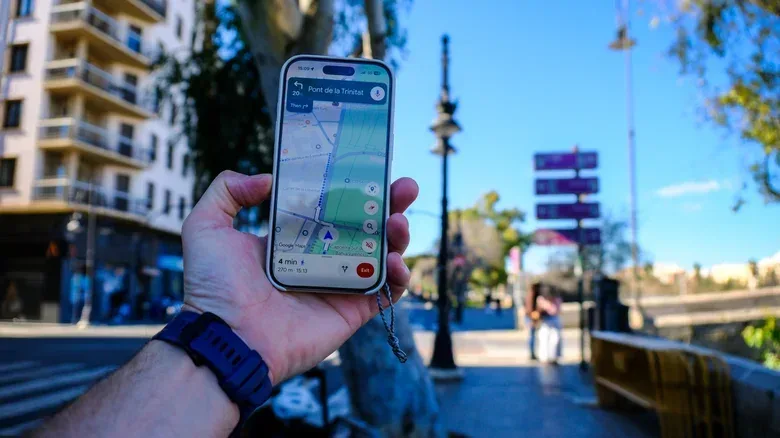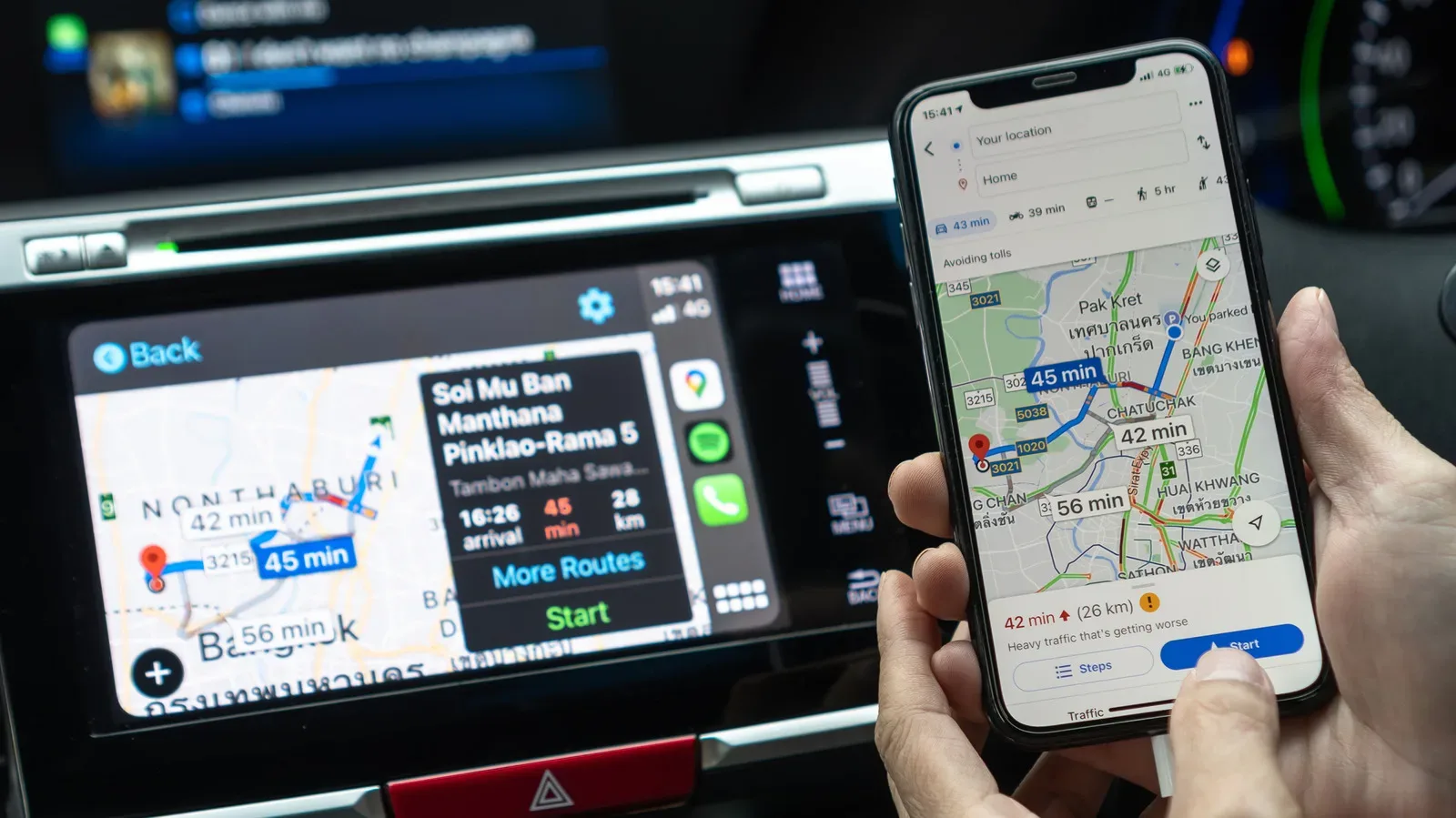
Google Maps is built around the tiny assumption that, after every errand, commute, road trip or mildly misguided quest for snacks, you will eventually want to get back home. Its dedicated Home and Work shortcuts make that simple: they put frequently used destinations close to the search box and make it easier to start navigation without repeatedly typing a full address.
That convenience becomes especially useful after moving, changing workplaces, or realizing that the Home destination in Maps is still directing you toward an address from several chapters ago. Google lets you update or remove these locations through a browser or the Google Maps app on Android and iPhone. There is also a useful middle ground for people who want fast directions but would rather not keep their precise residential address readily visible on their device.
The short version is simple: update Home through the search area or Google Account settings on the web, or through the You tab and Labeled list in the mobile app. But the worthwhile part is deciding what should occupy that shortcut in the first place.
What the Home shortcut actually does
Home and Work are special saved destinations in Google Maps. Instead of searching for an address every time, you can select the relevant entry and begin navigating. Work can also provide commute estimates, which makes it useful to keep current if your regular destination changes.
These are different from ordinary map searches. A search asks Maps to find a place each time; a saved Home location is designed for repeat use. That distinction is why it can save a few steps during a routine trip, but it is also why it deserves a moment of privacy consideration. A person holding an unlocked phone, or someone able to look through it briefly, may be able to open Maps and see the saved location.
That is not unique to Maps. Other apps can store home-related location information too. Still, a convenient shortcut is only helpful if it matches the amount of information you are comfortable keeping accessible.
Before editing: decide whether “Home” needs to be your exact address
For many people, storing the precise address is the most practical option. It gives Maps an exact destination and makes the shortcut work as intended. But an exact residential address is personal information, particularly on a phone that travels everywhere with you.
A more privacy-conscious alternative is to save a nearby public location as Home: perhaps a grocery store, restaurant or another recognizable spot within easy walking or driving distance. Navigation still gets you close to where you live, without placing the full residential address directly behind the Home shortcut.
Related coverage includes How to Change Your Home Address in Google Maps.
This is a trade-off, not a universal rule. A nearby public place will not provide door-to-door navigation, and it may be less useful for deliveries or a ride home in unfamiliar conditions. On the other hand, it can be a sensible compromise for anyone who mainly needs to reach their neighborhood and can handle the last stretch without digital assistance.
Maps also offers Choose on map, which lets you position a destination by selecting it on the map rather than entering a conventional street address. That can help when an address does not map neatly, or when the destination is a particular point such as a nearby public place.
Change your Home address in Google Maps on the web
Using Google Maps in a browser is handy when you are already at a computer or prefer working with a larger map. Start by opening Google Maps and signing in to the Google account that contains the saved destinations.
- Click inside the Maps search field.
- Look for the Home and Work entries near the top.
- Select Edit next to the entry you want to change.
- Enter the new location and choose from the autocomplete suggestions if appropriate.
If the Home and Work entries are not presented in the search area, the account settings route provides another path:
- Select your profile icon in the upper-right area of Google Maps.
- Choose Manage your Google Account.
- Open Personal info in the left sidebar.
- Find Home address, then add or edit the saved location.
Autocomplete is the list of suggested locations that appears while you type. It is meant to help select a recognized address or place without manually entering every detail. If the location requires an apartment, suite or similar extra information, the Address line 2 option is available.
If typing is not the best fit, use Choose on map to pinpoint a destination visually. This can be useful where a location’s formal address does not cleanly represent the place you actually mean. It is also the practical choice for the nearby-public-place privacy approach described above.
Do not want the shortcut at all? Select Remove to clear the Home address. The same general area lets you add or update Work, so it is a good moment to check both rather than leaving your daily navigation with one foot in the past.
Change Home or Work in the Google Maps app
On Android and iPhone, the current route runs through the app’s personal navigation area. Open Google Maps, then tap You in the bottom bar. From there, find the list named Labeled. If it is not immediately visible, use the More arrow to reveal the full set of lists.
The Labeled list includes the special Home and Work entries. To change either one:
- Tap the three-dot button next to Home or Work.
- Select Edit home or Edit work.
- Type the new address or location into the field at the top.
- Select a suggested result, or use Choose on map to place the destination yourself.
To stop using the entry entirely, choose Remove. That is worth doing after a move if you do not want an old residence preserved as an easy navigation option. It also avoids the awkward possibility of Maps confidently proposing an obsolete destination just when you are trying to leave somewhere quickly.
You can also change the icon
Google Maps lets you alter the icon associated with Home or Work through Change icon. The available choices include more playful markers such as a treehouse, submarine and barn. The core address does not change; it is simply a visual distinction that can make the saved locations easier to spot.
It is a small feature, but it can be functional as well as decorative. A distinctive icon helps separate Home and Work at a glance, especially for anyone who keeps many saved places in Maps. The submarine remains optional. Navigation competence does not require living beneath the sea.
Labels are the better tool for places that are not Home or Work
Home and Work are useful because they are prominent, but they should not become a dumping ground for every repeat destination. Google Maps labels are a cleaner option for places you visit often: a gym, a campsite, a relative’s house, a preferred parking area or a meeting point that has an inconveniently long official name.
A label is a custom name you assign to a map location. Once saved, you can search for that friendly name rather than repeating the full address or business name. For drivers using Android Auto, labels can also make voice requests less cumbersome. Saying a short, clear label is easier than reciting a business name and street name each time.
Labels are also useful for places without a straightforward address. The supplied example is GPS coordinates for a specific campsite within a park. In that situation, a custom label turns a potentially awkward string of coordinates into a destination name you can recognize later.
On a computer, select the location in Google Maps to open its information panel, scroll down, and choose Add a label. On a phone or tablet, open the place information, scroll left across the row of small actions below the basic details, then choose More followed by Add label.
Labeled places display with their saved name and a blue icon on the map. The Labeled group is deliberately more stripped-down than standard lists: it focuses on the name, chosen icon and address, rather than adding photos, ratings, opening hours and other place details. That makes it well suited to personal navigation shorthand rather than recommendation tracking.
For broader device-privacy habits, the same principle applies beyond Maps: keep only the personal shortcuts that genuinely make life easier, and consider how quickly an unlocked device reveals them. That practical balance between convenience and exposure is also relevant when setting up other voice- and location-aware technology, as explored in this look at making smart-speaker use more reliable.
Contacts can act like location shortcuts, too
Saved contact addresses provide another route to destinations. Google Maps can display addresses stored for contacts, allowing you to search by a person’s name instead of their street address. That is useful when a destination is tied to a person rather than a venue.
If Maps does not surface a contact address as expected, there are two basic checks: ensure Google contacts are synchronized with the phone, and make sure Google Maps has permission to access contacts. Without synchronization, the relevant address may not be available on the device; without permission, Maps cannot use the contact data for the lookup.
The best setup is therefore fairly modest: keep Home and Work accurate if you use them, remove old entries, use labels for recurring places, and consider whether the convenience of an exact residential shortcut is worth the privacy trade-off for your own device. A few minutes of cleanup can turn Maps from a cabinet of stale locations into a set of directions that actually matches your current life.