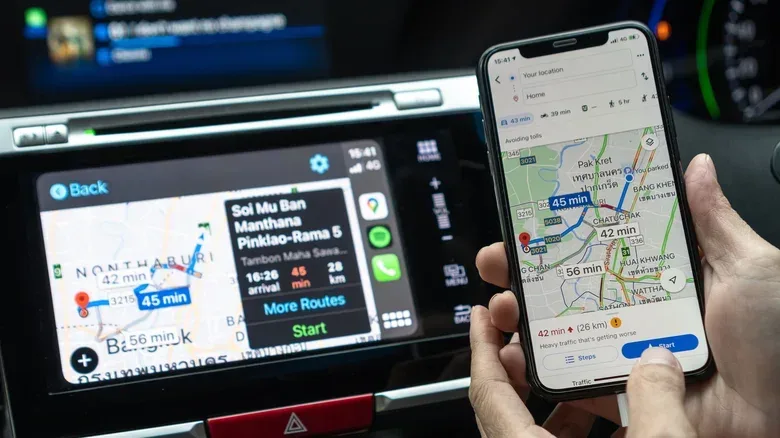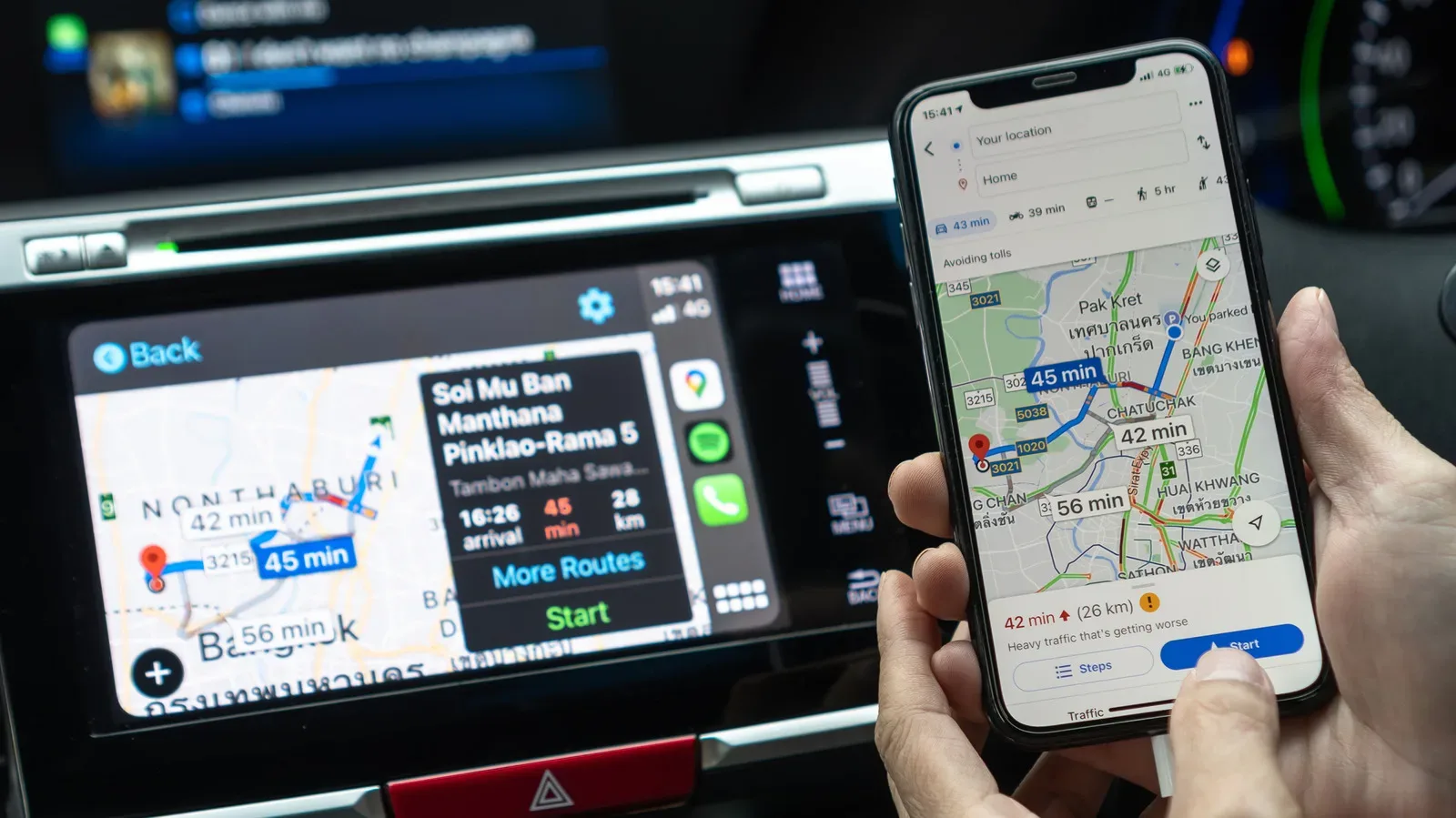
For plenty of drivers, the navigation choice is settled before the car starts moving: Google Maps is the preferred tool for traffic information, business listings, or simply familiarity. Apple CarPlay does not prevent that choice. Google Maps can run in CarPlay like other supported iPhone apps, but the experience differs depending on where an iPhone is set up and how CarPlay has been arranged.
The important distinction is between using Google Maps and making it the path of least resistance. Google Maps may be installed and available on the car display, yet Siri requests and tapped addresses can still open Apple Maps by default. A few iPhone settings, plus a little preparation in Google Maps itself, can reduce those extra steps.
That matters most when a driver needs navigation quickly. The aim is not to turn every CarPlay screen into a Google Maps screen; it is to make the app easy to find, easy to launch for frequent destinations, and still useful when a mobile connection becomes unreliable.
Set Google Maps as the default where the option is available
In the European Union and Japan, local rules allow users to select a preferred maps app as the iPhone default. When that setting is available, it is the cleanest way to make Google Maps the regular navigation choice in both the iPhone and CarPlay.
Open Settings, then Apps, and look for Default Apps. Choose Google Maps as the default maps tool. With that selection in place, asking Siri for directions or selecting an address can use Google Maps rather than automatically routing the request into Apple Maps.
“Default” is the key technical term here. It means the app iPhone treats as the normal destination for a category of action, such as opening an address or processing a navigation request. It does not merely mean that Google Maps is installed or visible in CarPlay.
Outside the EU and Japan, Apple Maps remains the default navigation app for these actions. That limitation does not stop Google Maps from working in CarPlay, but it means drivers should approach setup as a shortcut exercise rather than a full system-wide replacement.
Use Siri with an explicit app request
Where Apple Maps remains the default, naming Google Maps in a Siri request is a practical workaround. Add “on Google Maps” to the end of a direction request. That small addition tells Siri which navigation app to use and helps avoid the detour through Apple Maps.
Related coverage includes Make Google Maps Faster to Reach in Apple CarPlay.
It is not as seamless as assigning a default app, but it is useful because it works from the normal in-car voice workflow. A driver who says the destination alone may be sent to Apple Maps; a driver who specifies Google Maps has a more direct route into the preferred app.
This is also a helpful expectation-setting point. CarPlay support does not necessarily mean all apps receive identical system privileges. The app can be fully usable for navigation while the operating system still reserves the default behavior for Apple Maps in some regions.
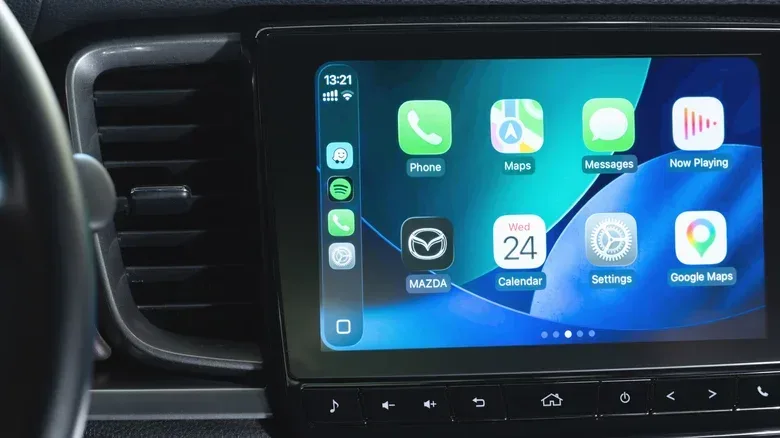
Put Google Maps on CarPlay’s first screen
The simplest visual shortcut is to move Google Maps near the top of the CarPlay app arrangement. On the iPhone, go to Settings > General > CarPlay, select the relevant vehicle, then choose Apps. From there, rearrange the order so Google Maps appears on the first CarPlay Home Screen page.
This is especially valuable for people who would rather tap than issue a voice command. A first-page placement means less searching through app pages before starting a route. It also makes the setup friendlier for anyone sharing a vehicle: the preferred navigation app is visibly positioned rather than buried among less frequently used options.
If Google Maps is missing from CarPlay altogether, this same menu is the first place to check. The app needs to be downloaded on the iPhone first. Then scroll toward the bottom of the CarPlay apps list and use the green plus button to add it if necessary.
That process separates two common issues that can look identical from the driver’s seat: Google Maps may be absent because it has not been installed, or it may be installed but not currently included in that vehicle’s CarPlay app layout.
Add a Google Maps widget for quicker access
CarPlay can also provide a faster route through widgets. Return to the vehicle’s CarPlay settings on the iPhone, but select Widgets rather than Apps. Find Google Maps and add its widget.
A widget is a compact app element intended to surface useful information or an entry point without requiring a full trip through the app grid. In this case, the practical benefit is speed: it gives Google Maps a dedicated place in the CarPlay interface instead of forcing a driver to find the complete app icon every time.
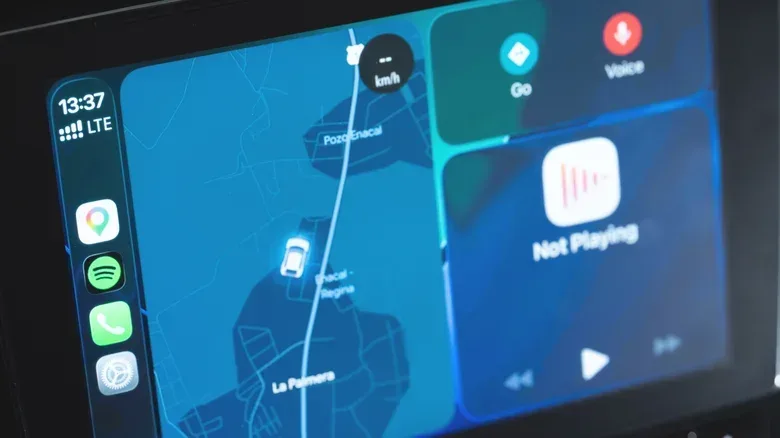
Some vehicles additionally support a split-screen CarPlay dashboard. This view can be reached by swiping right to the leftmost panel and commonly includes a small map. After a route has been started in Google Maps, that mini-map should take over the panel. Compatibility can vary by vehicle, so treat the split-screen dashboard as an available convenience rather than a guaranteed layout on every CarPlay-equipped car.
The result is a setup that keeps driving directions closer to the information a driver is already viewing. That focus on quick, readable access is a useful contrast with the elaborate virtual road networks players anticipate in projects such as GTA VI’s depicted Leonida: in an actual car, the interface should reduce friction, not add another menu to navigate.
Save home and work before you need them
The most useful Google Maps improvements often happen before CarPlay is connected. Saving home and work addresses gives frequent trips a single-tap starting point on CarPlay.
In Google Maps on the iPhone, tap the profile picture in the top-right corner, choose Settings, then Location & privacy. Scroll until Home and work addresses appears. The three-dot menu beside each entry lets users add or change the saved address.
This is a modest setting with a clear practical payoff. It removes repeated address entry for the destinations that are most likely to be requested at the start of a commute or at the end of a day. It can also reduce the chance of choosing a similarly named place when a quick departure leaves little time to inspect results closely.
Users should periodically check these saved locations after a move, a workplace change, or any other address update. A shortcut is only useful if it still points to the right place.
Download offline maps before longer drives
Offline maps are the preparation step worth considering for longer journeys. They let selected areas remain available for navigation if cellular connectivity drops out. This is not a replacement for every connected feature, but it can help prevent a loss of basic routing capability when a route passes through poor-signal areas.
To save an area, open Google Maps on the iPhone, tap the profile picture, and select Offline Maps. Choose the region to download for use without an internet connection. Downloading over Wi-Fi is sensible, particularly for large-city map areas that can consume significant data.
Offline maps are best understood as resilience, not magic. They address the specific problem of losing a cellular connection after leaving, rather than fixing every navigation problem in advance. The useful habit is to download the relevant area while planning a trip, not once the car is already on the road and coverage has disappeared.
Adjust orientation and appearance for readability
Google Maps also gives drivers a choice in how the map is oriented. The compass button switches between north-up and heading-up views.
North-up keeps north at the top of the display, producing a stable map orientation. Heading-up rotates the view so the vehicle’s direction of travel is toward the top. Neither is universally better. North-up can make it easier to maintain a consistent sense of the surrounding area, while heading-up can feel more immediately aligned with the road ahead. The best option is the one a driver can interpret at a glance without distraction.
CarPlay can also automatically manage day and night themes. Visit Settings > Appearance in CarPlay to set the theme behavior. This is a visibility setting, not just a cosmetic preference: a display that is comfortable to read in daylight may be too bright after dark, while a night-oriented view may be harder to see during the day.
A sensible order for setting up CarPlay navigation
- Install Google Maps on the iPhone if it is not already present.
- In the EU or Japan, check Settings > Apps > Default Apps and select Google Maps as the preferred maps tool.
- Elsewhere, plan to say “on Google Maps” in Siri navigation requests.
- Open Settings > General > CarPlay, select the vehicle, and move Google Maps to the first app page.
- Add the Google Maps widget through the vehicle’s Widgets settings if it is offered.
- Save home and work addresses in Google Maps.
- Download offline areas over Wi-Fi before a long trip.
- Choose map orientation and automatic day/night appearance settings that are easy to read.
The central lesson is straightforward: Google Maps does not need to be the operating system’s universal default to be a convenient CarPlay tool. Default-app support provides the smoothest behavior where it is available. Elsewhere, app placement, widgets, explicit Siri wording, saved destinations, and offline maps make a meaningful difference without promising capabilities CarPlay does not provide.