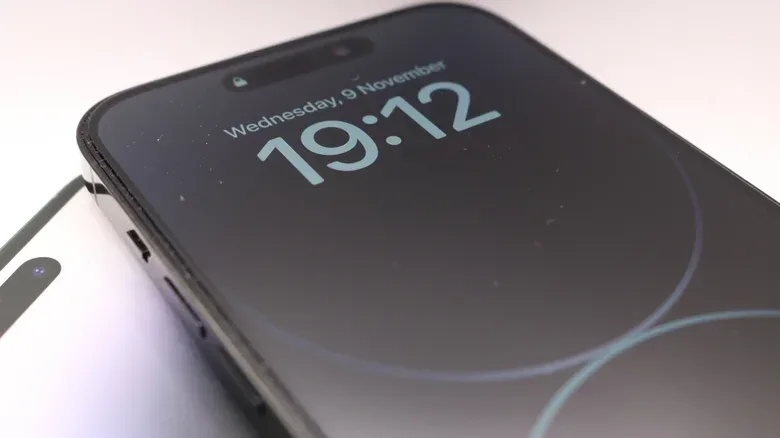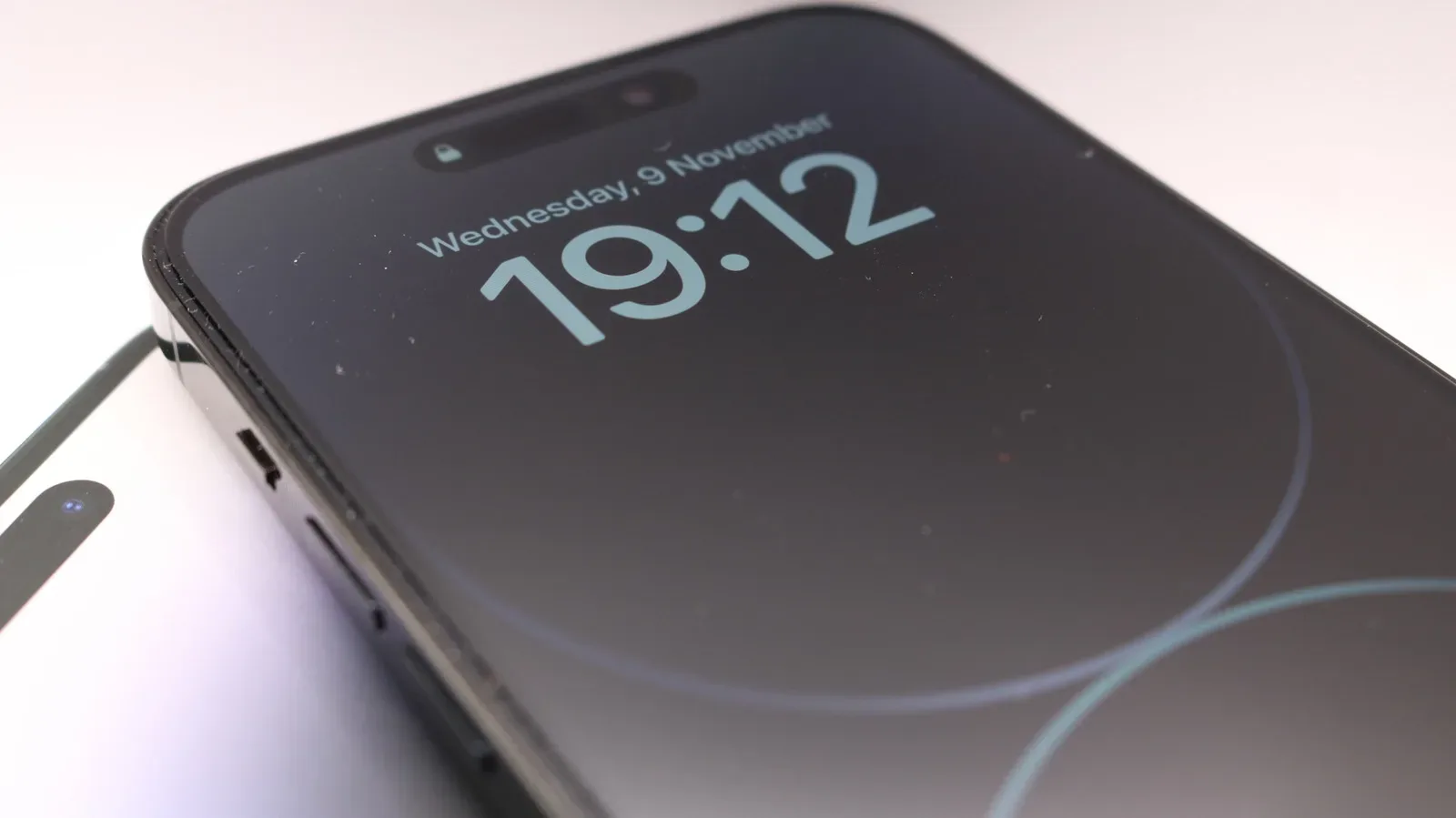
The iPhone Always-On Display is supposed to make a Lock Screen useful without making the phone feel fully awake. With the screen dimmed, it can leave the time, notifications and chosen widgets visible at a glance, saving the small ritual of lifting, tapping or unlocking the handset just to check whether anything happened.
That convenience comes with rules. An Always-On Display, often shortened to AOD, is not literally on in every situation. iPhone deliberately turns it dark when the screen is unlikely to be useful, when privacy matters more, or when another feature has priority. The key to solving an unexpectedly black Lock Screen is to distinguish those normal design decisions from settings that have disabled AOD when you would rather keep it available.
That distinction is useful for anyone using a phone as a second-screen companion during a game session, at a desk, or beside a bed. A dim Lock Screen can be a quick way to check the clock or an alert without falling into a notification rabbit hole. But it also means balancing visibility against battery-saving features and, for some people, the desire not to leave information readable on a nearby screen.
Start with the compatibility and main-switch checks
First, confirm that the iPhone model supports Always-On Display. The compatible models listed here are the iPhone 14 Pro and iPhone 14 Pro Max; iPhone 15 Pro and iPhone 15 Pro Max; iPhone 16 Pro and iPhone 16 Pro Max; iPhone 17, iPhone 17 Pro and iPhone 17 Pro Max; iPhone Air; and iPhone 18 Pro and iPhone 18 Pro Max.
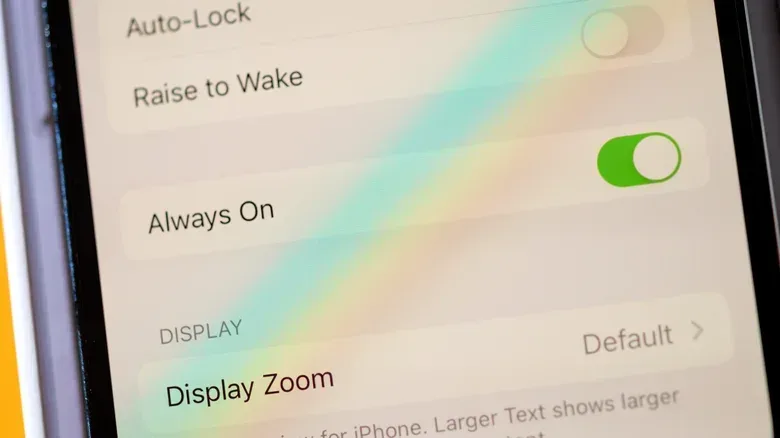
On a supported device, go to Settings > Display & Brightness > Always On Display and make sure it is enabled. It is enabled by default, but a setting can be changed accidentally while adjusting other display options, and this basic check prevents a great deal of unnecessary troubleshooting.
If the switch is on, do not assume the feature has failed merely because the display occasionally turns all the way off. The phone is designed to do that in several circumstances.
The times a dark display is expected behavior
Always-On Display can shut down when the iPhone is face-down or otherwise obstructed. In practical terms, there is little value in illuminating a screen pressed against a table, pocket or bag. AOD may also go dark when the phone is not near its paired Apple Watch, such as when its wearer has left the room.
The front-facing camera matters here as well. If the iPhone cannot clearly detect the conditions around it, cleaning the camera area is a sensible first step. That is not a promise that a wipe will resolve every AOD issue, but it is a simple way to rule out a physical obstruction before reworking settings.
Long stretches without interacting with the phone can also lead the display to turn off. Again, that is a power-conscious choice rather than proof that the Lock Screen system is malfunctioning. The same applies to two more specific cases:
- CarPlay: the display turns off while connected to a CarPlay session, minimizing potential driver distraction.
- Continuity Camera: AOD is unavailable while the iPhone is being used as a Continuity Camera, a behavior consistent with conserving power while the device is serving another active role.
There is no adjustment provided here to override those situations. The practical implication is simple: do not repeatedly toggle the feature or restart the phone to chase behavior the system intends. Test it instead with the handset face-up, unobstructed, nearby, and outside CarPlay or Continuity Camera use.
Low Power Mode is the first setting worth changing
Low Power Mode is designed around extending battery life, so it is a common reason an Always-On Display is not behaving as expected. If AOD convenience is the priority at that moment, turn Low Power Mode off from Control Center, or use Settings.
On iPhone 15 and later, the route is:
- Open Settings.
- Select Battery > Power Mode.
- Turn Low Power Mode off.
On iPhone 14 and older, look for the option in the main Battery menu instead. This difference is small, but it is the kind of menu mismatch that can make otherwise straightforward instructions feel like they are for the wrong phone.
Newer models may also have Adaptive Power in the Power Mode area. This can automatically enable Low Power Mode again once battery charge falls below 20 percent. If the Lock Screen seems to work one day and vanish the next with no deliberate setting change, check whether Adaptive Power is restoring the battery-saving state. Turning it off favors persistent AOD access; leaving it on favors longer remaining battery. Neither choice is universally right.
It is better to think of this as a preference decision, not a defect. Someone who needs a visible clock and alerts during a workday may accept the tradeoff. Someone protecting the last portion of a charge before getting home may reasonably prefer a fully dark screen.
Sleep Focus intentionally blocks Always-On Display
Focus modes are profiles that change how the iPhone behaves in particular contexts. Sleep Focus is especially relevant because Always-On Display does not operate while Sleep Focus is active by design. So if the screen reliably goes black at night, or at roughly the same time each evening, this is the most logical place to look.
To see whether Sleep Focus is currently active:
- Open Control Center.
- Tap Focus.
- If Sleep is selected, choose it to turn it off.
That handles the immediate state, but an automated schedule can switch Sleep Focus back on later. The Health app may enable it at a selected bedtime. To change that behavior:
- Open Control Center and tap Focus.
- Tap the three dots beside Sleep, then choose Settings.
- Scroll to Schedule and select Next Schedule.
- Turn off Schedule, or choose Schedule and Options to revise the timing instead.
Editing the schedule is usually the cleaner answer if Sleep Focus is valuable but the existing bedtime no longer matches a real routine. Turning it off entirely is the broader fix, but it also removes the automation that was intentionally managing the mode.
Other Focus modes can be configured around AOD
Sleep Focus is a hard stop for AOD, but other Focus modes give the owner more control. If the display disappears only during a particular work, personal or custom Focus profile, inspect that profile’s filters rather than disabling Focus altogether.
- Open the settings for the relevant Focus mode.
- Scroll to Focus Filters and choose Add Filter.
- Under System Filters, select Always On Display.
- Make sure Always On Display is enabled for that Focus.
A Focus Filter is a rule that changes a system or app behavior when a particular Focus is active. In this case, it gives AOD a place in the profile’s overall logic. That is preferable to treating every dark display as a battery problem: if the issue happens during one repeatable context, a profile-specific setting is a stronger suspect.
A smaller adjustment: Raise to Wake
If the complaint is less “AOD never appears” and more “the screen wakes too eagerly when I try to glance at it,” consider Raise to Wake under Settings > Display & Brightness. Toggling this option can change how aggressively the screen transitions from its dimmed state when the phone is moved or handled.
This is not the central cure for a display that is simply black, but it is relevant to the feel of using AOD. A quiet, dim Lock Screen is meant to be an in-between state. If physical handling immediately turns it into a brighter, fully awake screen, adjusting Raise to Wake may make the feature feel closer to its intended purpose.
A practical order for troubleshooting
Rather than changing every setting at once, use a short sequence. It preserves useful automation and makes it easier to identify what actually caused the issue.
- Confirm the model supports AOD and the main Always On Display toggle is enabled.
- Test with the phone face-up, unobstructed and near its paired Apple Watch.
- Check whether CarPlay, Continuity Camera or a long period of inactivity explains the dark screen.
- Turn off Low Power Mode, then review Adaptive Power on newer models if the behavior returns at lower charge.
- Check Sleep Focus, including any automated schedule.
- Review the Always On Display filter for any other Focus mode used at the time.
- Adjust Raise to Wake if the issue is overly aggressive waking rather than AOD disappearing.
- Restart the iPhone if no setting or expected condition accounts for it.
A restart is a sensible last housekeeping step for a temporary software hiccup, but it should not replace the earlier checks. The symptom is often an intentional power, privacy or context rule. For a wider reminder that identifying the type of problem matters before replacing hardware or blaming another activity, see this guide to separating phone hardware concerns from other suspected causes; its device-specific steps are for Samsung phones, not iPhone.
Ultimately, Always-On Display is a controlled glance feature, not an unconditional promise that a Lock Screen will remain illuminated. Once Low Power Mode and Focus schedules are configured to match your preferences, the remaining occasions when it goes dark are usually the moments the iPhone has decided the screen is not useful—or should not be visible at all.