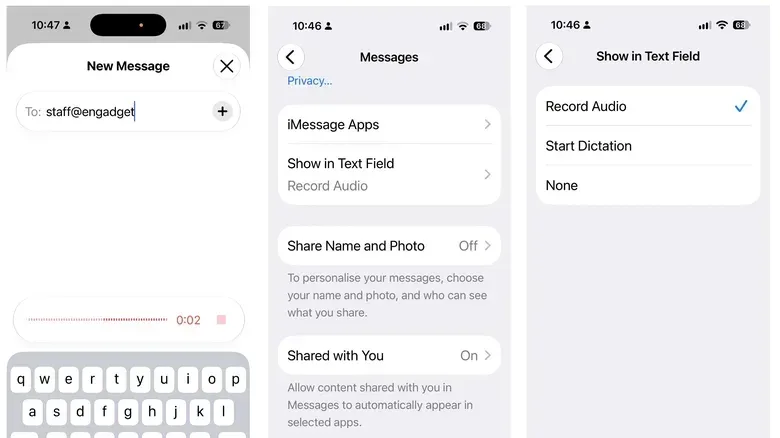
The tiny waveform button in iMessage’s text-entry field has become a disproportionately big annoyance for people who hit it by mistake. A tap can begin an audio-message recording session and interrupt music playing on the iPhone—an inconvenient result when the actual intent was simply to type and send a text.
iOS 27 introduces a direct remedy: Messages now lets users decide what, if anything, appears in that spot. The choice is not a removal of audio or dictation capabilities. It is a customization of the text field, letting people keep the shortcut that fits how they message or clear the area of a button they seldom use.
The change follows a high-profile complaint from Justin Bieber, whose social-media post about accidentally triggering the control drew substantial attention. It is not known whether that reaction prompted Apple’s change. What is clear is that iOS 27 addresses the underlying usability complaint: a prominent control can now be changed instead of remaining a permanent fixture in the message composer.
Where to change the iMessage text-field button
On an iPhone running iOS 27, go to:
- Settings
- Apps
- Messages
- Show in Text Field
That menu provides three settings:
- Record Audio: Keeps the waveform-style audio-recording control in the Messages text field.
- Start Dictation: Replaces the audio-message shortcut with a microphone control for dictating text.
- None: Removes the button from the text-entry field.
Return to Messages after selecting an option to see the revised control. If the old button still appears, force quit Messages, reopen it, and the selected setting should take effect.
Which option makes sense?
The best setting depends on what a person means when they say they “use voice” in messages. Recording an audio message and dictating a written message are different workflows, even though both begin with speech.
Keep Record Audio for voice-note conversations
Record Audio is the natural choice for people who frequently send spoken messages. An audio message preserves the speaker’s voice as a recording rather than converting speech into typed words. The prominent button remains useful when voice notes are a deliberate, regular part of a conversation.
This setting also keeps the familiar behavior in place for anyone who has built a messaging routine around it. The issue is not that the button lacks a purpose; it is that its fixed location can be too easy to hit for people who do not need it often.
Choose Start Dictation when speech is just another way to type
Start Dictation is aimed at users who would rather speak a text than record a voice note. Dictation converts spoken input into text in the message field, allowing the sender to review and edit the wording before sending it. It is a different kind of shortcut: the output is a standard text message rather than an audio clip.
For someone who regularly composes messages aloud, putting dictation in the text field may be a better use of the space than retaining an audio-recording control. It also makes the visible icon more closely match the task the person expects to perform.
Select None to declutter the composer
None is the practical option for people who mostly type and want to eliminate an accidental-tap target. It does not disable either feature. Instead, it moves both functions out of the immediate text-entry area and preserves a cleaner composition space.
That distinction matters. Removing the control is not a permanent commitment to never sending audio or using dictation. It simply means those tools are accessed from their normal alternate locations when they are actually needed.
Audio recording remains available after hiding the button
With the text-field setting set to None—or changed to Start Dictation—voice-message recording is still available in Messages. Tap the + button to the left of the text-entry box, then select Audio from the menu.
This is a sensible compromise for occasional users. The feature remains within Messages, but it requires a more intentional two-step action. In practical terms, that should reduce the likelihood of accidentally starting a recording while reaching for nearby message controls.
Dictation also has a separate keyboard shortcut
Dictation does not depend on the new iMessage text-field choice either. The keyboard’s microphone icon, positioned on the lower right, can be used to dictate text. It should be enabled by default. If the microphone is absent, it can be restored through Settings > General > Keyboard > Enable Dictation.
That means the None setting can be especially useful for users who still dictate from time to time. They can remove the Messages-specific shortcut without losing keyboard dictation. Conversely, people who choose Record Audio do not give up text dictation; they can still use the keyboard microphone.
The setup is a reminder that an interface shortcut and a feature are not necessarily the same thing. iOS 27 changes the shortcut presented in Messages, while the underlying options remain accessible elsewhere. For broader decisions about securing accounts on a phone, the distinction between convenience and the tool behind it is also worth understanding; see Password Manager vs. Authenticator App: Where Should Your 2FA Codes Live?
Why a small control change can matter
Message composers are unusually high-traffic parts of a smartphone interface. A button that is harmless in isolation can become frustrating when it is positioned where users tap repeatedly, across countless conversations. The problem described here is not an inability to send voice messages; it is an interruption caused by an action the user did not intend to take.
iOS 27’s three choices recognize that there is no universally correct default. Voice-message senders benefit from fast recording access. People who dictate may value a direct speech-to-text control. Others want neither option permanently visible. The new setting lets each group prioritize the workflow they actually use rather than making everyone accommodate the same text-field arrangement.
It also reduces the trade-off involved in simplifying the interface. In many apps, removing a prominent shortcut can mean losing fast access to the associated function altogether. Here, Apple retains paths to both audio recording and dictation, so choosing None is primarily an interface decision rather than a feature sacrifice.
Other iMessage additions in iOS 27
The text-field setting is part of a wider set of reported Messages improvements in iOS 27. The app gains a Drawing app for sending sketches and handwritten notes, along with markup tools within iMessage. These additions expand the kinds of visual communication possible inside a conversation beyond regular typed text.
iOS 27 also includes an AI tool designed to suggest useful words and phrases and automate certain conversation-related tasks, including adding items to Reminders or Notes. The described function is task assistance within the message context: rather than merely proposing text, it can help turn information in a conversation into an item in another Apple app.
Additional Messages-related changes include the ability to use one phone number across two separate iPhones, as well as improved RCS support. RCS is a messaging standard used for richer messaging features, and the reported improvements include the ability to edit and unsend messages.
For day-to-day iPhone use, though, the most immediately noticeable enhancement may be the modest one: the ability to decide whether the text field should show Record Audio, Start Dictation, or nothing at all. Users who have repeatedly opened an unwanted recording session now have a settings-level answer that does not require giving up either voice tool.