Focus is not the flashiest part of an iPhone software update, but iOS 27 makes a practical case for giving it another look. The feature already lets people decide which notifications can reach them at particular times or in particular situations. The reported changes center on making Focus easier to access in Control Center and more useful as a condition for Shortcuts automations.
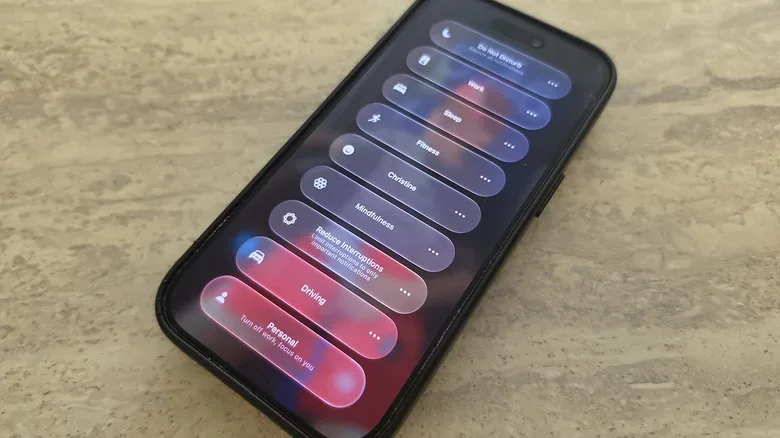
That matters because Focus is most effective when it is not merely a blanket mute switch. A Work Focus can suppress distracting social alerts while still permitting messages from family or colleagues. A Sleep Focus can narrow interruptions overnight. A custom mode can be tailored to a particular routine, from a workout to a commute. iOS 27’s additions appear designed to make the current mode a stronger signal for the rest of the phone: not just “silence some notifications,” but “the phone knows what kind of context I am in.”
Focus in iOS 27: the reported changes
There are three notable improvements: a resizable Focus control in Control Center, the ability for Shortcuts to check the active Focus state more specifically, and added conditional logic for automations built around those states. Sleep Focus is also reported to be available as an automation trigger.
Individually, none of these changes transforms Focus into a wholly different feature. Together, they could make a well-configured iPhone more responsive to a person’s routine without requiring them to repeatedly open apps, find settings, and start the same tasks manually.
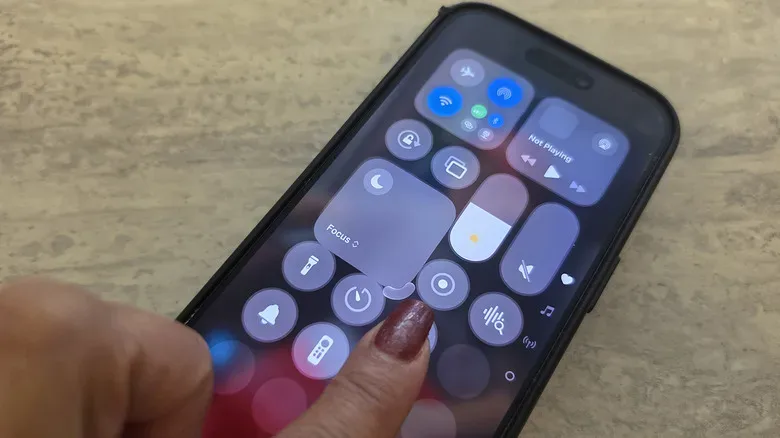
The Control Center Focus panel can be resized
In iOS 27, the Focus entry in Control Center can reportedly be adjusted from a compact 1x1 circular control to a larger 2x2 tile. Previously, its size was limited to a 2x1 space.
To make that change, open Control Center by swiping down from the top-right of the screen. Long-press an empty area to enter edit mode, then drag the bottom-right corner of the Focus control to resize it.
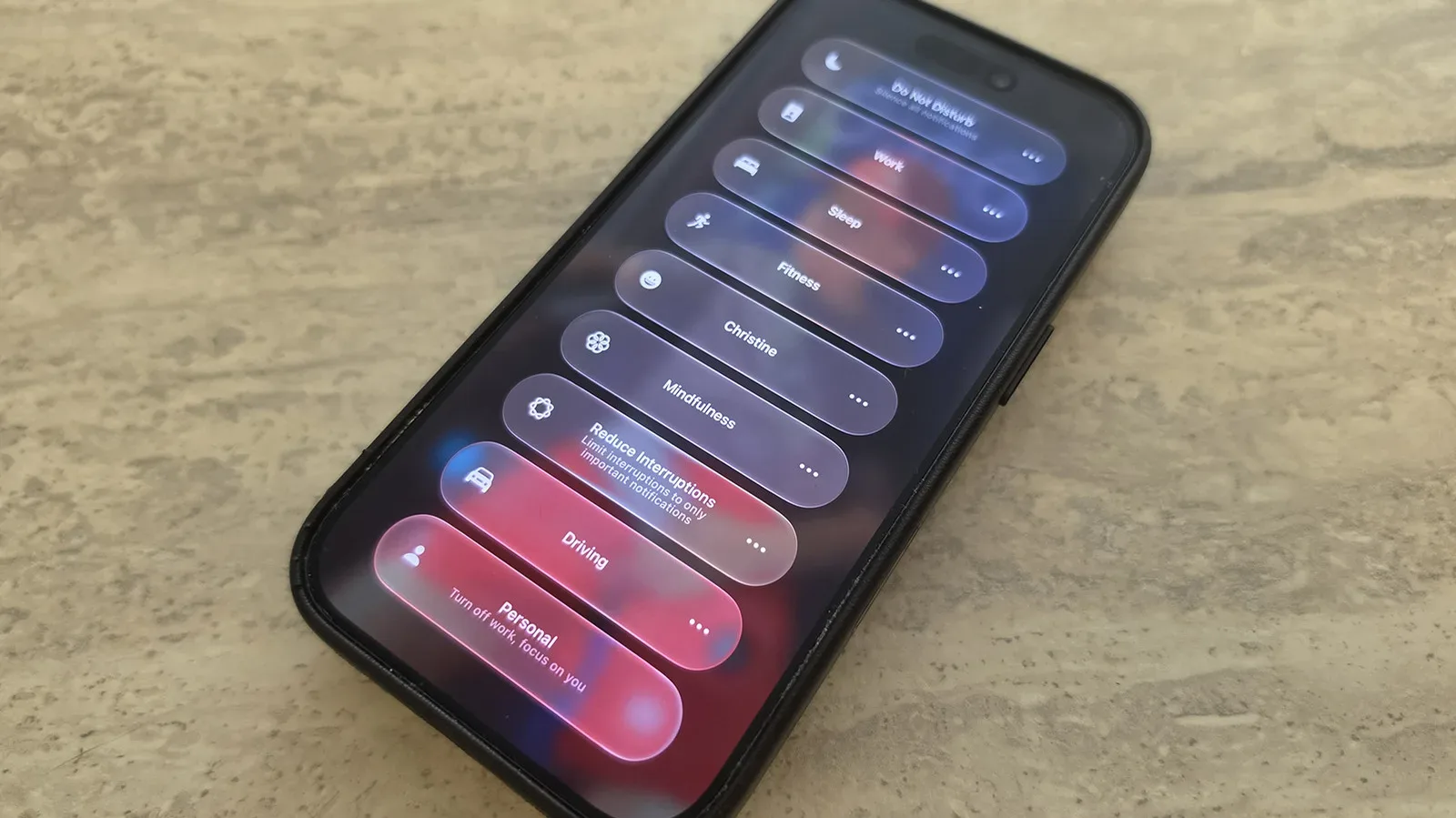
The value here is less about visual customization than prioritization. Someone who rarely changes modes may prefer the smallest option, preserving space for other Control Center controls. Someone who moves regularly between Work, Personal, Driving, Fitness, and Sleep can make Focus larger for quicker selection. It is a small interface decision, but it acknowledges that Focus can be either an occasional setting or a central part of a daily workflow.
Shortcuts can respond to the active Focus mode
The more consequential iOS 27 change is in Shortcuts. A Shortcut is an automation made of actions that can be launched manually, by voice, or through a trigger. A trigger is the event that starts an automation. Focus can provide one of those signals: the phone can identify which Focus mode is currently on and run an action that matches it.
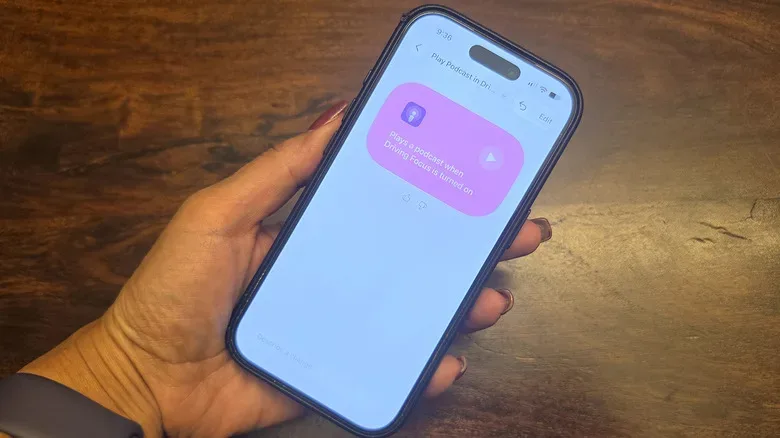
For example, a Driving Focus can be used to prompt a Shortcut to play a podcast. A Fitness Focus can launch a workout app when the mode is selected. These examples do not require every action to be tied to a calendar or a time of day. Instead, the user chooses the mode that represents their present activity, and the automation follows that choice.
iOS 27 reportedly extends this arrangement by allowing Sleep Focus to serve as an automation trigger. That gives Sleep a more direct role in a personal setup. The feature is not inherently limited to a single type of bedtime action; the important point is that a Shortcut can now use the active Sleep state as the event or condition that informs what it should do.
“Otherwise if” brings more branching choices
Shortcuts in iOS 27 are also reported to support “Otherwise if” statements with Focus-related triggers. This is a form of conditional logic: an automation checks one condition, then checks another if the first condition was not met, before falling back to another outcome where applicable.
In plain language, it means a single Shortcut can make a more meaningful decision. It might run one action when Sleep Focus is active, but use a different action when Driving Focus is active instead. The automation is no longer confined to a one-mode, one-action relationship.
That kind of branching is useful because Focus modes describe different situations that may overlap in a person’s day. A routine designed around the active state can be more specific than one that merely checks whether any Focus mode is enabled. For users, the practical benefit is fewer separate automations to manage and a clearer way to express intent: if this mode is active, do this; otherwise, if that mode is active, do that.
What Focus still does best: selective attention
Focus remains first and foremost a notification-management tool. It includes default modes such as Work, Personal, and Sleep, while also allowing users to create modes of their own. Each mode can be configured around what is permitted and what is silenced.
The distinction is important. Effective notification management does not always mean blocking everything. A useful custom Focus may silence Facebook, Instagram, phone calls, and Messenger while continuing to permit Slack notifications and alerts from a Ring video doorbell. Another person might make different choices, allowing communications from a spouse, a manager, or another essential contact while cutting down on less urgent traffic.
That flexibility is why Focus can suit routines that differ sharply from one person to another. The goal is not to declare an app universally distracting or universally important. It is to decide whether an alert is valuable in a particular context. A social update could be welcome during Personal time and unhelpful during a concentrated work block. A work message might be essential at one moment and unnecessary while sleeping.
To turn a Focus mode on manually, open Control Center, select the Focus panel, and choose the desired mode. For deeper configuration, go to Settings, scroll to Focus, then select an existing option or create a custom one. From there, users can determine what is allowed and what is silenced.
A sensible way to build an automation around Focus
The new Shortcuts options offer more control, but they also create a reason to keep setups simple. A Focus mode should represent a recognizable state rather than a long list of unrelated preferences. “Driving,” “Sleep,” and “Fitness” are useful examples because they describe contexts with clear expectations.
- Start with the notification rule. Decide what the mode is for and which alerts remain genuinely important during that time.
- Add one repeatable action. A Fitness mode opening a workout app, or Driving mode beginning a podcast, is easier to evaluate than a large bundle of actions.
- Use branching only when contexts truly differ. “Otherwise if” logic is most valuable where one Shortcut needs different behavior for Sleep and Driving, rather than where separate, simpler automations would be clearer.
- Make the control easy to reach. If modes are changed constantly, the larger 2x2 Focus tile in Control Center may be more practical. If they are seldom changed by hand, the 1x1 control can reclaim screen space.
This approach also helps separate two connected ideas. Focus decides how the iPhone should communicate with the user. Shortcuts decides what the iPhone should do in response. Combining them can be powerful, but the automation works best when the Focus mode itself has a straightforward purpose.
Why these modest adjustments could be meaningful
iOS 27’s Focus changes do not appear to add a new default mode or replace the system’s existing configuration screen. Instead, they refine the points where Focus meets day-to-day use: the Control Center control people touch, and the automation logic that works in the background.
The resizable panel helps users give Focus as much visual prominence as it deserves. State-aware Shortcuts make the selected mode more actionable. Sleep support and “Otherwise if” conditions add specificity that may reduce the need to build multiple narrowly targeted workflows.
For iPhone owners who have never gone beyond turning on Do Not Disturb-style silencing, the update is a reminder that Focus can be more selective. For people who already rely on custom modes, the improved Shortcut behavior offers a route to automations that better reflect the active mode rather than a generic on-or-off status.
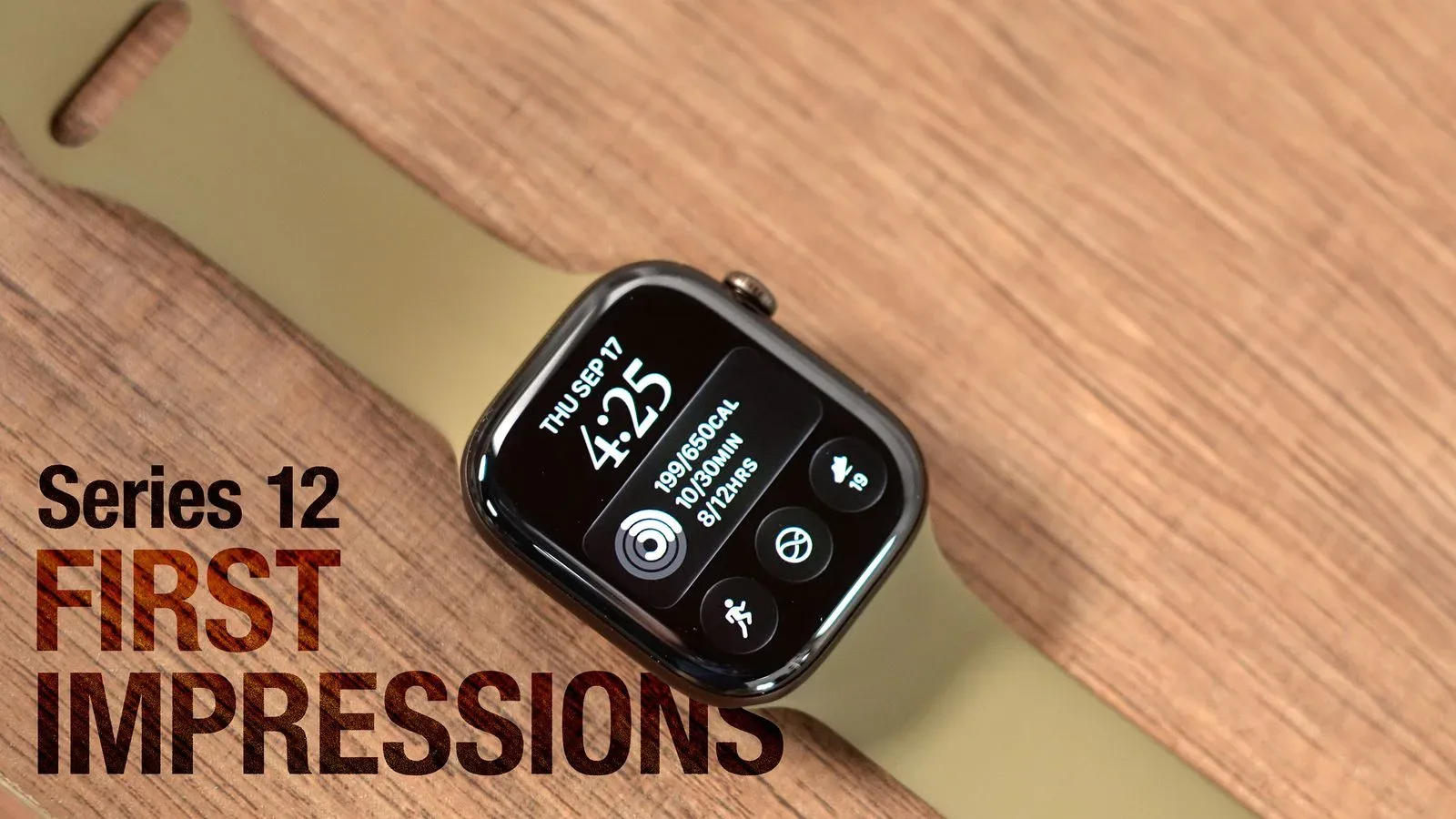
There is also a wider Apple-device context for Fitness routines in particular. Those who use Focus to launch workout-related tasks may be interested in how Apple Watch Series 12’s reported health-sampling direction could continue to emphasize health and activity workflows across the company’s devices.
Ultimately, the best use of Focus in iOS 27 may be a restrained one: permit the people and alerts that matter, make the mode easy to select, then connect it to one or two actions that remove a repeated step from the day. The reported update gives users more room to do exactly that, particularly when their routines need different behavior for different Focus states.