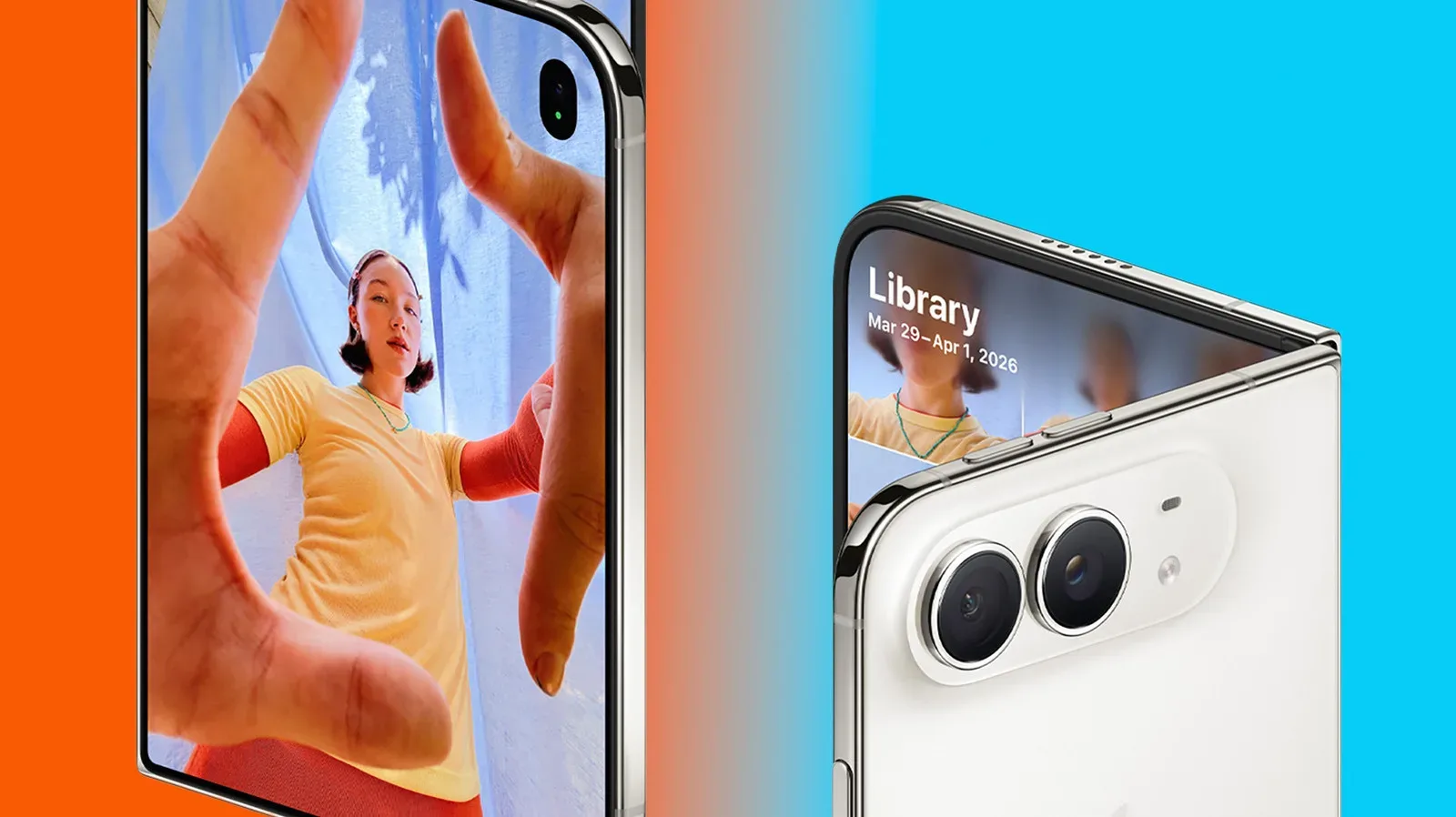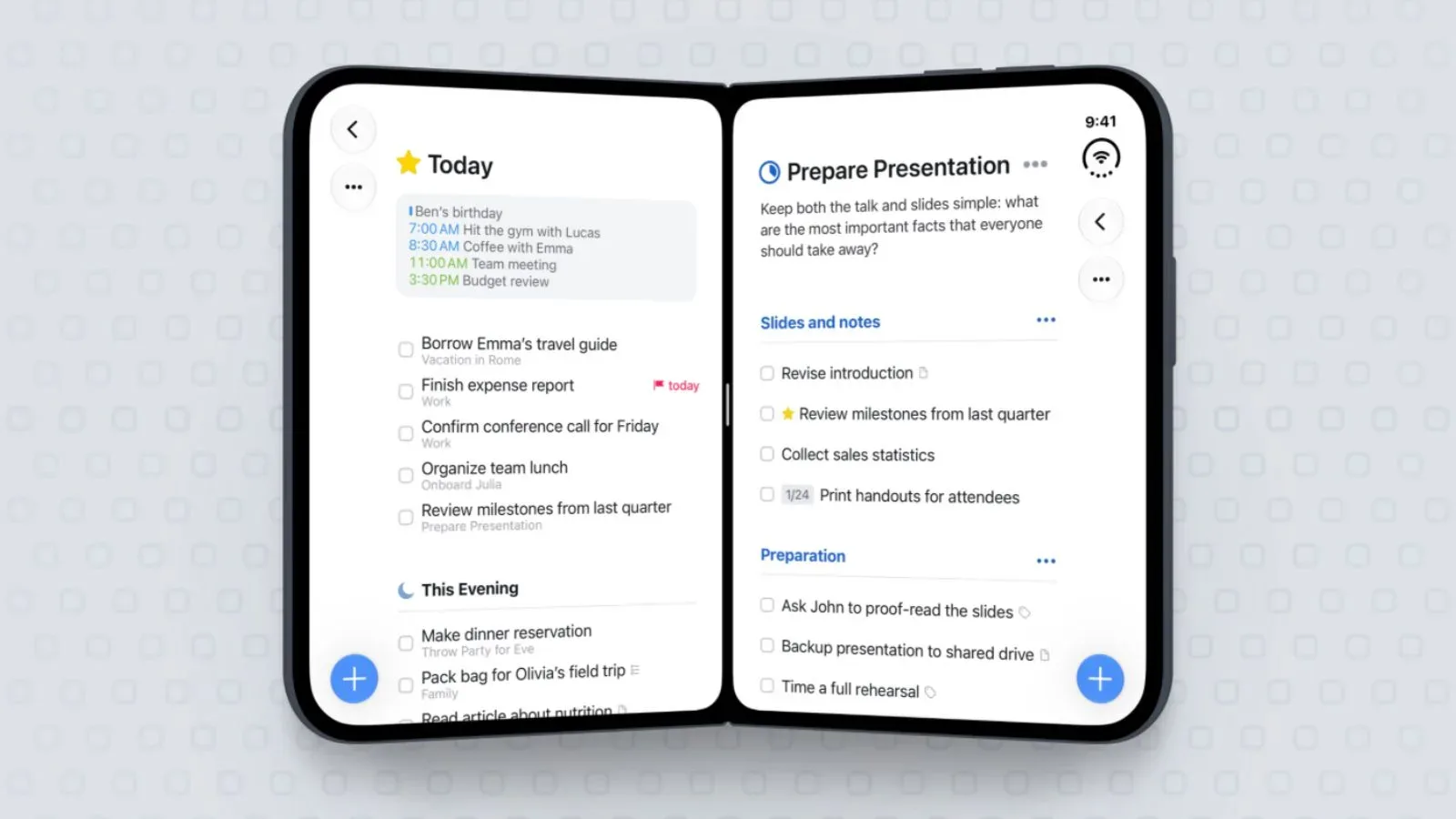
Things 3.25 is now available through the App Store, bringing a more expansive task-management layout to iPhone Duo ahead of the foldable device’s Friday launch. The update is centered on adapting Things to the handset’s changing physical configurations rather than simply enlarging the existing phone interface.
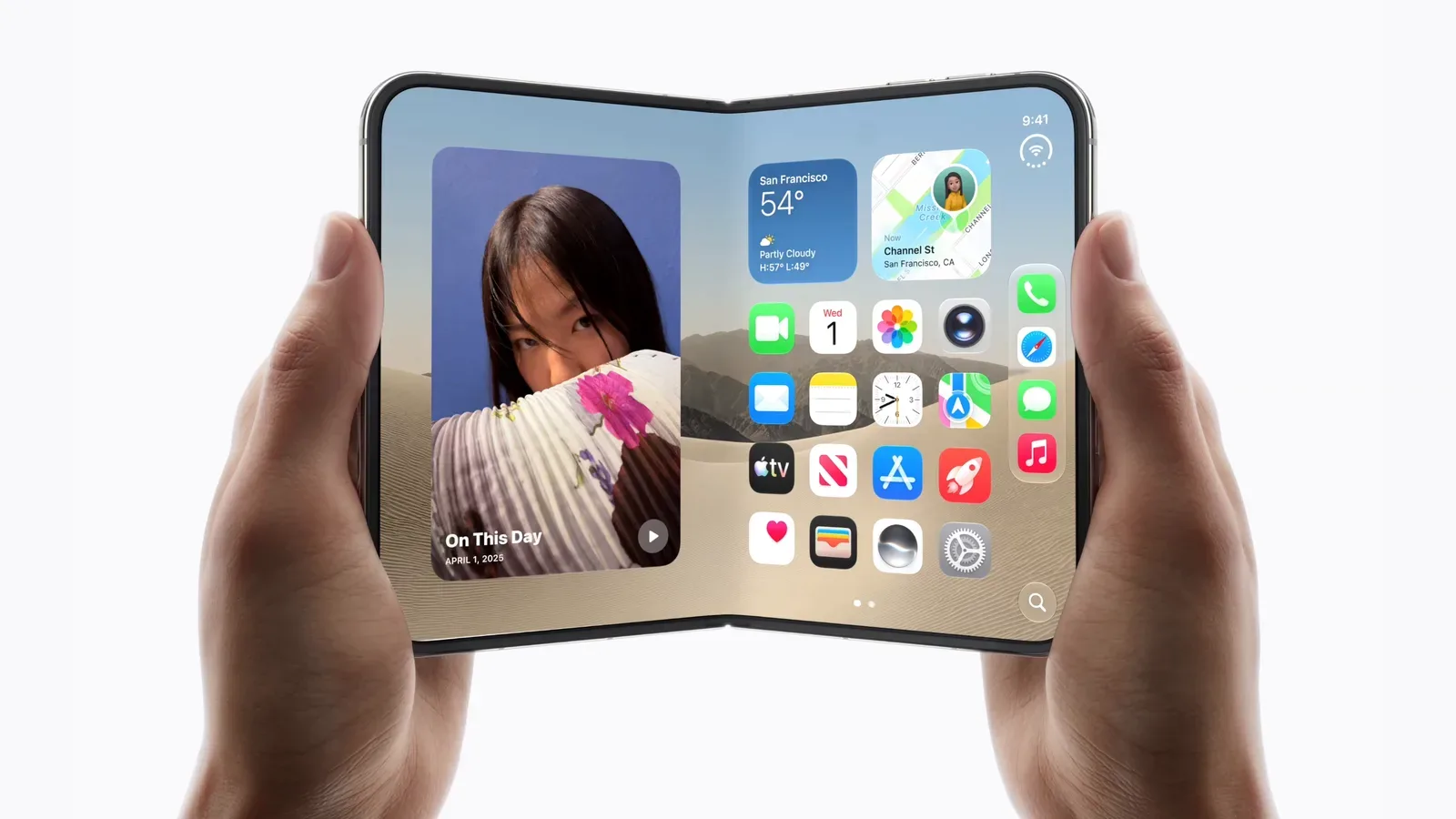
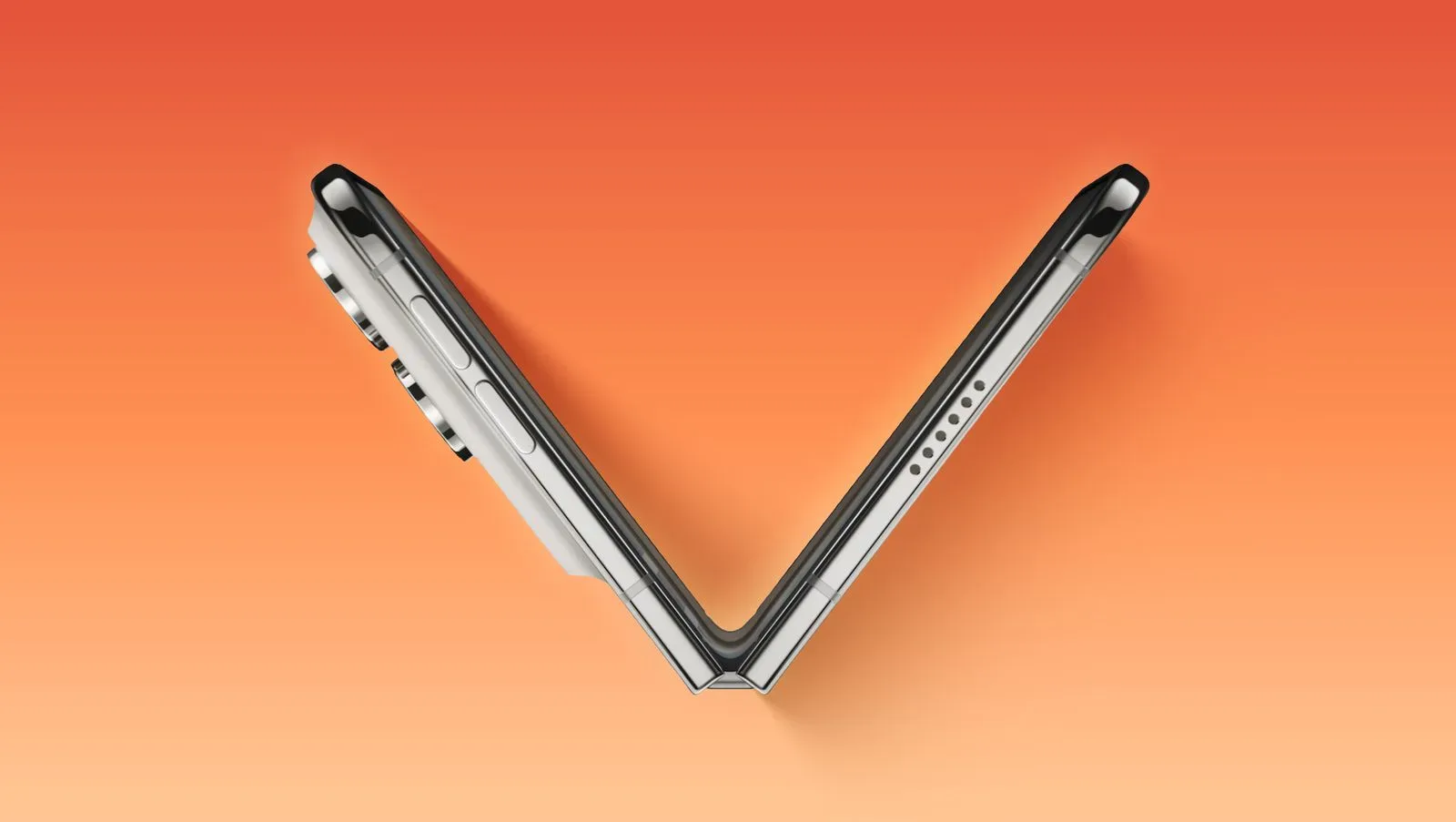
For a to-do app, that distinction matters. A foldable’s value is not just that it can show more content; it can also create different working contexts. A user may want a fast, one-handed glance at a list while the device is closed, then a broader planning view when it is opened. Things 3.25 is designed to shift with those situations, accommodating the phone when closed, fully unfolded, or partially folded in a book-like posture. It also supports portrait and landscape orientations.
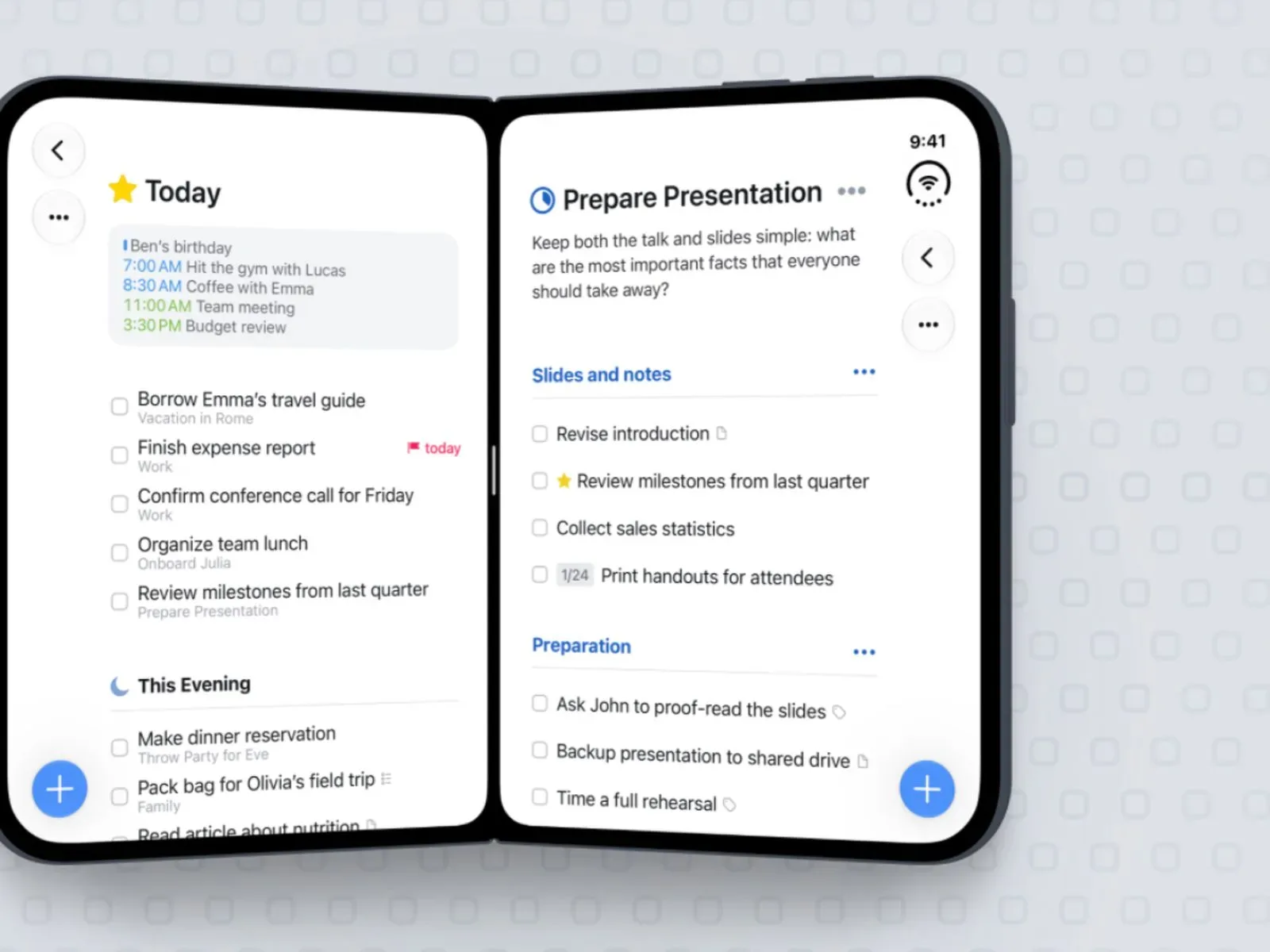
The headline additions are a sidebar for list navigation, two Things windows displayed side by side, and drag-and-drop movement of items between those windows. The update also places controls in a thumb-reachable vertical bar, retaining a touch-first approach even when the device offers more screen space. Keyboard users receive Things’ full keyboard feature set, including persistent selection, shortcuts and Type Travel.
A task app designed around changing screen space
Adaptive layout means an interface changes its arrangement in response to the available display area or device posture. In this case, Things is not tied to a single tall-phone composition. It can adjust as iPhone Duo moves among closed, open and partially folded states, and as the device is turned between portrait and landscape.
The practical appeal is continuity. A person who checks an errand list with the phone closed should not need to treat the app as an entirely different product when opening the handset to plan a day or sort a project. The information remains in Things, while the interface can make different controls and navigational structures appropriate to the new space.
That is especially visible in the sidebar, which appears when the device is opened. A sidebar is a persistent or readily available navigation column used to switch among sections. Here, it is used for moving between lists. Things has not previously offered that kind of sidebar on iPhone, making the open iPhone Duo layout a meaningful departure from the app’s normal phone navigation model.
A list-focused app benefits from this because switching context is a core action. Users commonly move among separate task lists while deciding what needs attention: a personal list, a work list, a project-oriented list, or another organizational grouping. With a sidebar present, those destinations can stay visible as the main pane shows the selected list. That can reduce the back-and-forth navigation associated with narrower phone screens, though the update does not change the underlying purpose of Things: organizing to-dos.
Two windows create a practical organizing workflow
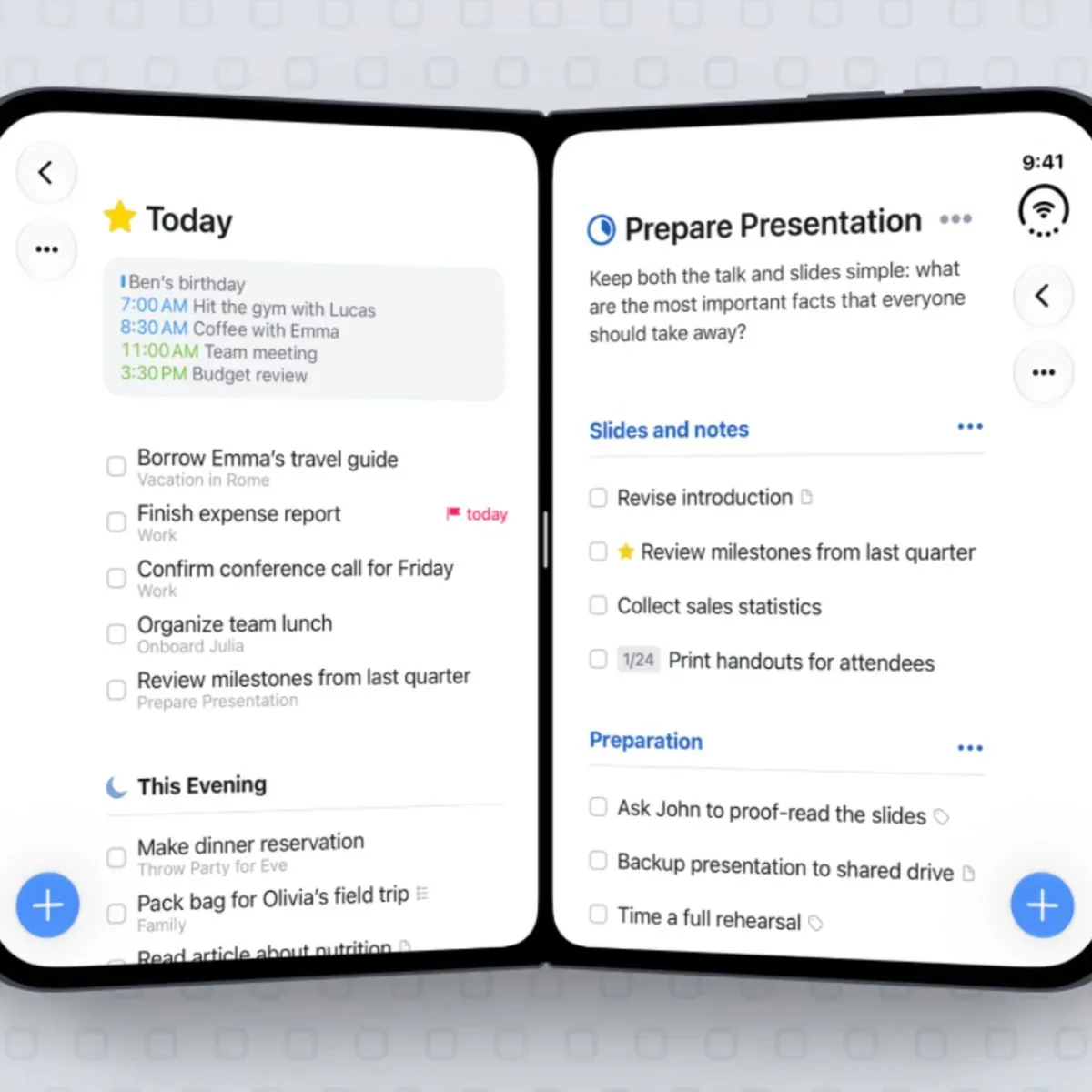
Things 3.25 also lets users open two Things windows side by side. The feature is straightforward, but it may be the update’s most consequential workflow change. Instead of looking at one list and remembering what belongs somewhere else, a user can place two contexts on screen at once and move items between them.
Drag and drop is the interaction that turns this from a viewing feature into an organizing feature. Users can drag a task from one visible Things window and drop it into the other. In ordinary use, that can make sorting a backlog, reallocating tasks, or consolidating items feel more direct because the destination is visible at the moment of the move.
There is an important technical distinction here: two windows are not merely two columns inside one static page. Windowing refers to separate app views that can be displayed simultaneously. The supplied details establish that Things supports two of these views side by side on iPhone Duo, with items transferable through drag and drop. They do not specify additional rules about which lists can be shown, how each window is configured, or what happens in every device orientation. Those specifics should therefore be left to the app itself rather than assumed from the update description.
For users who regularly treat task management as a sorting exercise, the broad benefit is clear. One window can serve as the source and another as the destination. That mirrors a familiar desktop-style organizational pattern without requiring the task to disappear into a different screen before the user can confirm where it went.
Thumb-reachable controls and the Magic Plus button
More display area can improve visibility, but it can also create an ergonomics problem: important controls may end up farther from the hand holding the device. Things addresses that by placing controls in a vertical bar intended to remain within thumb reach.
The bar includes the app’s Magic Plus button. Rather than adding a generic task and requiring it to be repositioned later, Magic Plus can be dragged to a specific spot in a list to insert a new to-do at that location. That detail is useful because task order often communicates priority or sequence. An item that belongs between two existing steps can be placed there directly, instead of being created elsewhere and then moved.
In effect, the interaction joins task creation and task placement. On a larger unfolded display, where more of a list can be seen at once, the value of choosing the insertion point visually is easier to understand. The user can inspect the surrounding tasks, decide where the new item belongs, and place it in context.
The update’s design direction is notable: it does not treat a large foldable screen as a cue to abandon touch conventions in favor of distant, desktop-like controls. The vertical control bar keeps frequent actions near the thumb while the larger layout makes navigation and side-by-side organization more visible. It is an attempt to combine reachability with the additional workspace supplied by the device.
Keyboard support remains part of the full workflow
Connecting a keyboard enables the full set of Things keyboard features. These include persistent selection, keyboard shortcuts and Type Travel.
Persistent selection means a selected item or set of items remains selected while a user continues interacting with the app, rather than forcing the selection to be recreated after every action. This can be helpful for keyboard-oriented task work, where selection is often the basis for moving through and acting on items.
Keyboard shortcuts are key combinations or key-based commands that trigger actions without requiring a touch input. Their specific commands are not detailed here, but the support means the keyboard experience is not limited to text entry.
Type Travel is described as a way to quickly navigate between lists. In practical terms, it gives keyboard users a faster route through the app’s list structure, complementing the sidebar available on the opened device. The sidebar is a visual navigation method; Type Travel is a keyboard-driven one. Both address the same broad need—getting to the relevant list efficiently—through different input styles.
That support gives Things 3.25 more than one mode of use. The app can be operated as a compact touch-first task manager when iPhone Duo is closed, a larger-screen organizer when open, and a keyboard-capable environment when a keyboard is connected. The supplied information does not claim that any one mode replaces another. Instead, the update appears built around carrying the same task system across different postures and inputs.
What the update means for current Things users
The new version is most relevant to people who intend to use Things on iPhone Duo and want to take advantage of its flexible display. Existing users who primarily rely on a conventional iPhone are not described as receiving the new sidebar or dual-window foldable workflow; the announced changes are specifically framed around iPhone Duo support.
For prospective iPhone Duo owners, the timing is significant. Things is arriving with an interface adapted for the device’s configurations before its Friday launch, rather than leaving users with a simple stretched phone layout while waiting for a later revision. The update makes a clear case for what an adaptive productivity app can do with a foldable: keep quick actions accessible in small-screen use, expose richer navigation when there is room, and allow two simultaneous views for reorganizing tasks.
It also adds another software detail to consider alongside the device’s reported authentication trade-offs. Early iPhone Duo coverage has highlighted Touch ID friction and the absence of Face ID; Things 3.25, by contrast, concentrates on the upside of the changing form factor for productivity software. Neither point determines whether the device suits every user, but together they illustrate how foldable hardware can create both new interface opportunities and new daily-use considerations.
Things 3.25 is available now on the App Store. Its confirmed iPhone Duo features are adaptive layouts for closed, open and partially folded use; portrait and landscape support; an opened-device sidebar for switching lists; two side-by-side windows with drag-and-drop task movement; a thumb-reachable vertical control bar with Magic Plus; and full keyboard features when a keyboard is connected.