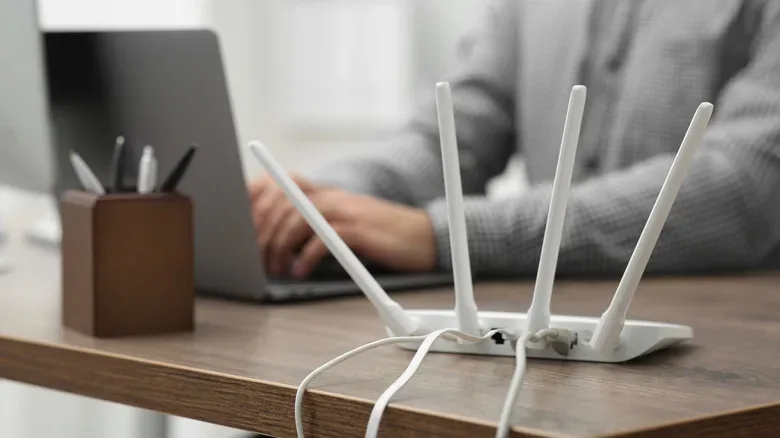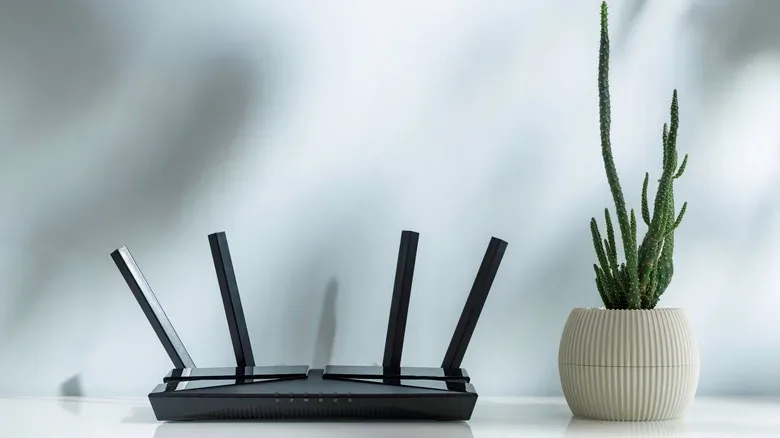
When an online match starts rubber-banding, a download stalls at the worst possible moment, or the living-room stream begins buffering like it is loading over dial-up, the router usually becomes the household’s least popular box. Yet it is easy to forget that this little device works constantly. It routes traffic for consoles, PCs, phones, smart TVs, handhelds, speakers, cameras, thermostats and whatever other connected gadget has quietly joined the network.
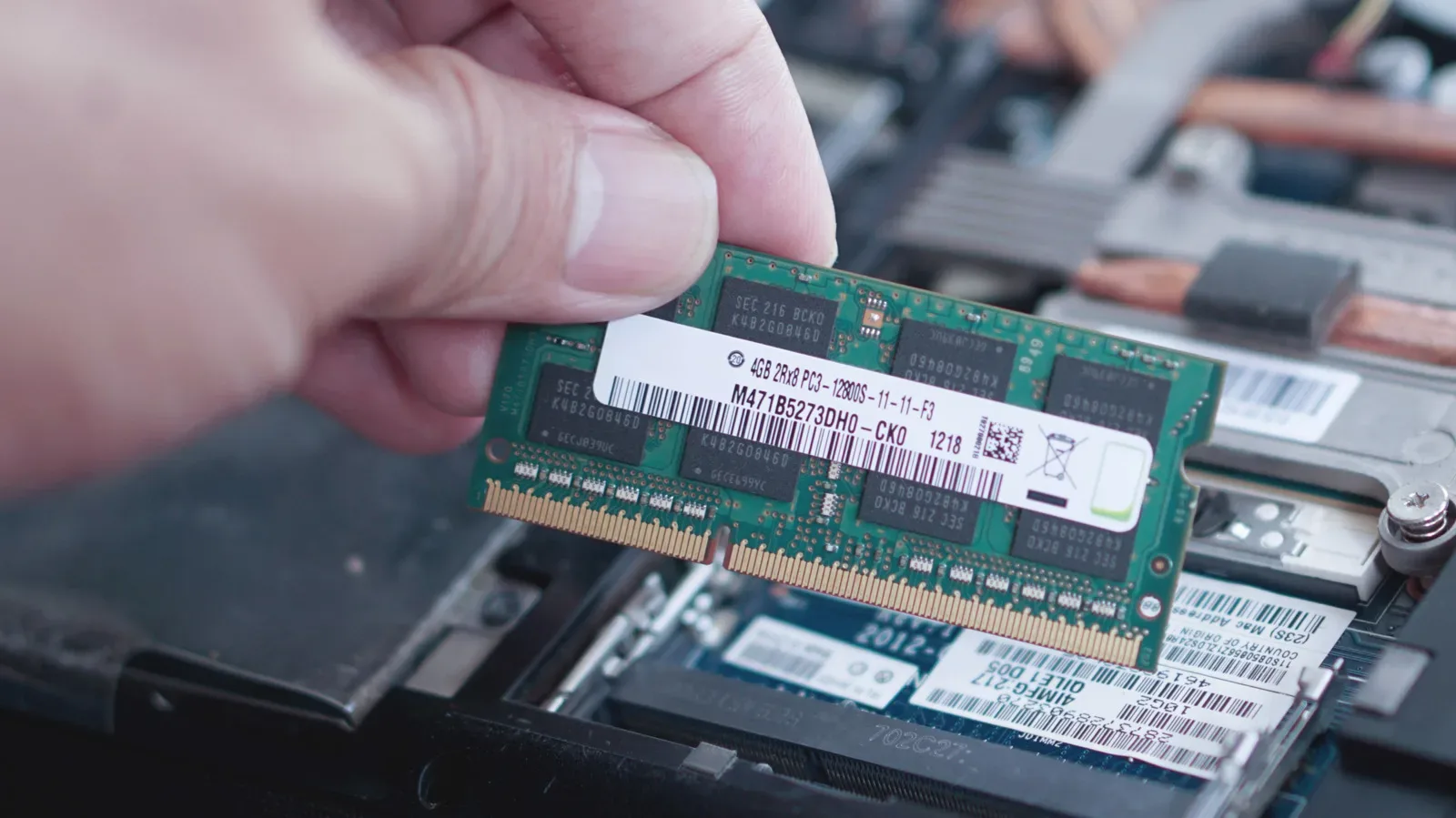
That makes a router less like a passive cable accessory and more like a compact computer that never gets a proper break. It has processing hardware, memory, software and active connections to manage all day. As with a PC or phone, temporary oddities can accumulate over time. A restart is a low-effort way to clear many short-term issues without changing the network’s name, password or broader setup.
For most households, putting a router reboot on a monthly routine is a sensible maintenance step. It will not cure every coverage issue, replace outdated hardware or overcome a problem at the internet provider. But it can refresh the equipment’s working state, re-establish connections and resolve the sort of unexplained sluggishness that makes a game lobby, voice chat or update queue feel cursed.
Why a reboot can help a busy gaming network
Home networking has become considerably more demanding than it was when one desktop computer occasionally checked email. A single evening may involve a console downloading a huge patch, a PC game updating in the background, a tablet streaming video, phones syncing photos and smart-home devices checking in with cloud services. The router has to coordinate local Wi-Fi traffic while also maintaining its connection upstream.
Its memory and cached information are useful, but they can also be part of a temporary performance problem. Restarting power-cycles the device and clears its active short-term state. That fresh start may address minor software hiccups or connections that have not recovered cleanly. It can also prompt the router, modem and internet provider connection to negotiate again.
A reboot may additionally cause some routers to reassess wireless conditions. On equipment configured to choose channels automatically, that can mean moving to a less crowded Wi-Fi channel after startup. It is not guaranteed on every model or every setup, and it will not erase interference from walls, neighboring networks or badly placed hardware. Still, it is one reason a restart can sometimes make wireless performance feel more consistent.
For a gaming setup, the practical benefit is not necessarily a spectacular increase in internet speed. More often, the aim is stability: fewer dropped devices, smoother streaming, fewer unexplained pauses and a cleaner baseline before investigating a more stubborn problem. If a PC itself is behaving erratically after the network checks out, a separate Windows Memory Diagnostic guide may help distinguish a system issue from a connection issue.
A restart is not a factory reset
The terminology matters, especially when the person assigned to “fix the Wi-Fi” is trying to avoid turning a minor annoyance into an evening of reconfiguration.
- Reboot or restart: Turning the router off and back on. Its saved settings should remain in place, including the Wi-Fi network name and password.
- Factory reset: Restoring the router to its out-of-box state. This typically removes customized settings, including the network name, password and other configuration choices.
A normal reboot is the routine maintenance action. A factory reset is generally reserved for major troubleshooting, preparing a device for a new owner or recovering access when the proper credentials and documentation are available. Do not press the recessed reset button simply because a match stuttered once.
The security case for routine restarts
Restarting should be viewed as one layer of basic network hygiene, rather than a standalone security solution. The FBI advises rebooting when suspicious activity is noticed, while the NSA has discussed weekly reboots for devices including routers, computers and smartphones. A reboot can interrupt certain malware activity and clear temporary connections that could be abused by an attacker.
That is helpful, but it is not a substitute for keeping router firmware current, using a strong unique Wi-Fi password and protecting the router’s administration account. A device that has an unpatched vulnerability does not become permanently safe merely because it was restarted. Likewise, a weak password remains weak after a power cycle.
Use the reboot as a recurring cue to spend a moment in the router’s app or web settings. Check whether automatic firmware updates are available and enabled. Confirm that the Wi-Fi password is not an easily guessed leftover from initial setup. If the router allows a separate administrator password, that should be strong and unique as well. These checks are especially worthwhile for networks hosting smart devices, since those devices may not receive the same level of long-term software support as a phone or PC.
Signs a router reboot is worth trying now
There is no need to wait for a calendar reminder if the network starts displaying classic signs of a temporary issue. A quick reboot is a reasonable first troubleshooting step when the symptoms are broad rather than isolated to one game, one device or one room.
- Internet performance is noticeably slower than usual across several devices.
- Wi-Fi connections drop intermittently or devices repeatedly disconnect.
- Streaming services buffer more often than expected.
- Game downloads, updates or cloud saves repeatedly stall without an obvious server-side explanation.
- Devices cannot stay connected even though they are normally reliable.
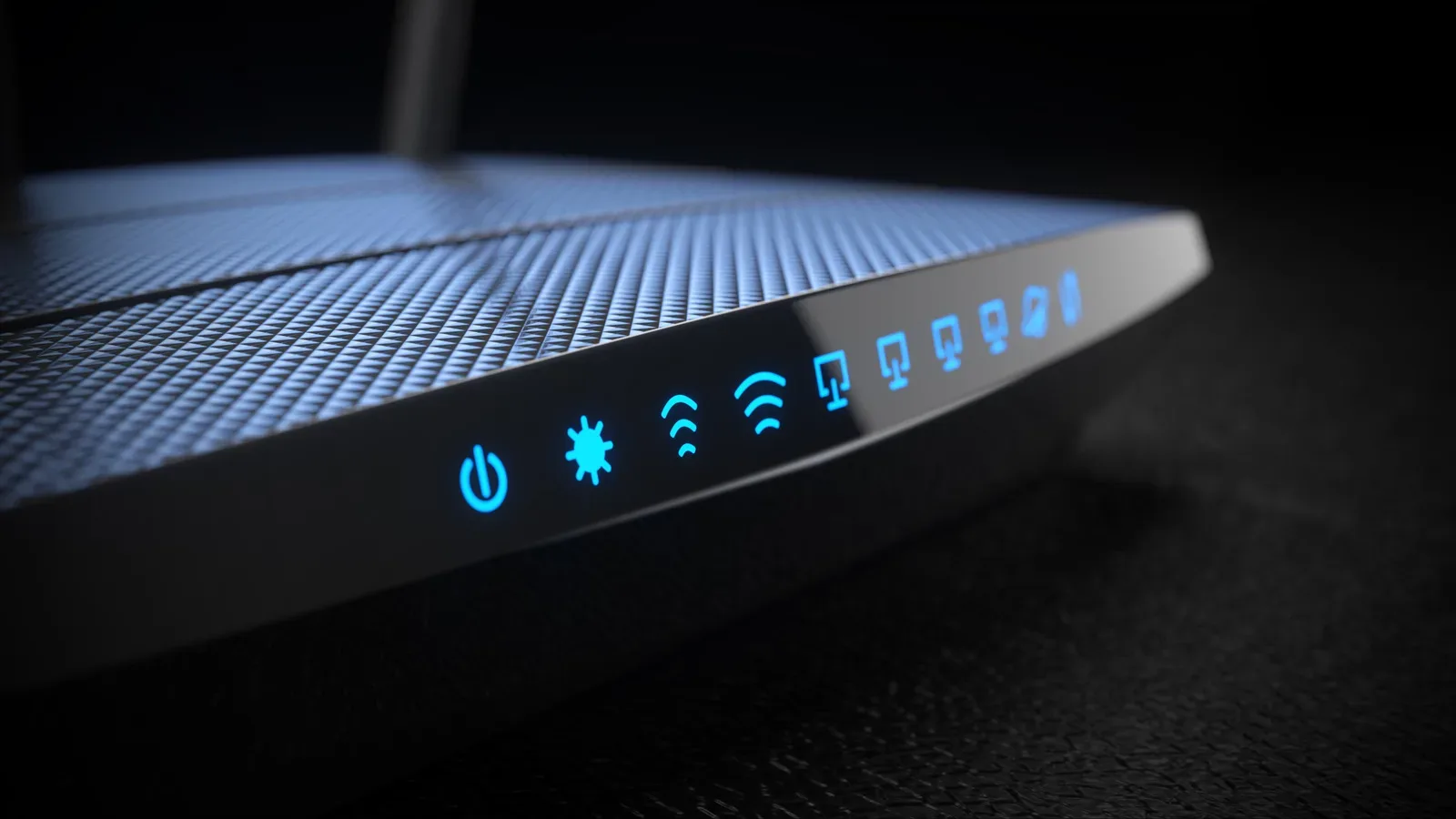
- The router’s status indicators suggest it is struggling to maintain its provider connection.
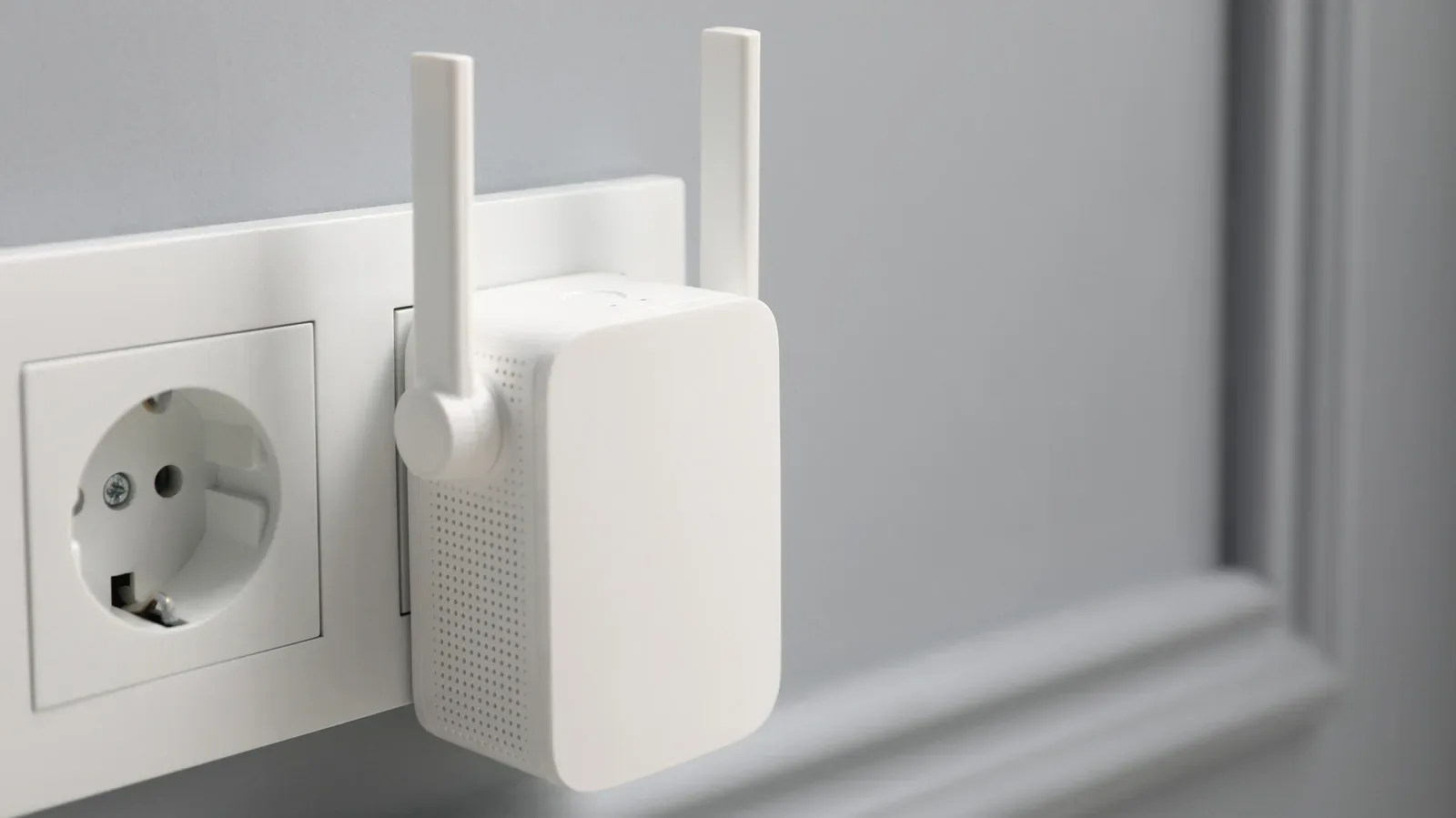
If only one device is affected, start by checking that device before blaming the router. A console may need an update, a PC could have a local networking problem, and a game service may be experiencing an outage. Similarly, if one far-away room always has poor Wi-Fi while the rest of the home is fine, restarting the router may offer little more than a temporary change. Persistent coverage problems may call for better placement, a mesh Wi-Fi system or a range extender.
How to do a full router reboot
The process is uncomplicated, but the order matters when a separate modem is involved. Plan for a few minutes without connectivity. That means pausing downloads and warning anyone in the house who is about to enter a competitive match or video call.
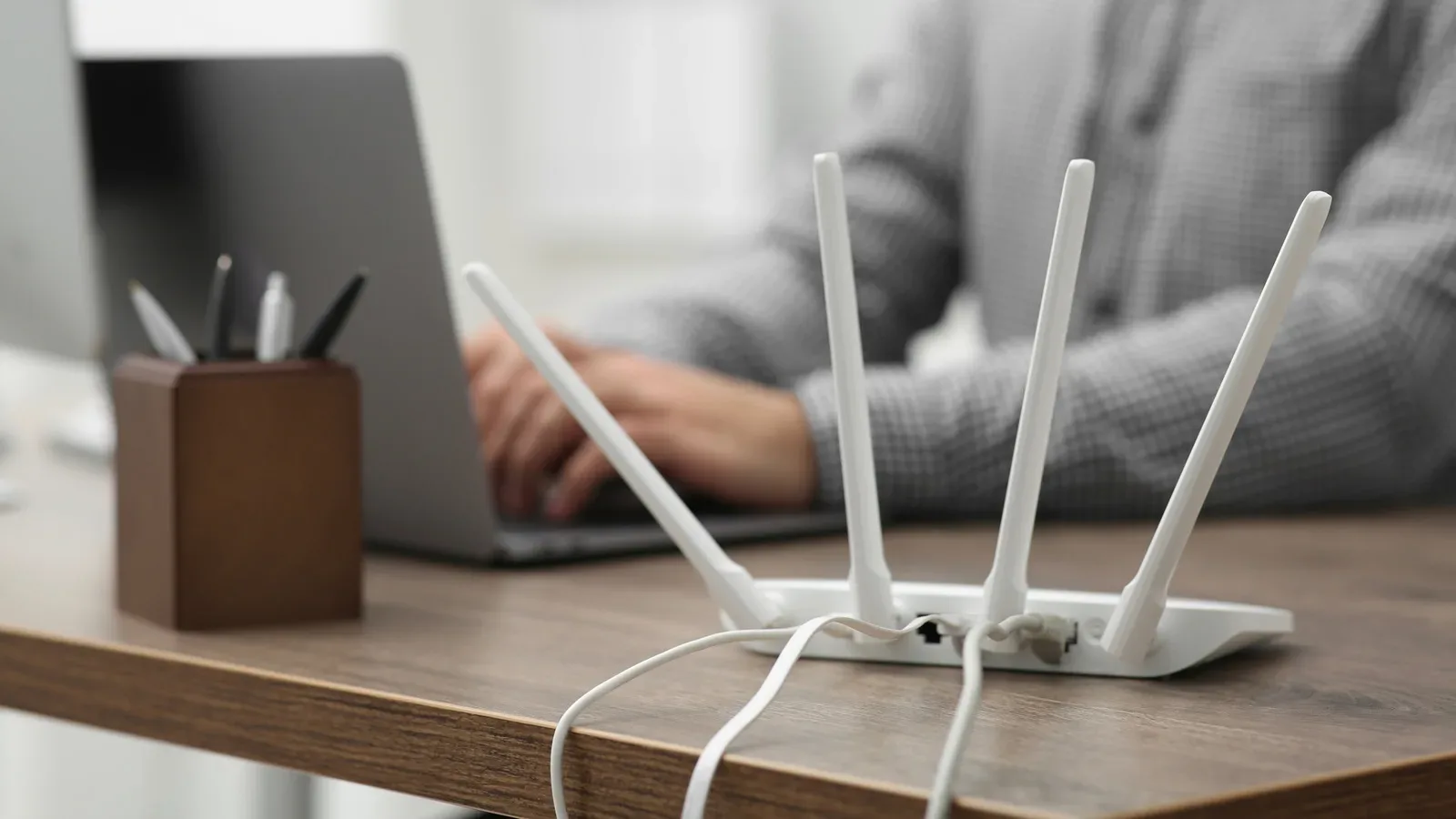
- Disconnect power from the router. Unplugging it is the clearest way to ensure a full power cycle.
- Wait roughly 30 seconds to one minute. This allows its temporary state to clear.
- If there is a separate modem, unplug it too. After the wait, power up the modem first.
- Give the modem one or two minutes to reconnect to the provider.
- Reconnect power to the router and allow it to boot completely.
- Check that wired and wireless devices reconnect normally before resuming the download marathon.
Some routers have a physical power button, which may restart the unit. However, unplugging is the more dependable choice for a full reboot because a switch on certain hardware can behave differently from a complete removal of power. Avoid factory-reset controls unless a more extensive troubleshooting process specifically requires one.
Make the routine easy instead of heroic
A monthly reboot is only useful if it actually happens. Tie it to something predictable, such as a monthly bill, a calendar reminder or routine household maintenance. The source guidance describes the job as taking about two minutes of direct effort, even though the modem and router may need a few additional minutes to reconnect.
Many modern routers include a scheduled reboot option in their companion app or management panel. When available, an overnight schedule is convenient because it refreshes the network while fewer people are using it. Automatic firmware updates are worth enabling at the same time when the hardware supports them.
If the outlet is difficult to reach, a smart plug can make a planned power cycle more convenient, provided it is used carefully and everyone knows the internet will briefly go offline. Keeping the router accessible also helps with cable checks, status lights and future maintenance. Placement matters too: a router buried in a cabinet or stranded behind dense obstacles may have coverage issues that no monthly reboot can solve.
Think of a restart as the networking equivalent of closing a stack of background apps before a big session: simple, not magical, and often worthwhile. Pair it with updates, sensible passwords and realistic expectations about Wi-Fi coverage, and the router has a better chance of keeping the household connected when the next patch, party chat and stream all arrive at once.