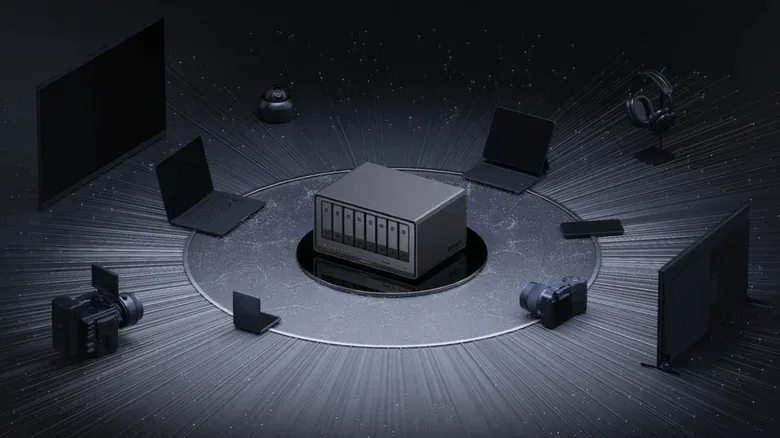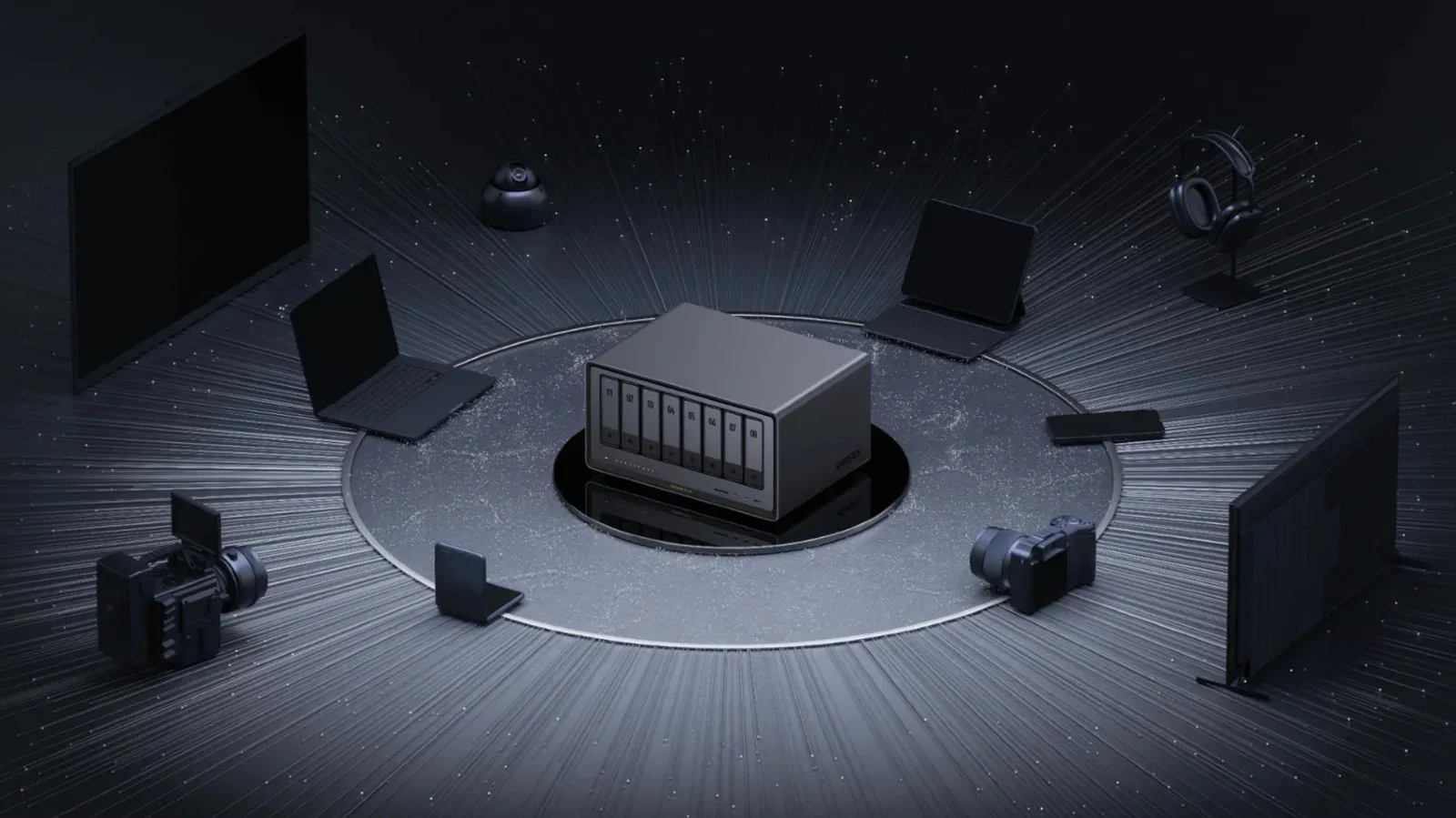
A network-attached storage device, or NAS, is built to live on a network. In normal use, a computer, phone, TV app or streaming device connects to it over that network to access files. That is why an HDMI connector on the back of a Ugreen NAS can look slightly out of place: it suggests a direct screen connection on hardware most owners expect to manage remotely.
It is not a spare port, though. The HDMI output has two distinct jobs. For everyday use, it can put media stored on the NAS onto a TV, PC monitor or projector. For more technical situations, connecting a display and keyboard can provide direct access to firmware setup and, potentially, a local terminal. That makes the port useful when the normal network-based route is inconvenient or unavailable.
The important expectation to set is that HDMI does not turn the NAS into a conventional living-room media player with a menu navigated by a physical remote. Ugreen’s approach still relies on its phone app to select and control playback. The cable delivers the picture to the screen; the phone provides the controls.
HDMI playback: a direct path to a display
The most accessible use is watching media files that are already stored on the NAS. Rather than streaming those files through a smart TV or a separate device such as a Roku Streaming Stick, the NAS can be connected directly to a display through HDMI. That opens up a few practical placements: a television without the preferred streaming setup, a computer monitor at a desk, or a projector.
After the NAS is connected to the display, the screen should show a notice directing the owner to use the Ugreen phone app. In that app, there is an option to cast media to the HDMI-connected screen. The phone then works as the playback remote.
That distinction matters because an HDMI cable alone does not provide a browsable, controller-friendly interface in the way a game console or streaming box typically does. There is no physical NAS remote mentioned here, so playback navigation stays in the companion app even while video is being shown directly on the screen.
A simple way to think about the setup
- The NAS holds the media files.
- The HDMI cable sends the output to the chosen display.
- The Ugreen phone app is used to choose media and control playback.
For owners who already use a smart-TV app or streaming stick successfully, HDMI is not necessarily a replacement. It is another output option. Its clearest value is flexibility: it can avoid depending on a separate streaming device and can make a monitor or projector viable as a viewing screen.
There is also a useful practical boundary. A NAS is primarily file-storage and network hardware, whereas a streaming stick is purpose-built for couch-friendly app navigation. The direct HDMI route is best understood as a way to display the NAS library, not evidence that the NAS will behave exactly like every other HDMI appliance in a media cabinet.
Why the port matters when something goes wrong
The more consequential role for HDMI emerges during setup changes or troubleshooting. A display paired with a keyboard gives an owner direct, local visibility into the NAS rather than requiring a working remote connection. This can be relevant for boot problems, operating-system replacement, or changes to advanced settings.
That is a major contrast with normal NAS administration. Ordinarily, the device is reached from another machine over the local network. If the NAS is not booting as expected, network access may be unavailable or may not be the most convenient first place to investigate. In that circumstance, an attached screen can show what the device is doing during startup, while the keyboard supplies local input.
It is the same basic advantage that a monitor and keyboard offer on a desktop computer: direct interaction when remote administration is not enough. For NAS hardware that is often tucked away without a display, that fallback can be especially helpful.
Entering the BIOS on a Ugreen NAS
BIOS stands for Basic Input/Output System. It is firmware that runs at startup before the main operating system. Its setup interface is where certain low-level machine settings can be viewed or changed. This is not the place for routine file management or media playback, but it can become relevant when diagnosing a boot issue or preparing to change the server operating system.
To attempt BIOS access, connect a screen first and boot the NAS. As startup begins, repeatedly press Ctrl + F12. That should open the BIOS setup screen, where navigation is handled with the keyboard.
One setting deserves particular care. Under the Advanced tab, owners planning BIOS changes are advised to look for Watchdog Settings and disable Watch Dog Control. When that control is enabled, the NAS will reboot after a specified period of time. Disabling it before making planned firmware-level adjustments can prevent that automatic reboot behavior from interrupting the work.
It is worth treating that as a task-specific step rather than a recommendation to change settings casually. BIOS options are closer to the machine’s foundation than normal NAS controls. An incorrect setting can create a problem that is harder to resolve remotely, which is precisely why the HDMI-and-keyboard fallback is valuable in the first place.
Before changing BIOS settings
- Connect a screen and keyboard before rebooting.
- Make changes only when there is a clear reason, such as troubleshooting or an operating-system change.
- Record the existing setting before altering it, so there is a known state to return to.
- Be aware that Watch Dog Control can trigger a timed reboot while enabled.
These are conservative habits, not extra features. Firmware configuration is powerful because it sits beneath the regular NAS interface, and that is also why it requires more caution than selecting a video from a library.
Direct terminal access: useful, but less certain
The HDMI connection may also offer a route to the NAS terminal. A terminal is a text-based interface for entering commands directly into an operating system. It is suited to administrative work and advanced configuration rather than a graphical point-and-click workflow.
Reports from Ugreen NAS users indicate that, with a display and keyboard attached, pressing Ctrl + Alt + F1 can bring up the terminal. This route is not officially documented, and function-key behavior may vary among NAS models. In other words, it is a potentially useful technique rather than a universal guarantee.
The standard terminal path is an SSH client running on another computer connected to the same local network. SSH, short for Secure Shell, is a method for opening a command-line session on another device over a network. Direct HDMI terminal access can be simpler when working in front of the NAS, and it may be especially attractive if a remote SSH connection is not available.
Neither route reduces the risk of an incorrect command. A terminal can expose settings and functions that are much more consequential than ordinary app controls. Changing something without understanding its purpose can create difficult-to-fix issues. Owners who only need to play media should have no reason to enter this interface; those who need it for administration should proceed deliberately.
That wider principle also applies to connected-device troubleshooting generally. A direct control path is often useful when a network-dependent interface is misbehaving, but it is not automatically the best place to make broad changes. For another example of isolating a specific device behavior before altering settings, see this guide on stopping Android Auto from starting music automatically.
Choosing the right HDMI use case
For a Ugreen NAS owner, the port is easiest to evaluate by matching it to the task at hand.
- Want to show locally stored video on a nearby display? Connect HDMI, then use the Ugreen phone app to cast and operate playback.
- Need a display without relying on a smart-TV app or streaming stick? HDMI can connect the NAS directly to a TV, monitor or projector.
- Need to inspect startup behavior or alter low-level settings? Add a keyboard and use the display to attempt BIOS access with Ctrl + F12 during boot.
- Need command-line administration at the hardware itself? A direct terminal may be available through Ctrl + Alt + F1, though this is user-reported and can differ by model.
The HDMI port therefore makes the NAS more self-sufficient than its network-first design initially suggests. It can act as a straightforward media output, but it also supplies a recovery and configuration route for the moments when the usual remote workflow is not enough. Just do not expect the cable to eliminate the need for the Ugreen app during media playback—or the need for caution when working in BIOS or the terminal.