A laptop can be powerful enough to handle work, streaming, and a sizeable game library, yet still feel inconvenient once it reaches a desk. Thin designs frequently leave limited room for ports, while a fixed setup may call for an external display, keyboard, mouse, webcam, wired networking, storage, audio, and charging. That is where a USB-C docking station can make an outsized difference: it moves the connection problem away from the laptop and into one central box.
At its simplest, a USB-C dock connects to a laptop with one USB-C cable, then provides connections for the equipment that normally surrounds it. The practical payoff is not that every desk suddenly needs every port imaginable. It is that a laptop can arrive and leave without turning cable management into a daily ritual. Connect one lead, and the monitor, wired accessories and power can be ready. Unplug that same lead, and the machine is portable again.
For someone using a laptop as both a daily computer and a gaming machine, that is a useful division of labor. The laptop remains the thing that travels; the dock becomes the permanent home for the desktop setup. It can also help keep the laptop’s own limited ports from handling repeated connections to multiple peripherals.
What a USB-C dock actually does
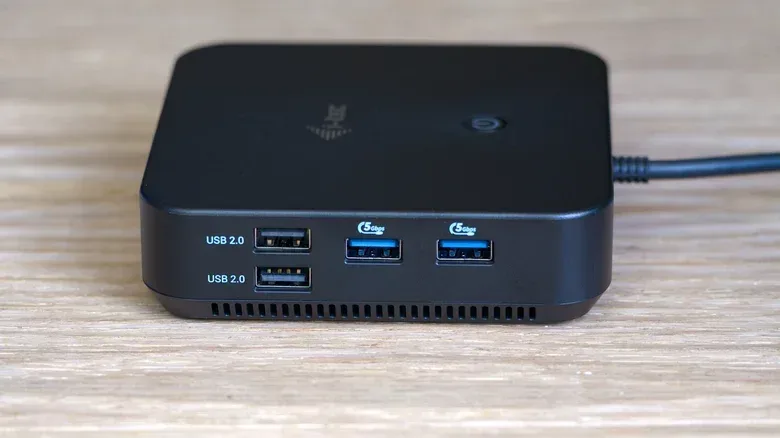
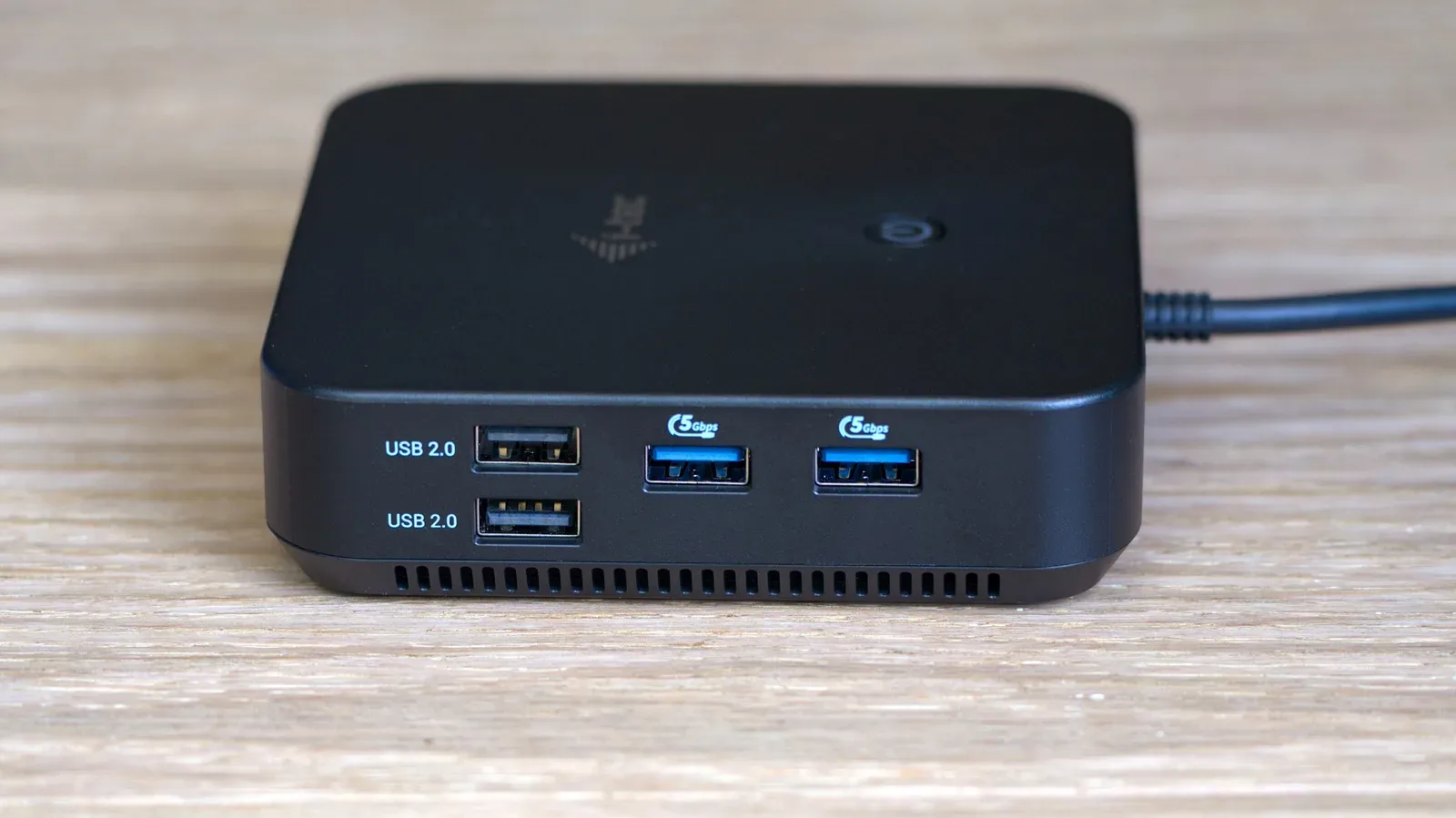
A docking station is a port-expansion device. It usually sits on a desk and links the laptop to peripherals through a single USB-C connection. Depending on the dock, its ports may include USB connections for keyboards, mice or other accessories; HDMI or DisplayPort for an external display; an SD card reader; Ethernet for wired networking; and audio. Some models also support charging the connected laptop.
This is especially relevant to compact laptops that only have three or four built-in ports. A suitably equipped dock can effectively turn that modest collection into a much broader set of connections—potentially a dozen ports in total. The point is not merely port count, however. A dock lets cables that are normally scattered across the desk terminate in one place instead of being constantly connected to the computer itself.
That change can make a desk easier to manage. The display cable stays connected to the dock. So do the keyboard, webcam, Ethernet cable and charger where applicable. The laptop connection becomes the single cable that needs attention when sitting down or packing up.
The one-cable advantage
The strongest case for a dock is routine. A user who alternates between a portable setup and a desk setup may otherwise reconnect a cluster of accessories every day. With a dock, the process can be reduced to one plug-in action at the start of a session and one unplug action at the end.
That has three direct benefits:
- Less cable clutter: peripheral cables are routed to the dock rather than converging on the laptop.
- Faster transitions: a desk can be ready without reconnecting each device individually.
- Less repeated strain on laptop ports: the dock takes on the frequent connection and disconnection of several accessories, while the laptop uses one connection.
The last point is easy to overlook. A dock does not make a laptop port indestructible, and its USB-C cable still gets used. But it consolidates daily wear into a simpler connection pattern instead of repeatedly using several ports for several separate devices.
Why a dock can matter for a gaming desk
A gaming laptop at a desk often needs more than a charger and a mouse. An external monitor may be preferable for a larger view, a keyboard can improve ergonomics, and a wired Ethernet connection can be desirable where a stable wired internet link is available. A dock may provide the HDMI or DisplayPort output, USB ports and Ethernet connection required to bring those items together.
It can also keep a gaming area flexible. The monitor and peripherals do not have to be treated as accessories that belong to one permanently installed desktop tower. They can be the stable components of a desk that a laptop joins when needed.
That flexibility does not remove the need to check compatibility. A dock is not a magic adapter that guarantees every USB-C laptop will send video to any monitor, charge correctly, and operate multiple displays. The connection standard and the laptop’s capabilities determine what is possible. Buyers should treat the laptop, the dock and the intended display arrangement as one system rather than assuming that a USB-C-shaped port alone answers every question.
Monitor behavior can have several potential causes even before a dock enters the picture. For broader display troubleshooting context, see this guide to diagnosing monitor flicker at startup.
USB-C hub vs. docking station
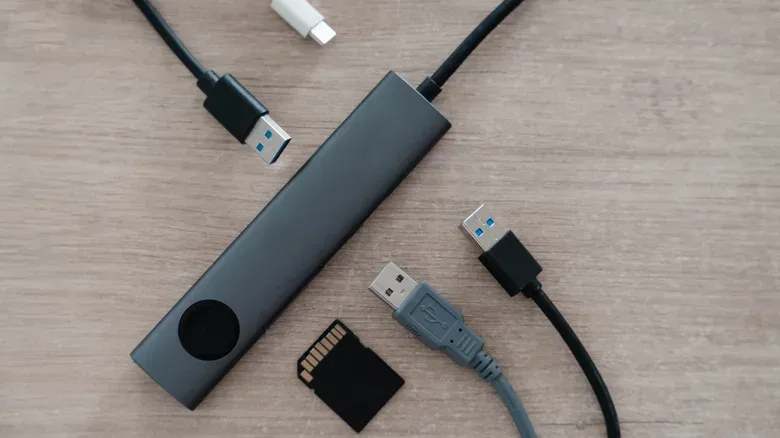
The words “hub” and “dock” are sometimes used loosely, but the practical distinction is helpful when deciding what to buy. A USB-C hub is generally the smaller, lower-cost route for adding a limited set of basic connections. It commonly offers around four to 10 ports and is described at a price range of roughly $30 to $150.
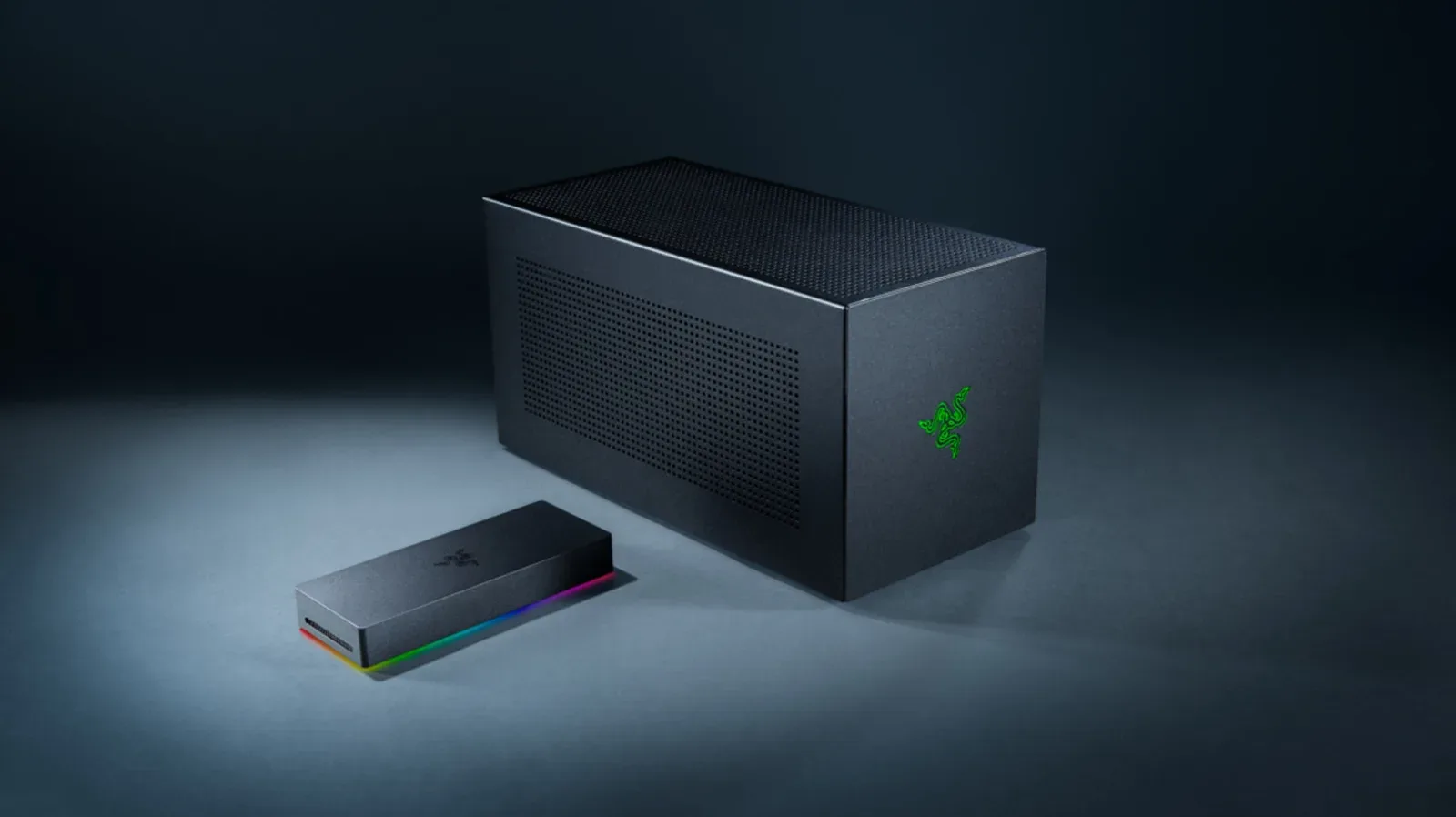
A docking station is typically intended as a more permanent desktop centerpiece. Docks generally supply more ports, often include their own DC power adapter, and can cost substantially more. Higher-end options can exceed $400. The added cost is tied to the broader role: a dock may be intended to support multiple displays alongside Ethernet, audio, USB accessories and laptop charging through its single laptop cable.
Neither category is automatically better. The right choice depends on the actual setup.
A hub is likely enough when
- You only need a few extra connections.
- Your main requirement is simple port expansion rather than a full desk conversion.
- You do not need an extensive multi-monitor arrangement.
- You want the less expensive option.
A dock makes more sense when
- The laptop regularly moves between a portable routine and a fixed desk.
- You want the monitor, keyboard, webcam, Ethernet and charging setup to remain connected in one place.
- You need more ports than a basic hub provides.
- You intend to use multiple displays and need a model designed for that job.
This is a decision about reducing friction, not collecting specifications for their own sake. Buying a high-end dock for a laptop that only needs a mouse, keyboard and one display may be unnecessary. Conversely, choosing a minimal hub for a desk that relies on multiple monitors, wired networking and charging could leave important needs unmet.
The compatibility checks that matter
Before choosing any USB-C dock, start with the laptop rather than the dock listing. USB-C describes the connector shape, but a USB-C port does not necessarily provide every possible function. Video output is the clearest example.
A USB-C port can send video through a dock only when it supports DisplayPort Alt Mode, or when the laptop port is Thunderbolt or USB4. DisplayPort Alt Mode is a capability that allows a USB-C connection to carry a display signal. If the laptop does not support one of those relevant video-capable standards, a dock’s HDMI or DisplayPort connector should not be assumed to produce an image simply because the dock physically plugs in via USB-C.
Thunderbolt 4 and USB4 are higher-end connection standards referenced for docks that can handle more demanding one-cable desktop arrangements. In this context, they can support configurations involving multiple displays, Ethernet, audio and laptop charging through the same cable. That does not mean every laptop-and-dock combination will offer identical display support; the specific equipment still needs to be checked.
Power is the other essential check. A dock needs to support Power Delivery pass-through at the wattage the laptop requires. Power Delivery is the USB-C charging system involved here, while pass-through means the dock can deliver power onward to the laptop through the same cable used for data and peripherals. If the dock cannot meet the machine’s required wattage, the one-cable goal may not work as intended.
This matters even more when using an external monitor with the laptop lid closed. The laptop can draw more power with an external display attached, so keeping power connected is recommended for that closed-lid arrangement. In other words, monitor output and charging should be considered together rather than as separate shopping-list items.
A practical pre-purchase checklist
- Identify the laptop port’s capabilities. Confirm whether the USB-C port supports DisplayPort Alt Mode, Thunderbolt or USB4 if external video is part of the plan.
- List the permanent desk accessories. Count the monitor connections, USB devices, Ethernet need, SD card use and audio needs rather than buying based on a vague desire for “more ports.”
- Decide whether one or multiple displays are required. Multiple-monitor use calls for more careful matching of laptop and dock capabilities.
- Check charging requirements. Verify that Power Delivery pass-through matches the laptop’s required wattage.
- Plan for closed-lid use. Keep the laptop powered when an external monitor is attached and the lid will be closed.
- Choose the category that fits. A basic hub can be the sensible purchase for a few connections; a powered dock is for the fuller desktop arrangement.
The real value is a repeatable setup
USB-C docking stations are most useful when they remove repetitive work. The appeal is not simply adding HDMI, DisplayPort, Ethernet, USB or SD card access to a laptop. It is arranging those capabilities into a consistent workstation that does not have to be rebuilt whenever the laptop comes home, heads to class, or moves to another room.
For a portable computer that also serves as the center of a monitor-and-peripherals desk, a well-matched dock can make the split role feel much more natural. The laptop stays portable by design. The desk stays connected by default. But the purchase is only as good as the compatibility work behind it: verify video support, verify charging wattage, and select a hub or dock based on what the setup genuinely needs.